
WordPress AI Event Management
Describe your event in a sentence and let Gia create it
Gia brings AI event management into your WordPress admin. Tell it about an event in plain words, answer a couple of quick questions, and check the draft it saves.


Gia AI features
What AI event management with Gia can do
Gia lives in the corner of your Sugar Calendar screens, ready when you have an event to add or a question to ask.
Describe it, Gia drafts it
Write the event the way you’d say it out loud, and Gia fills in the date, time and place from what you wrote.
Only asks what’s missing
Short questions you answer with a tap, only about what your description left out, like a title or which calendar it goes in.
Nothing goes live on its own
Gia saves new events as drafts and never publishes or deletes them. You press Publish.
Change an event by asking
Name the event and the change. A Before and After table shows it, and nothing saves until you approve.
Ask how sign-ups are going
Ask how many tickets sold or how many people RSVP’d, and Gia tells you which dates it counted.
Adds the calendar you need
Name a calendar you don’t have yet, and Gia offers to create it for the event.
How it works
How AI event management works in Sugar Calendar
You describe the event and Gia fills in the fields, but you decide what goes live.
One sentence instead of one field at a time
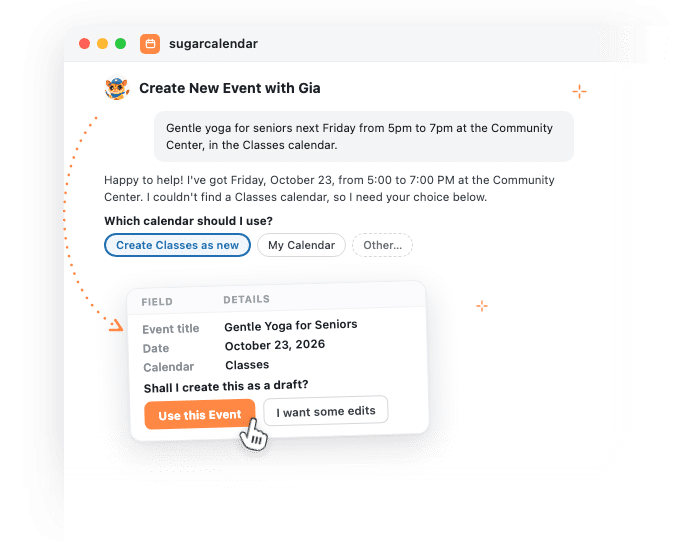
Most events fit in a sentence: yoga for seniors, Friday from five to seven, at the community center.
Click New Event with Gia AI and type it in. Gia reads out the date, time and place, then asks only about what you left out.
See the whole event before anything is saved
Gia shows the event in a summary first. Click I want some edits to change something, or Use this Event to save it as a draft and open it in the editor.
You press Publish yourself.
Change an event by saying what’s different
Plans move, or you realize people should bring their own mat.
Choose Edit existing event, name the event and say what’s changing. Gia shows a Before and After table, and nothing is saved until you click Apply.
Get your numbers without building a report
Choose Ask about events and ask the way you’d ask a person, such as how many tickets sold in the last 30 days.
Gia answers in a couple of sentences, with the figures in bold and the dates it counted.
Reviews
What our users say about us

 WordPress
-
 Sugar Calendar is now my go-to calendar due to its simplicity with adding new events. I’ve found that it was so much easier for my clients to use than some of the other event/calendar plugins out there while providing the features they needed most.
 -
Sugar calendar is an overall great plugin that’s easy to use, looks clean and was so easy to implement. Im so used to programs having a steep learning curve before I can truly use the program to its fullest potential, this is not the case for Sugar Calendar!
-
Sugar Calendar does all that I need. I have never had a problem with it, and support has been responsive when I had questions. It’s easy to install, simple to configure. It looks great on my WordPress theme.
-
Sugar Calendar is intuitive, and very user friendly. I love that the learning curve to use the calendar is so low. Even my non-tech clients can get their heads around it.
-
Sugar Calendar is a selective and useful approach for time management and scheduling. It gives the exact appointment to the right person, and all the reminders are well set.
-
Overall I’ve found sugar calendar to be a robust plugin that’s well maintained and offers everything you would need for a Wordpress plugin like this. It’s extremely user friendly and the simplicity of creating events, adding details, and more make this an amazing plugin.
-
This is an incredibly solid plugin to use as a base. I’ve tried several others, and this one is better than all the others I’ve tried!
-
Huge fan! Love the simple nature of this plugin. Perfect for a site that just needs a basic calendar with none of the bloat that comes along with The Events Calendar.
-
I was just looking for a simple calendar to display a short events list inside a sidebar and a calendar on a single page. This plugin accomplishes this exactly as expected and, unlike the other many calendar plugins, this one provides two blocks which include the events list and also the calendar.
Explore other powerful features
Everything you need for seamless event management.
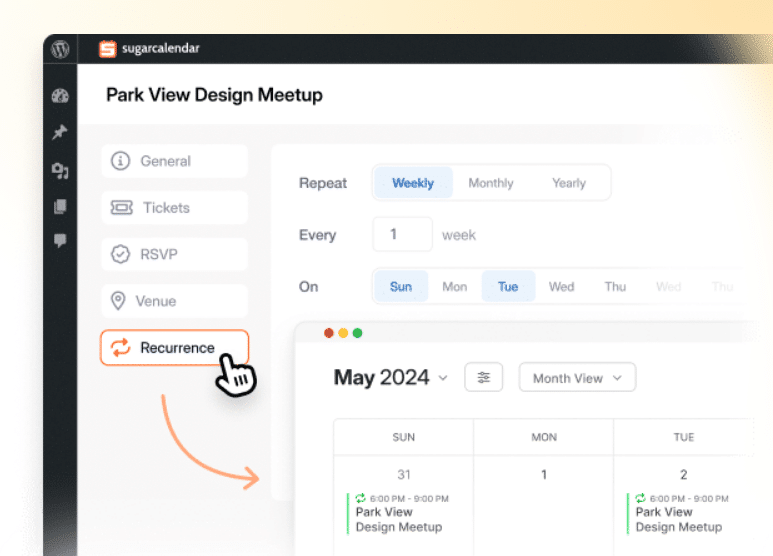
Recurring events
Create events that repeat automatically on any schedule you need.
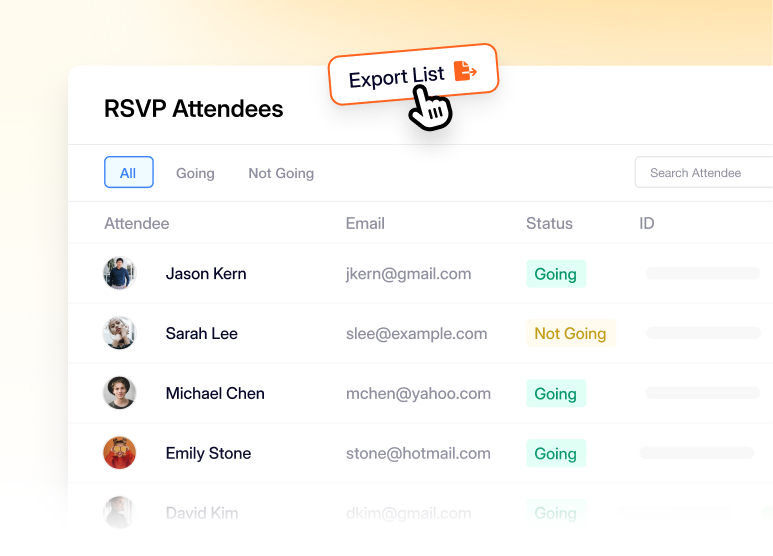
RSVP management
Collect names and headcounts for events that don’t sell tickets.
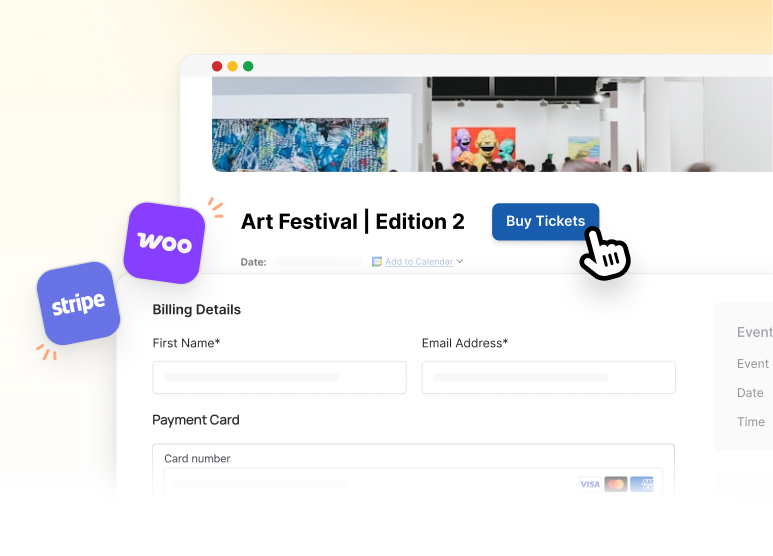
Event ticketing
Accept payments and sell tickets directly from your WordPress site.
Frequently asked questions
Have a question about Gia AI in Sugar Calendar? Start here.
Which plans include AI event management with Gia?
Every plan, including the free Lite version. On Lite, Gia can create, edit and ask about your events, ticketed events included. Any paid plan adds recurring events. The Plus, Pro and Elite plans add RSVP events and RSVP counts, through the RSVP add-on those plans include. Plans are on the pricing page.
Will Gia publish or delete my events?
No. Gia shows you a summary first and saves new events as drafts, so you always review an event and publish it yourself. Changes to existing events only happen after you approve them with Apply. Gia can’t delete events, and if you ask, it points you to your Events list.
Can Gia create a recurring event?
Yes, on any paid plan. Describe the pattern, such as every Tuesday from 10 to 11 until December 15, and Gia shows the repeat schedule in the summary before it saves the draft.
Can Gia set up tickets and RSVPs?
Yes. Tell Gia the price and how many people can come, and it adds the ticket to the draft, on every plan including Lite. For an RSVP event, tell Gia that people should RSVP. That needs Plus, Pro or Elite, which include the RSVP add-on.
What happens to what I type?
Your message, and the event details Gia looks up to answer it, go to Sugar Calendar’s AI service so Gia can reply. We don’t keep a history of your chats on our side. The current chat stays on your own site until you clear it, log out, or leave it unused for a day. Gia is built to work with registration totals, and none of the actions it can use reads attendee lists, so it can count registrations but can’t see who registered. If you rate an answer with the thumbs up or thumbs down, that answer and the message you sent before it are shared with us so we can make Gia better.
Does AI event management with Gia use credits?
Yes. Gia uses AI credits as it works, separate from the integration credits that Zoom and Google use. Lite includes a one-time allowance so you can try Gia out, and paid plans get a monthly allowance that resets on the 1st. Allowances vary by plan, and you can see how much you’ve used under Events » Settings » License & Usage.
Why don’t I see Gia on my site?
Gia needs WordPress 6.9 or newer and a site that’s live on the internet, because that’s how it connects to our AI service. On older WordPress versions, or a site running on your own computer, you’ll see the quick links menu in the corner instead. The quick links also show if someone has switched Gia off in the settings.
Can I turn Gia off?
Yes. Go to Events » Settings » Misc and switch on Hide AI Features. That hides Gia and the AI usage details, and the quick links menu comes back in the corner. You can switch Gia back on any time.