
WordPress Google Calendar Integration
Keep your events and Google Calendar in sync, both ways
With the Google Calendar integration, connect one Google calendar and your events page keeps up with it. Add or move an event in either place, and the other follows.


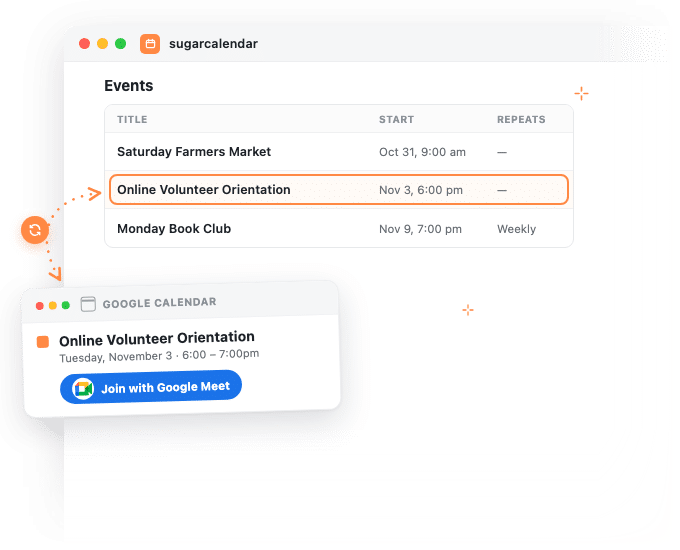
Google Calendar integration features
What you get with the Google Calendar integration
One connection to your Google account brings two-way sync and Google Meet links to your events.
Sync both ways, or one way
Keep both calendars in sync, or send changes only to Google or only to your site. You pick the direction.
Plan in Google, publish on your site
Events you add in your selected Google calendar arrive on your site as published events, and your edits there follow.
Weekly classes stay a series
On any paid plan, a weekly series syncs as one recurring event in both directions.
Google Meet in one click
Create the meeting from the event editor. The join link goes out in your attendees’ confirmation emails.
You choose who sees the link
Keep the Meet link for ticket holders and RSVP guests, or show it on the event page to everyone.
Google deletes land in the Trash
An event deleted in Google goes to your site’s Trash, where you can restore it.
How it works
How the Google Calendar integration keeps your schedule straight
Keep planning in the Google Calendar you already use, and your website stays current.
Plan in Google, and your events page follows
You move Saturday’s garden workday to Sunday on your phone, and the events page still says Saturday.
With Sync both ways on, events you add or edit in Google come over as published events, and a Google delete moves your copy to the Trash.
Publish on your site, and it’s in Google too
Publish an event in the Sugar Calendar Events editor, or update it there, and it appears in your Google calendar with its formatting intact.
Drafts stay off Google until you publish them, and moving an event to the Trash leaves the Google copy alone.
Weekly classes come across as a series
A weekly series syncs as one recurring event in both directions.
That works on every paid plan, which includes recurring events. On the free Lite version, a recurring Google event comes over as one event on its first date.
Online events get a Google Meet link
Choose Google Meet under Online on the Location tab and click Create Google Meet Meeting. The join link reaches ticket buyers and RSVP guests by email, and Show to decides whether visitors see it too.
Google Meet works with or without calendar sync.
Reviews
What our users say about us

 WordPress
-
 Sugar Calendar is now my go-to calendar due to its simplicity with adding new events. I’ve found that it was so much easier for my clients to use than some of the other event/calendar plugins out there while providing the features they needed most.
 -
Sugar calendar is an overall great plugin that’s easy to use, looks clean and was so easy to implement. Im so used to programs having a steep learning curve before I can truly use the program to its fullest potential, this is not the case for Sugar Calendar!
-
Sugar Calendar does all that I need. I have never had a problem with it, and support has been responsive when I had questions. It’s easy to install, simple to configure. It looks great on my WordPress theme.
-
Sugar Calendar is intuitive, and very user friendly. I love that the learning curve to use the calendar is so low. Even my non-tech clients can get their heads around it.
-
Sugar Calendar is a selective and useful approach for time management and scheduling. It gives the exact appointment to the right person, and all the reminders are well set.
-
Overall I’ve found sugar calendar to be a robust plugin that’s well maintained and offers everything you would need for a Wordpress plugin like this. It’s extremely user friendly and the simplicity of creating events, adding details, and more make this an amazing plugin.
-
This is an incredibly solid plugin to use as a base. I’ve tried several others, and this one is better than all the others I’ve tried!
-
Huge fan! Love the simple nature of this plugin. Perfect for a site that just needs a basic calendar with none of the bloat that comes along with The Events Calendar.
-
I was just looking for a simple calendar to display a short events list inside a sidebar and a calendar on a single page. This plugin accomplishes this exactly as expected and, unlike the other many calendar plugins, this one provides two blocks which include the events list and also the calendar.
Explore other powerful features
Everything you need for seamless event management.
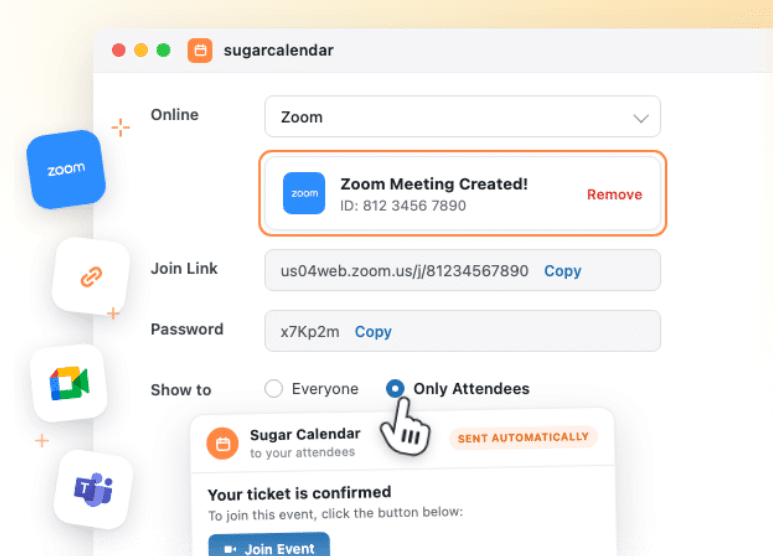
Virtual events
Run online events with Zoom or Google Meet, and choose who sees the link.
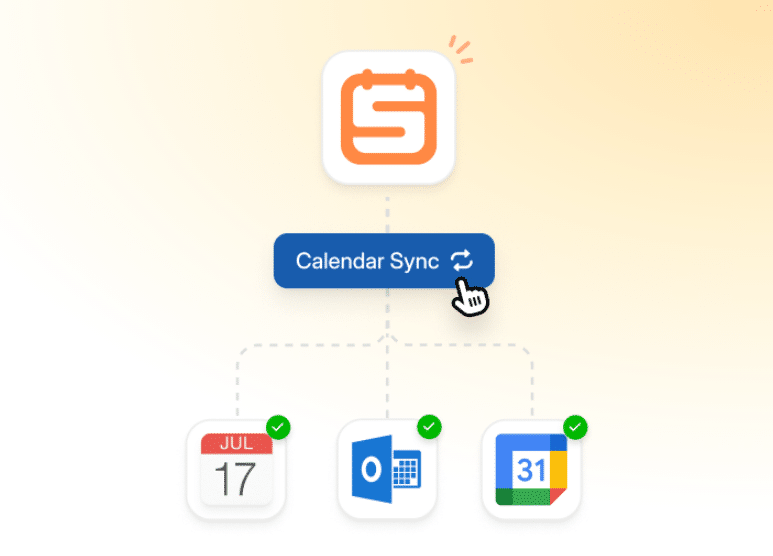
Calendar feeds
Let attendees subscribe to your events in Google Calendar, Outlook or Apple Calendar.
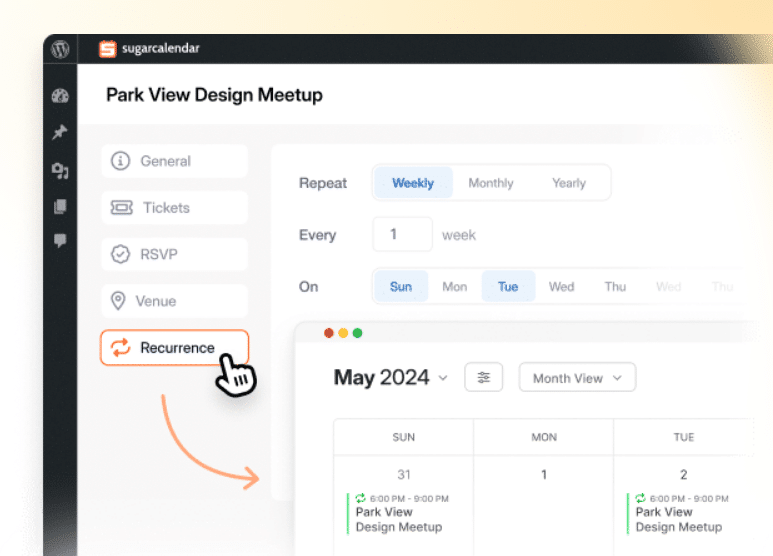
Recurring events
Create events that repeat automatically on any schedule you need.
Frequently asked questions
Have a question about connecting Google Calendar to Sugar Calendar? Start here.
Does the Google Calendar integration work on the free Lite version?
Yes. Google Calendar sync and Google Meet are on every plan, including Lite. On Lite, a recurring Google event comes over as a single event on its first date, and any paid plan keeps the whole series. Plan details are on the pricing page.
How do I connect Google Calendar?
Go to Events » Settings » Integrations, open Google Calendar / Meets and click Connect with Google. Approve all the permissions Google asks for, choose a calendar under Sync Events On and a direction under Sync Settings, then click Save Settings. Syncing starts once you save. You need a Google account and a live WordPress site with HTTPS, and it helps to set your site’s time zone under Events » Settings » General first so times land in Google correctly.
Which details sync between Sugar Calendar and Google Calendar?
The title, description, date, time, time zone, all-day setting, repeat pattern (kept on paid plans; on Lite a recurring Google event comes over as one event) and the Google Meet link. Venues, tickets, RSVPs, speakers and images stay on your website, where they’re used.
What happens to events already in my calendars?
They stay where they are. Connecting syncs new events and changes from then on, and an event already on your site goes to Google the next time you edit it. To get existing events into both places, every paid plan includes calendar feeds (Google shows a feed as its own, separate calendar) and the ICS import.
What happens if I delete an event?
Deleting an event in Google Calendar moves it to the Trash on your site, so you can restore it. On your site, moving an event to the Trash leaves the Google copy in place, and deleting it permanently removes it from Google Calendar too.
Can I use Google Meet without syncing my calendar?
Yes. Choose Don’t Sync Events under Sync Events On and save. Google Meet stays available in the event editor, and neither calendar changes.
Does the Google Calendar integration use credits?
Yes. Syncing events and creating Meet links use integration credits, the same allowance Zoom uses. Every plan includes some. Lite comes with a one-time allowance to get you started, and paid plans get a monthly allowance that resets on the 1st, with bigger plans including more. You can see your usage under Events » Settings » License & Usage.
How is this different from calendar feeds?
A calendar feed lets anyone subscribe to your events in their own calendar app, and it only goes one way, from your site to them. The Google Calendar integration connects your own Google calendar in both directions, so a change made in Google comes back to your website.