


Would you like to let users submit their own events on your WordPress site? With Sugar Calendar, you can integrate popular form builder plugins, enabling users to submit events directly from the frontend of your website.
This tutorial will guide you through setting up event submissions from the frontend using supported form builder plugins.
In This Article
Before you get started, make sure to install and activate the Sugar Calendar Events plugin on your site and verify your license.
Creating Event Submission Forms
To allow users to submit events directly from your website, you’ll need to create a form using a supported form builder plugin.
Required Form Fields
To create an event submission form, you’ll need to include the following required fields. These fields ensure that the event can be properly displayed on your site:
- Event Title: This is the name that will be displayed at the top of the Event Page.
- Event Description: This section will contain the main content of the Event Page, providing detailed information about the event.
- Start Date and Time: This field specifies the date on which the event is scheduled to occur, ensuring users know when it will take place.
- End Date and Time: This field indicates the exact date and time the event will end.
Optional Form Fields
Depending on your needs, you may include these optional fields:
- Venue: This field lets users select an event location from the available venues on your site. Useful with the Google Maps integration.
- Event Status: Status of the event. Available options include: Draft, Automatically Publish, and Pending Review.
- Calendar: A Multiple Choice field that specifies which calendar the event belongs to.
- Tags: This field lets you assign tags to events on your site.
- Event End Time: Time the event ends.
- Repeat: Indicates if the event recurs daily, weekly, monthly, or yearly.
- End Repeat: Final date for the recurring event.
- Event Featured Image: Allows users to upload an image for the event page.
- Speakers: Dropdown field to select a speaker or multiple speakers for the event.
- Event Link URL: URL field to specify the address for the event. Useful when creating virtual events.
Configuring Form Builders
To set up event submissions from the frontend, you will need to configure one of the supported form builder plugins. Sugar Calendar currently supports integration with the following form builder plugins:
WPForms
To configure frontend event submissions for WPForms, begin by creating a new form and adding the necessary fields.
Then, navigate to Settings » Sugar Calendar in the WPForms form builder.
From here, select On from the Enable Sugar Calendar Event creation dropdown.
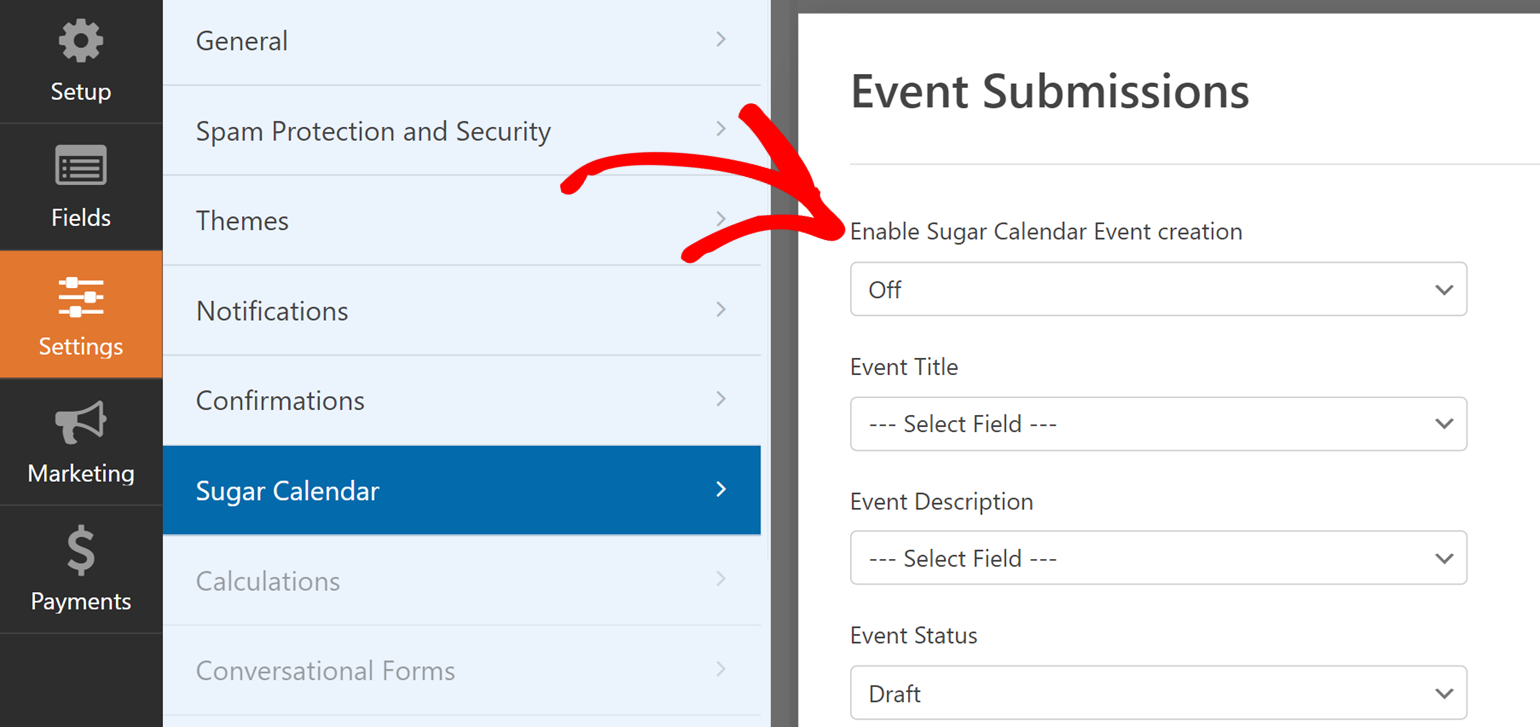
Next, use the dropdown menus to map the form fields to the corresponding event data fields in Sugar Calendar. Ensure each required field, such as Event Title, Event Description, Start Date and Time, and End Date and Time, is correctly mapped.
Note: The Date / Time field is unavailable to WPForms Lite users, so you’ll need to update the date and time manually after submission.
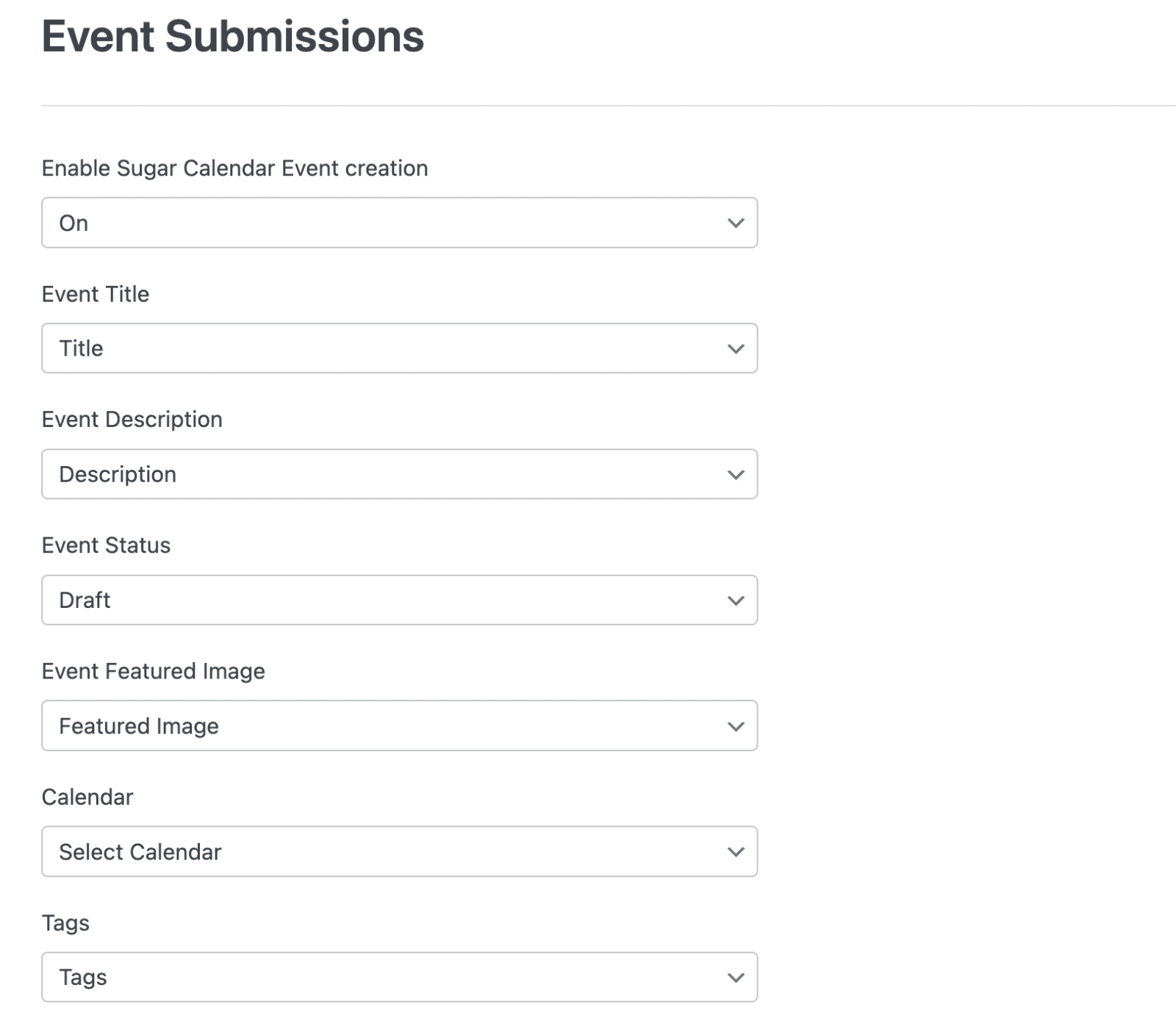
Below, we’ve outlined the available options and the field to select in WPForms.
| Sugar Calendar Event field | WPForms Field Types | |
|---|---|---|
| 1 | Title | Single Line Text |
| 2 | Description | Paragraph Text |
| 3 | Start Date and Time | Date / Time |
| 4 | End Date and Time | Date / Time |
| 5 | Event Featured Image | File Upload |
| 6 | Calendar | Multiple Choice or Dropdown |
| 7 | Tags | Multiple Choice or Dropdown |
| 8 | All Day | Multiple Choice field with Yes or No as options |
| 9 | Repeat | Multiple Choice or Dropdown |
| 10 | End Repeat | Date / Time |
| 11 | Venue | Dropdown |
| 12 | Speakers | Dropdown |
| 13 | Event Link URL | Website / URL |
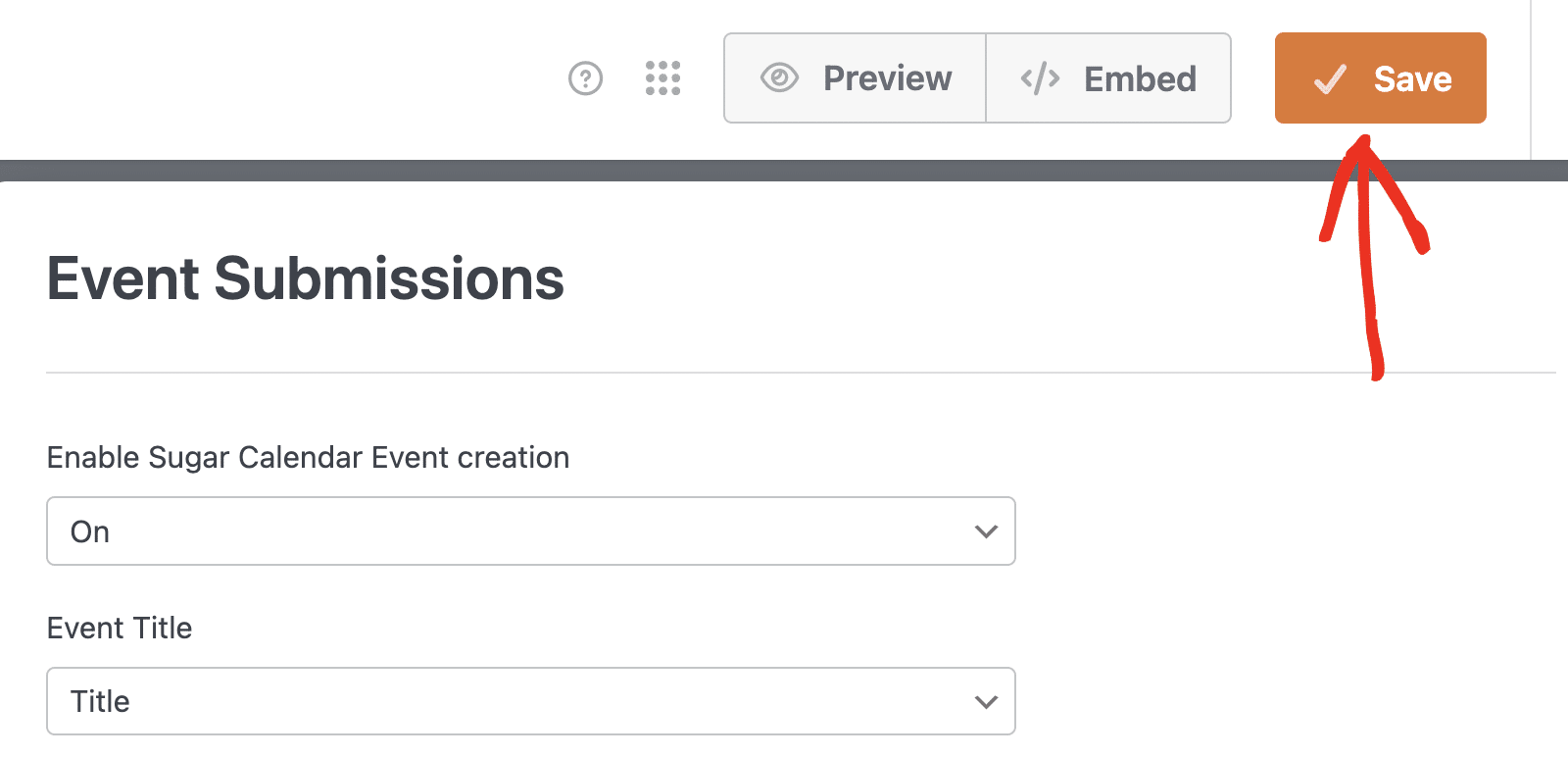
After mapping your fields to Sugar Calendar Events options, click Save to apply your changes.
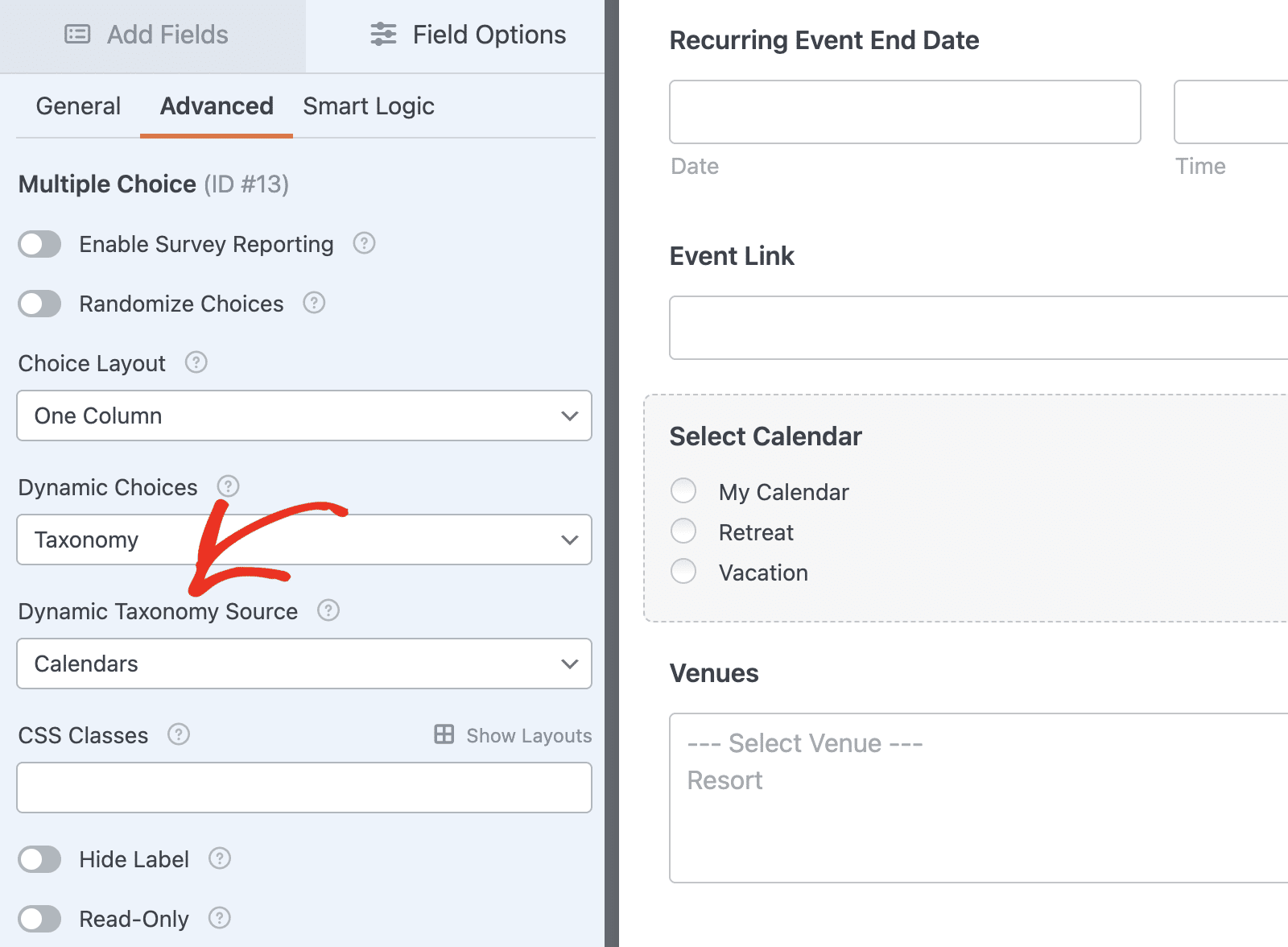
Then reload the page. WPForms will attempt to apply the correct taxonomy for your event.
Formidable Forms
To configure frontend event submissions for Formidable Forms, start by creating a new form and adding the relevant fields.
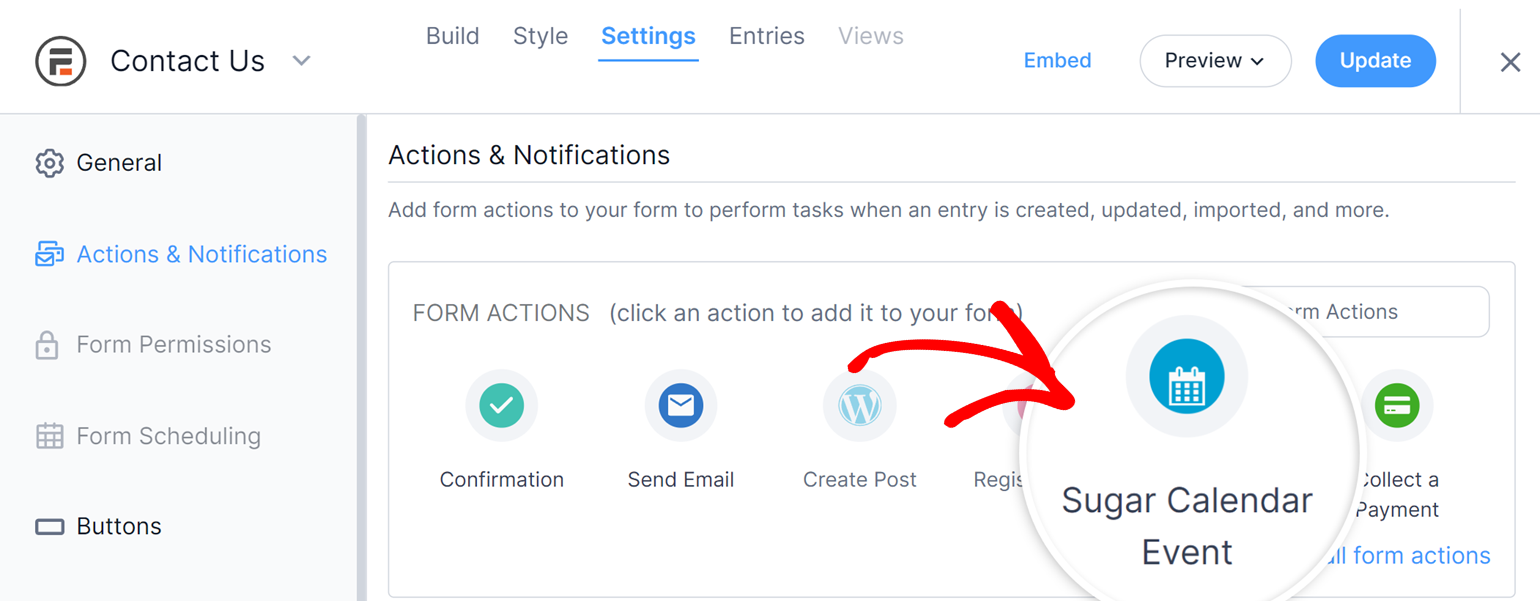
Then, navigate to Settings » Actions & Notifications in the Formidable Forms builder.
From there, click on Sugar Calendar Event to set up event creation.
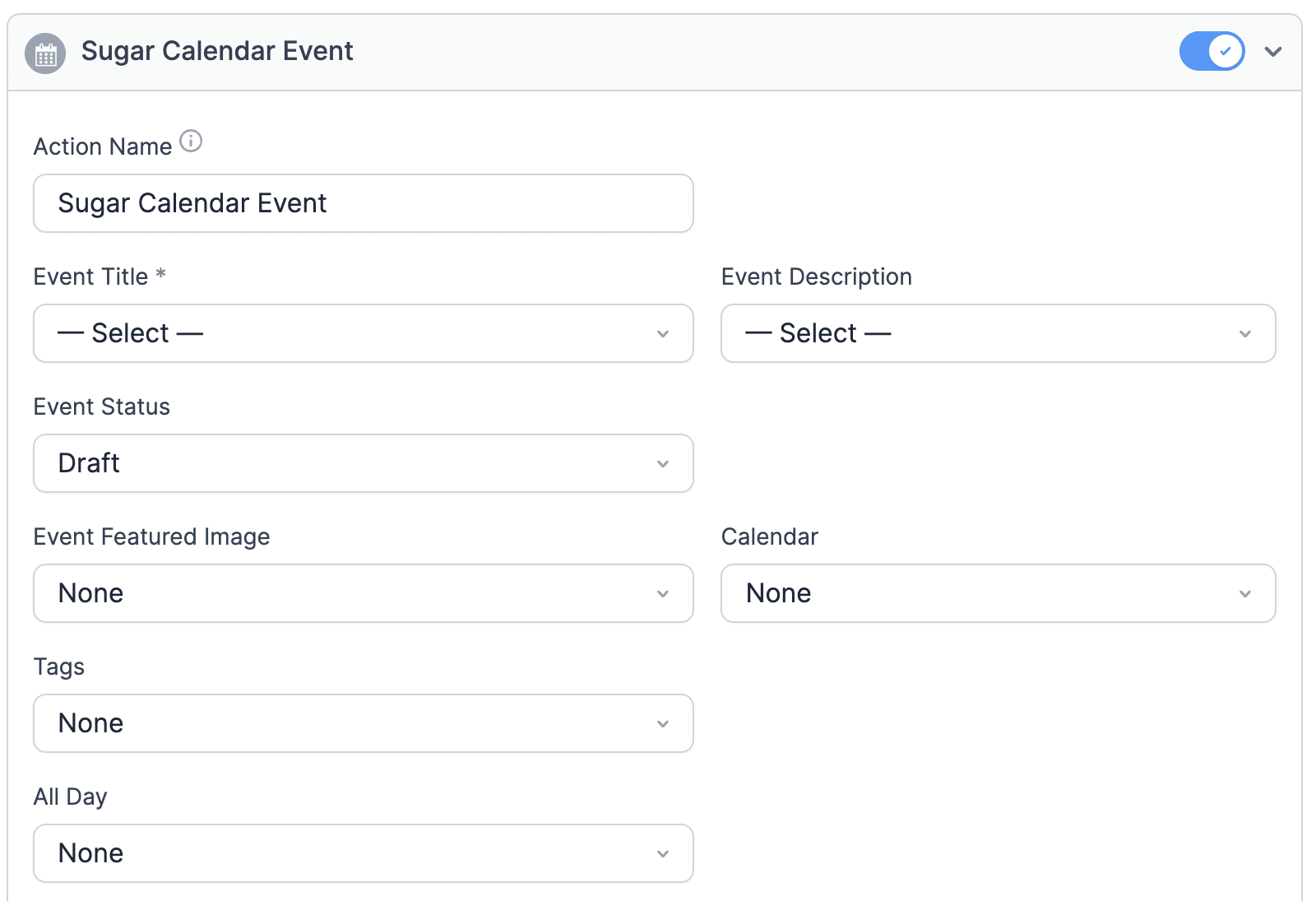
Then, use the dropdown menus to map the form fields to the corresponding event data fields in Sugar Calendar. Ensure each required field, such as Event Title, Event Description, Start Date, and Start Time, is correctly mapped.
You can also map other fields, such as Speakers, Venue, and Repeat, for recurring events.
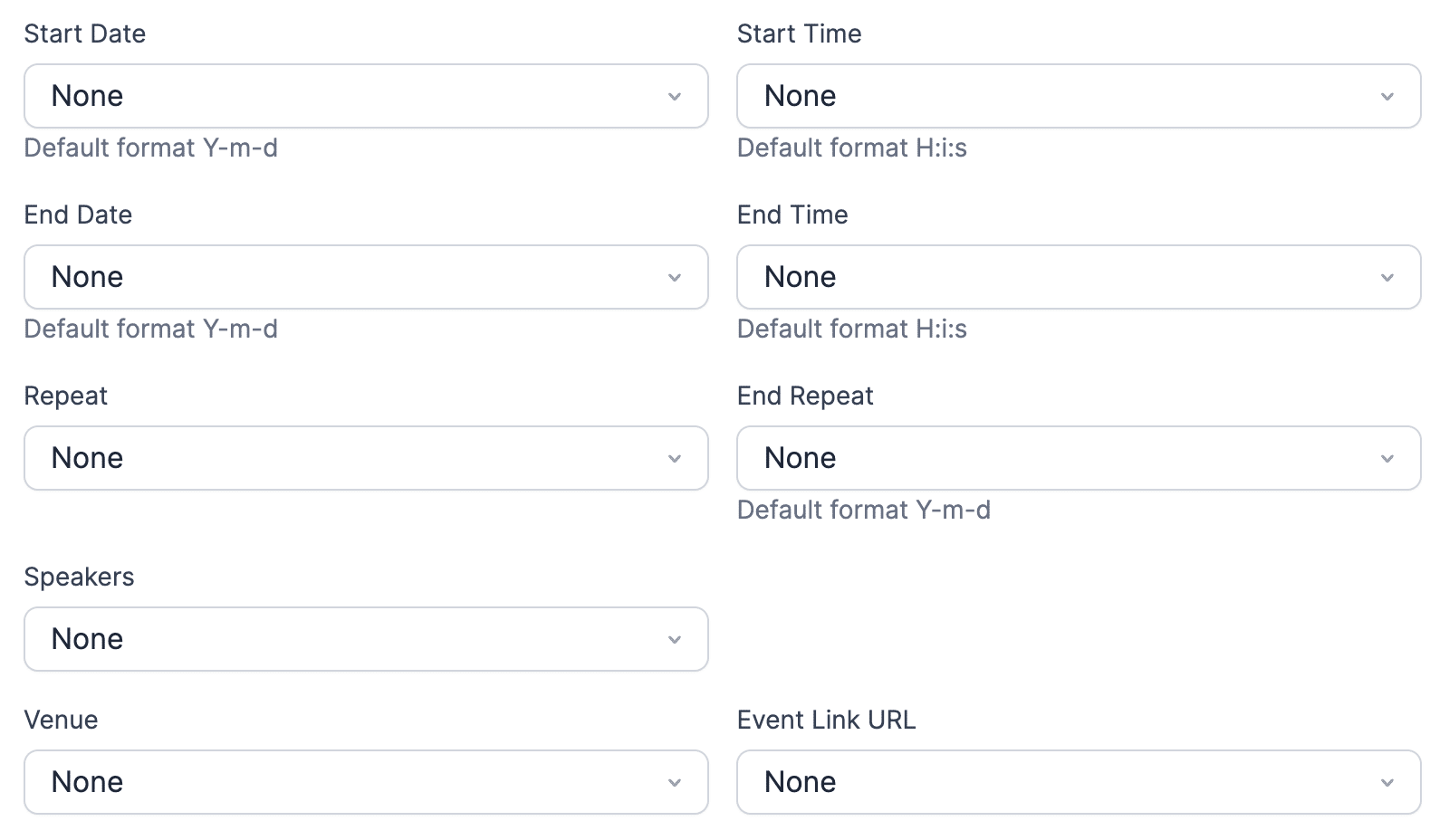
Below, we’ve outlined the available options and the field to select in Formidable Forms.
| Sugar Calendar Event field | FORMIDABLE FORM Field Types | |
|---|---|---|
| 1 | Title | Text |
| 2 | Description | Text or Paragraph |
| 3 | Start Date | Date |
| 4 | End Date | Date |
| 5 | Start Time | Time |
| 6 | End Time | Time |
| 7 | Event Featured Image | File Upload |
| 8 | Calendar | Dropdown or Radio Buttons |
| 9 | Event Tags | Dropdown or Checkboxes |
| 10 | All Day | Dropdown or Checkboxes |
| 11 | Repeat | Dropdown or Radio Buttons |
| 12 | End Repeat | Date |
| 13 | Event Venue | Dropdown |
| 14 | Event Speakers | Dropdown |
| 15 | Event Link URL | Website/URL |
Gravity Forms
To allow frontend event submissions for Gravity Forms, start by creating a new form and adding the relevant fields.
After that, navigate to Settings » Sugar Calendar in the Gravity Forms builder.
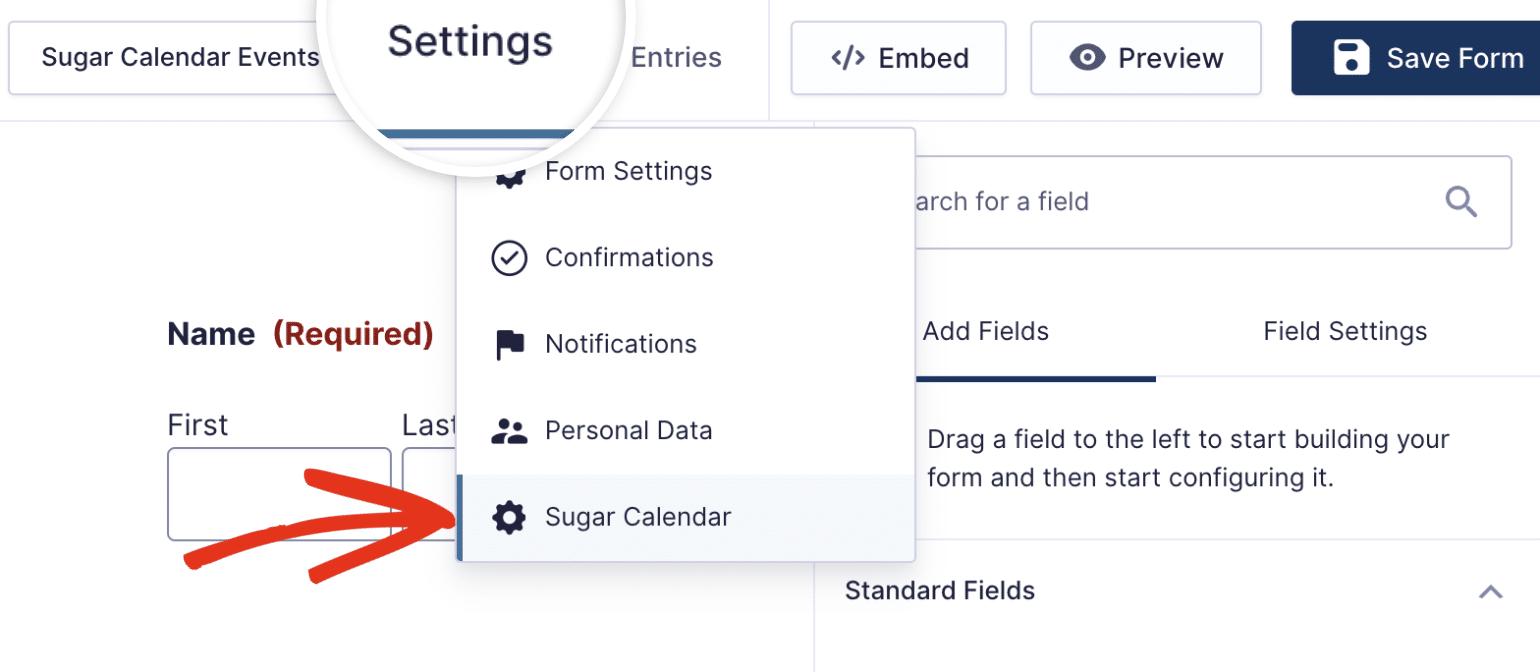
Once here, select the Check this to Enable Event creation option.
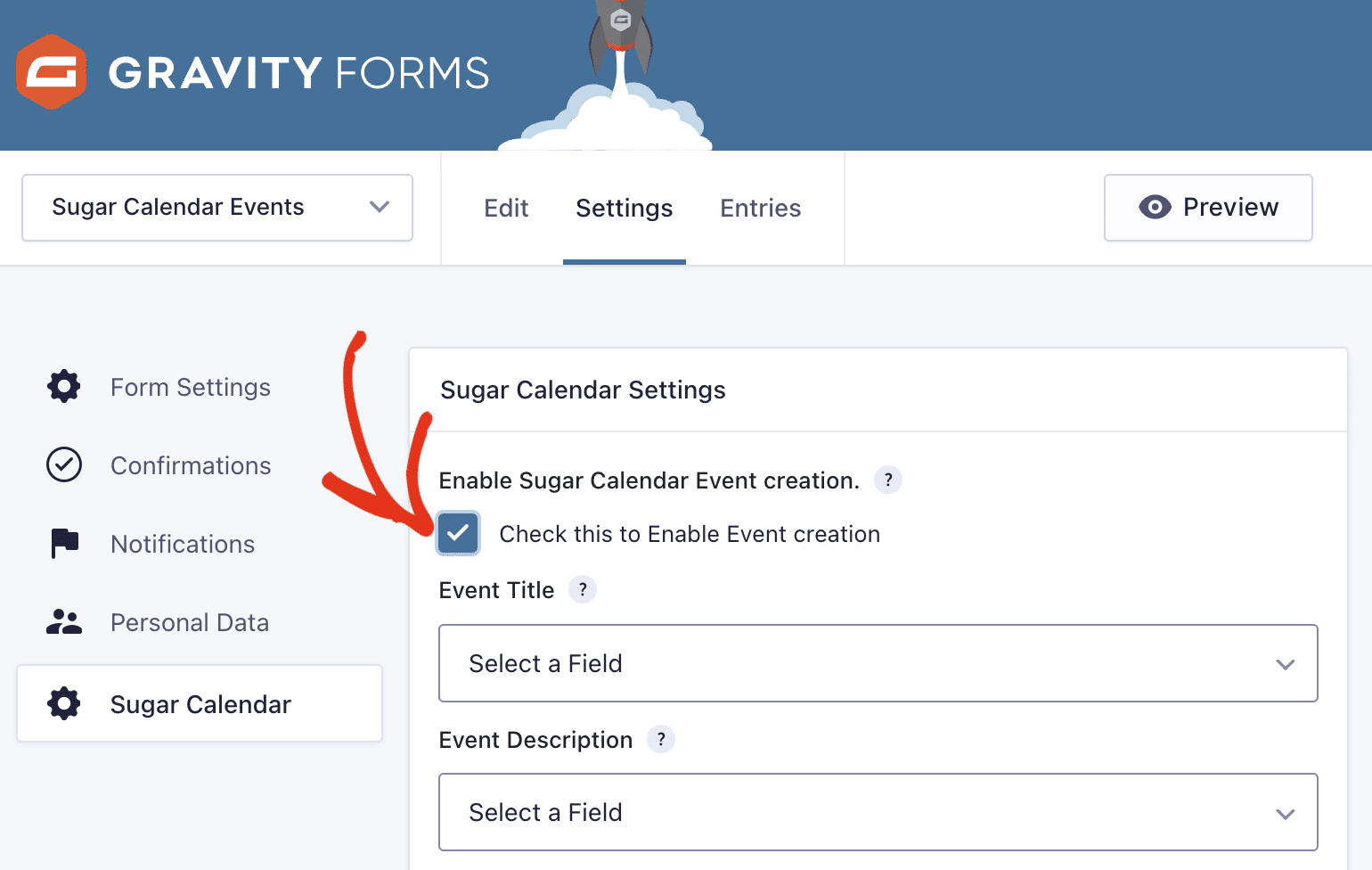
Then, use the dropdown menus to map the form fields to the corresponding event data fields in Sugar Calendar. Ensure each required field, such as Event Title, Event Description, Start Date, and Start Time, is correctly mapped.
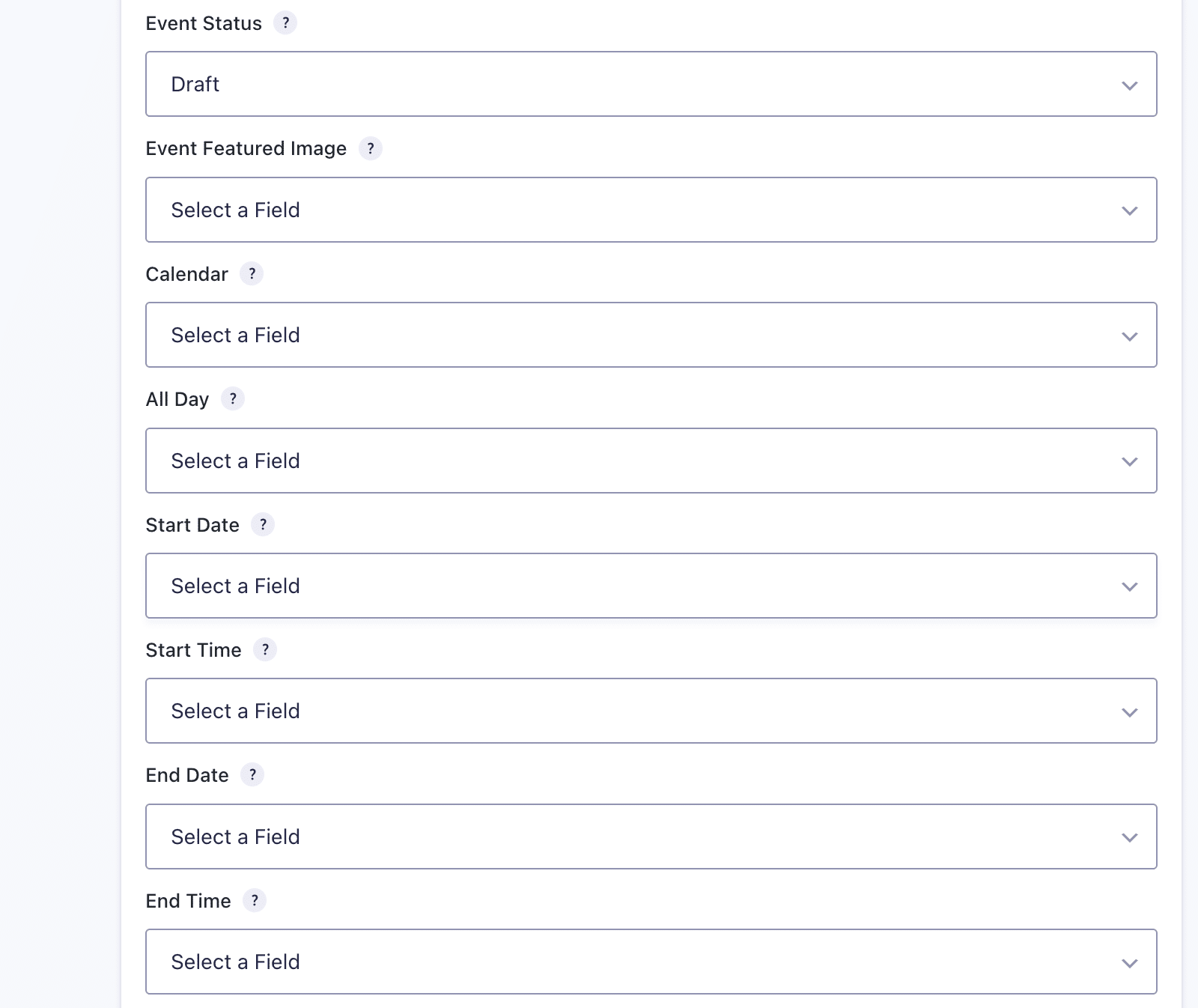
Once you’re done mapping the fields, scroll down and click the Save Settings button.
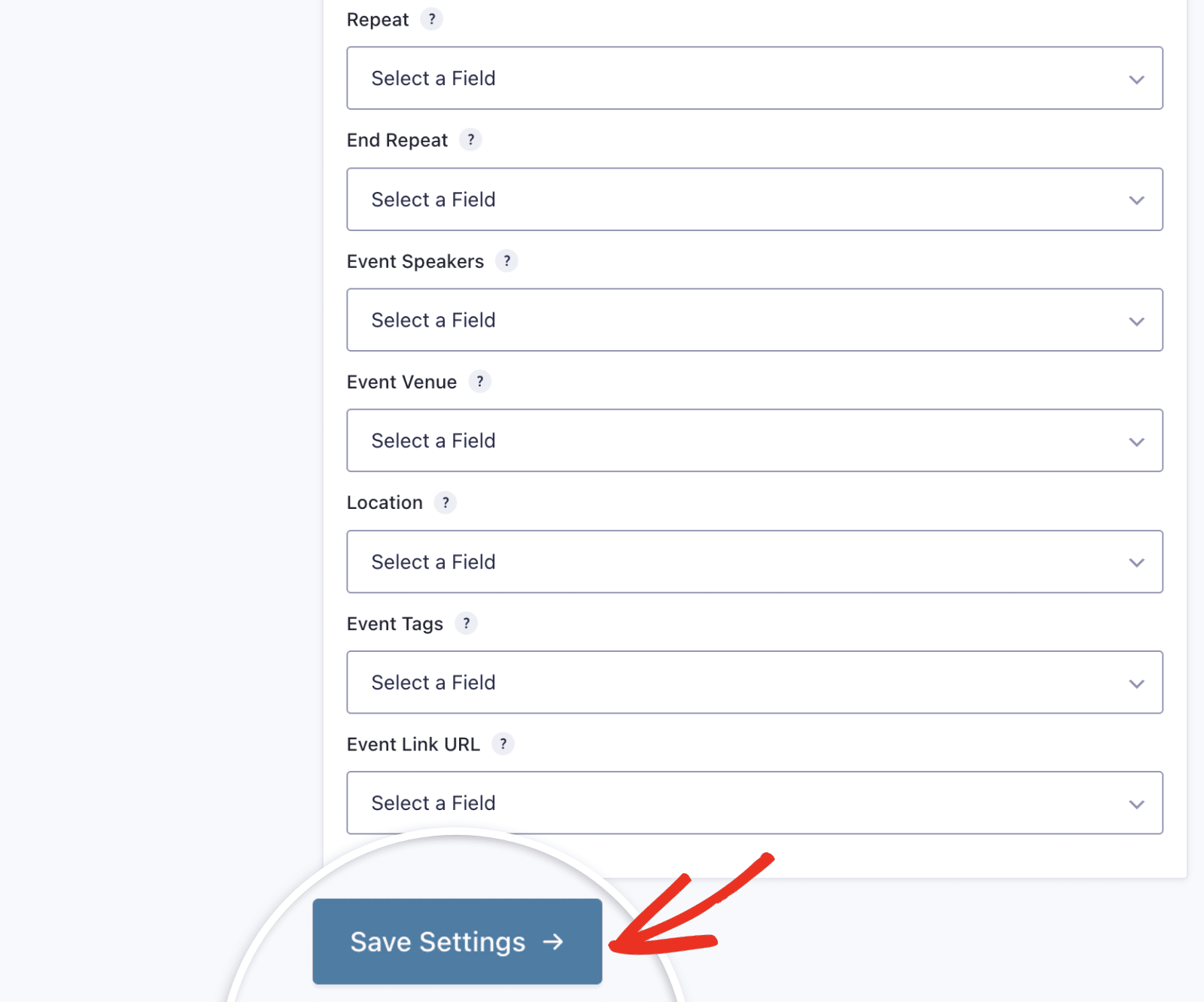
Below, we’ve outlined the available options and the field to select in Gravity Forms.
| Sugar Calendar Event field | gravity FORMS Field Types | |
|---|---|---|
| 1 | Title | Post Title |
| 2 | Description | Post Body |
| 3 | Start Date | Date |
| 4 | End Date | Date |
| 5 | Start Time | Time |
| 6 | End Time | Time |
| 7 | Event Featured Image | Post Image |
| 8 | Calendar | Drop Down or Radio Buttons |
| 9 | Event Tags | Multi Select |
| 10 | All Day | Drop Down or Radio Buttons |
| 11 | Repeat | Drop Down or Radio Buttons |
| 12 | End Repeat | Date |
| 13 | Event Venue | Dropdown |
| 14 | Event Speakers | Multi Select |
| 15 | Event Link URL | Website |
Once you map the fields and save your settings, Gravity Forms will automatically convert and map them to relevant post types. For example, mapping the Calendar field to a Drop Down field will automatically display the available calendars on your site as dynamic values for the field.
That’s it! You can now enable users to submit events from the frontend using the supported form builder plugins.
Next, would you like to learn how to integrate Google Maps with your events? Be sure to check out our Google Maps integration guide for details on setting up and using this feature to display interactive maps on your event pages.

