Would you like to create events that repeat on a schedule? Sugar Calendar Events lets you set events to repeat daily, weekly, monthly, or yearly, and choose exactly when the series ends.
In this tutorial, we’ll show you how to set up and update recurring events in Sugar Calendar Events.
In This Article
Before getting started, make sure Sugar Calendar Events is installed and activated on your site.
Creating a Recurring Event
To get started, go to Events » Add New to create a new event, or edit an existing one. Then, click the Recurrence tab in the Sugar Calendar Event Settings box.
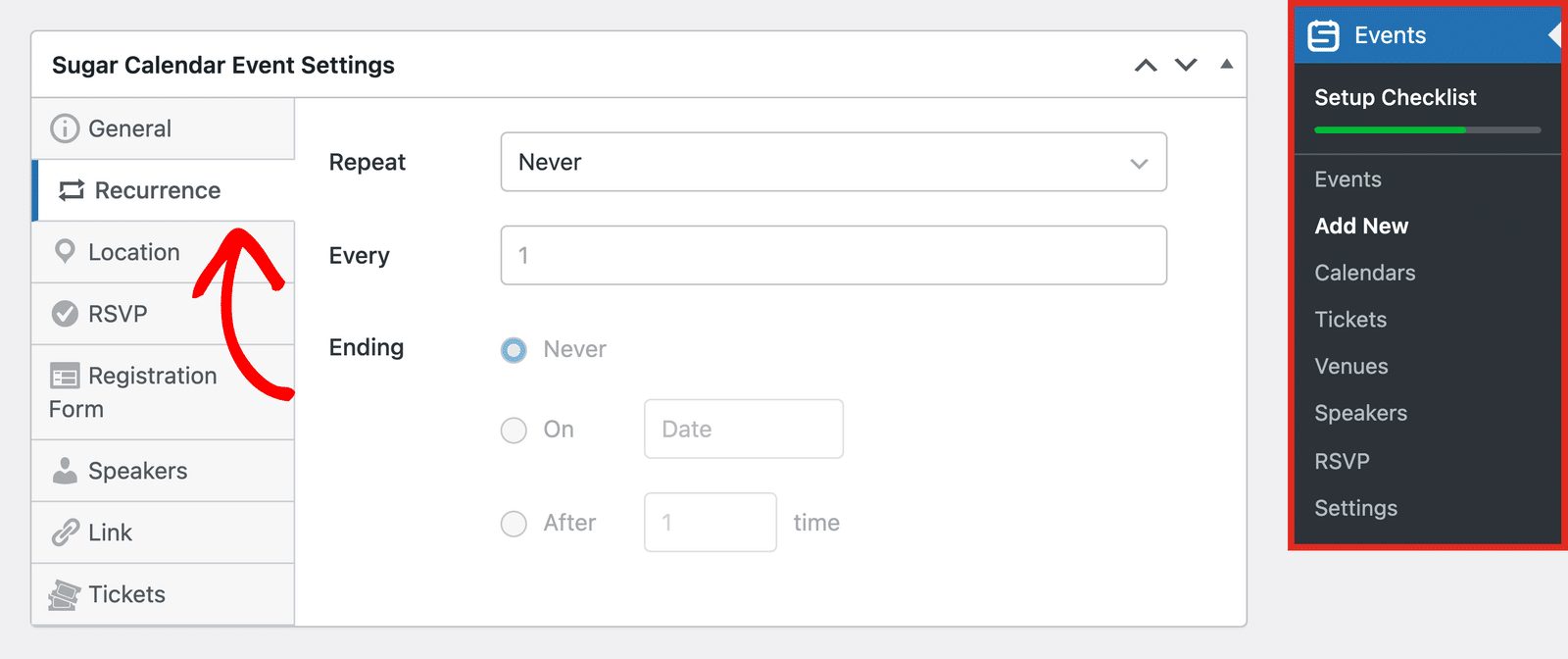
Next, open the Repeat dropdown and choose how often your event repeats: Daily, Weekly, Monthly, or Yearly.
Configuring Recurring Event Options
The settings below the Repeat dropdown change depending on the option you choose.
Daily
The Daily option repeats your event every day. Use the Every field to set the number of days between each occurrence. For example, enter 2 to repeat the event every other day.
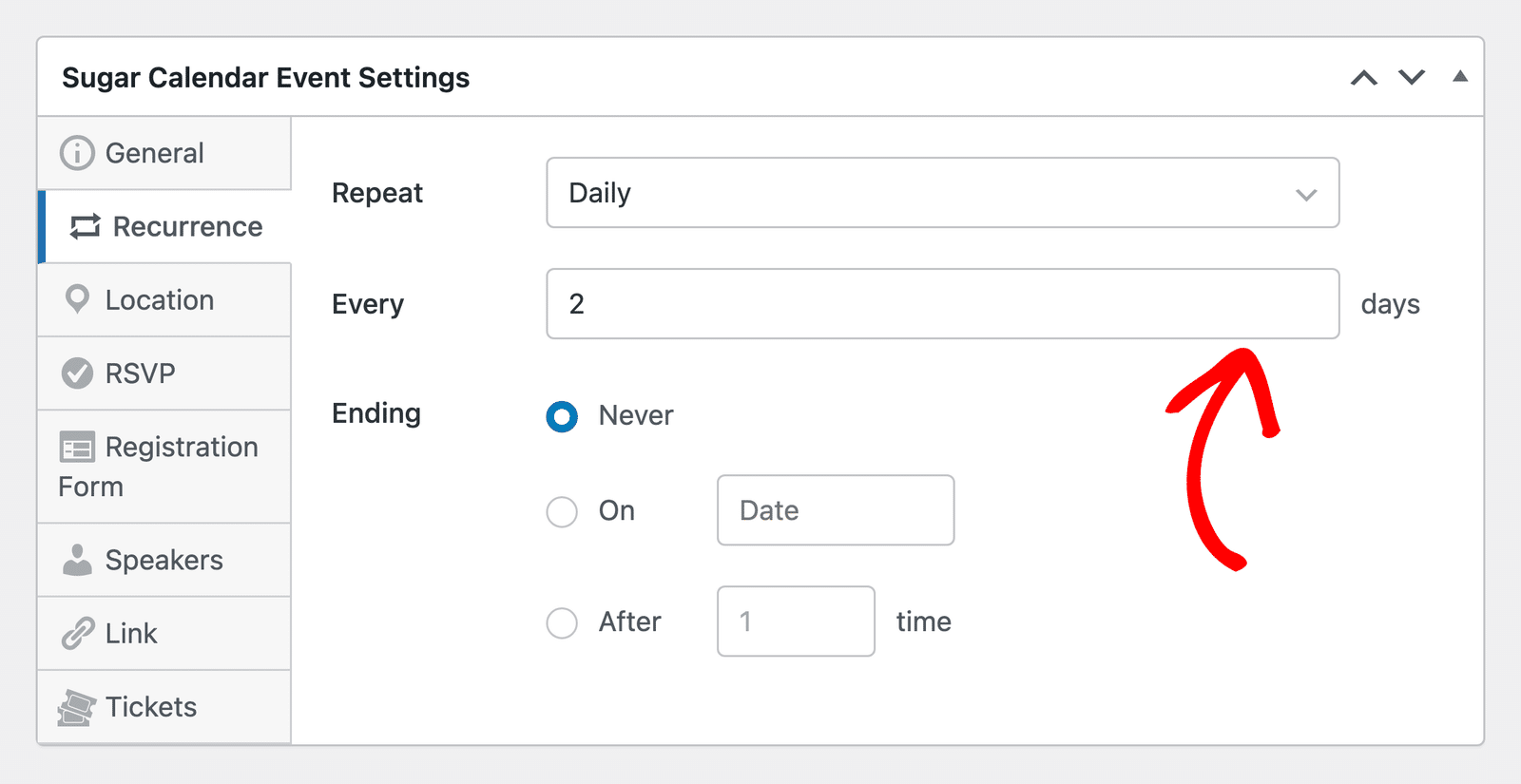
The Ending option sets when the series stops. Choose Never to repeat the event with no end date.
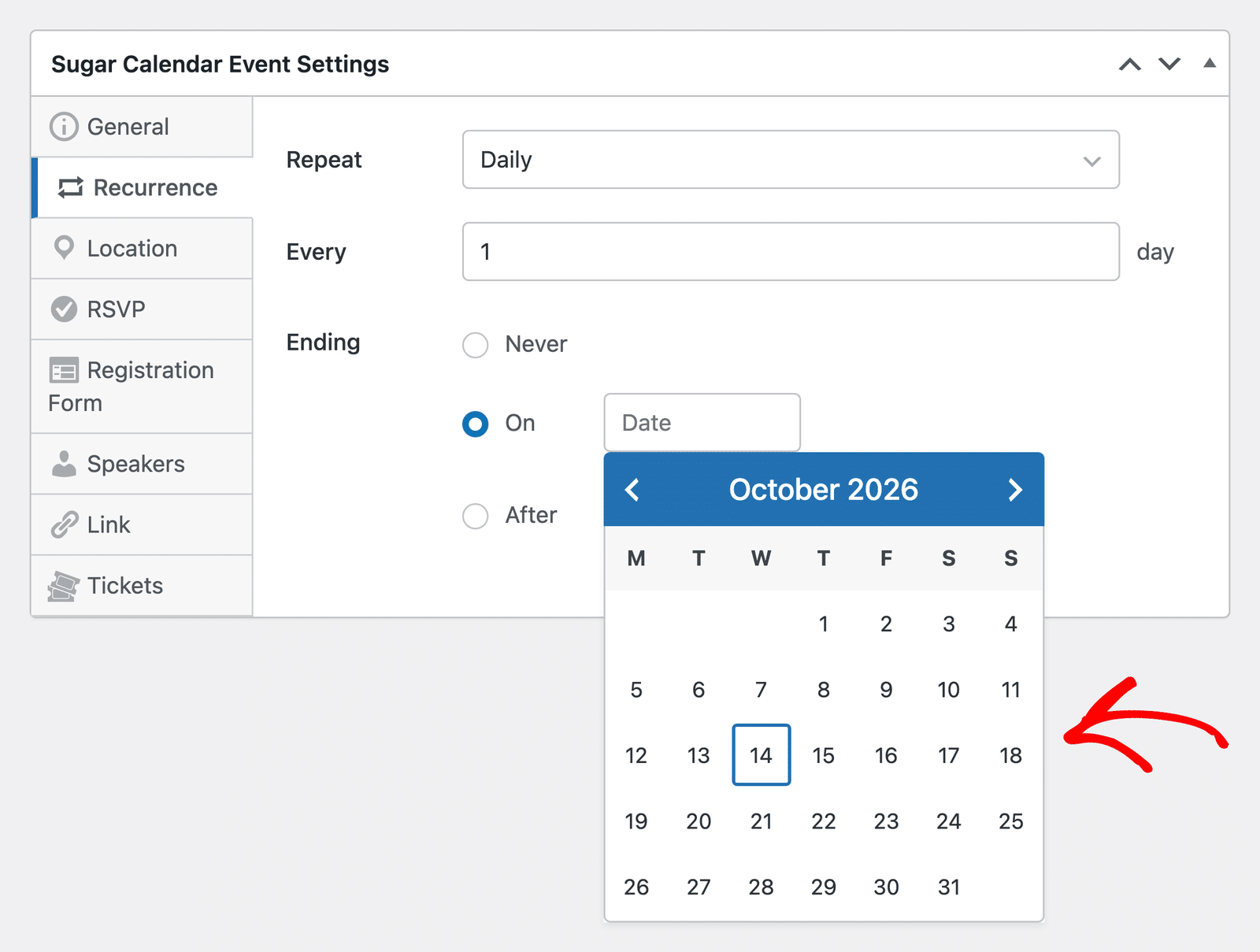
To end the series on a specific date, select On and pick the last date from the date picker.
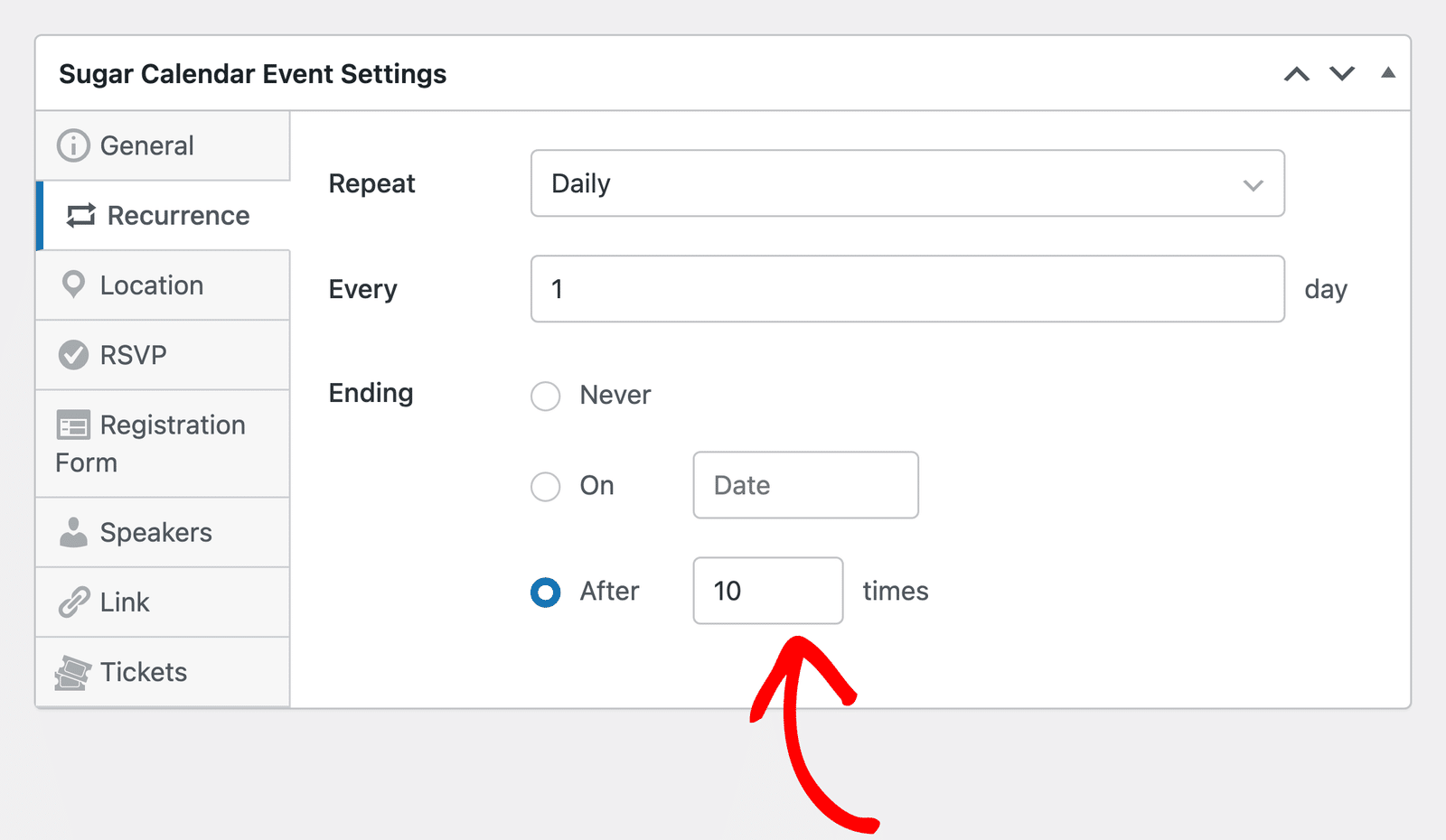
To end the series after a set number of occurrences, select After and enter the number of times the event takes place.
Weekly
The Weekly option repeats your event every week, or every few weeks if you raise the number in the Every field.
In the On section, select the days of the week the event takes place. For example, select Tue and Thu for an event that runs twice a week.
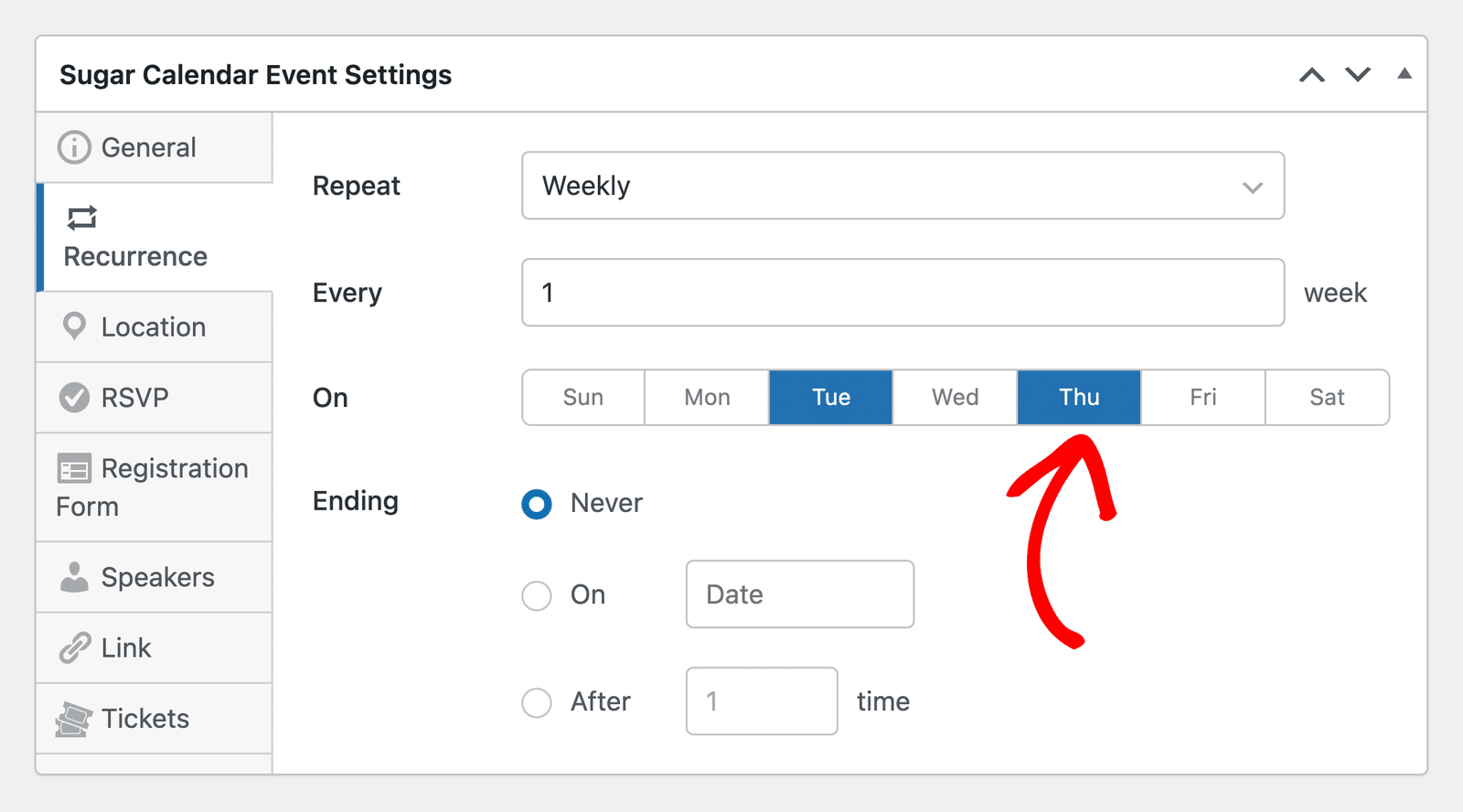
Then, set the Ending option the same way as in the Daily section.
Monthly
The Monthly option repeats your event every month. After setting the Every field, choose when in the month the event takes place:
- On the: Select one or more dates, such as the 1st and the 15th.
- Or on the: Choose a pattern instead, such as the first Monday or the last weekday of each month.
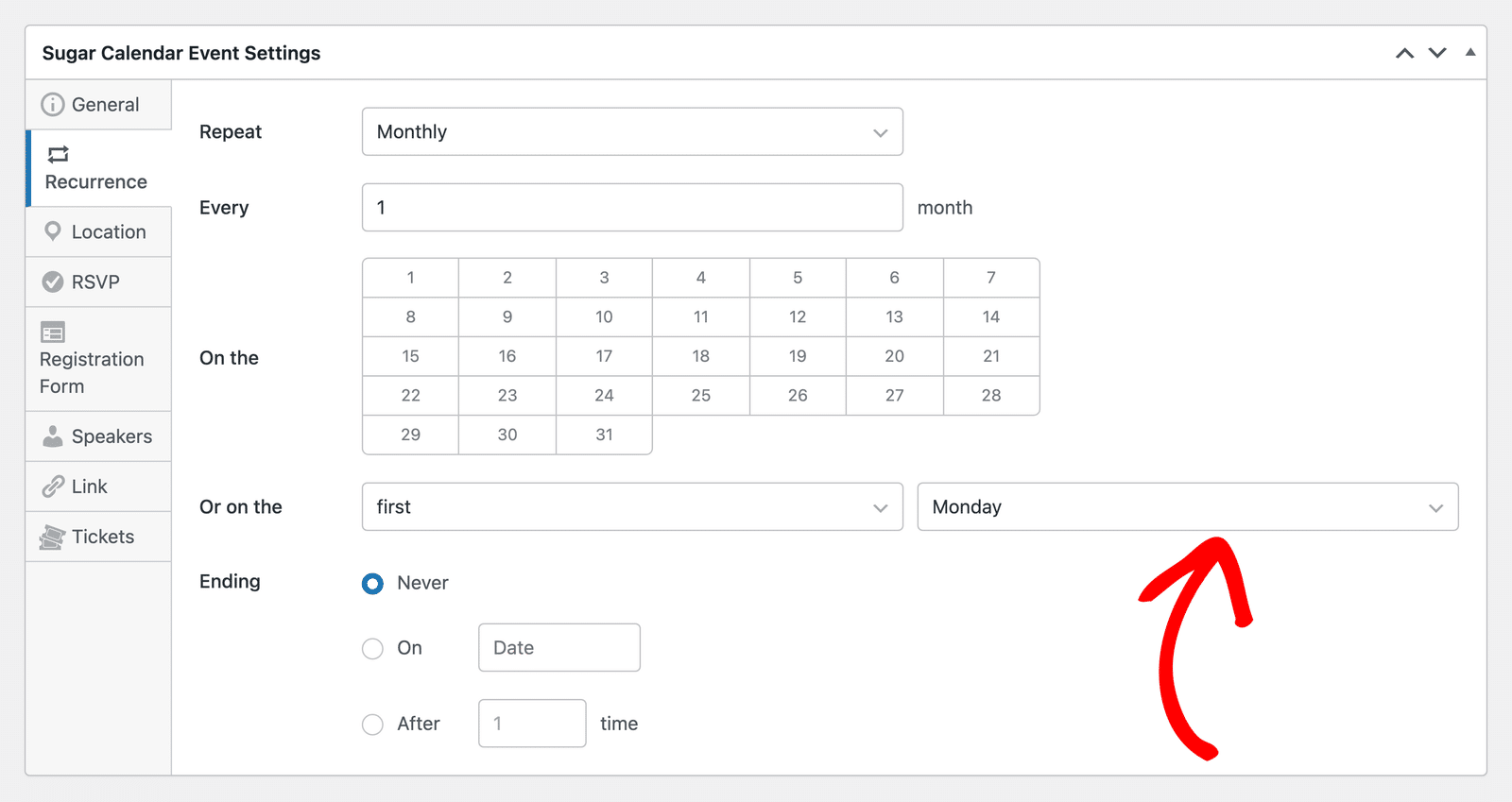
Then, set the Ending option for the series.
Yearly
The Yearly option repeats your event every year. After setting the Every field, select the months the event takes place in the In section.
Then, use the On the dropdowns to choose which day of those months the event falls on, such as the second Saturday.
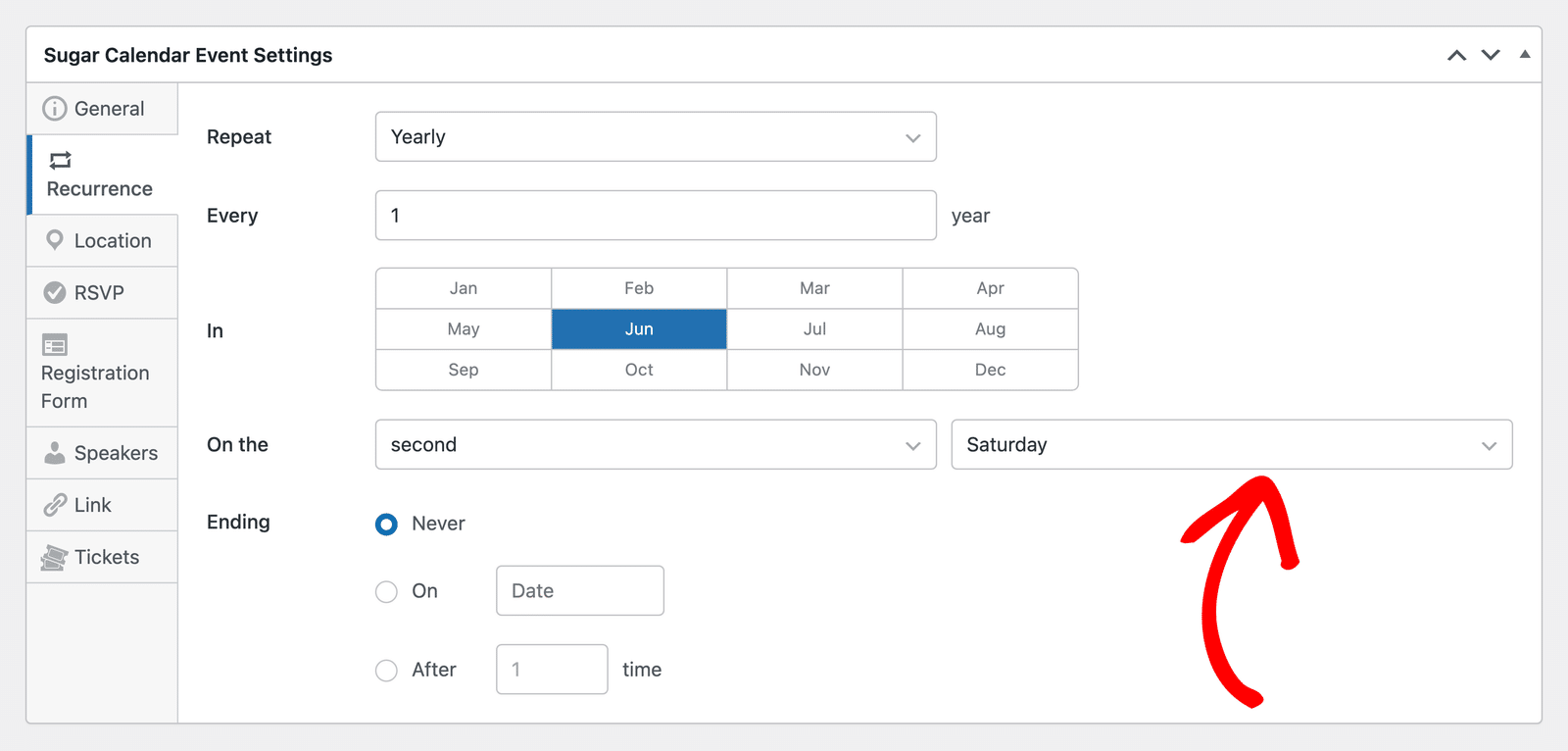
Once you’ve configured the recurrence settings, publish or update your event.
Updating Recurring Events
We call each date in a series an occurrence. You can update a single occurrence or the whole series.
To get started, go to Events and click the occurrence you’d like to edit. Then, click Edit in the event details that appear.
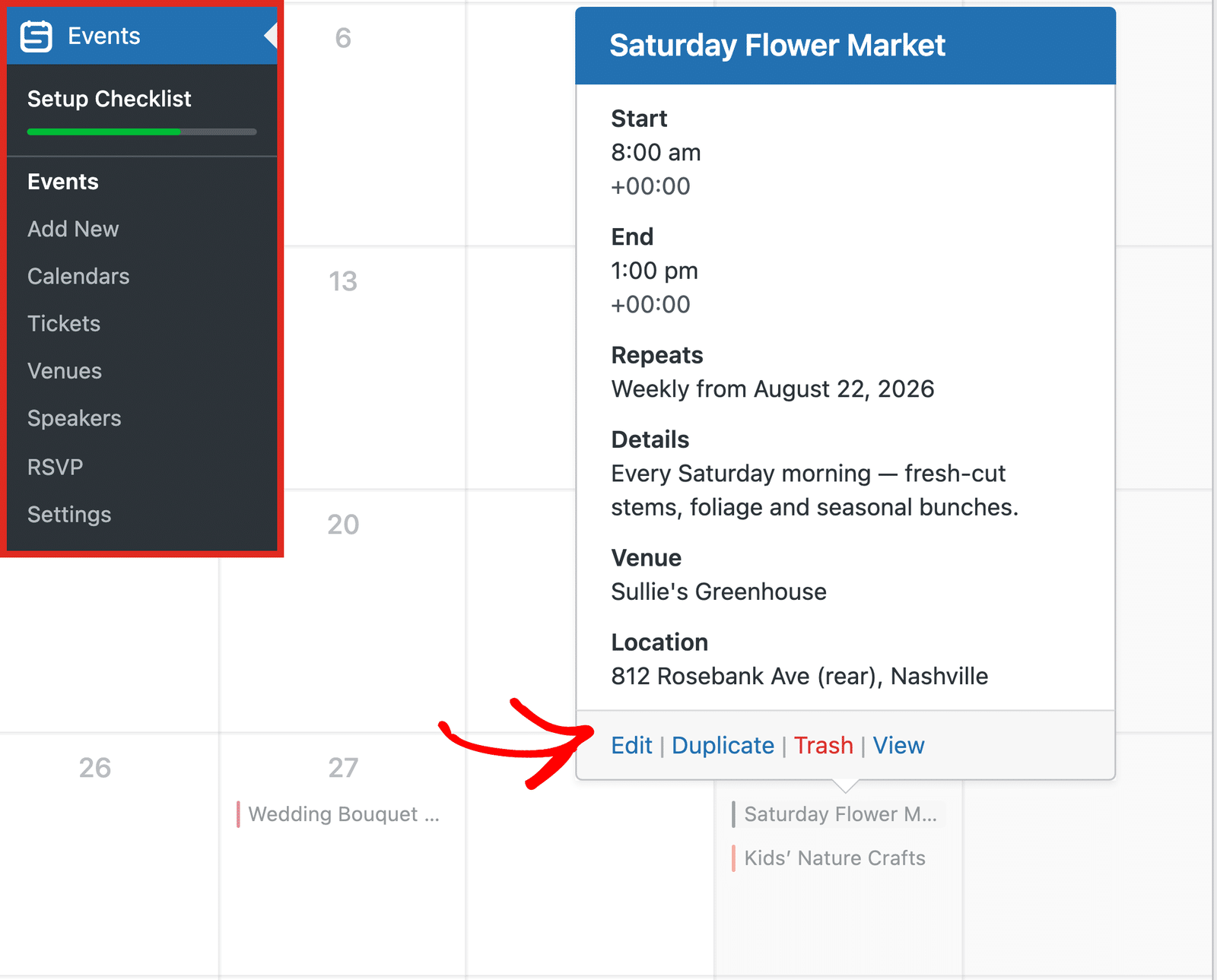
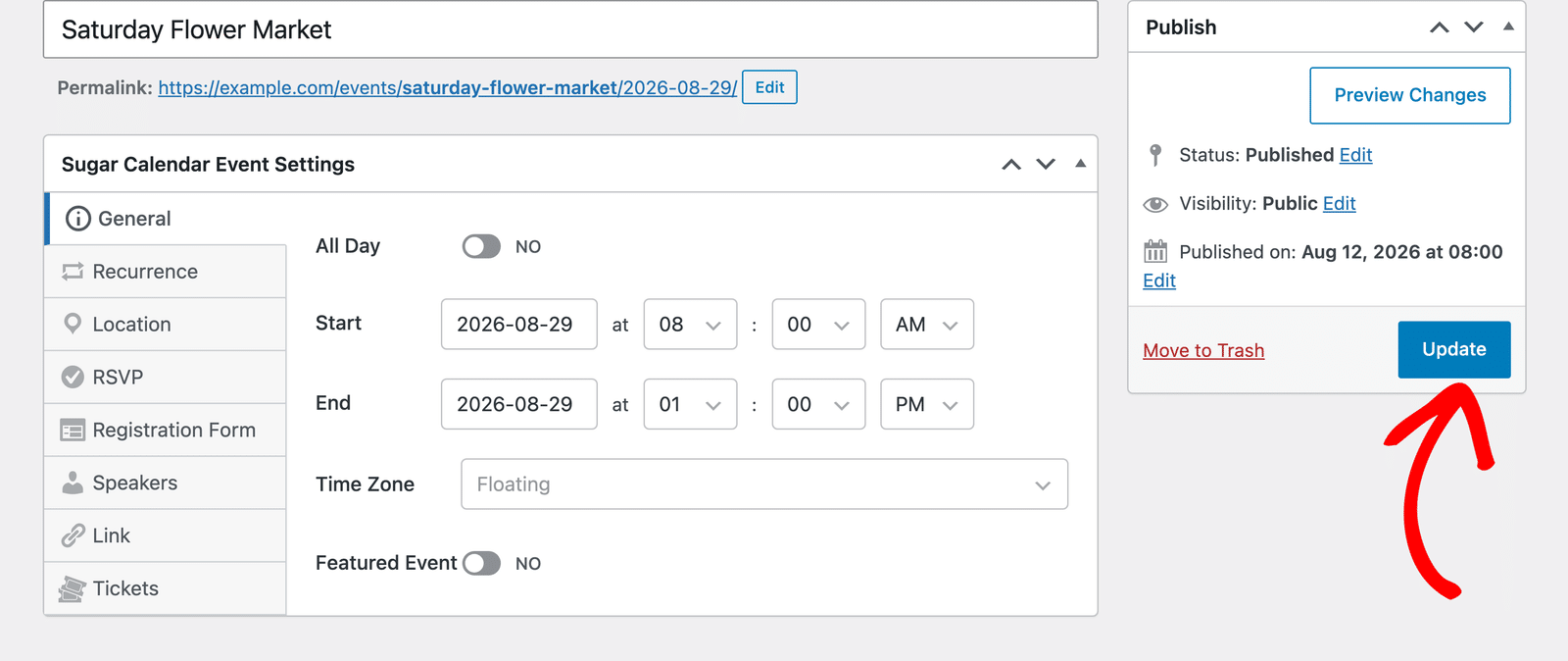
In the event editor, update the event details, such as the description, duration, or venue. Then, click the Update button to save your changes.
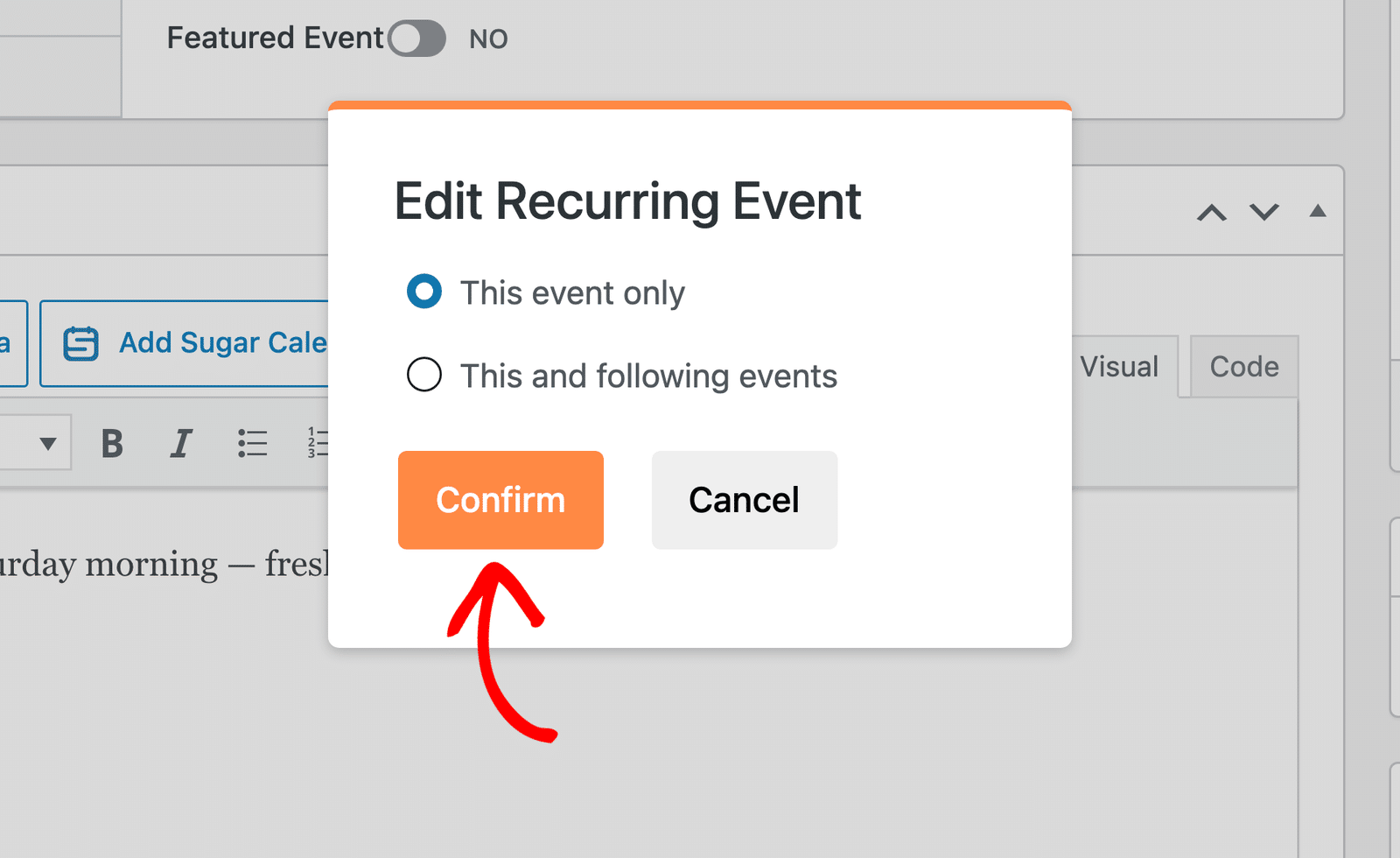
An Edit Recurring Event window appears, asking which events your changes apply to:
- This event only: Applies your changes to this date only. Sugar Calendar Events turns the date into a separate event, and the other dates in the series stay the same.
- This and following events: Applies your changes to this date and every date after it. Sugar Calendar Events starts a new series from this date, and earlier dates stay the same.
If you’re editing the first date in the series, the second option reads All events instead, and your changes apply to the whole series.
Choose an option and click Confirm to save your changes.
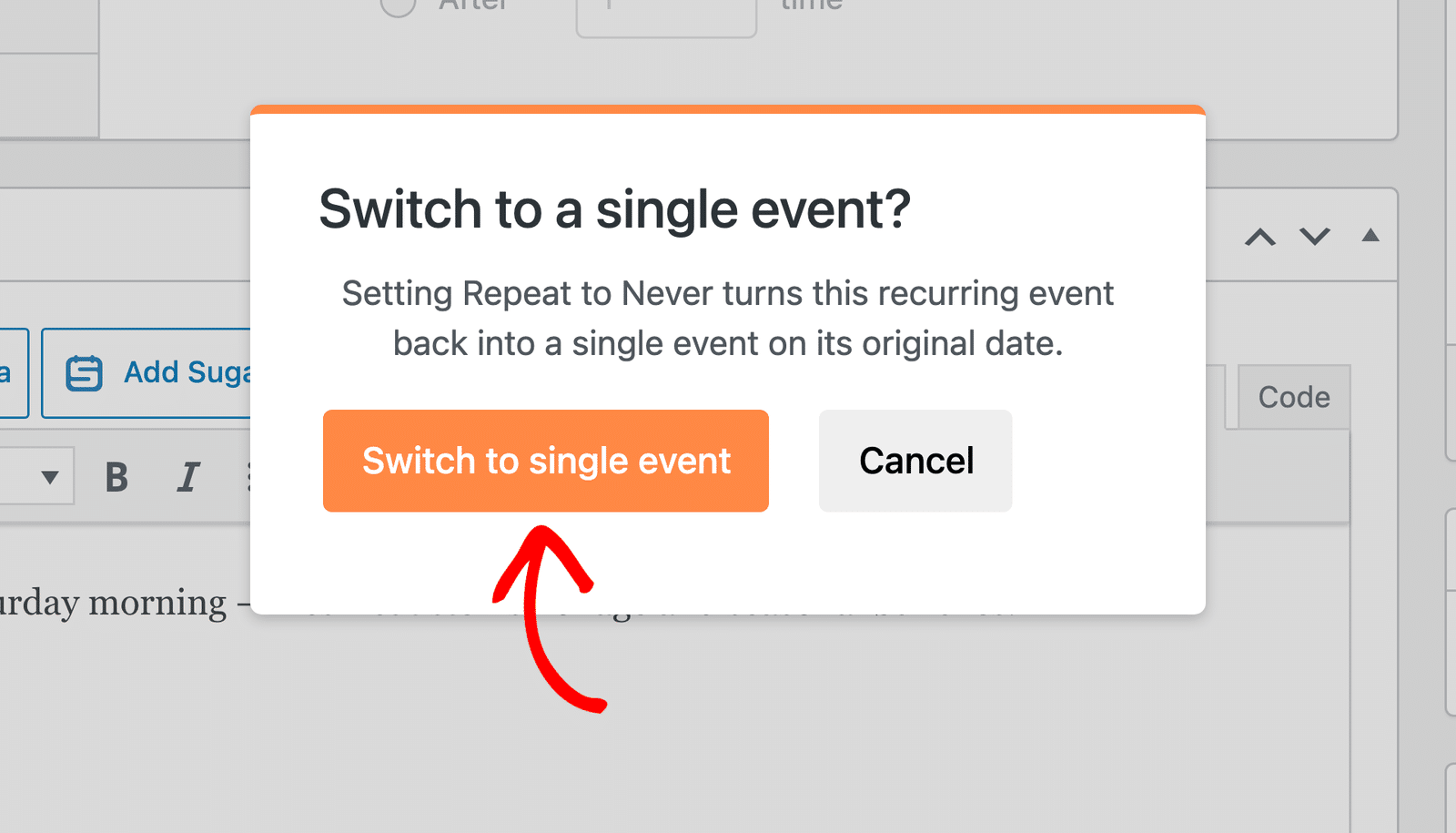
To stop an event from repeating, set Repeat to Never on the Recurrence tab and click Update. When Sugar Calendar Events asks you to confirm, click Switch to single event to turn the series back into a single event on its original date.
Definition of Terms
Here’s what each term in the recurrence settings means.
Intervals
The interval is the Every field. It sets how many days, weeks, months, or years pass before the event takes place again. Every Repeat option supports intervals.
Sequence Selectors
Sequence selectors are the dropdowns labeled Or on the for Monthly events and On the for Yearly events. They set the position and type of day the event falls on, such as the first Monday, the last weekday, or the second weekend day. Only the Monthly and Yearly options support sequence selectors.
Ending
The Ending option sets when a series stops. A series can repeat forever, end on a specific date, or end after a set number of occurrences.
That’s it! You now know how to set up and update recurring events in Sugar Calendar Events.
Next, would you like to sync your events with third-party calendars like Google Calendar? Our guide on using calendar feeds covers all the steps in detail.