Would you like to set up your next event by describing it? Filling in dates, times, locations, and sign-up details one field at a time takes a while, especially when you run lots of events.
In this tutorial, we’ll show you how to use Gia AI to create and manage events in Sugar Calendar Events.
In This Article
Before getting started, make sure Sugar Calendar Events is installed and activated on your WordPress site and that you’ve verified your license.
What Is Gia AI?
Gia is the events assistant built into Sugar Calendar Events. In version 3.15, Gia includes AI features for creating events, editing them, and asking questions about them through a chat window in your WordPress dashboard.
A few rules keep your site safe while you work with Gia:
- Gia saves new events as drafts. Nothing Gia creates goes live until you review and publish it yourself.
- Gia can’t delete events. If you ask it to, it points you to the Events list instead.
- Gia only does what you can do. It checks your WordPress user permissions before creating or editing anything.
Each request to Gia uses AI usage credits from your plan. We’ll cover how to check your usage later in this tutorial.
Accessing Gia AI
Look for the Gia bubble in the bottom-right corner of any Sugar Calendar Events admin screen.
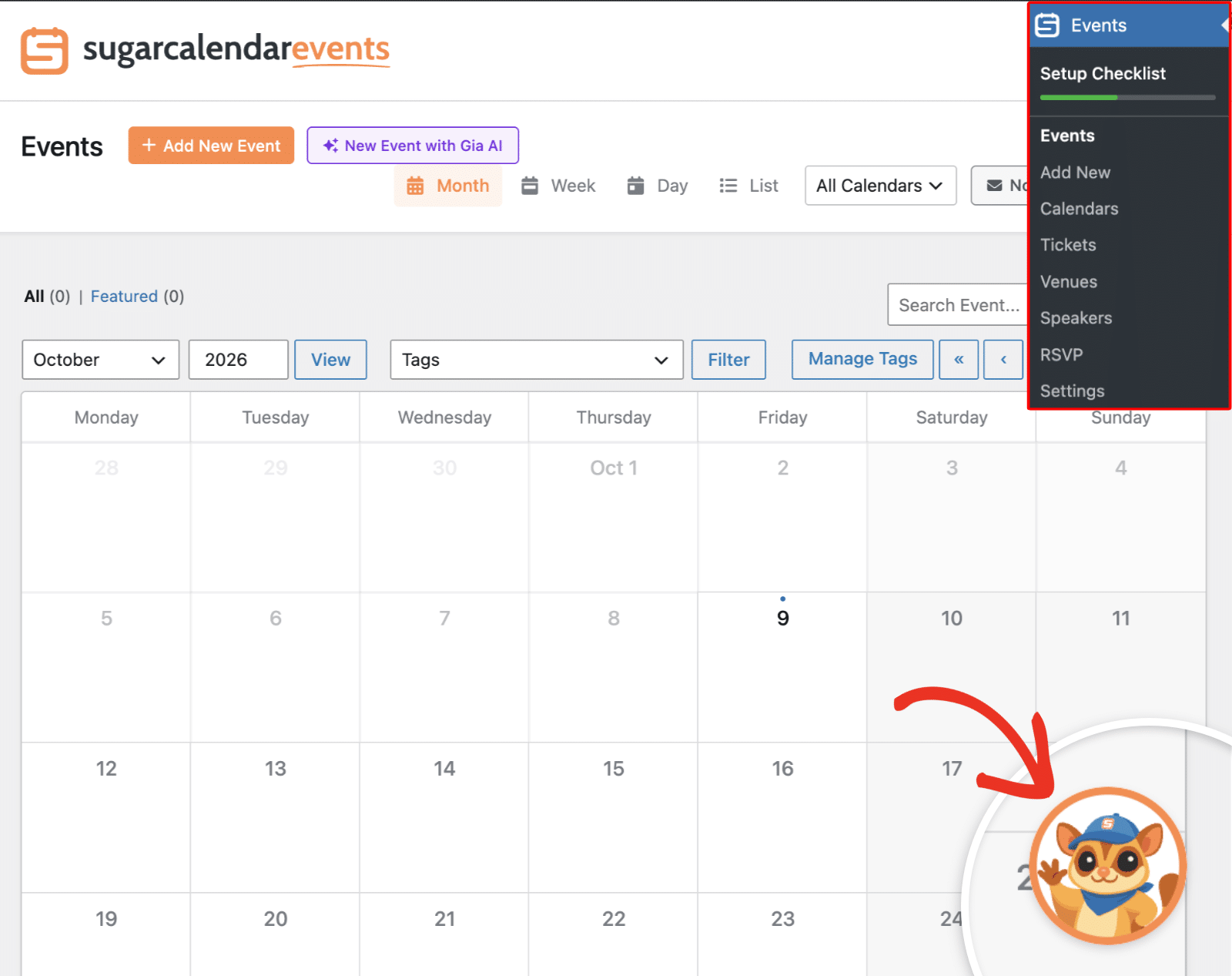
Click it to open the Quick Actions panel.
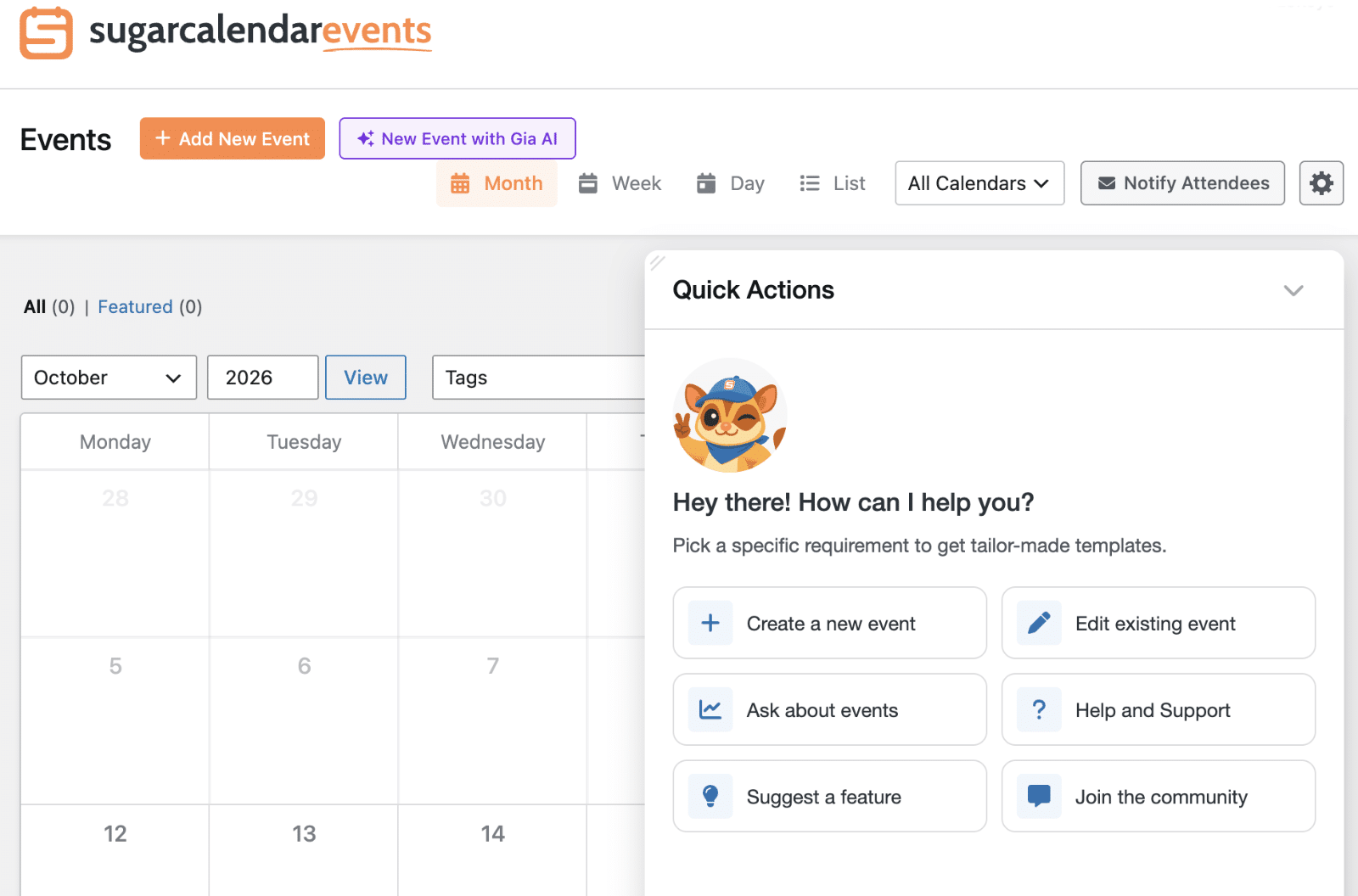
The Quick Actions panel offers six options:
- Create a new event: Describe an event and let Gia set it up as a draft.
- Edit existing event: Update one or more of your existing events.
- Ask about events: Get answers about your events, registrations, and ticket sales.
- Help and Support: Opens the Sugar Calendar documentation.
- Suggest a feature: Opens our feedback page.
- Join the community: Opens the Sugar Calendar Facebook community.
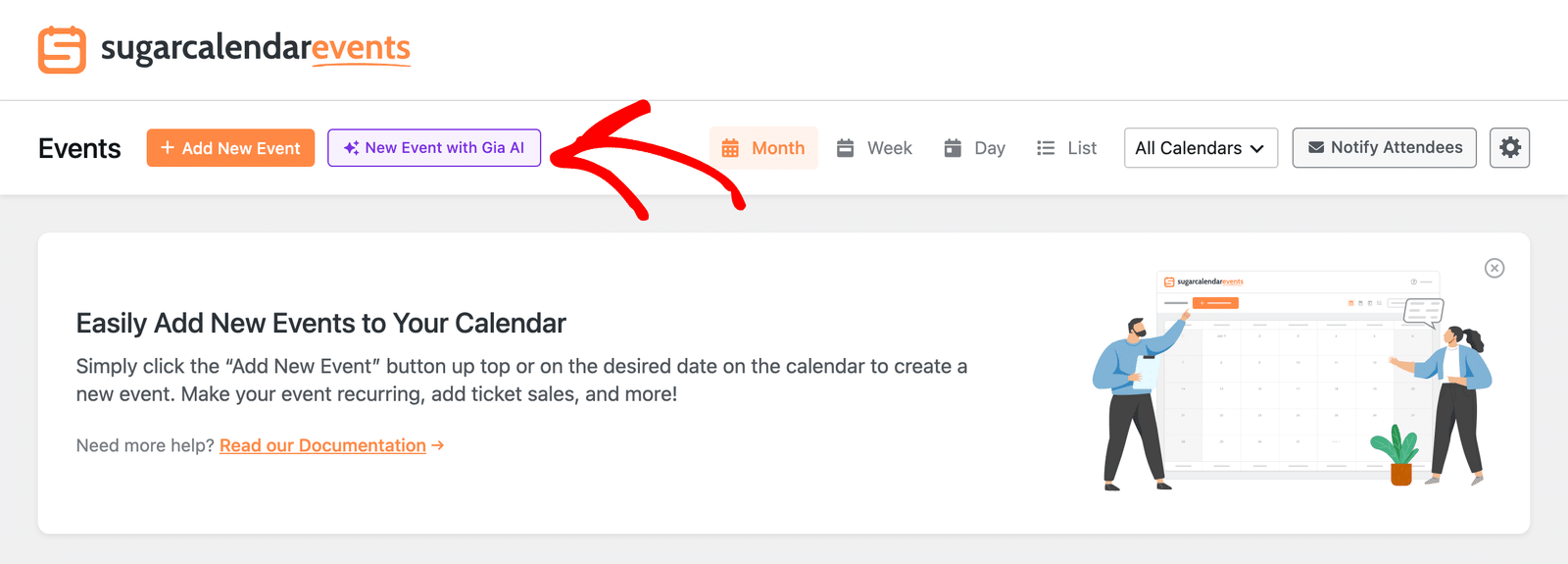
You can also start a new event directly from Events in your WordPress dashboard. Click the New Event with Gia AI button to jump straight into a new event chat.
The chat panel stays out of your way while you work. Drag its corner to resize it, or click the arrow icon in its header to minimize it back to the bubble. Your chat stays open in the background, so you can pick up where you left off on another page.
Creating an Event With Gia
To get started, click Create a new event in the Quick Actions panel. Gia asks what kind of event you want to create and shows a set of event properties: Ticketed Event, Recurring, Online, Free Event, Featured Event, and All Day.
Select any properties that apply to your event. The properties you see depend on your plan and addons. For example, Recurring requires Sugar Calendar Events Pro, and Ticketed Event appears when ticketing is enabled. Then describe the event in the message box, including the date, time, and any other details you already know.
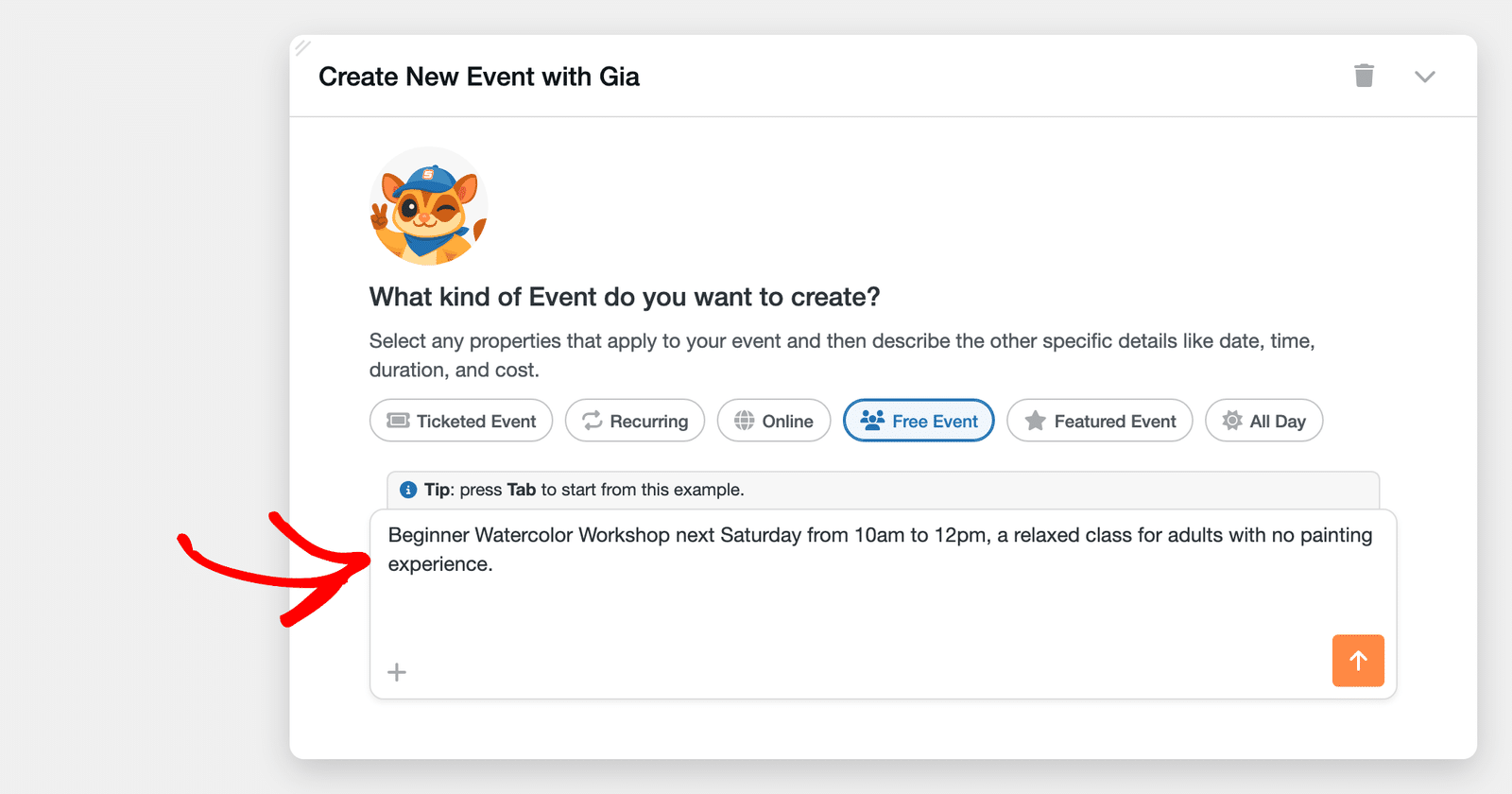
Click the send arrow to submit your description. Gia shows a Thinking… status while it works on its reply.
Answering Gia’s Questions
If your description leaves out details Gia needs, it asks a few short questions. Each question comes with suggested answers, such as In person or Online for the location. Click an answer for each question, or choose Other… to type your own.
When you’ve answered every question, click Submit Answer.
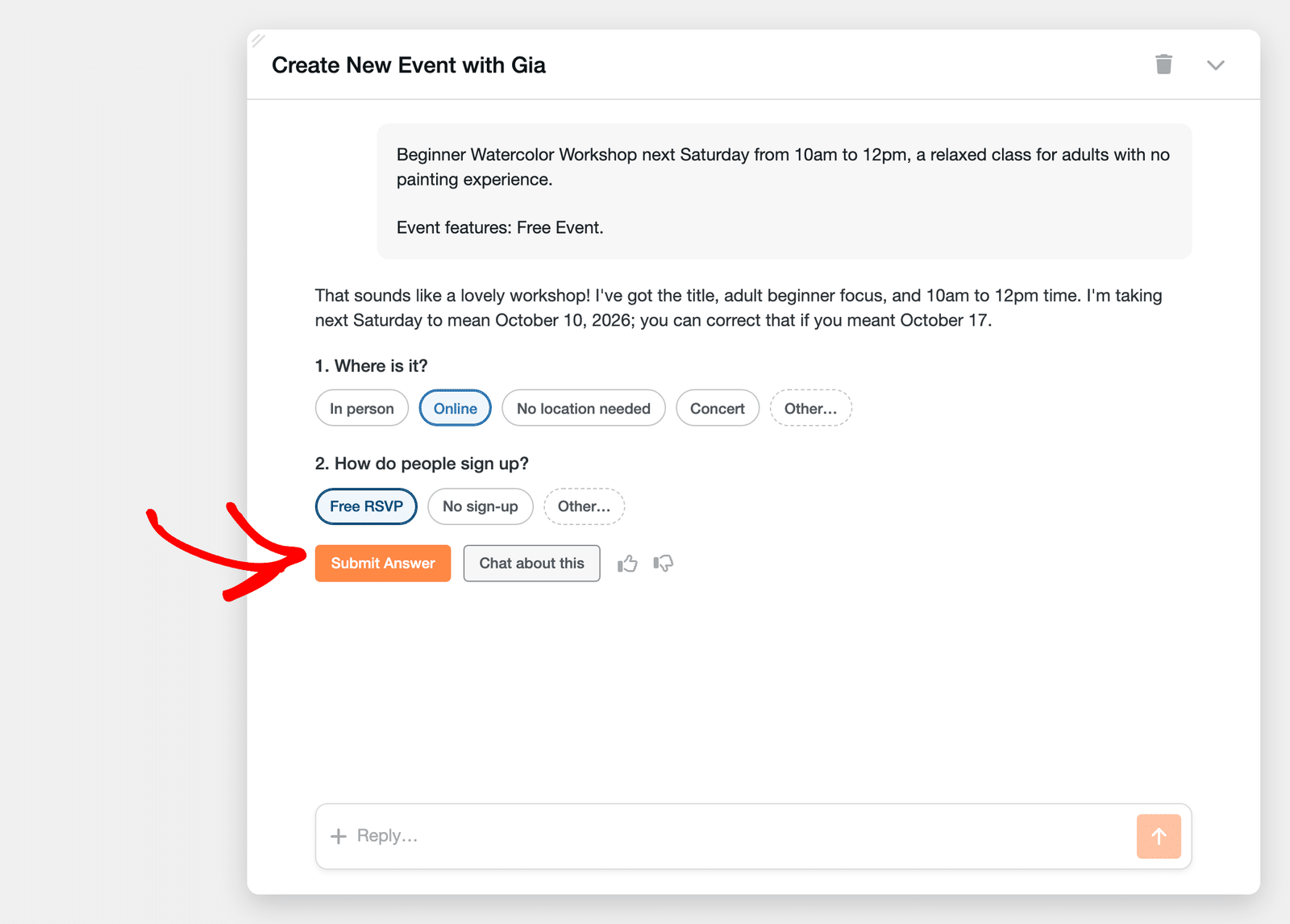
Prefer to explain things in your own words? Click Chat about this to reply in the message box instead.
Gia may ask a second round of questions, such as how many people can attend. After a round or two of questions, it fills in anything still missing with sensible defaults and tells you what it assumed.
Reviewing the Event Summary
Once Gia has enough information, it shows an event summary with the title, description, date, time, calendar, location, and registration details.
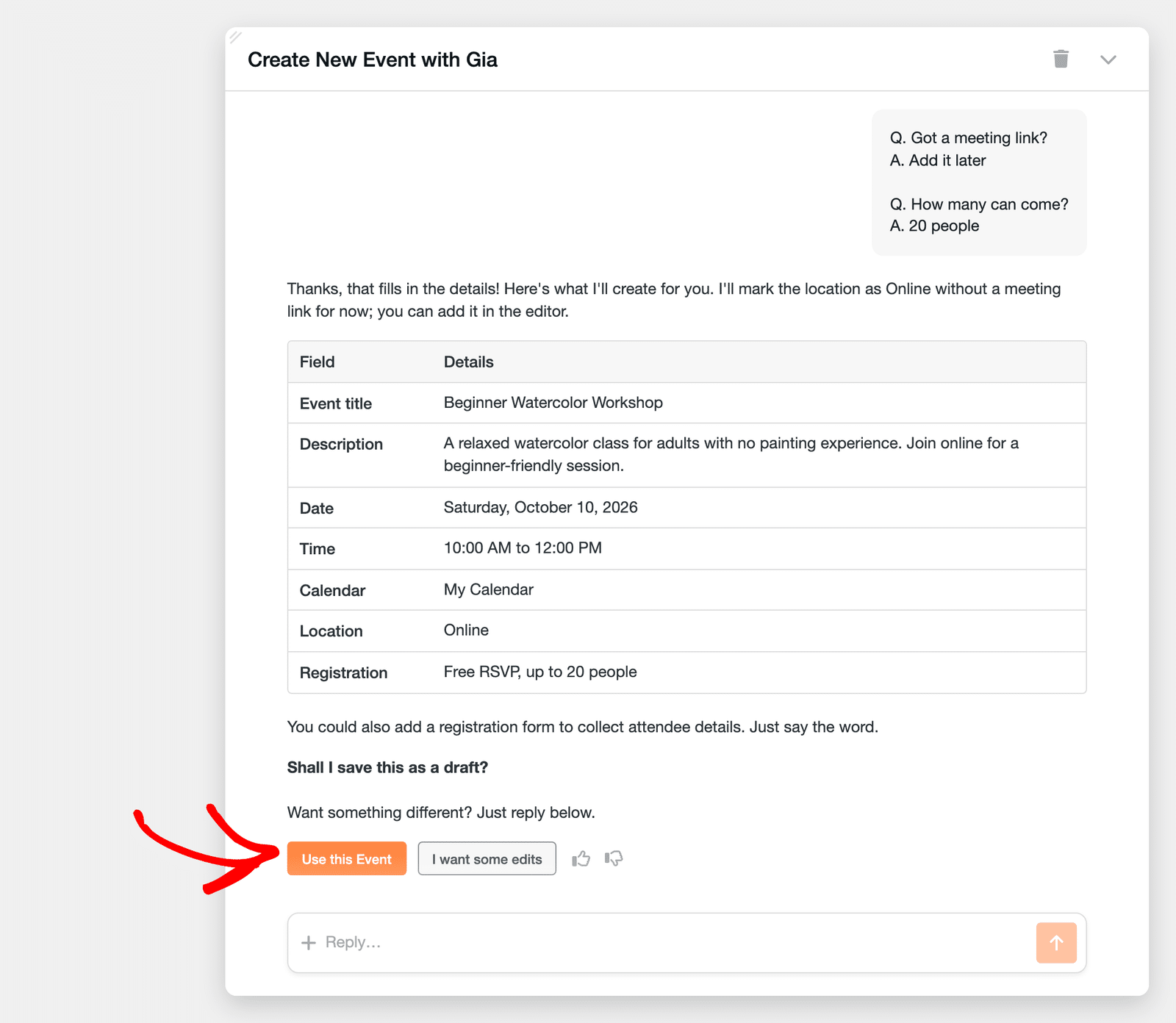
Read through the summary carefully. If something isn’t right, click I want some edits and describe the change in the message box. Gia updates the summary and shows it again.
When everything looks good, click Use this Event.
Finishing Your Event in the Editor
Gia saves the event as a draft and opens it in the event editor with all the details filled in.
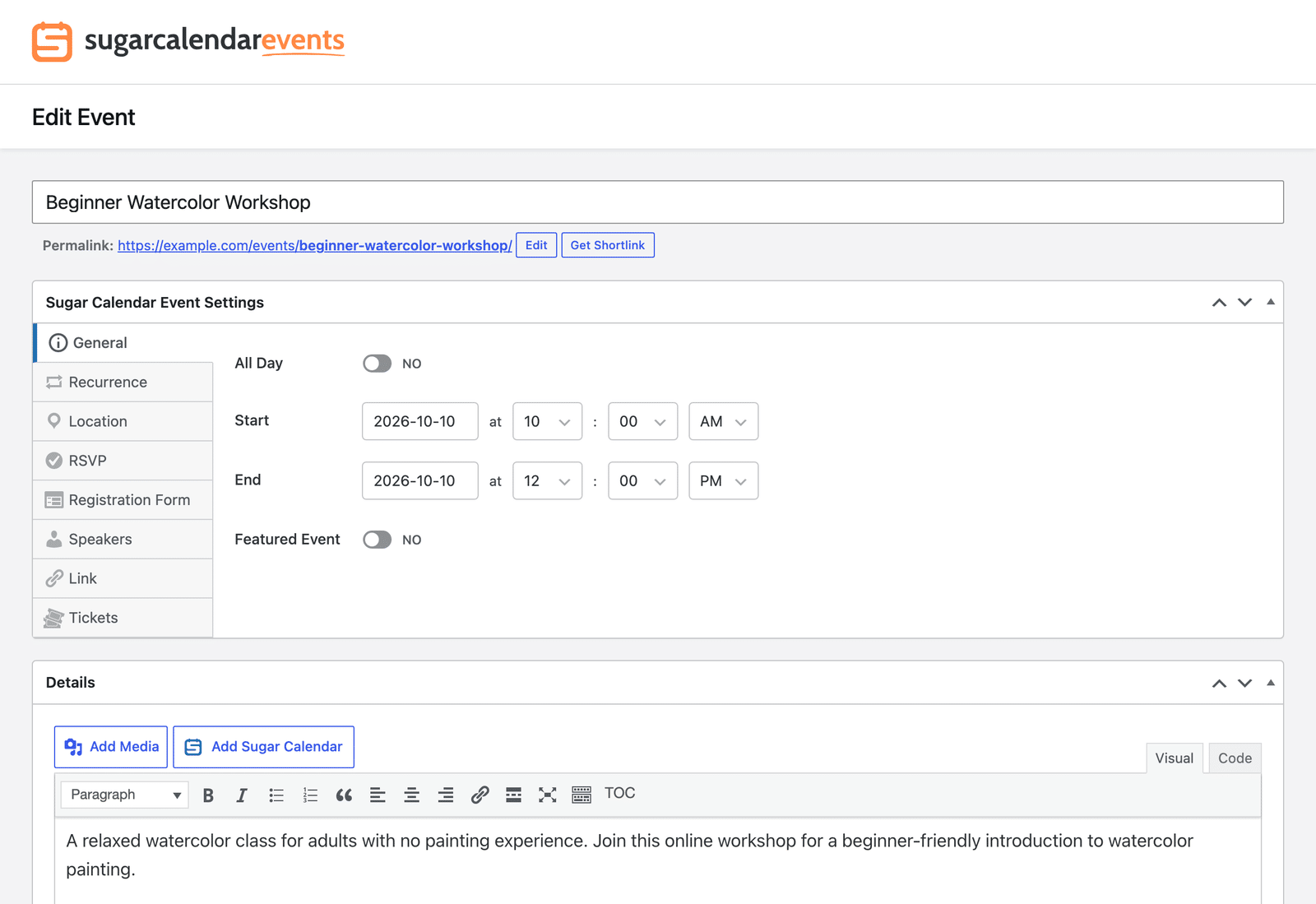
From here, review the event and add anything Gia couldn’t, such as a featured image or an online meeting link. When you’re ready, click Publish to make the event live.
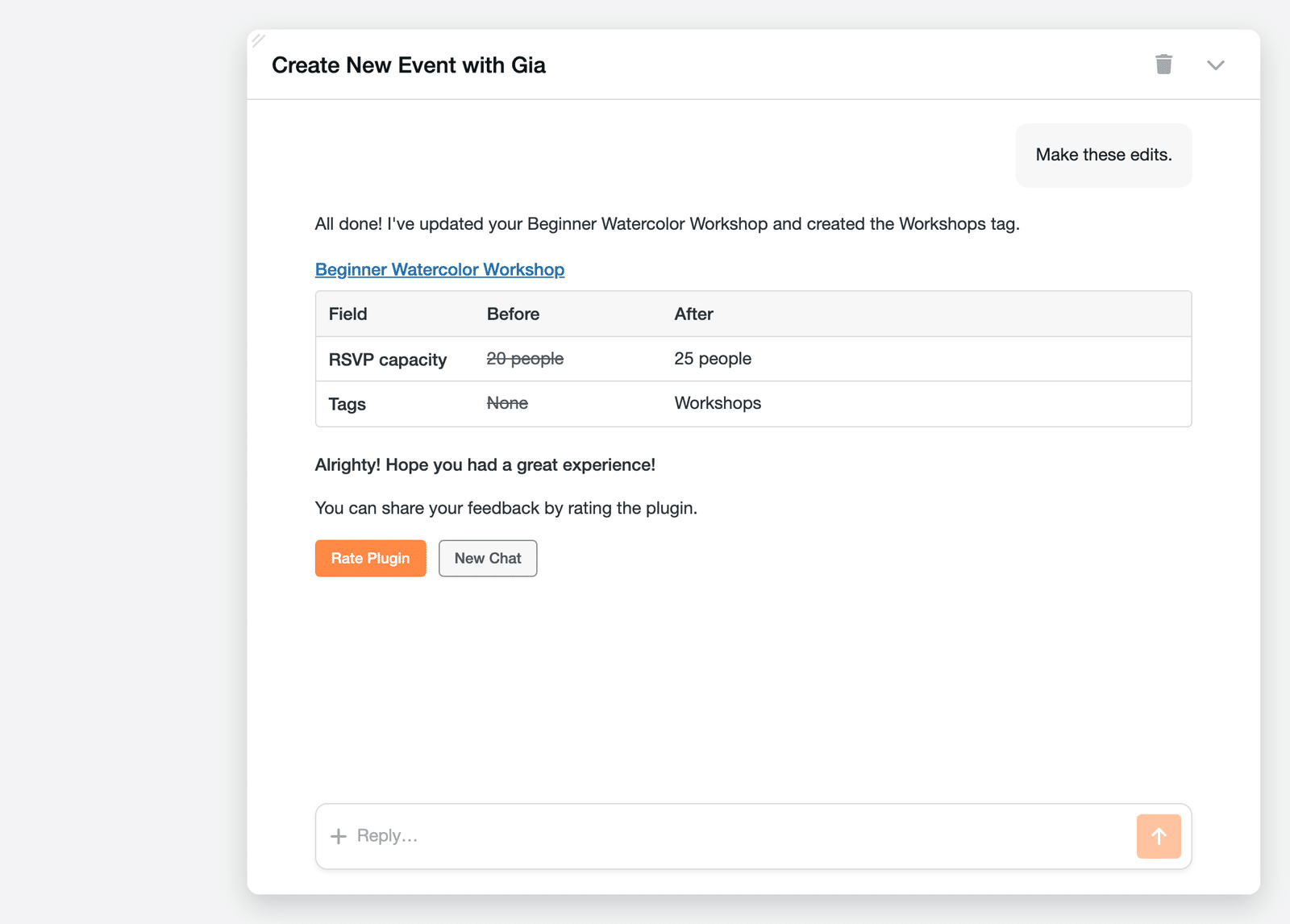
Need more changes? Open Gia again. The chat picks up where you left off and asks whether you’re done or want some edits. Ask for your changes here, and Gia updates the same draft, so you won’t end up with a duplicate event.
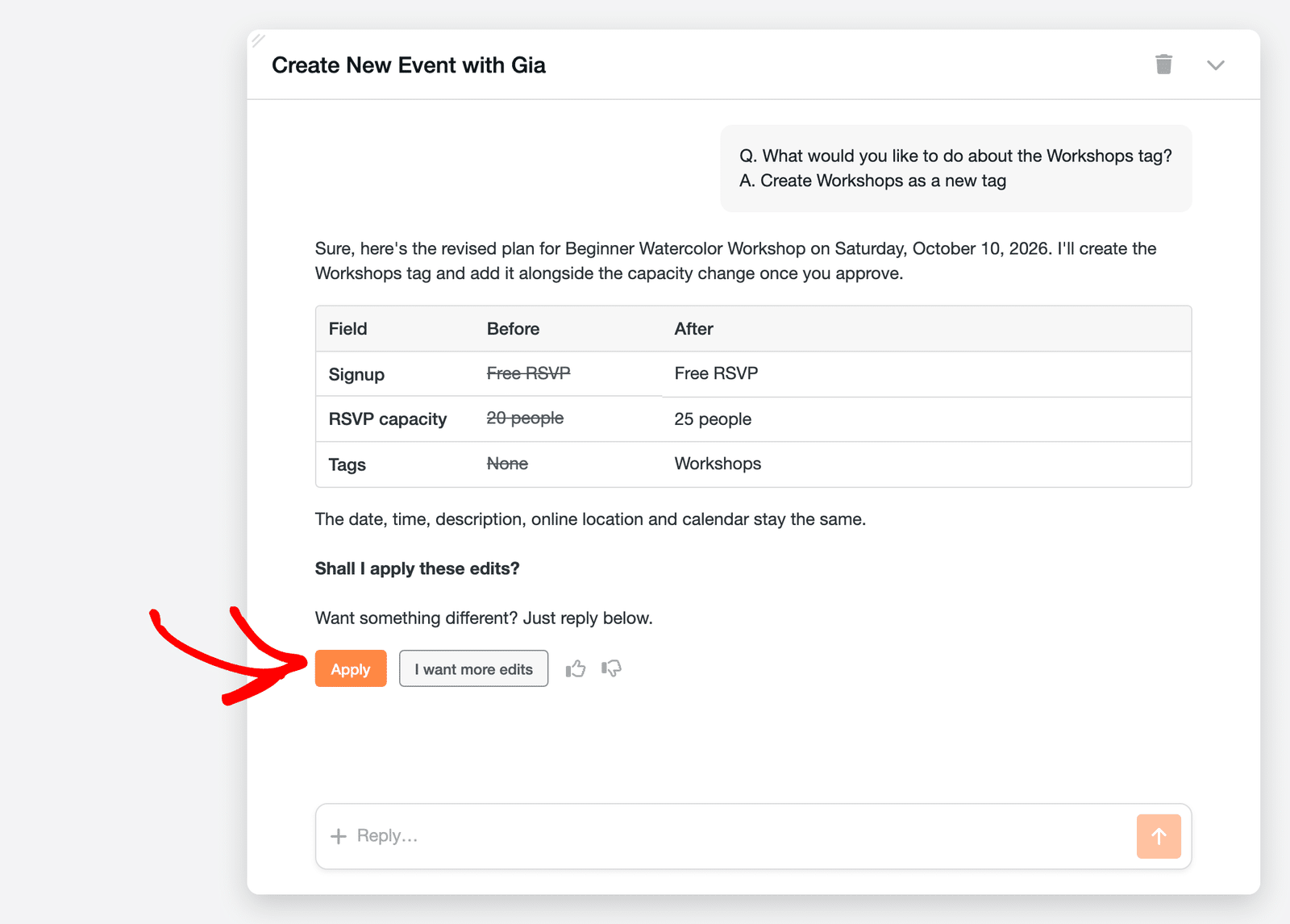
Review the before and after values, then click Apply to save the changes.
If you mention a calendar, tag, or other item that doesn’t exist yet, Gia asks whether to create it or skip it.
When you’re finished, click Done.
Editing Existing Events With Gia
To update events you’ve already created, click Edit existing event in the Quick Actions panel. Gia offers two suggestions to start from:
- Suggest Improvements: Ask Gia to improve an event’s title, description, or pricing.
- Bulk Edit: Make the same change across several events at once.
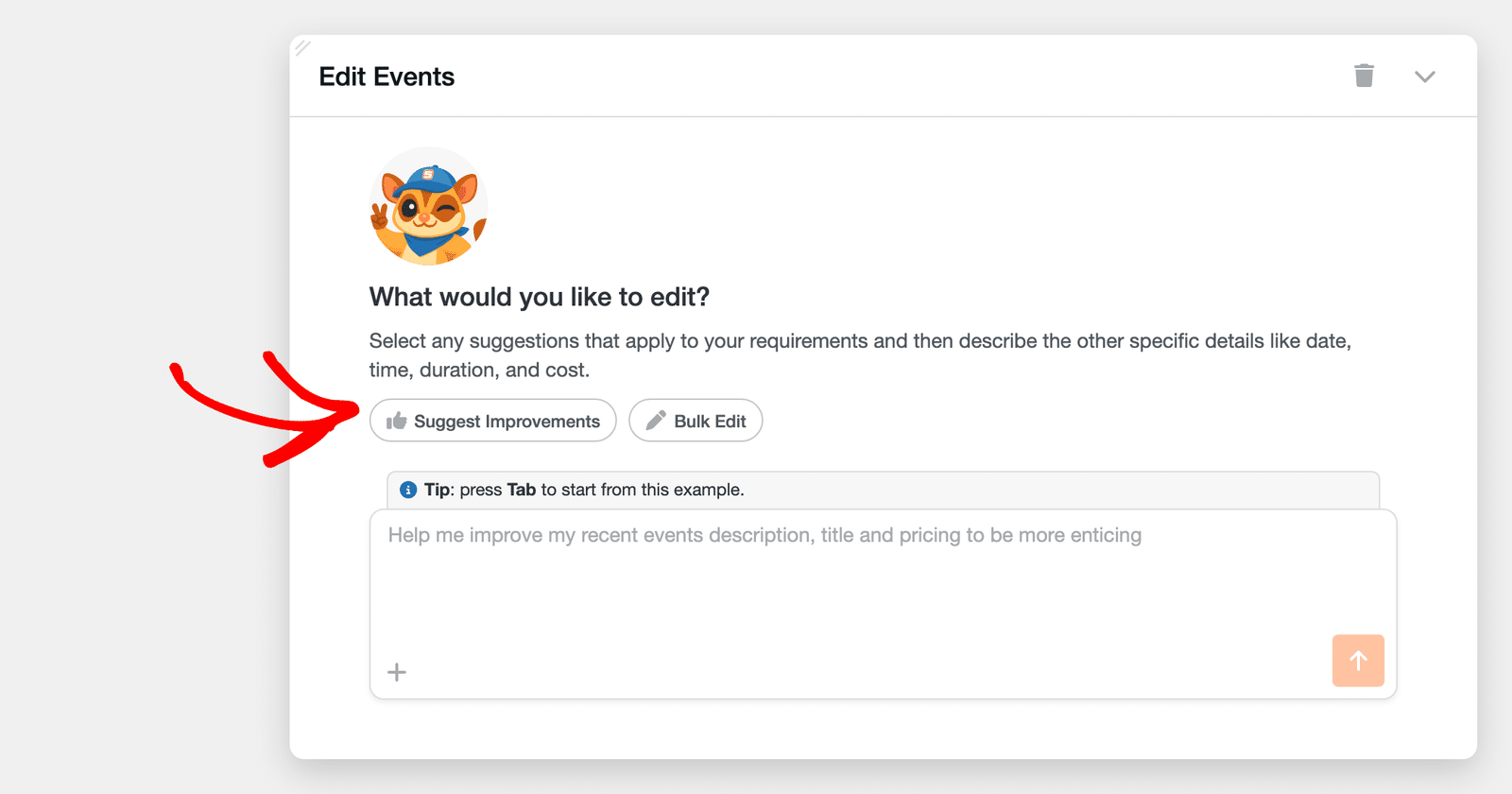
Select a suggestion if one fits, then describe what you’d like to change and which events to change. If Gia isn’t sure which event you mean, it asks you to pick from a list of matches.
Gia then shows an edit summary with each field’s current value and its new value. Click Apply to save the changes, or I want more edits to keep refining them.
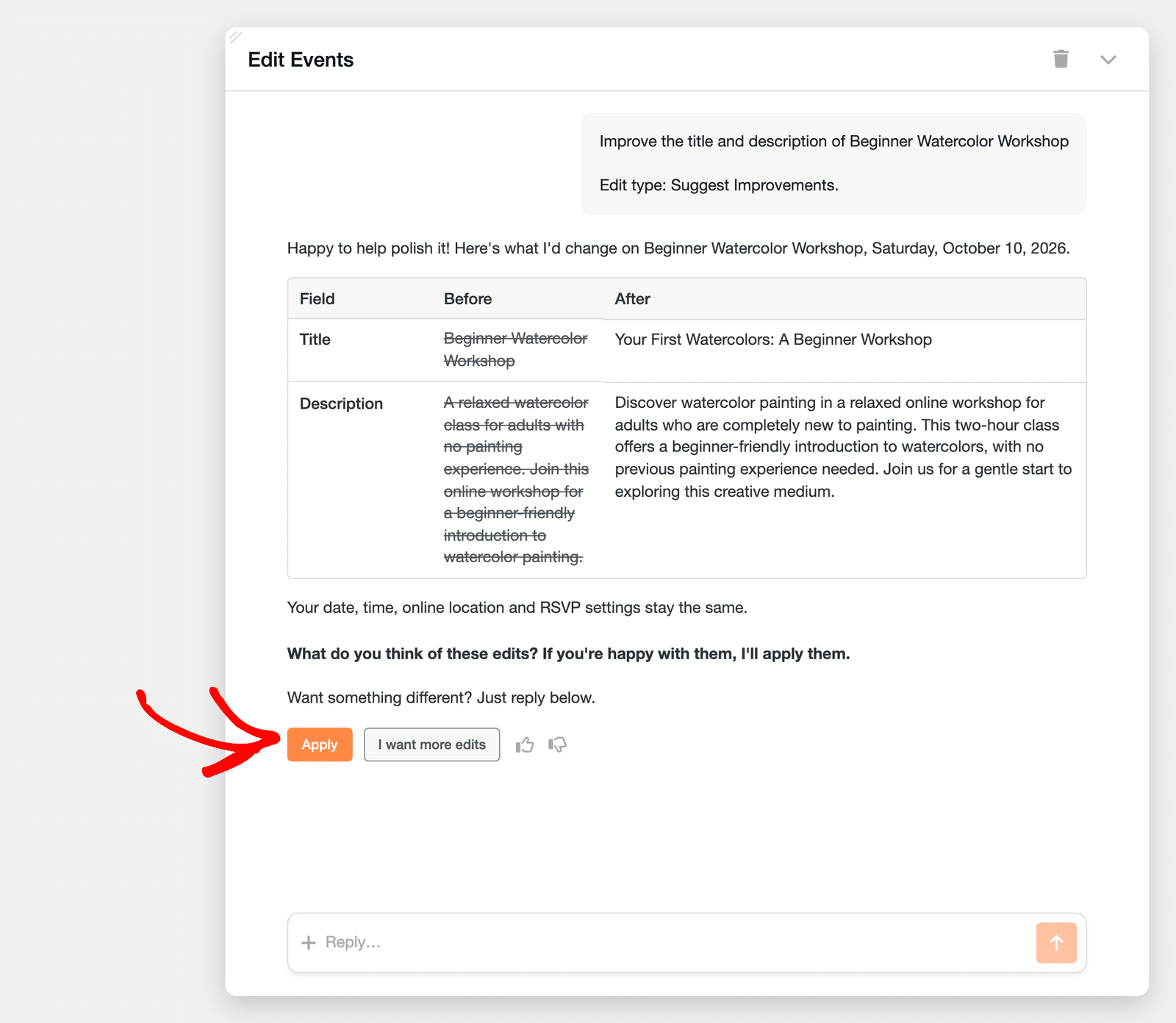
When you edit a single event, Gia opens that event in the editor after applying the changes. When you edit several events, Gia stays in the chat and lists each updated event with a summary of what changed.
If Gia can’t update some events in a bulk edit, it tells you which events failed. When the failure is temporary, click Retry the failed updates to try them again.
Undoing a Change
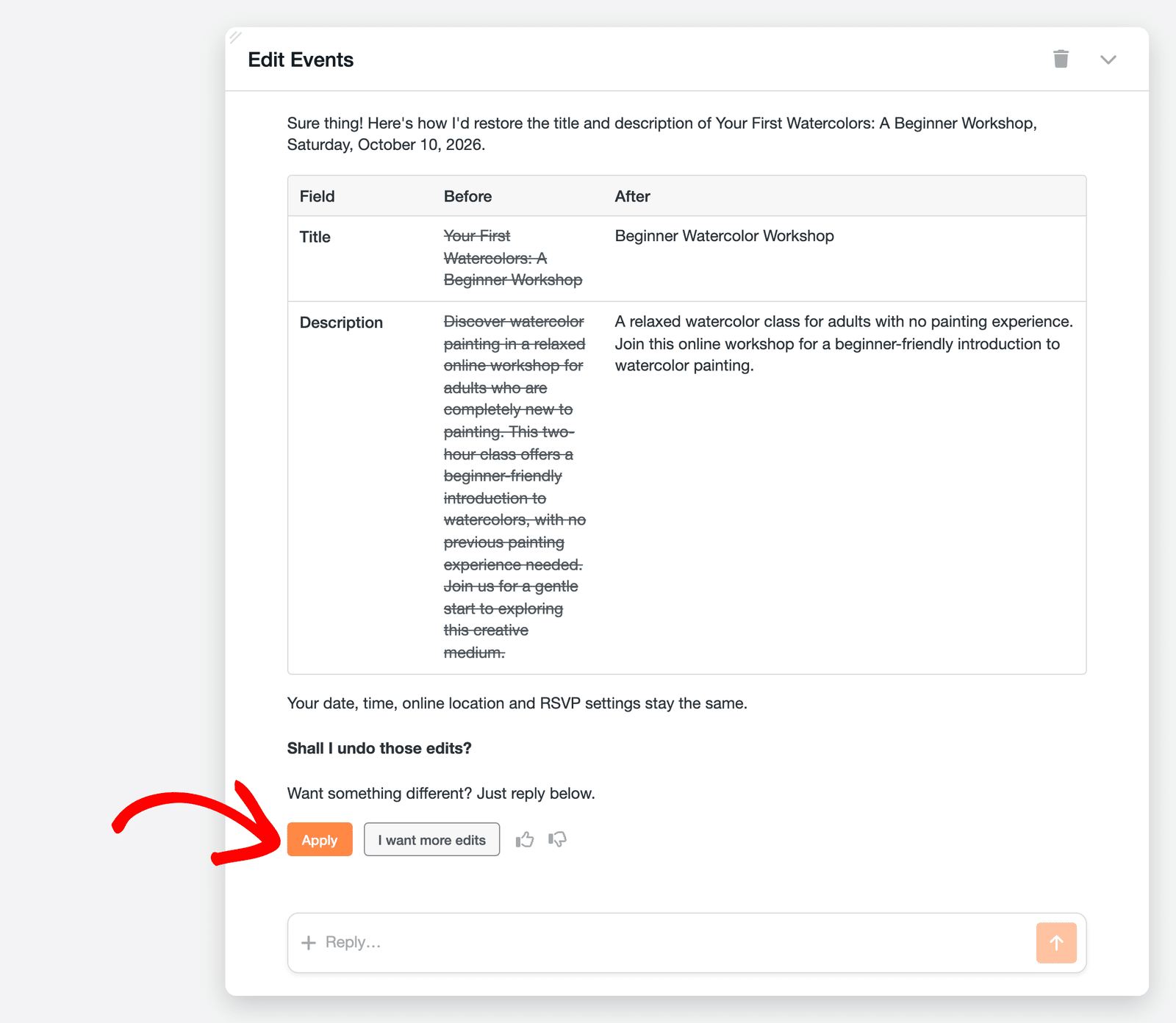
Changed your mind? Type undo in the message box while the chat is still open. Gia shows the values it will restore, and you click Apply to put them back.
Asking Gia About Your Events
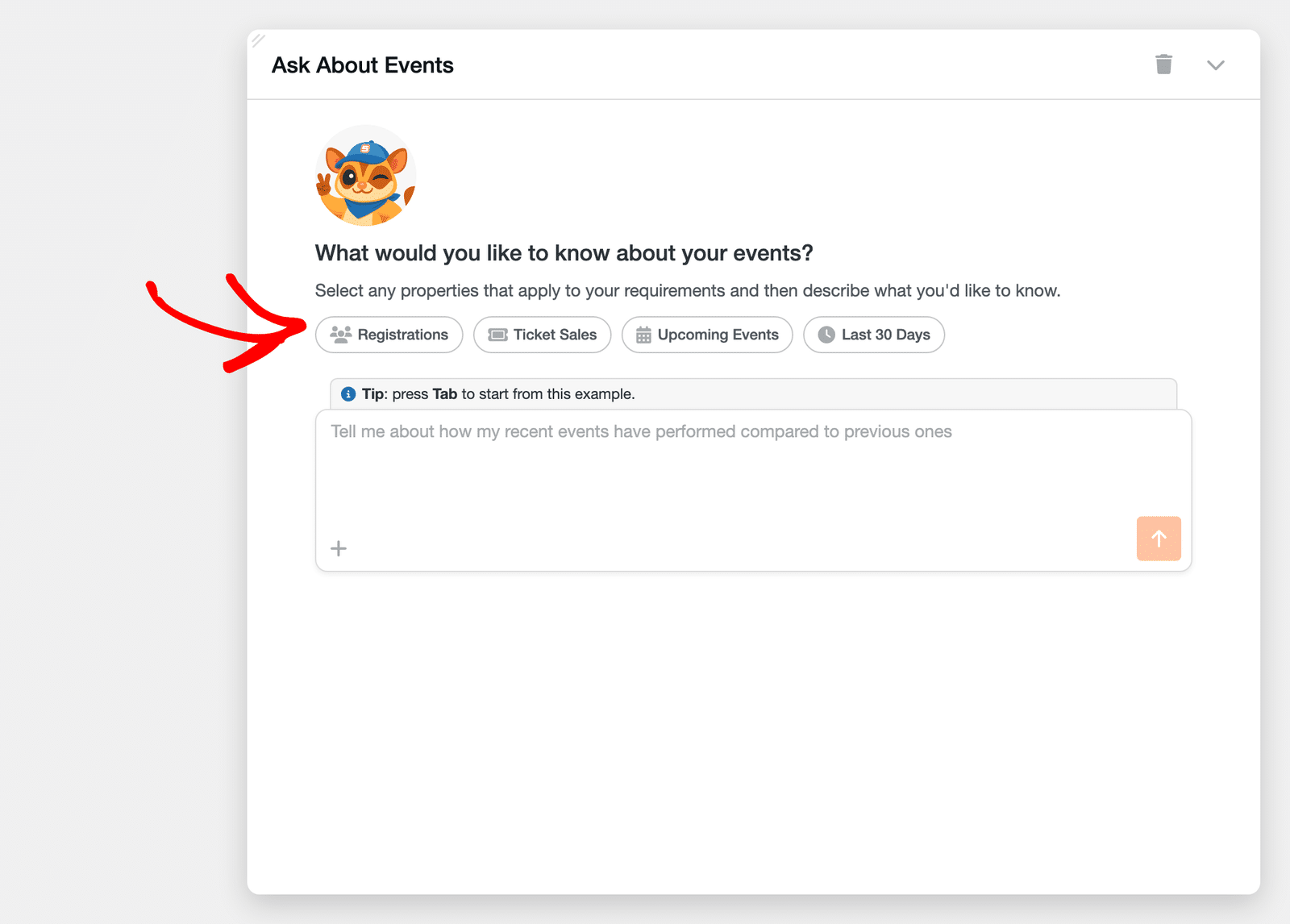
Gia also answers questions about your events. Click Ask about events in the Quick Actions panel to get started.
Gia suggests a few topics. Select any that apply, then type your question, such as how your recent events performed compared to earlier ones.
Gia answers in the chat. When the answer relates to something you can see in your dashboard, Gia adds a Show me button that opens the matching admin screen with the right filters already applied.
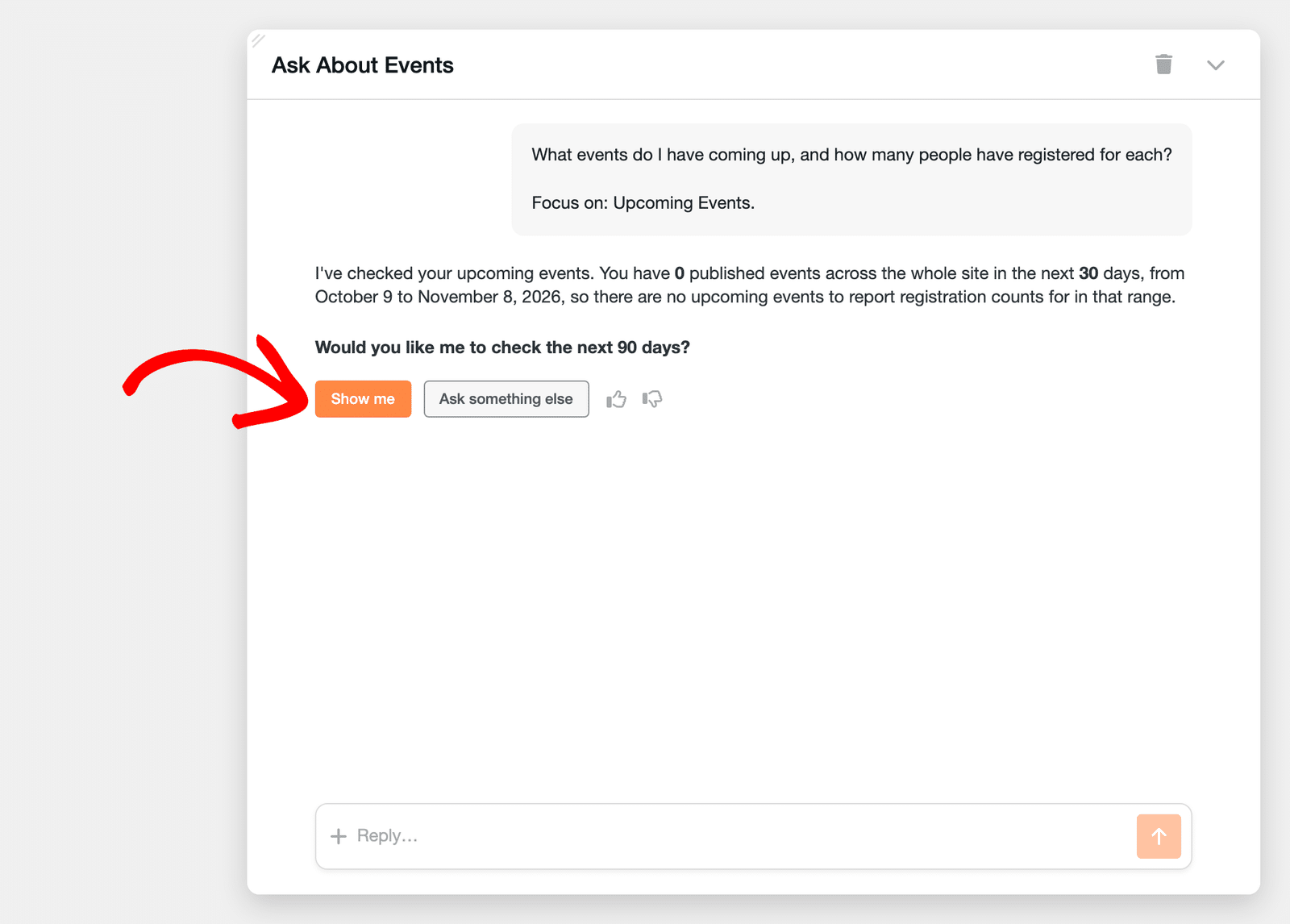
Click Ask something else to ask a follow-up question in the same chat.
Adding Site Data to Your Messages
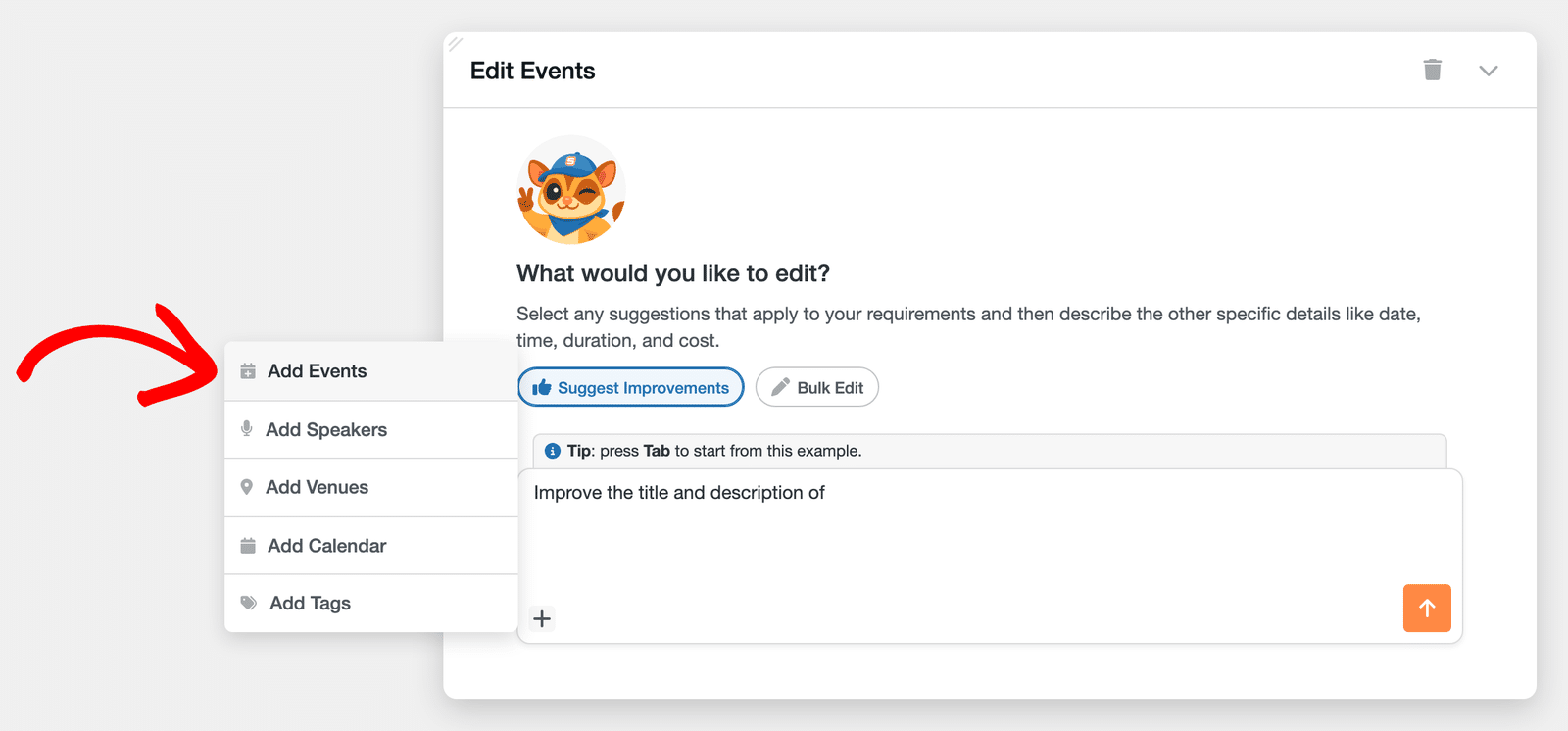
Want to point Gia at a specific event, speaker, or venue? Click the + icon in the message box to insert it directly.
Choose what to add from the menu: Add Events, Add Speakers, Add Venues, Add Calendar, or Add Tags. Then search for the item and click it.
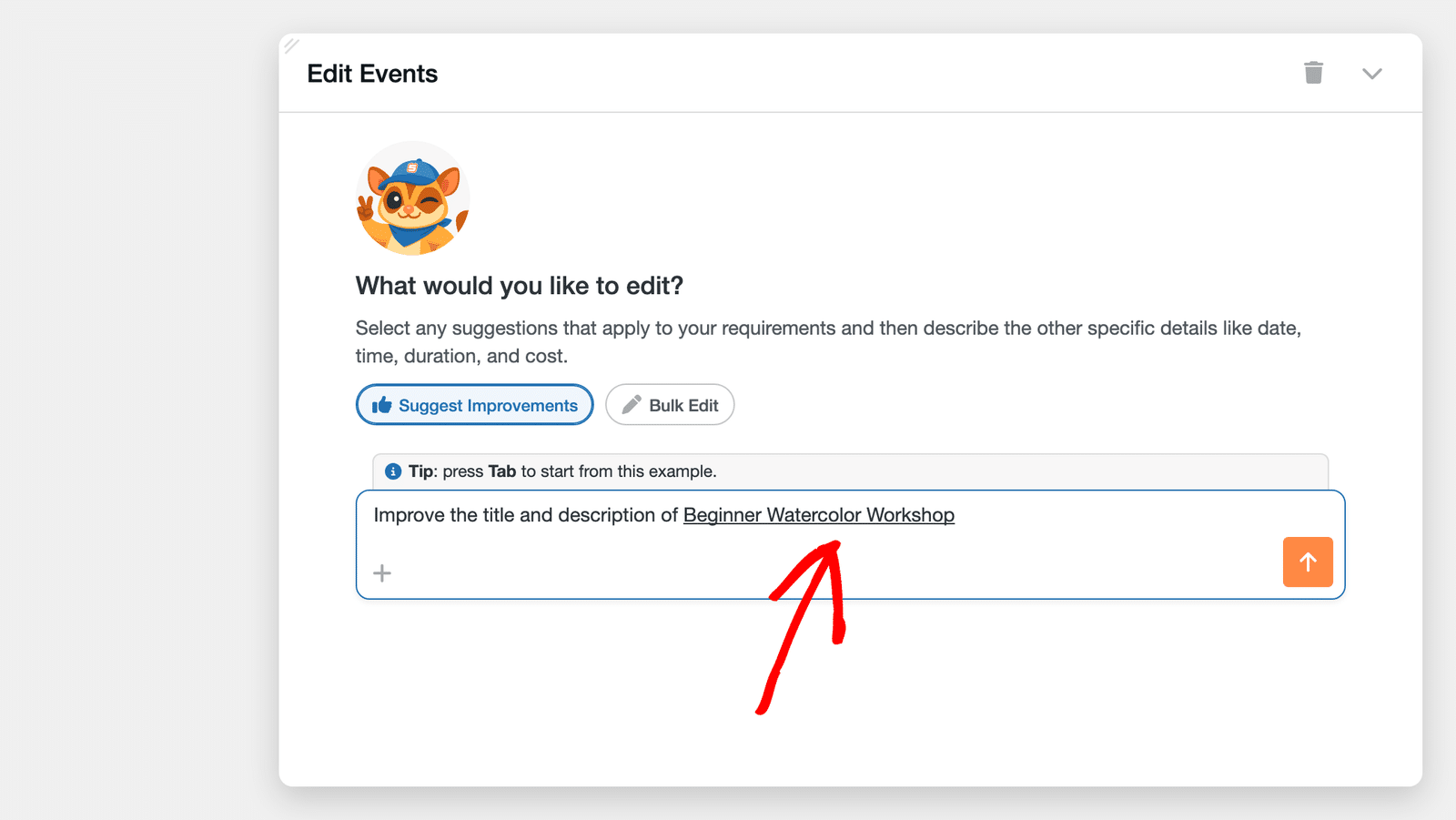
Gia adds the item to your message. This tells Gia exactly which item you mean, even if two items share the same name. To swap it for a different item, click the underlined link and pick another one.
Starting a New Chat
Each chat handles one task. To switch tasks, such as moving from creating an event to asking a question, clear the current chat first.
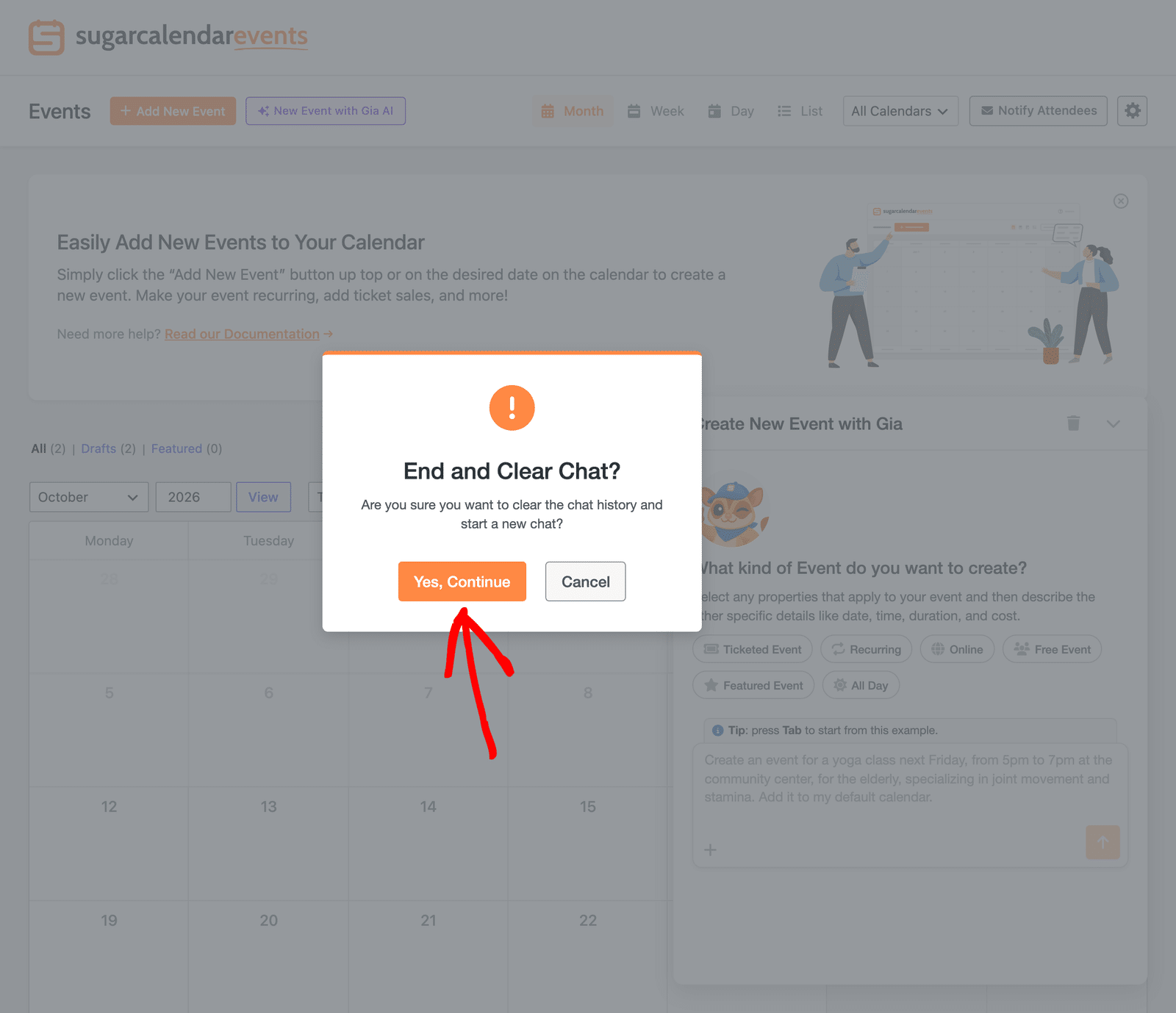
Click the trash icon in the chat header. Gia asks you to confirm with an End and Clear Chat? message. Click Yes, Continue to clear the chat and return to the Quick Actions panel.
Checking Your AI Usage
Every request Gia handles uses AI credits. Sugar Calendar tracks AI usage separately from the integration credits that features like Zoom use.
To check your usage, go to Events » Settings and open the License & Usage tab. The AI Usage card shows how many credits you’ve used this month and your plan’s total.
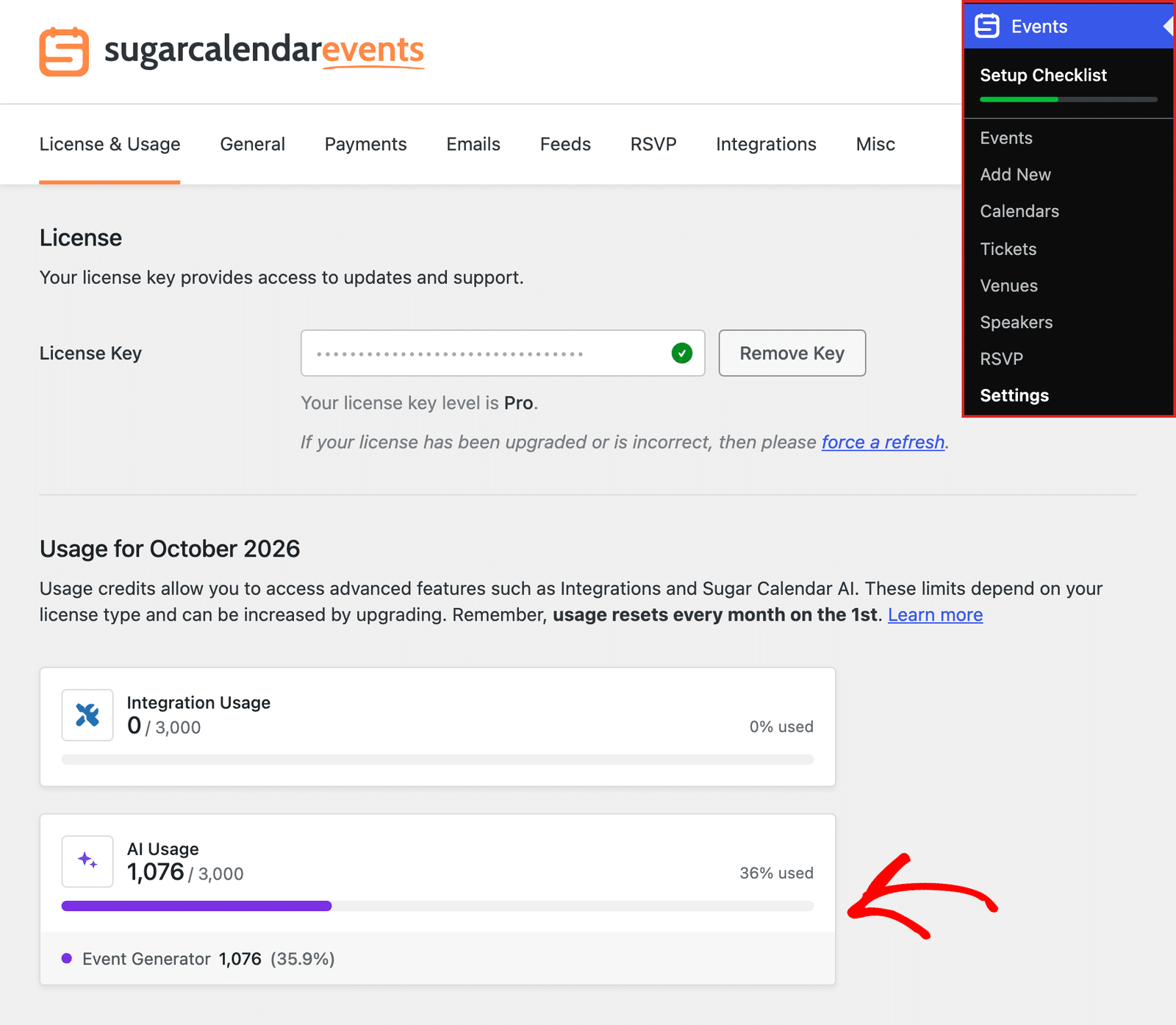
On paid plans, AI usage resets on the first of each month. On Sugar Calendar Events Lite, AI usage is a one-time lifetime allowance that doesn’t reset.
When you’ve used 75% or more of your AI usage, Gia shows a notice at the top of the chat with a link to get more. Lite users see an Upgrade to Pro link, and most paid plans see Upgrade for more.
For more details on how credits work, see our guide to integration credits and usage limits.
Turning Off Gia AI
Prefer not to use Gia’s AI features? Go to Events » Settings and open the Misc tab.
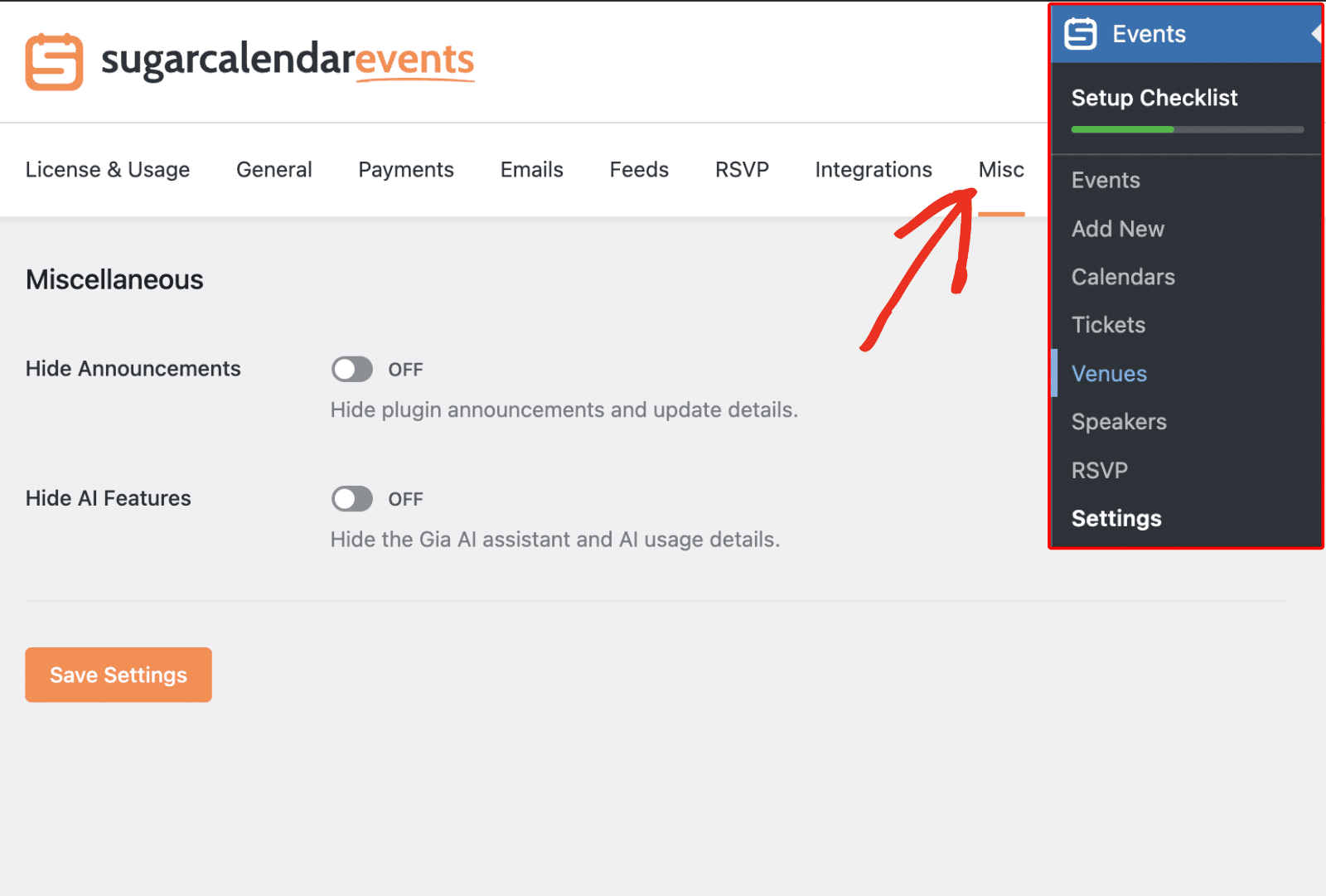
Once here, toggle Hide AI Features to the ON position and save your changes.
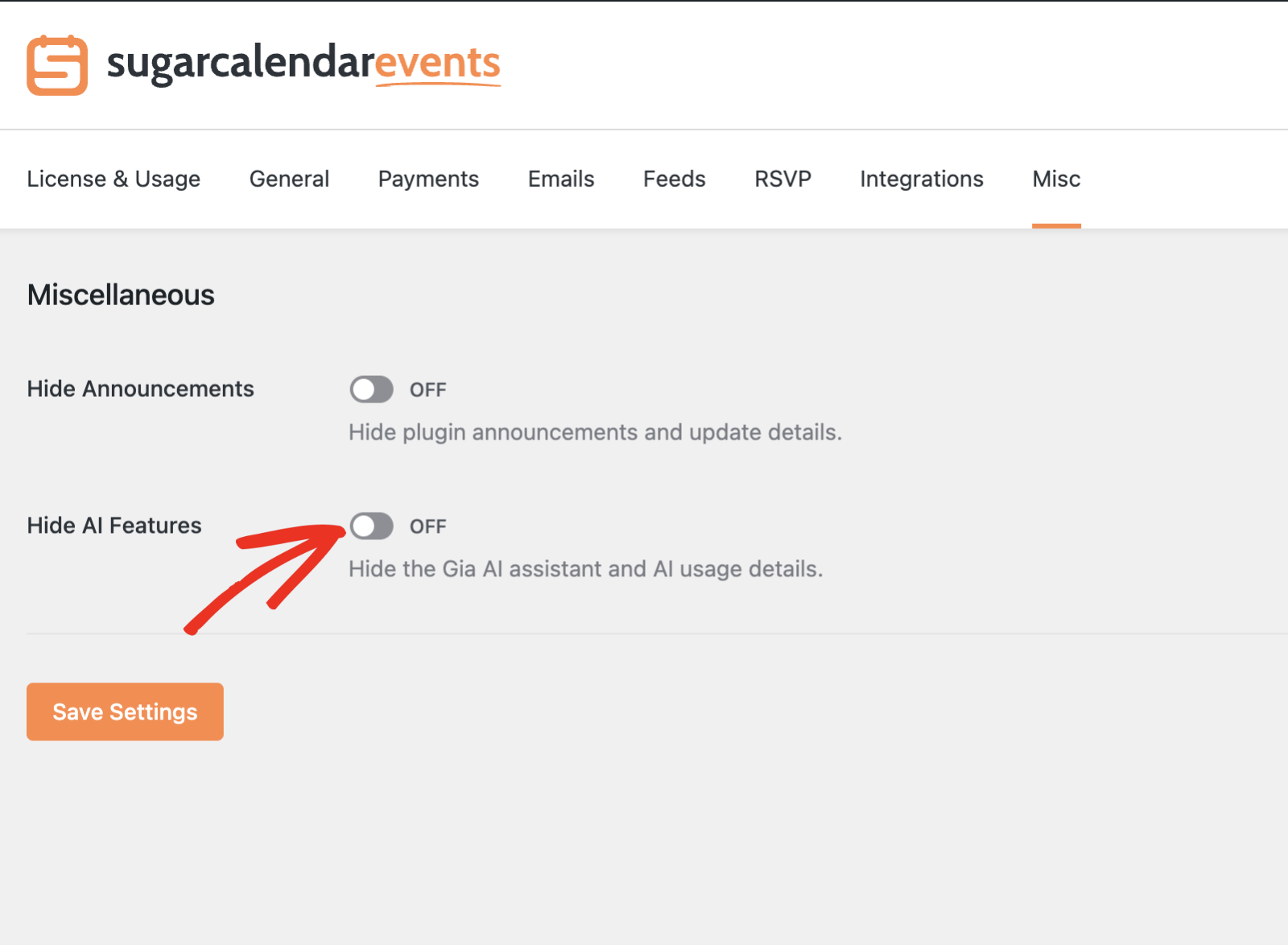
This hides the Gia AI assistant, the New Event with Gia AI button, and your AI usage details. The Gia bubble switches back to the classic quick links menu.
Frequently Asked Questions
Below are answers to some of the top questions about using Gia AI in Sugar Calendar Events.
Does Gia publish events on my site?
No. Gia always saves new events as drafts. Review each draft in the event editor and publish it yourself when it’s ready.
Can Gia delete my events?
No. Gia can create and edit events, but it can’t delete them. To remove an event, go to Events in your dashboard and move it to the trash.
Why don’t I see Gia AI?
Check that your site runs Sugar Calendar Events v3.15 or higher and WordPress 6.9 or later, and that Hide AI Features is turned off under Events » Settings » Misc. Gia also needs a live, publicly reachable site, so it won’t work on a local development site. On Sugar Calendar Events Lite, turning on Disable Integrations in the Misc tab also turns off Gia.
Do I need Sugar Calendar Events Pro to use Gia?
No. Gia is available in Lite and Pro. However, Gia only offers the features included in your plan. Pro features such as recurring events, venues, and speakers aren’t available in Lite.
How is Gia different from connecting an AI assistant like Claude or ChatGPT?
Gia comes with Sugar Calendar Events and works right inside your dashboard. It uses your plan’s AI usage credits and guides you through specific tasks. Connecting an outside assistant through WPVibe lets you use your own AI tool to work with your events instead. To learn more, see our guide on using Sugar Calendar Events with AI assistants.
That’s it! You now know how to use Gia AI to create, edit, and ask questions about your events in Sugar Calendar Events.
Next, would you like to add your events to a page on your site? Check out our tutorial on displaying the calendar for step-by-step instructions.