This tutorial covers how to get started with Sugar Calendar Events hooks and add your first snippets with WPCode.
In This Article
Before getting started, make sure Sugar Calendar Events is installed and activated on your site.
Note: We use the free WPCode plugin to add snippets in this tutorial. If you haven’t installed it yet, see WPCode’s guide to installing and activating WPCode.
Understanding Hooks
A hook is a named spot in the Sugar Calendar Events code where your own code can run. Sugar Calendar Events has two kinds of hooks.
- Action hooks run your code at a specific point. Use them to output extra content or to do something when an event happens, such as sending a notification. Attach your code with
add_action(). - Filter hooks pass a value through your code so you can change it before Sugar Calendar Events uses it. Attach your code with
add_filter(), and always return the value, even when you don’t change it.
Each hook passes some data to your code, such as the event being displayed. The Hook Reference lists every hook, the data it passes, and the version that added it.
Adding a Snippet With WPCode
WPCode keeps your snippets separate from your theme, so theme updates don’t remove them. It also turns off a snippet automatically if the code causes an error.
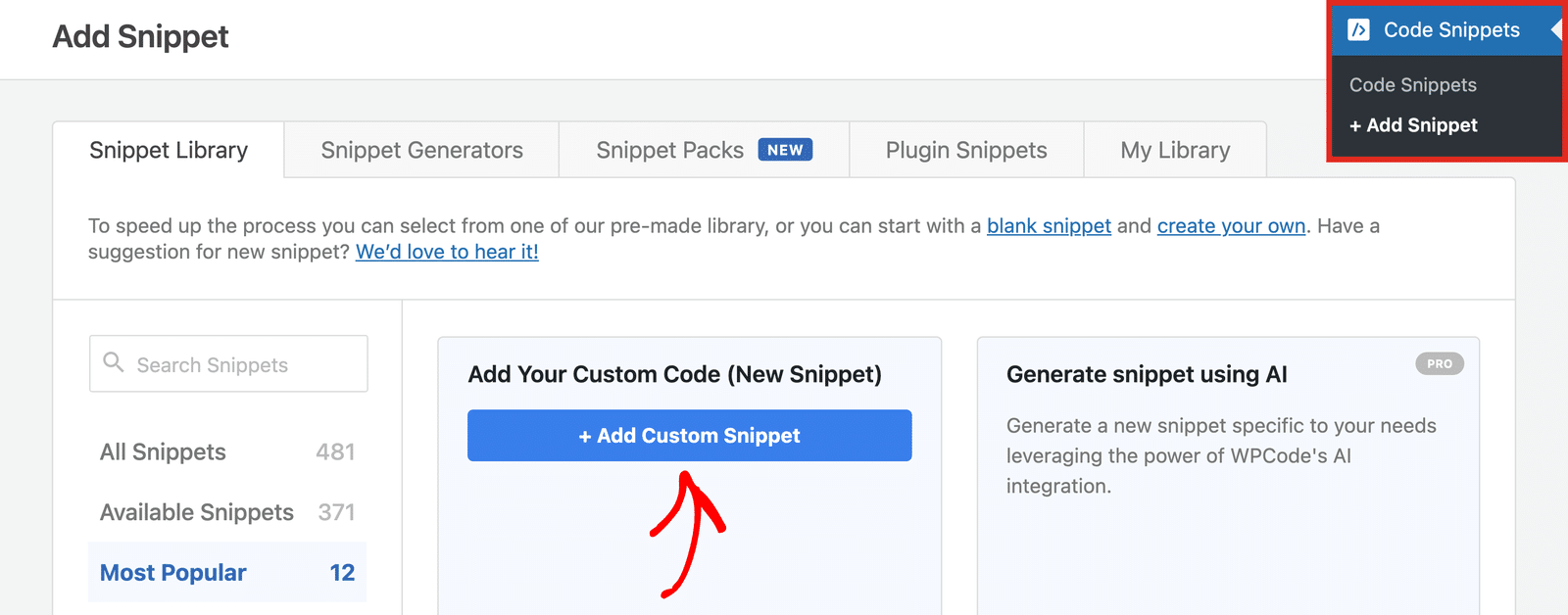
To add a snippet, go to Code Snippets » + Add Snippet in your WordPress admin area. Then hover over Add Your Custom Code (New Snippet) and click + Add Custom Snippet.
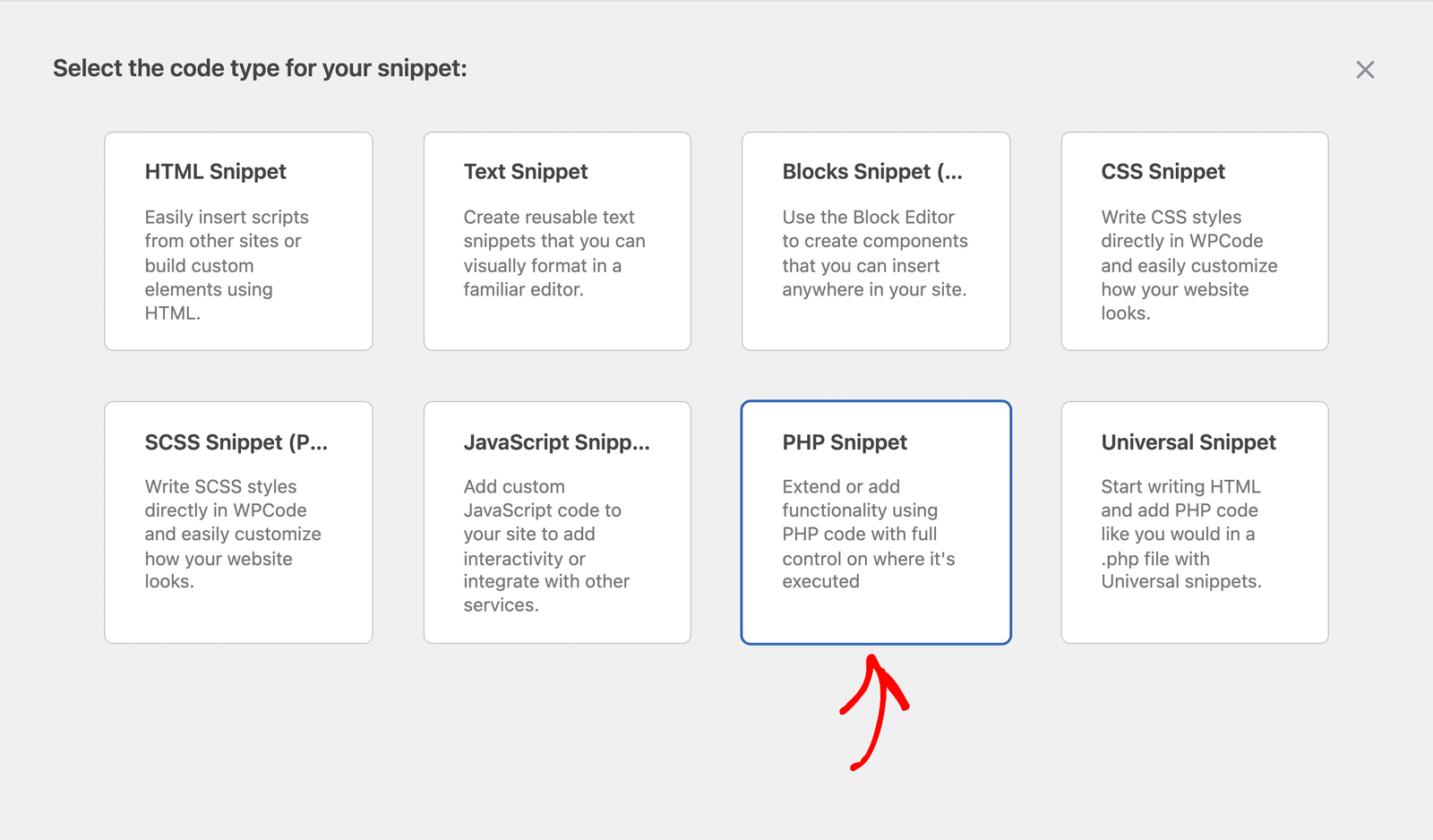
Next, select the code type for your snippet. Choose PHP Snippet.
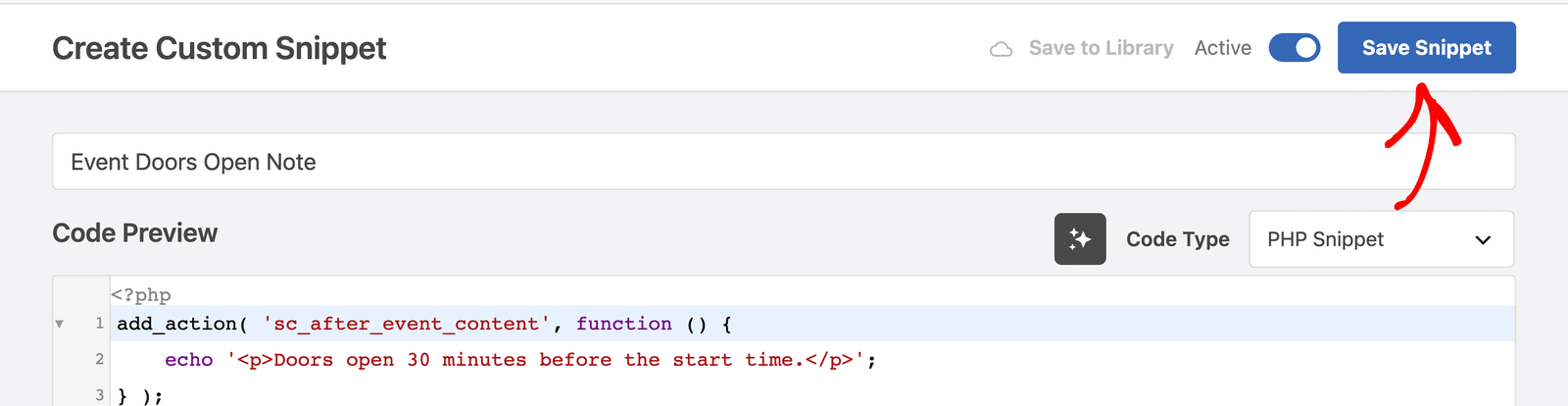
After that, enter a title for your snippet, such as “Event Doors Open Note,” and paste your code into the Code Preview box.
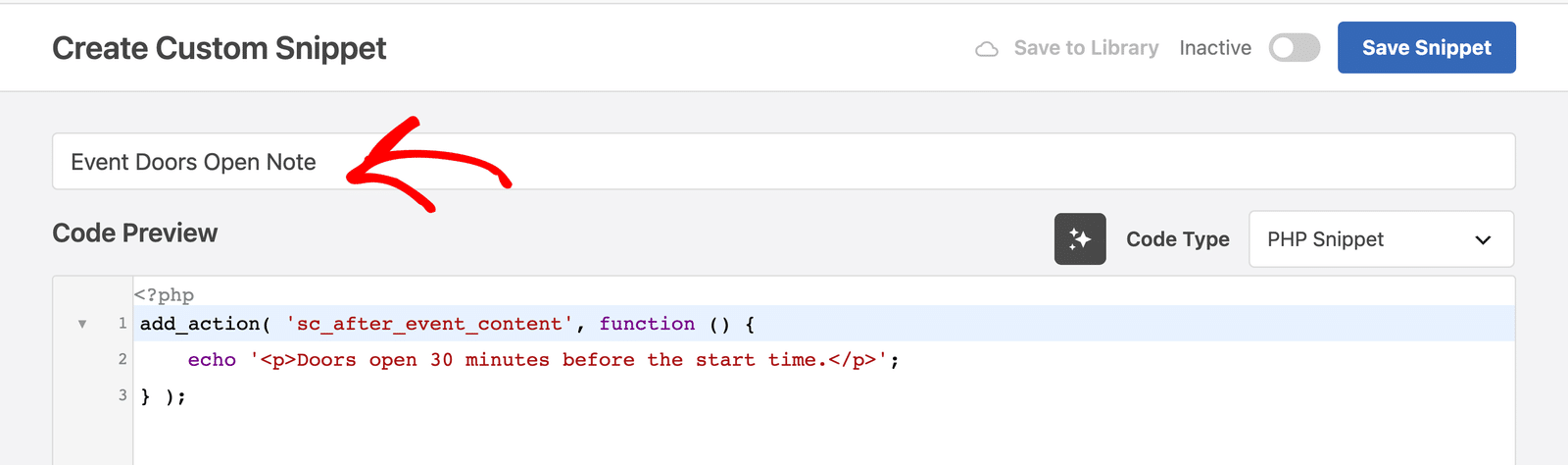
Note: WPCode adds the opening <?php tag for you. When you copy a snippet from our docs, leave out any <?php line at the top.
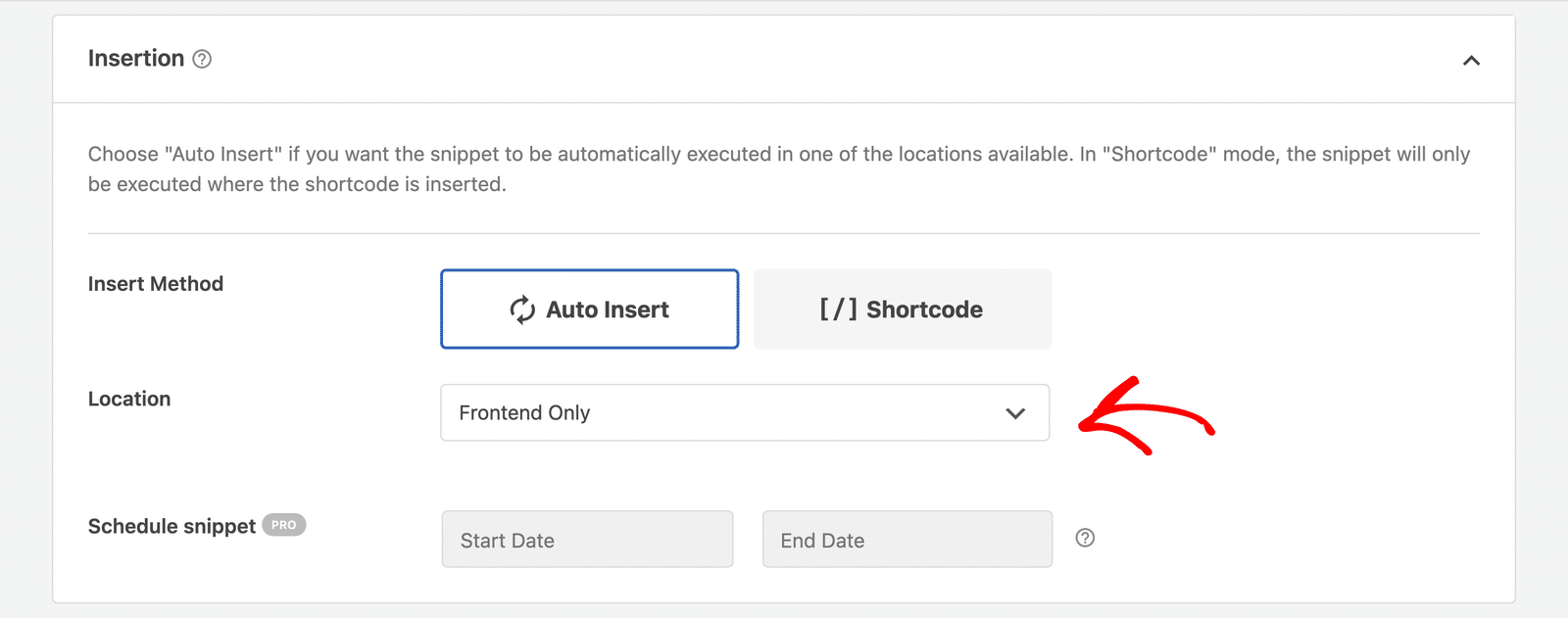
Scroll down to the Insertion section. Leave the Insert Method set to Auto Insert, then open the Location dropdown and choose Frontend Only. The examples in this tutorial only change what visitors see, so they don’t need to run in the admin area.
Finally, scroll back to the top, switch the toggle from Inactive to Active, and click Save Snippet.
Using an Action Hook
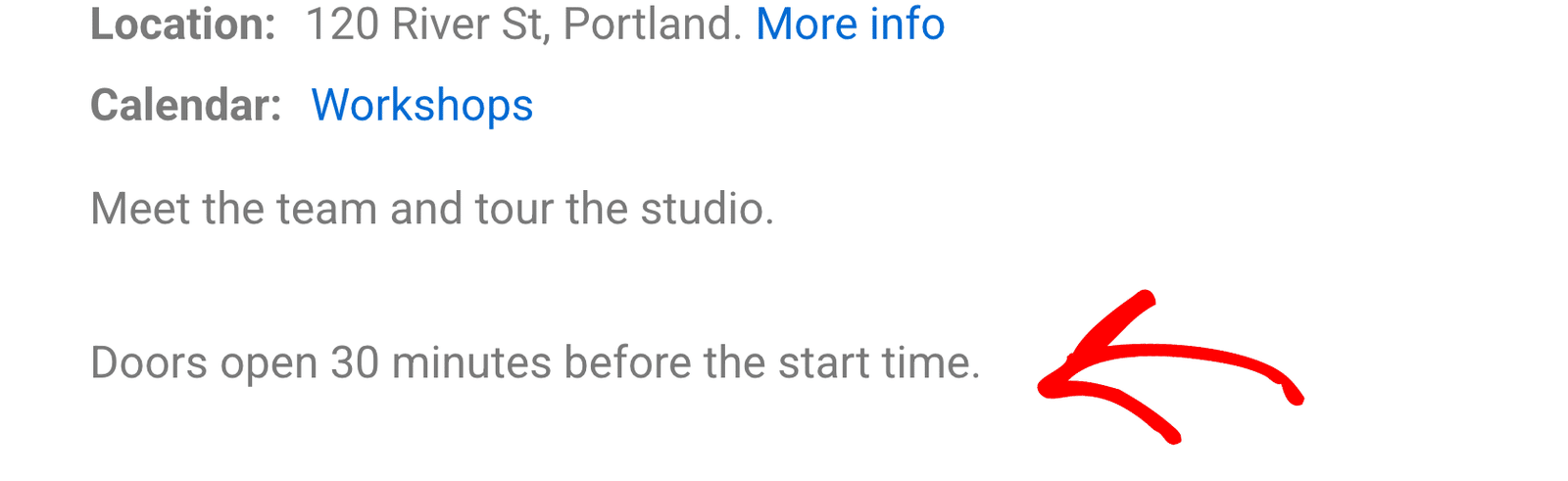
The sc_after_event_content action runs right after the event description on every single event page. This snippet uses it to add a short note for visitors:
add_action( 'sc_after_event_content', function () {
	echo '<p>Doors open 30 minutes before the start time.</p>';
} );
Save and activate the snippet, then open any event on your site. The note now appears below the event description.
Using a Filter Hook
The sugar_calendar_frontend_event_badges filter controls the badges above the event details, such as the Featured badge. It passes an array of badges and the event, and your code returns the updated array.
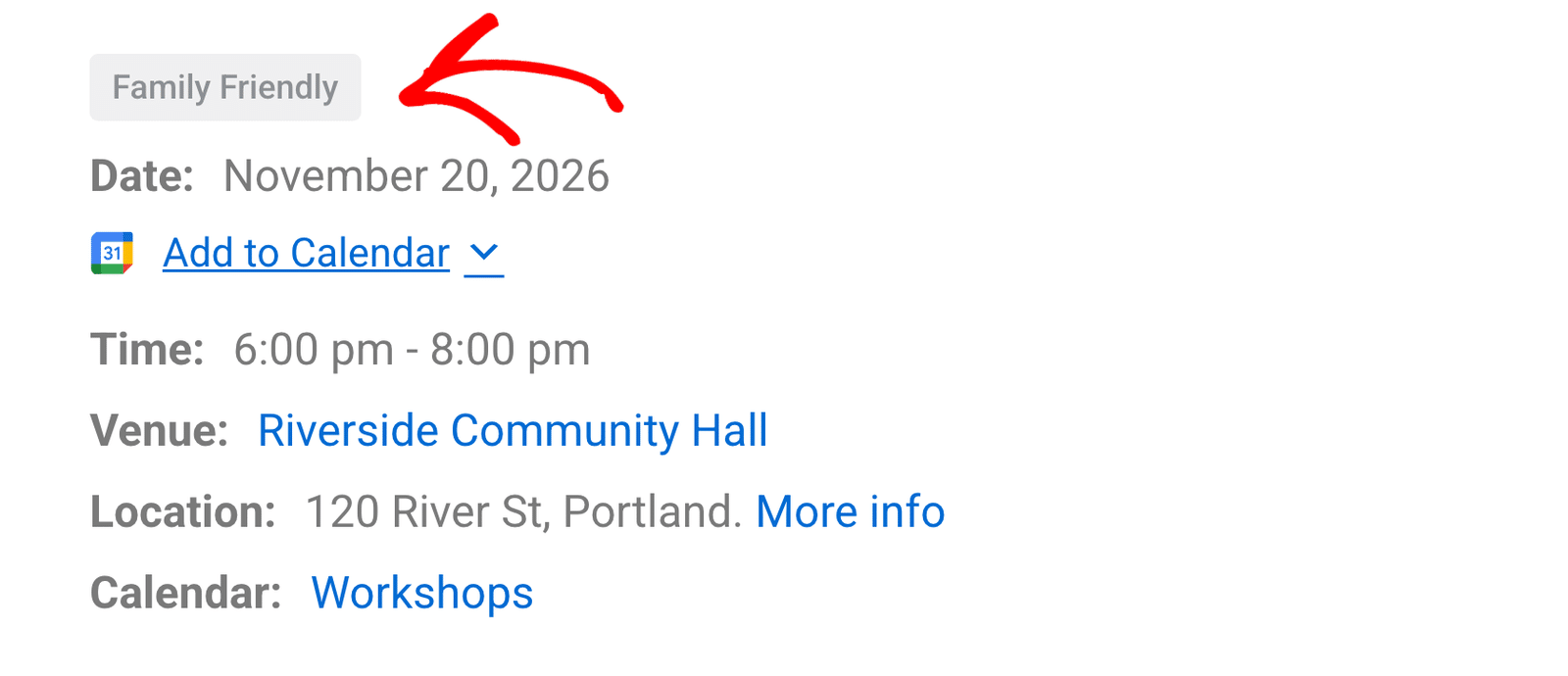
This snippet adds a Family Friendly badge to every event:
add_filter( 'sugar_calendar_frontend_event_badges', function ( $badges, $event ) {
	$badges[] = [ 'text' => 'Family Friendly' ];

	return $badges;
}, 10, 2 );
The last two numbers in add_filter() are the priority (10) and the number of arguments your function accepts (2). WordPress passes only one argument unless you set this number, so raise it whenever your function needs more of the data the hook provides.
Each badge takes a text value. You can also set color to blue or grey (the default) and add a title that shows on hover.
To show a badge only on certain events, check the event before adding it. For example, wrap the line that adds the badge in if ( has_term( 'kids', 'sc_event_category', $event->object_id ) ) { … } to show it only on events in a Kids calendar.
Controlling Order With Priorities
When several functions use the same hook, WordPress runs them in order of priority, from lowest to highest. The default priority is 10.
Sugar Calendar Events builds the event details box with the sugar_calendar_frontend_event_details action. Each row is a separate function with its own priority:
| Row | Priority |
|---|---|
| Date | 20 |
| Time | 30 |
| Recurrence and speakers (Pro) | 35 |
| Location or venue | 40 |
| Online meeting | 42 |
| Event link (Pro) | 45 |
| Calendars | 50 |
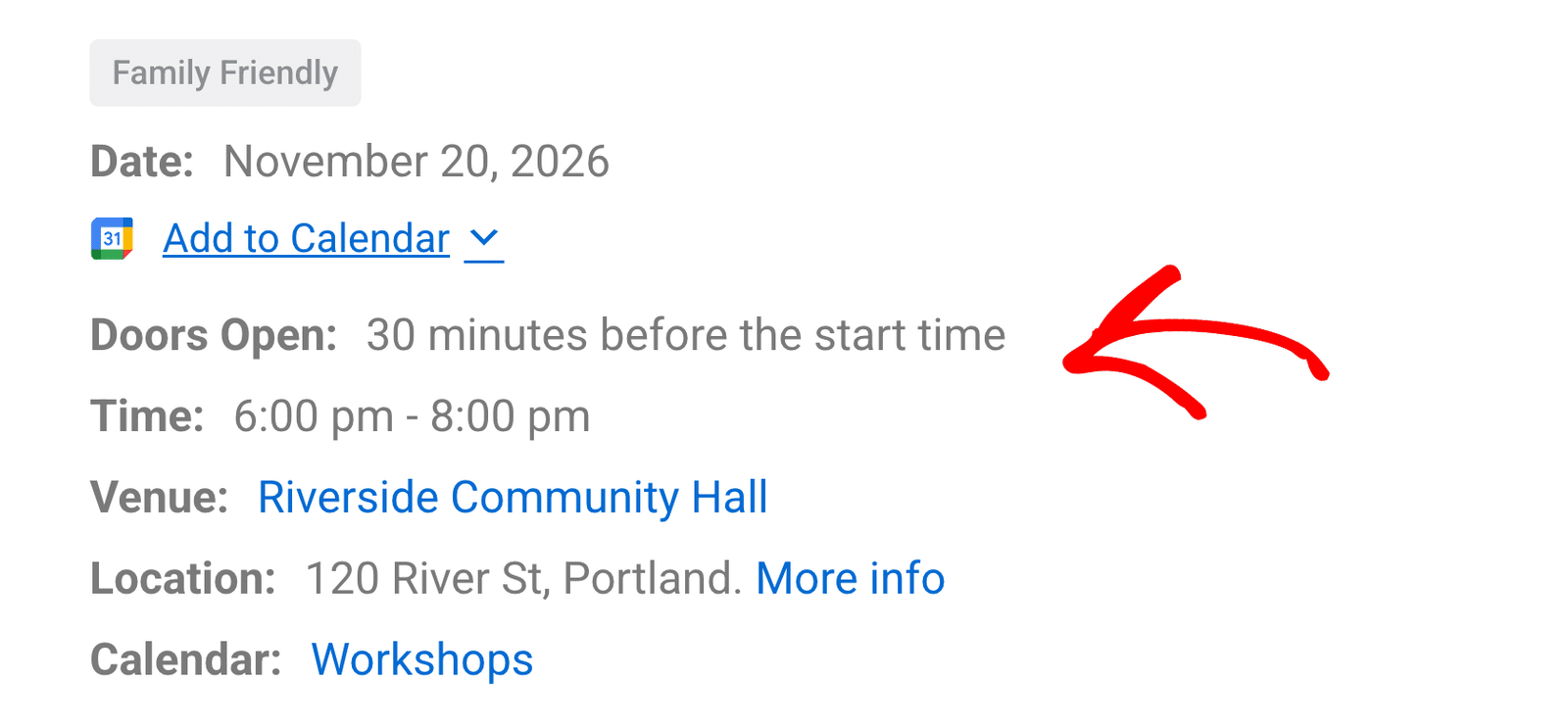
To place your own row, pick a priority between two of these. This snippet adds a Doors Open row between the date and the time by using priority 25:
add_action( 'sugar_calendar_frontend_event_details', function ( $event ) {
	?>
	<div class="sc-frontend-single-event__details-row">
		<div class="sc-frontend-single-event__details__label">Doors Open:</div>
		<div class="sc-frontend-single-event__details__val">30 minutes before the start time</div>
	</div>
	<?php
}, 25 );
The sc-frontend-single-event__details-row classes give your row the same styling as the built-in rows.
To remove a built-in row instead, use remove_action() with the same hook, function, and priority. Built-in rows are methods on plugin classes, so check the Hook Reference or the plugin code for the exact callback before you remove one.
Finding the Right Hook
The Hook Reference groups hooks by area, such as single event pages, emails, and Event Ticketing. Hooks marked (Pro) only run with a paid Sugar Calendar Events license.
When you choose a hook, check three things in the reference:
- Type: use
add_action()for actions andadd_filter()for filters. - Data passed: set the number of accepted arguments to match what your function uses.
- Since: make sure your version of Sugar Calendar Events includes the hook.
That’s it! You now know how to get started with Sugar Calendar hooks and add snippets with WPCode.
Next, would you like to see all available hooks? Check out our Hook Reference for the full list.