Would you like to show your events to visitors in their own language? Translating your events helps you reach a wider audience, and visitors can read event details and buy tickets in the language they understand best.
In this tutorial, we’ll show you how to translate Sugar Calendar events to another language with the free Polylang plugin.
In This Article
Requirements: You’ll need Sugar Calendar Events version 3.17 or higher and Polylang version 3.4 or higher. Translating venues, speakers, and recurring events with advanced repeat rules requires Sugar Calendar Events Pro.
Before you get started, install and activate Sugar Calendar Events on your site and verify your license. Then install and activate Polylang and add the languages you want to use. For help adding languages, see Polylang’s documentation.
Setting Up Polylang for Sugar Calendar
Polylang doesn’t translate Sugar Calendar content until you enable it. You’ll do this once in Polylang’s settings.
Turning On Translation for Events
Go to Languages » Settings in your WordPress dashboard. Hover over the Custom post types and Taxonomies module and click Settings.
Under Custom post types, check Events. If you use Sugar Calendar Events Pro, also check Venues and Speakers.
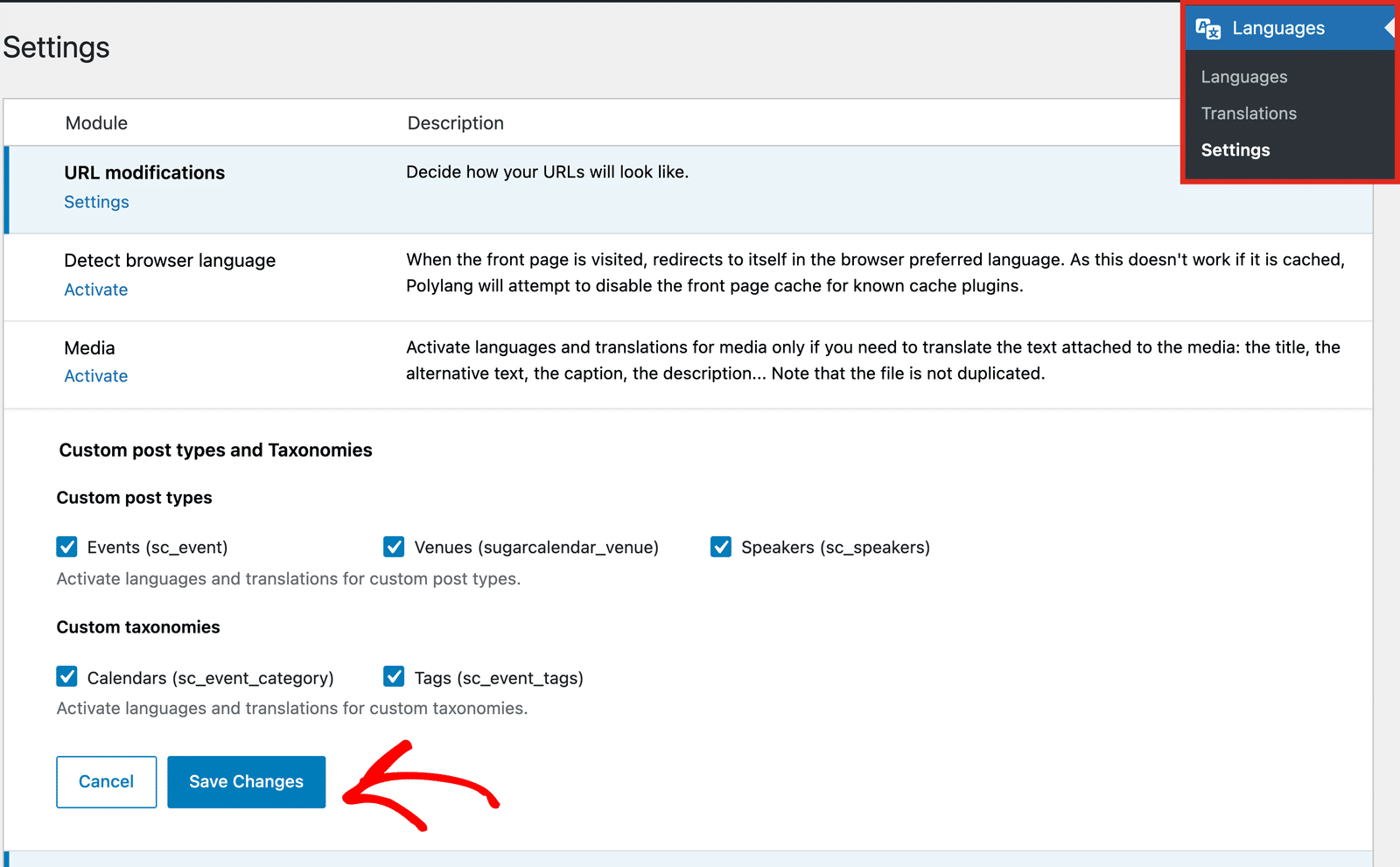
Under Custom taxonomies, check Calendars and Tags. Then click Save Changes.
Syncing Event Details Between Translations
Next, hover over the Synchronization module and click Settings. Check Custom fields and save your changes.
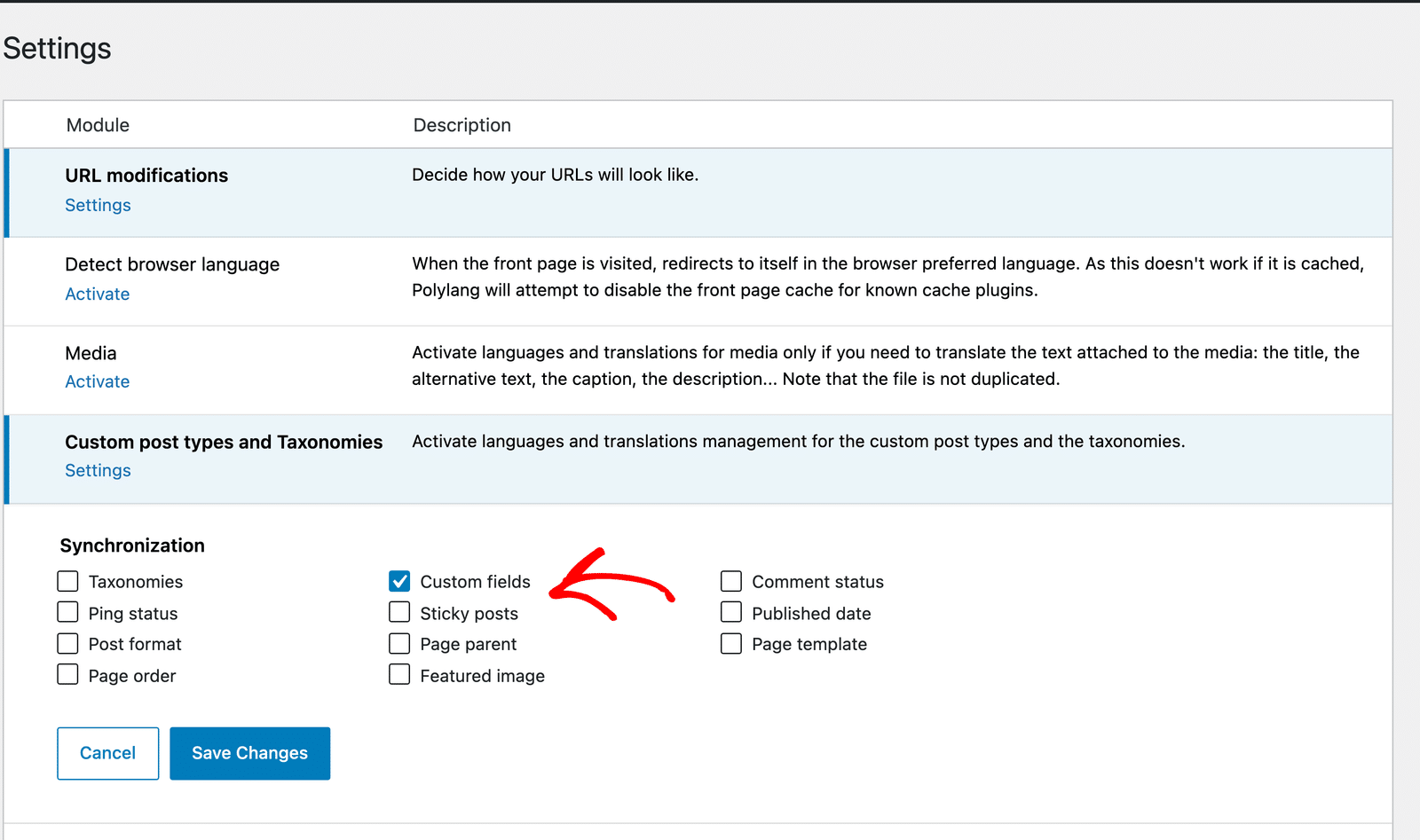
We recommend turning this on. With Custom fields sync on, Sugar Calendar Events keeps these details the same across all translations of an event.
It also lets translations share ticket and RSVP counts and keeps Google Calendar from getting duplicate events. We cover both of these later in this tutorial.
If you leave Custom fields sync off, each new translation still starts with the original event’s dates. Later changes to one translation won’t update the others.
Setting a Language for Existing Events
If you already have events, they don’t have a language yet. Go to Languages » Languages. If Polylang shows no posts or pages notice, then click You can set them all to the default language.
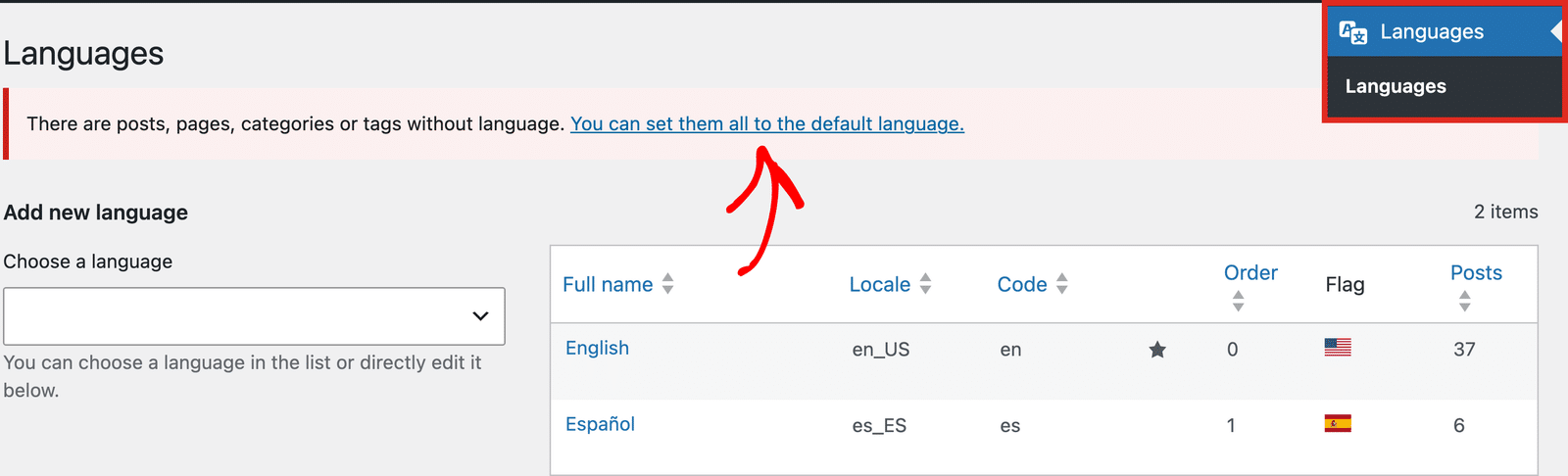
This sets all of your existing events, calendars, venues, and speakers to your default language. They become the originals you translate from.
Translating Calendars, Venues, and Speakers
Translate your calendars, venues, and speakers before your events. When you translate an event, Sugar Calendar Events links the translation to the translated venue and speakers in the same language.
Translating a Calendar
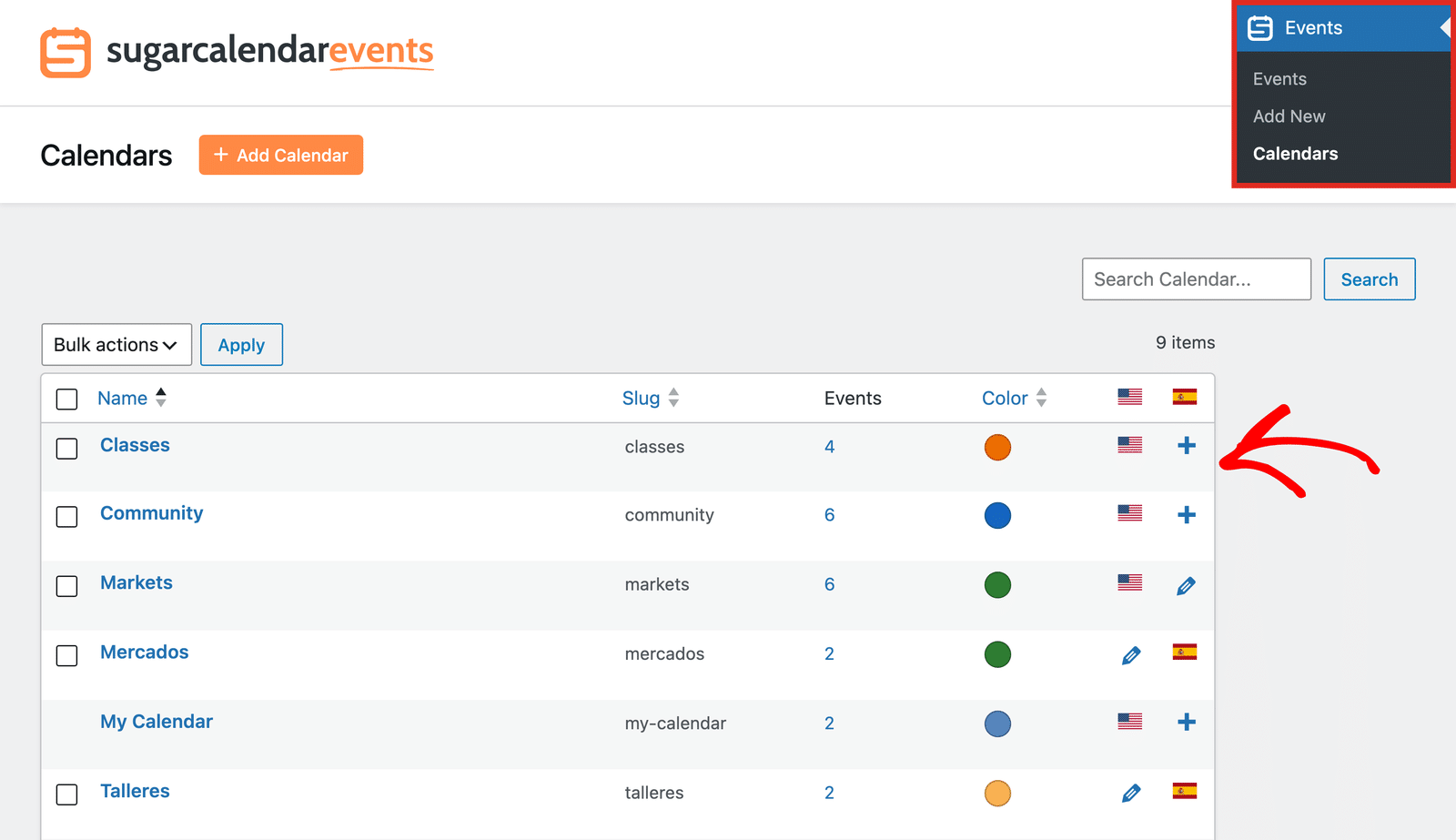
Go to Events » Calendars. The calendar list now has a column for each language. A flag marks the calendar’s own language, a pencil icon means a translation exists, and a plus icon means it doesn’t have a translation yet. Each translated calendar also appears as its own row in the list.
Click the plus icon in the column of the language you want to add.
Sugar Calendar opens the Add New Calendar page. The Polylang section at the bottom shows the new calendar’s language and links it to the original calendar under Translations.
Enter the translated Name, and optionally a Slug and Description. Then click Add New Calendar.
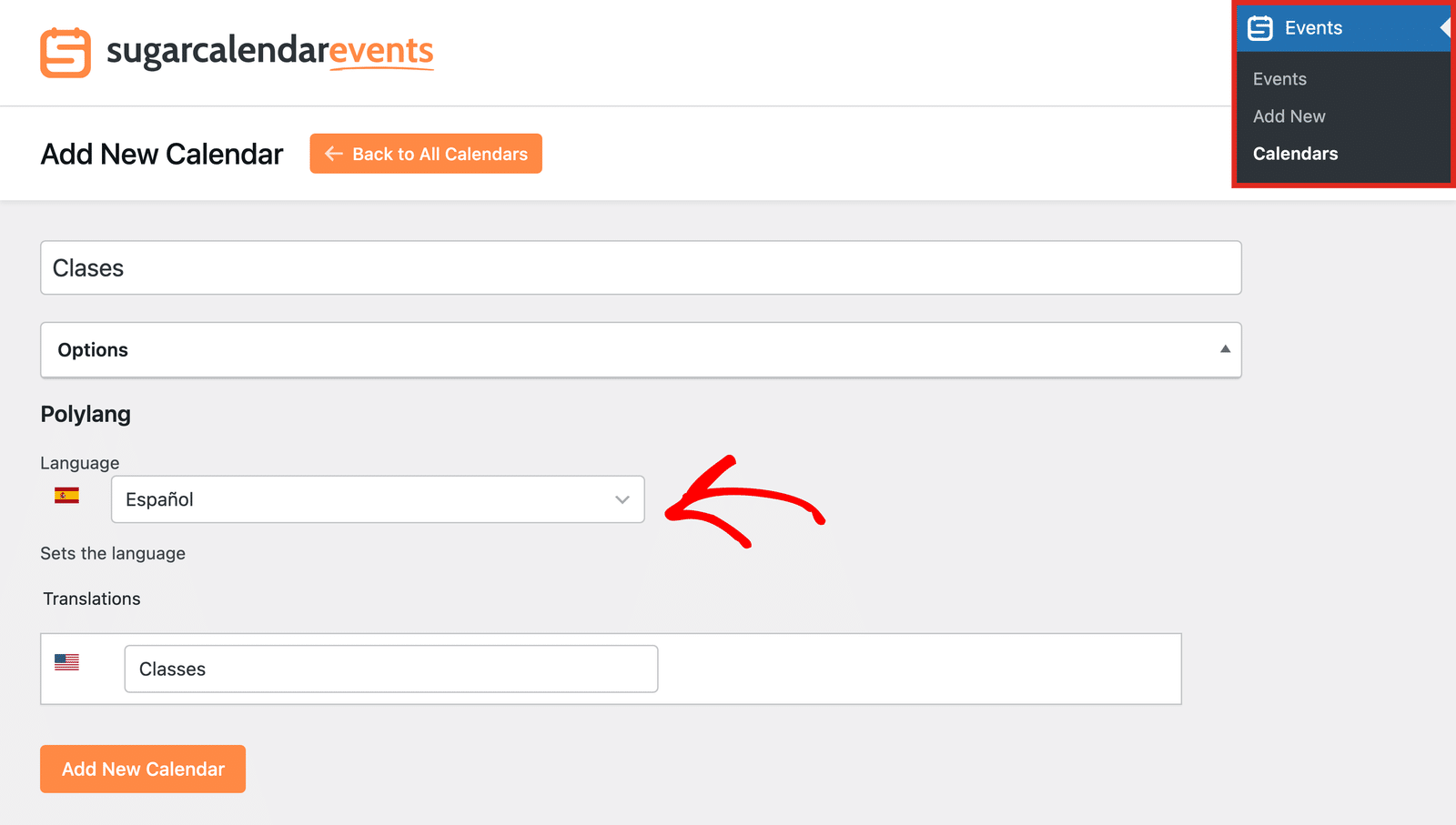
You don’t need to set a color. When you save, Sugar Calendar applies the same color to the translation as in the original calendar.
Translating Venues and Speakers
Go to Events » Venues or Events » Speakers. Like the calendar list, each list has a column for each language.
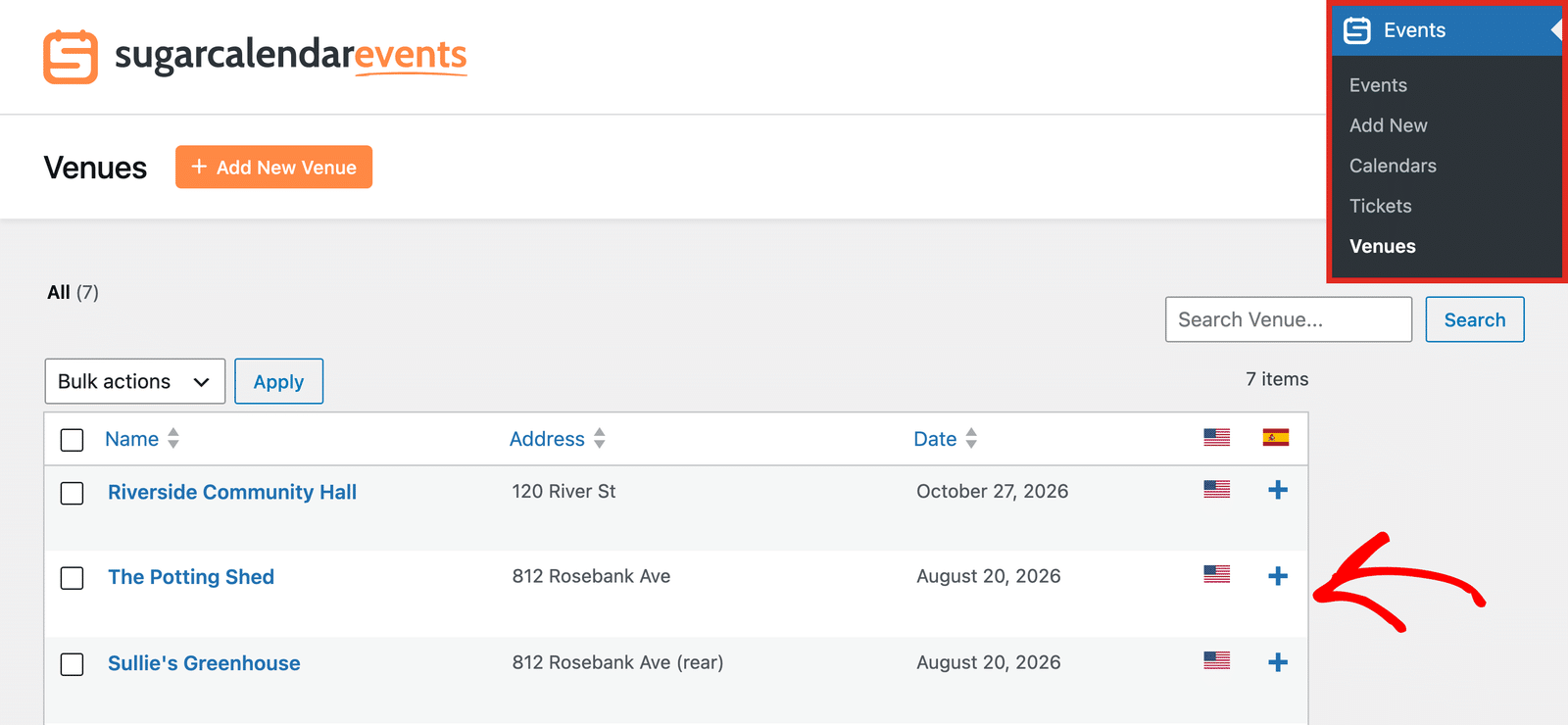
Click the plus icon in the column of the new language. Enter the translated name and details, then click Publish.
Translating an Event
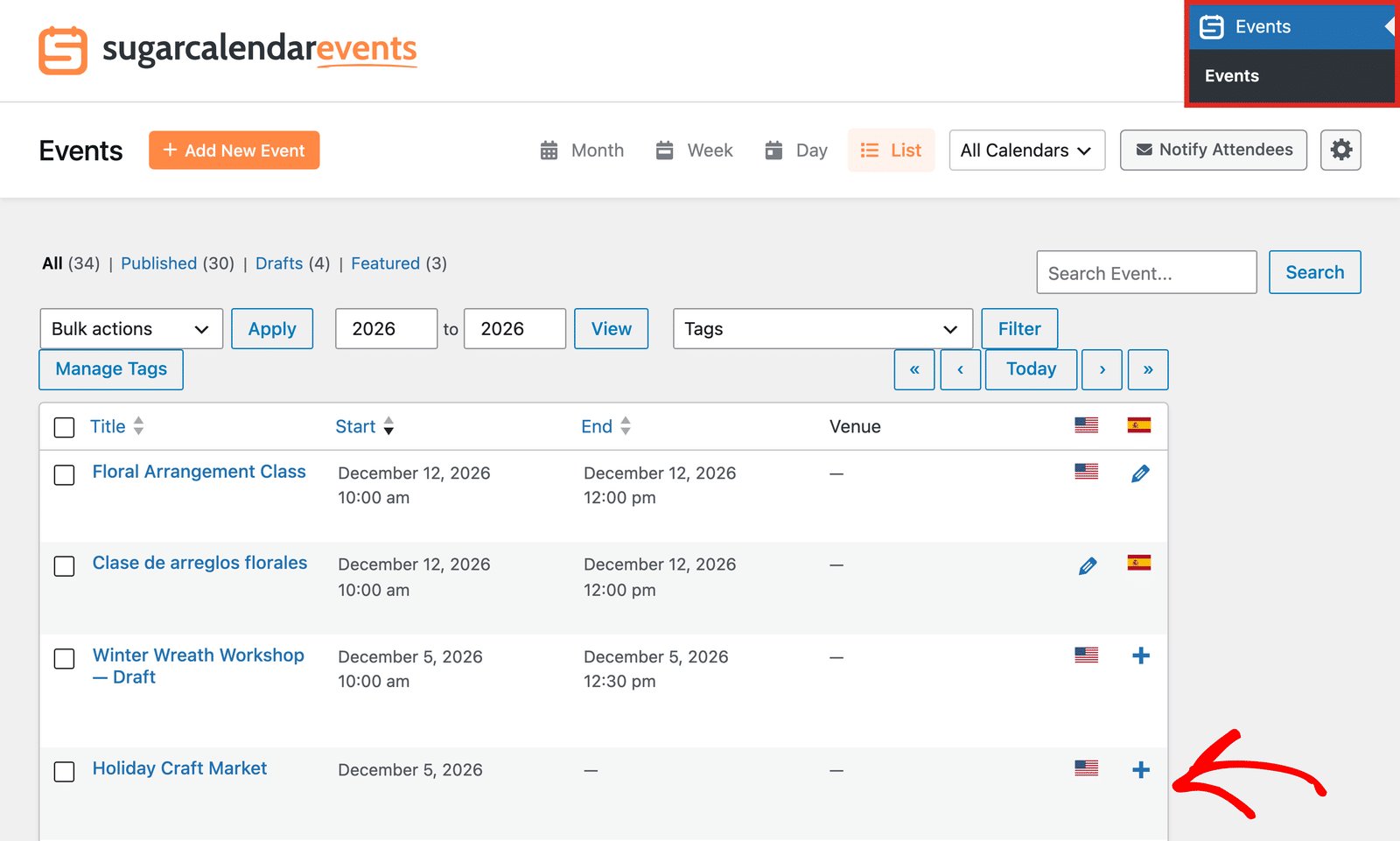
Go to Events in your WordPress dashboard and select the List view. The events list shows a column for each language at the far right.
Click the plus icon in the column of the language you want to add.
The event editor opens with the new language selected in the Languages box. Under Translations, Polylang links the translation to the original event.
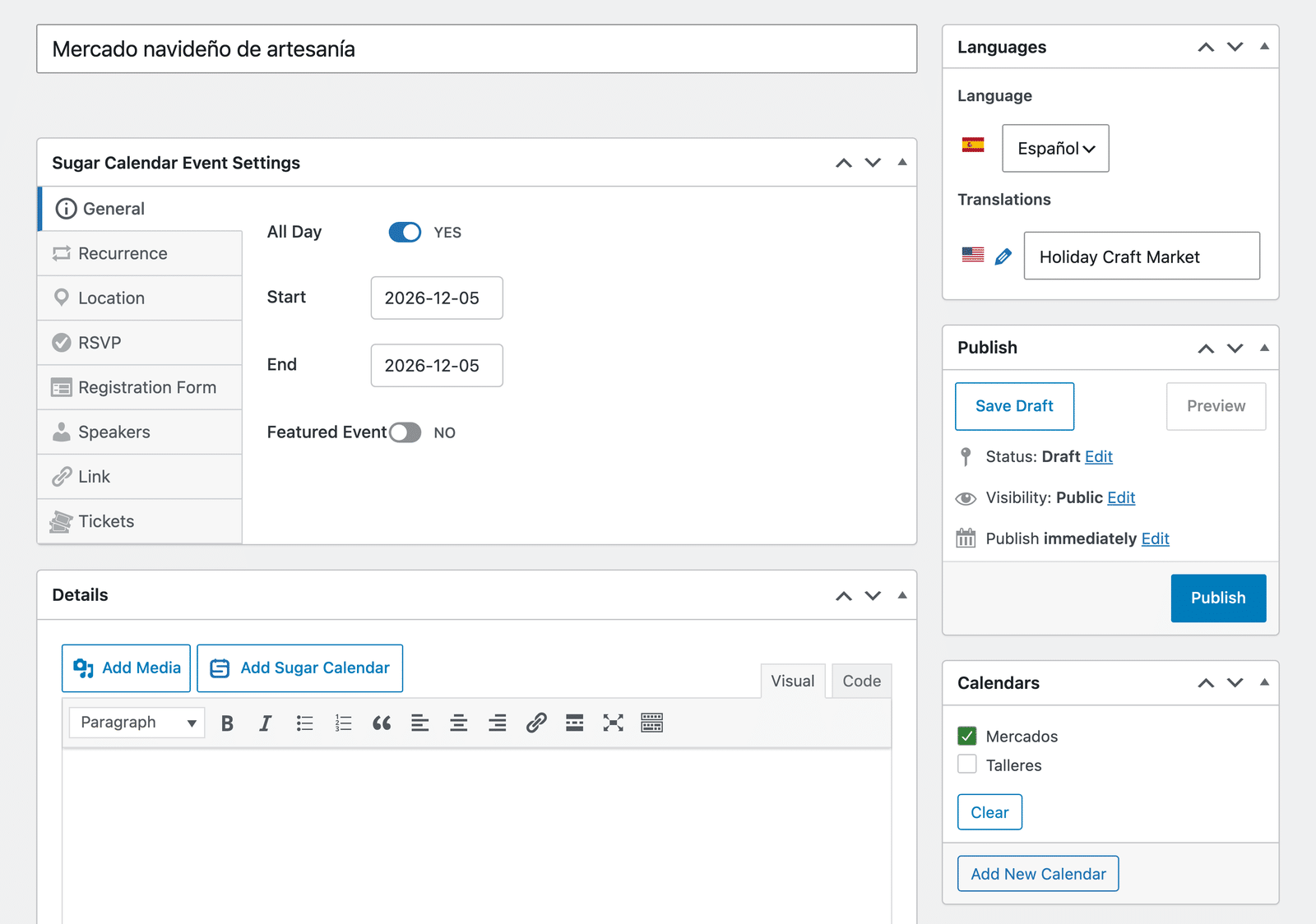
Sugar Calendar fills in the original event’s dates and times for you. If you translated the venue and speakers, the translation uses those versions instead of the originals.
Enter the translated event title and description. In the Calendars box, select the translated calendars. Then click Publish.
The Tickets tab of a new translation shows tickets turned off and an empty price. You don’t need to set them up again. When you save, Sugar Calendar copies the original event’s ticket settings to the translation.
To edit a translation later, click the pencil icon in its language column on the events list.
Translating Recurring Events
Translate recurring events with the plus icon on the events list, the same way as other events. Don’t duplicate a recurring event and change its language. Polylang won’t link the copy to the original, so the two events won’t share dates or tickets.
With Custom fields sync on, the translation uses the original event’s repeat rules. Sugar Calendar links each date of the translation to the same date of the original series.
Selling Tickets and Taking RSVPs
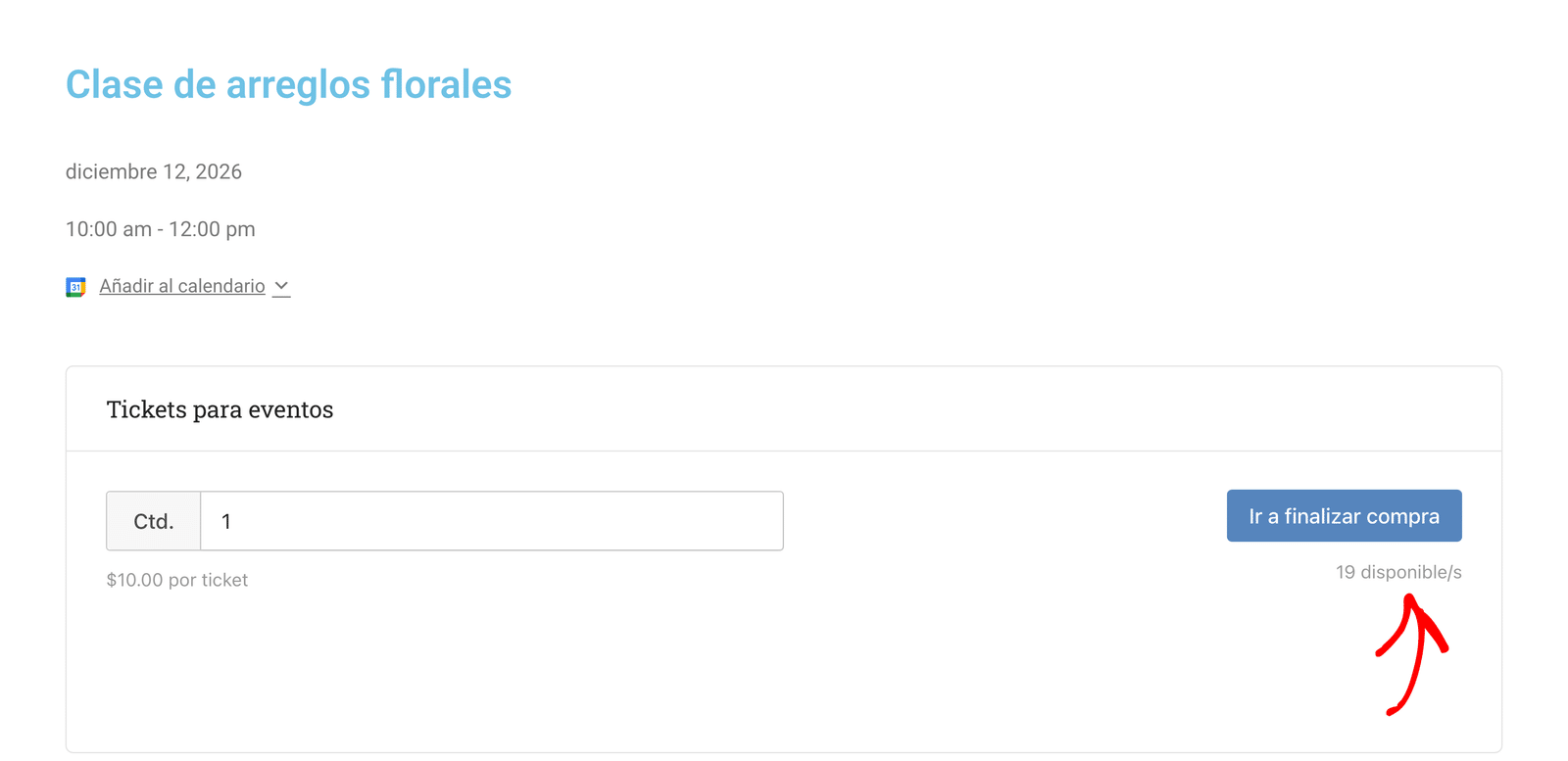
All translations of an event share one ticket capacity. Sugar Calendar records every sale and RSVP on the original event in your default language.
For recurring events, a ticket sold for a date on the translation counts toward the same date of the original series.
Showing Translated Events on Your Site
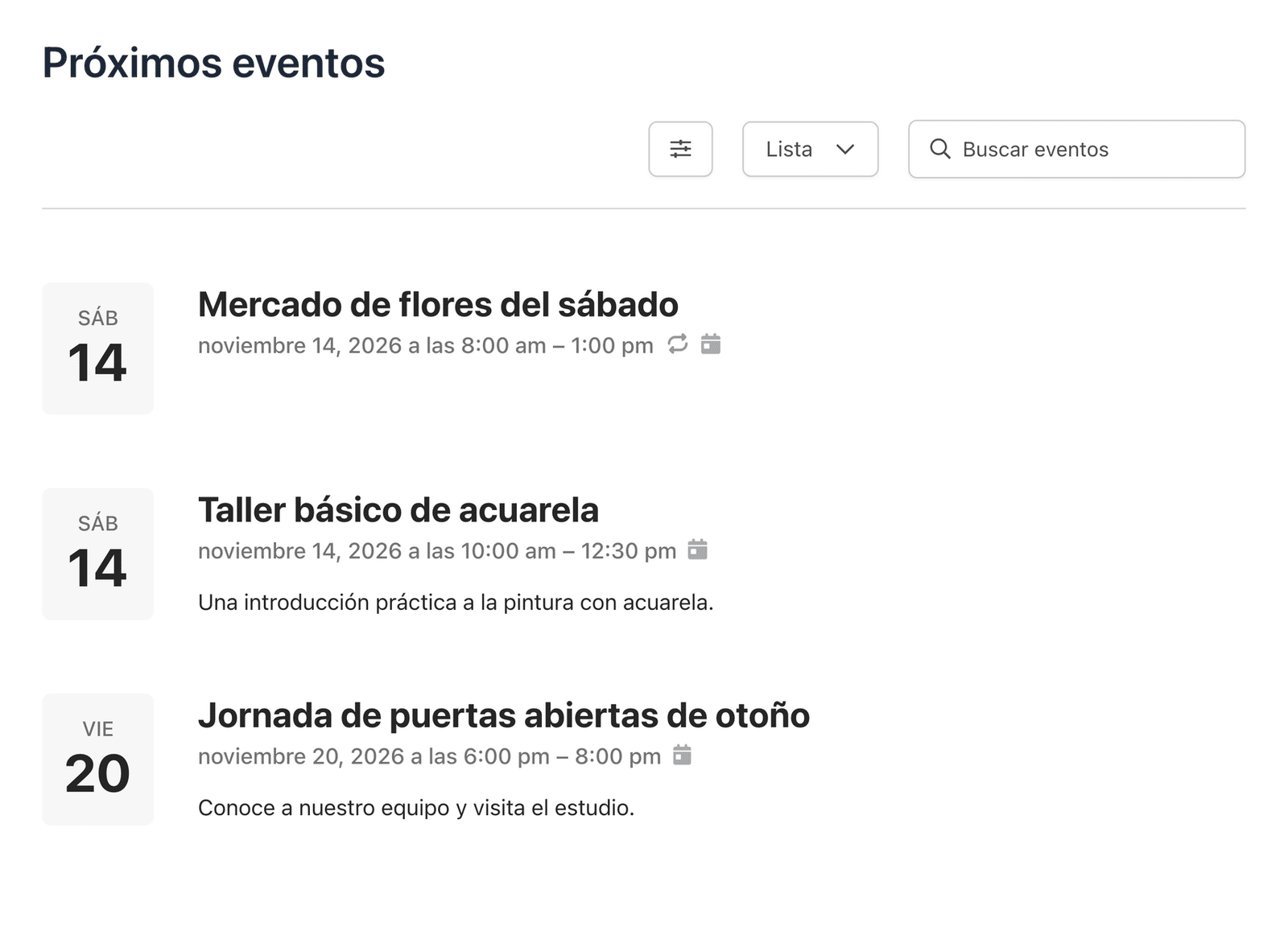
Sugar Calendar shows the events in the language of the page your visitor is viewing. This applies to:
- The Events Calendar and Events List blocks
- Sugar Calendar’s Elementor widgets and the Elementor Loop Grid
- Your event pages
So on a Spanish page, your calendar lists the Spanish translations of your events. Any calendar, tag, venue, or speaker filters on the block also switch to their Spanish versions.
Polylang’s language switcher takes visitors from an event to the same event in another language. For recurring events, the switcher keeps the date the same.
Syncing Translated Events With Google Calendar
If you sync events with Google Calendar, Sugar Calendar only sends the event in your site’s default language to Google. Translations don’t create extra copies in your Google Calendar.
For this to work, turn on Custom fields sync in Polylang. If it’s off, Sugar Calendar treats each translation as a separate event.
Frequently Asked Questions
These are answers to some of the top questions we see regarding translating Sugar Calendar Events.
Do I need Polylang Pro?
No. The free version of Polylang works with Sugar Calendar Events. Polylang Pro adds its own features, such as translated URL slugs, but Sugar Calendar Events doesn’t require them.
Why don’t my events show a language column?
Go to Languages » Settings » Custom Post Types and Taxonomies and confirm that you have checked Events. Also, check that you have Polylang 3.4 or higher.
I changed an event date, but the translation kept the old date. Why?
Custom fields sync is off. Turn it on under Languages » Settings » Synchronization, then save the original event again to copy its dates to the translations.
Why do my translated event pages show a 404 error?
WordPress may not have updated its permalinks after you added a language. Go to Settings » Permalinks and click Save Changes without changing anything. Then reload the translated page.
That’s it! You now know how to translate your Sugar Calendar events, calendars, venues, and speakers with Polylang.
Next, would you like to show your translated events on a page? See our guide to displaying event lists.