Would you like to build your event pages with Elementor? Sugar Calendar Events includes a full set of Elementor widgets, so you control exactly where every piece of event content sits on the page.
In this tutorial, we’ll show you how to use Sugar Calendar Events with Elementor.
In This Article
Requirements: The Single Event template and Loop Grid sections of this tutorial require Elementor Pro. Individual widget requirements are noted alongside each widget below.
Before you get started, make sure Sugar Calendar Events is installed and activated on your WordPress site along with Elementor, and that you’ve verified your license. Then create a calendar and add a few events to it, so you have content to lay out.
Enabling Elementor Support for Events
Sugar Calendar’s event widgets stay hidden until you allow Elementor to work with events. This setting is turned off by default, so it’s the first thing to change.
From your WordPress admin dashboard, go to Elementor » Settings and open the General tab.
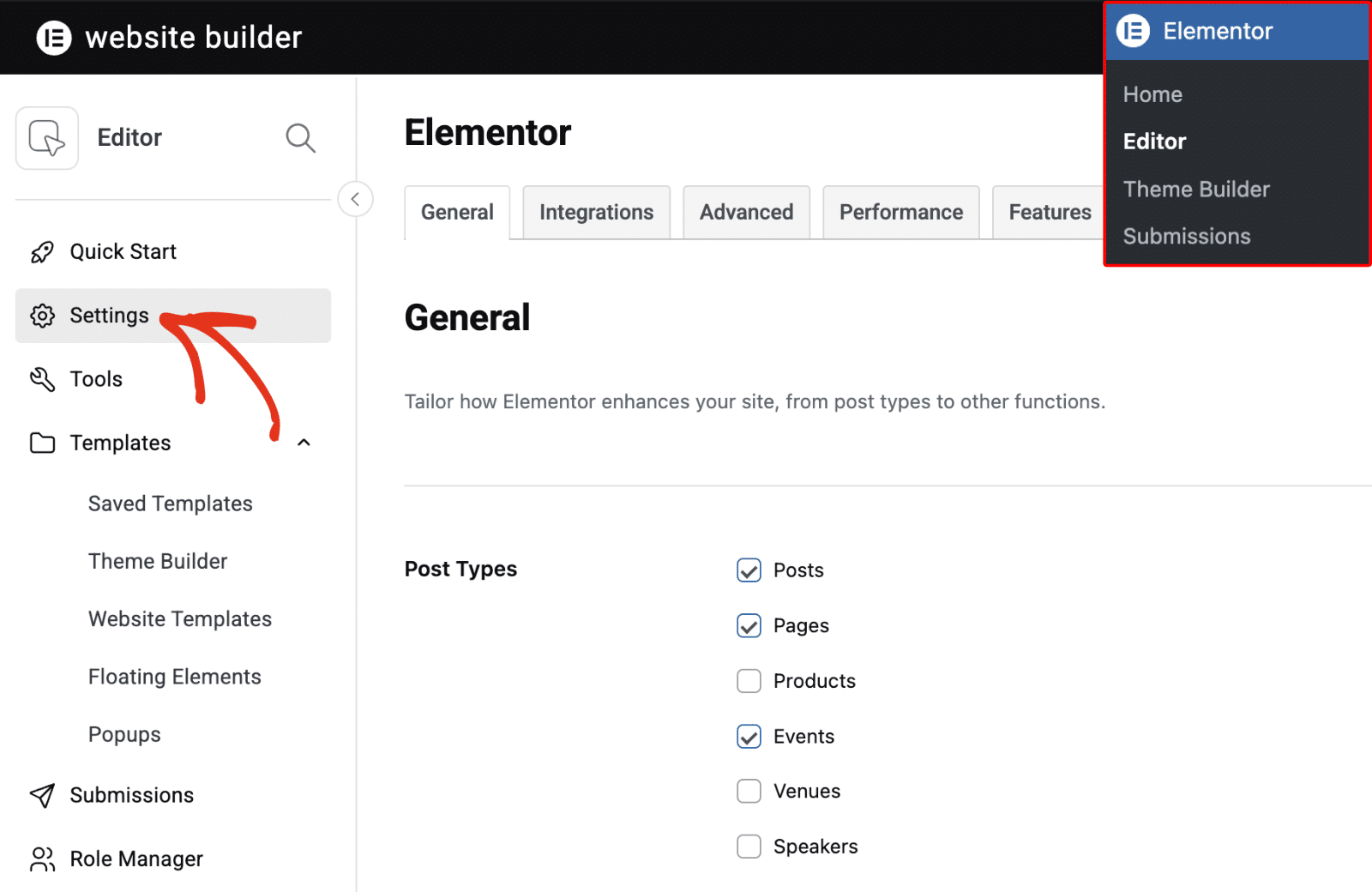
In the Post Types list, tick the Events checkbox, then scroll down and click Save Changes.
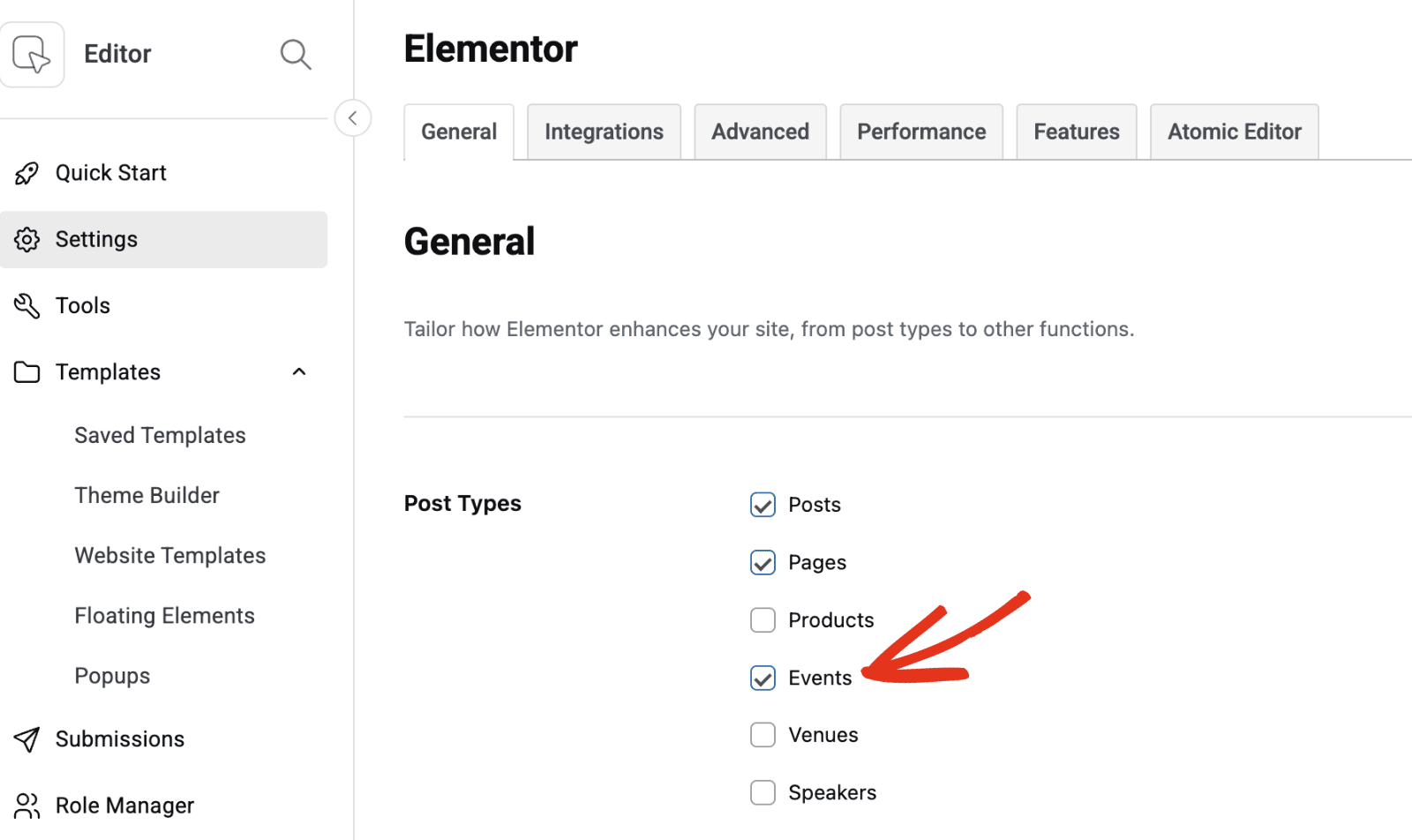
Note: Until you tick Events here, Elementor won’t offer the event widgets and won’t add an Edit with Elementor button to your events.
Adding a Calendar or Event List to Any Page
Sugar Calendar Events provides two widgets that work on any page or post, whether or not an event is involved.
You’ll find both under the Basic category in the Elementor widget panel, alongside Elementor’s own core widgets. Searching the panel for Events brings up the pair directly.
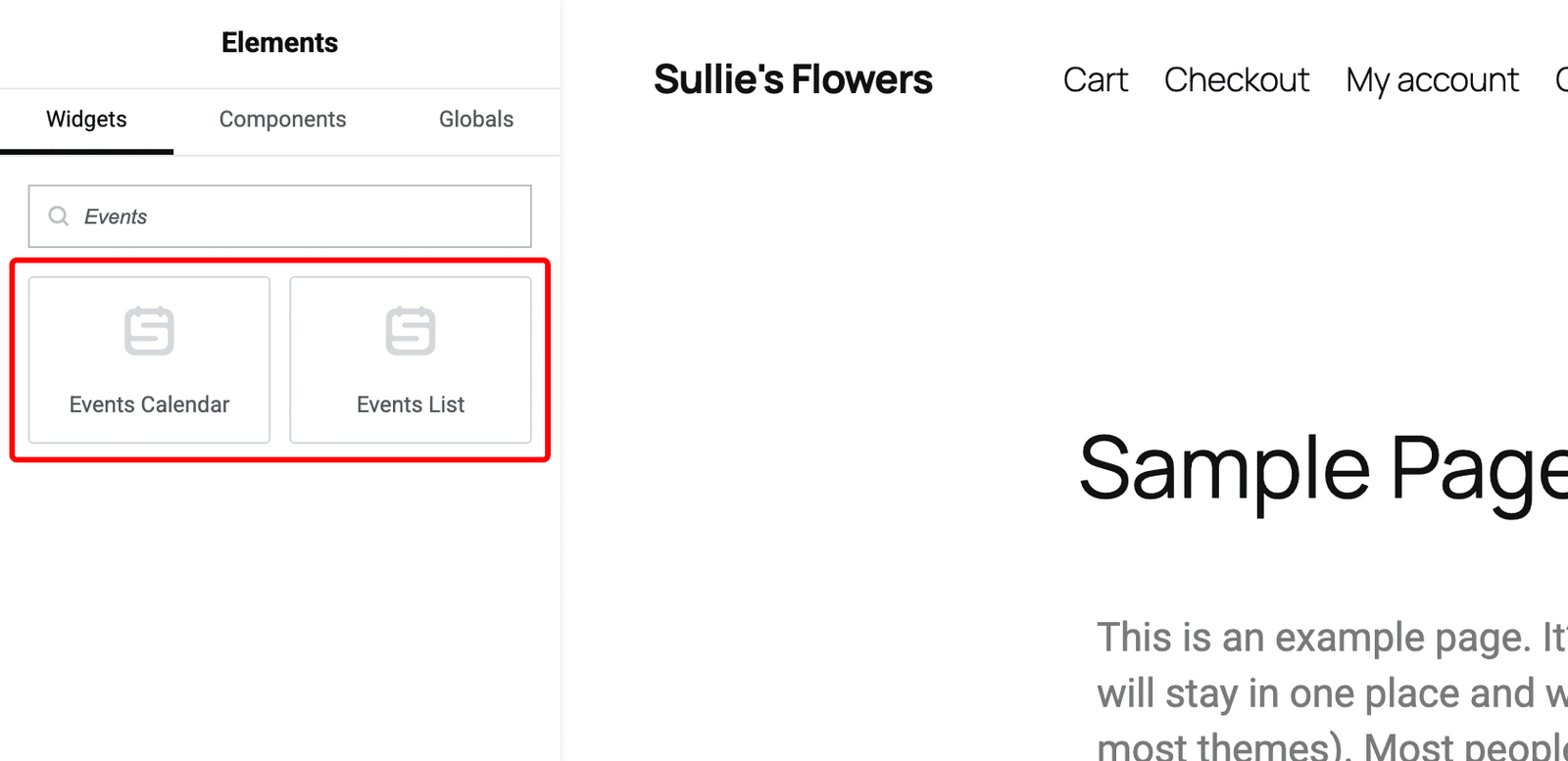
Events Calendar displays a full calendar of your events in a month, week, or day view. Events List displays your events as a list, grid, or plain list.
Both widgets offer the same options as their block editor counterparts. For details on those options, see our guides on displaying the calendar and displaying event lists.
Sugar Calendar Event Widgets
Beyond those two, Sugar Calendar Events provides individual widgets for each piece of an event: its title, date, venue, speakers, and more. Instead of relying on a single fixed layout, you place each element yourself.
Where the Event Widgets Appear
These widgets need an event in context to have anything to display, so Elementor only offers them in three places:
- A Single Event template in Elementor’s Theme Builder
- A Loop Item template
- An individual event you’re editing with Elementor
On an ordinary page or post, the event widgets aren’t listed in the panel at all. This is expected behavior rather than a problem with your setup.
When you’re in one of those three places, the event widgets appear together in their own category in the widget panel. Editing an event lists them under Sugar Calendar Events, while a template lists them under Sugar Calendar Event. Every widget name starts with SC Event, so searching the panel for SC Event brings up the set wherever you happen to be.
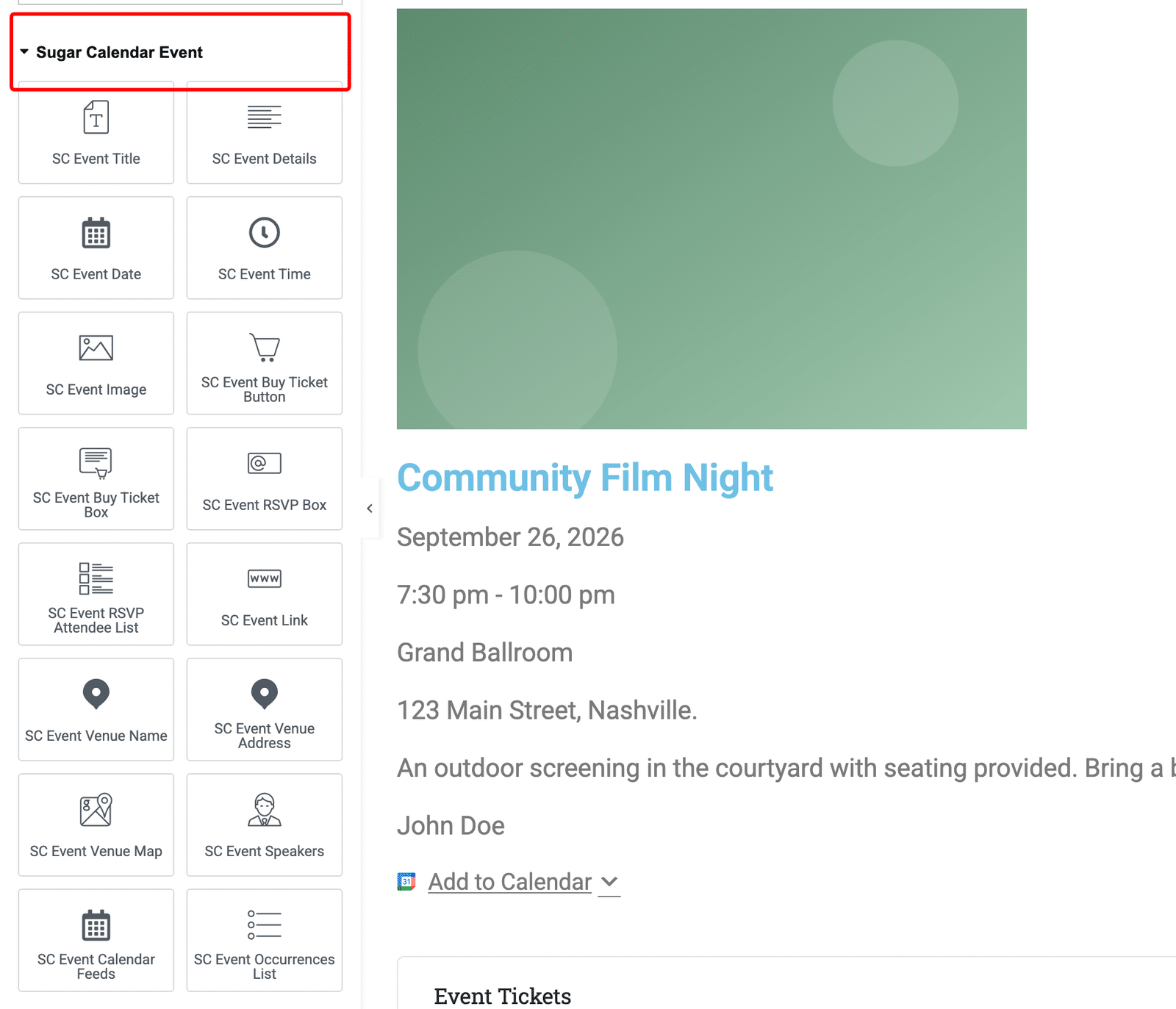
One more rule decides which of them you see, and it differs between the three places above.
In a Single Event template or a Loop Item template, Elementor offers every event widget, each showing placeholder content. You’re designing a layout for all your events, so the full set stays available whether or not the previewed event happens to use it.
When you edit one specific event, Elementor offers only the widgets that event has content for. An event with no venue attached won’t list the Venue widgets, and an event that doesn’t repeat won’t list the Occurrences List widget. Add the missing detail to the event, reload the editor, and the matching widget appears.
Note: This is why the panel looks different from one event to the next. A widget missing from the list means the event has no content for it rather than the widget being unavailable on your site.
Event Detail Widgets
These widgets display the core details of an event and work with any Sugar Calendar Events license.
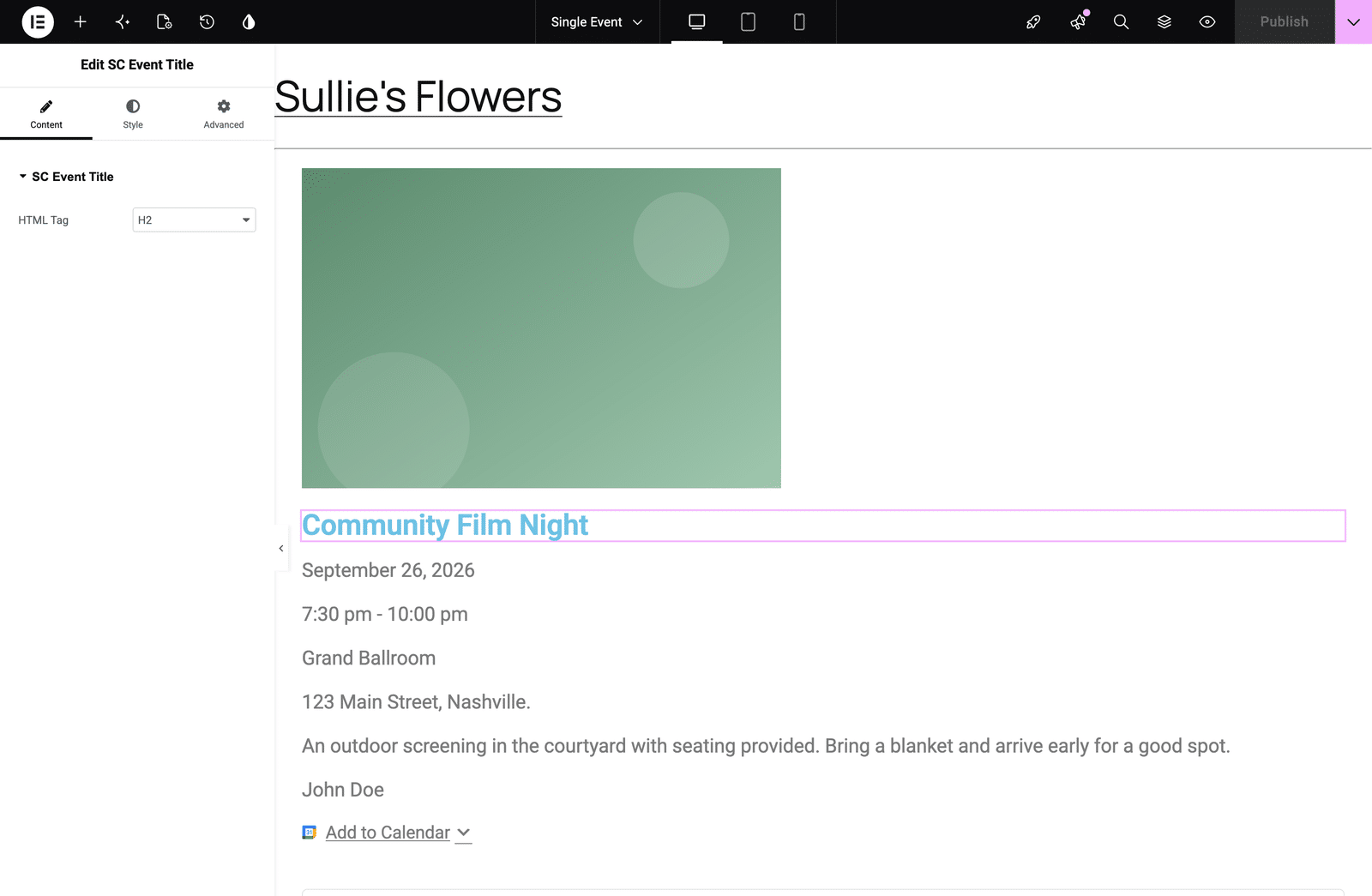
- SC Event Title displays the event’s title.
- SC Event Details displays the event’s description.
- SC Event Date displays the event’s date.
- SC Event Time displays the event’s start and end time.
- SC Event Image displays the event’s featured image.
Location Widgets
Sugar Calendar Events records where an event happens in two different ways, and your license decides which widgets you get.
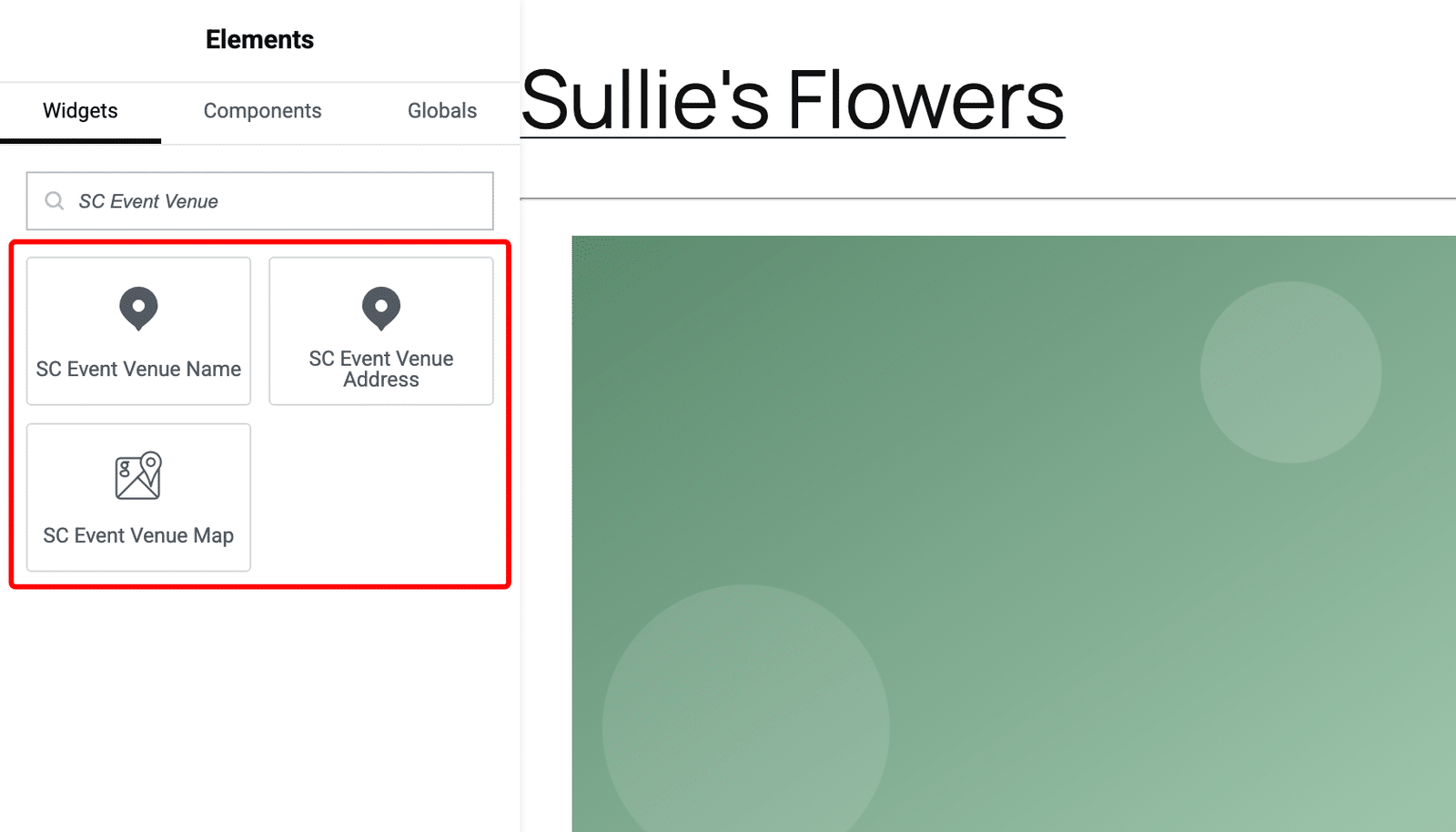
With a Pro license, events link to reusable venue records, and three widgets read from the linked venue:
- SC Event Venue Name displays the venue’s name and links to the venue’s own page.
- SC Event Venue Address displays the venue’s address.
- SC Event Venue Map displays a map of the venue, which needs the Google Maps integration set up.
On Sugar Calendar Lite, events carry a plain text location instead, and two widgets read it:
- SC Event Location displays the event’s location text.
- SC Event Location Map displays a map of that location.
Note: A Pro license hides the two Location widgets, because the Venue widgets take their place. They reappear only when you edit an individual event that still has location text saved on it.
The Venue widgets display nothing when an event has no venue linked to it. To learn how to set venues up, see our guide on creating and managing event venues.
Speaker, Link, and Recurrence Widgets
These widgets require a Pro license.
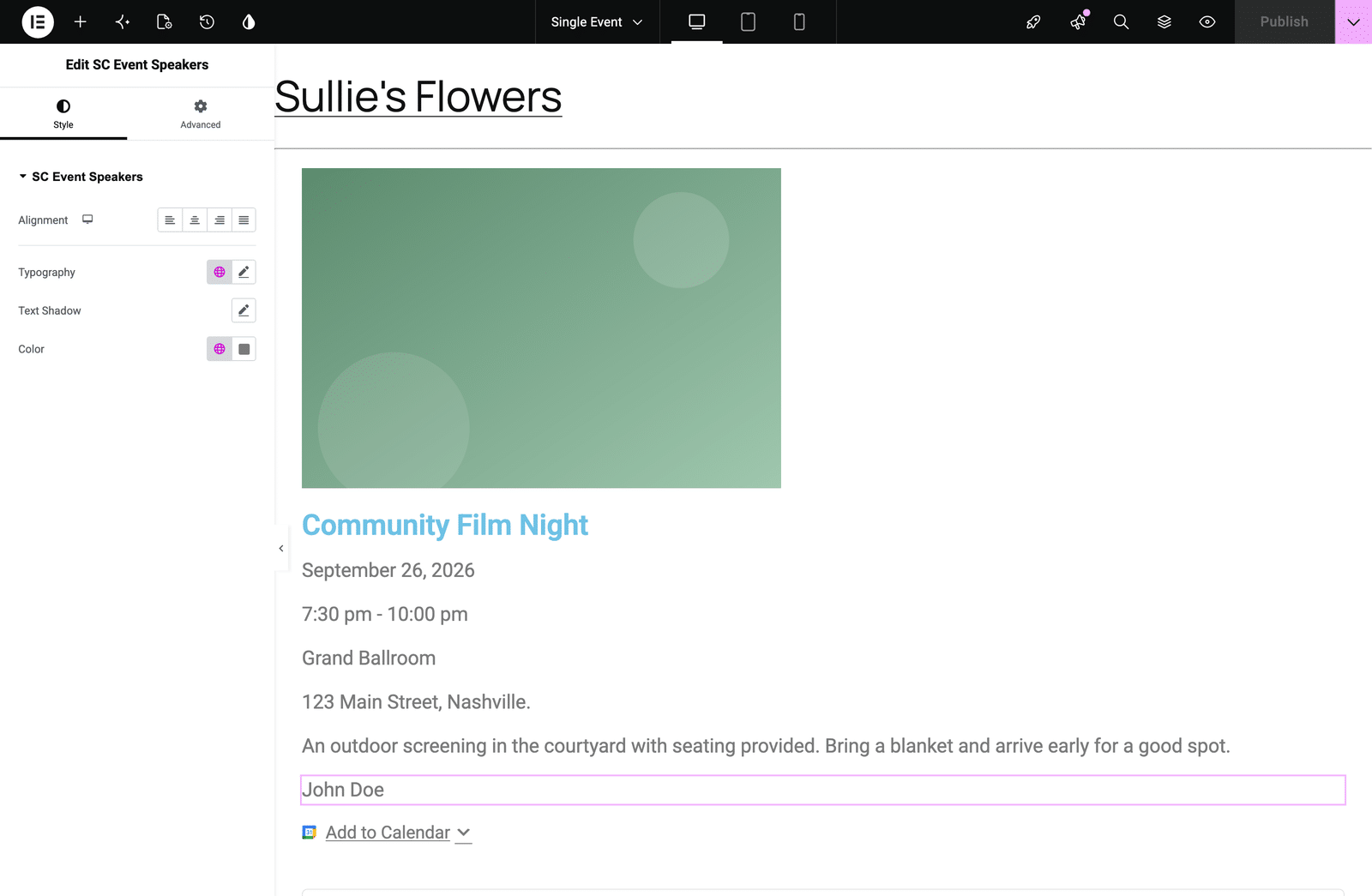
- SC Event Speakers displays the speakers assigned to the event.
- SC Event Link displays the event’s link, which covers both Zoom meetings and custom links.
- SC Event Occurrences List displays the upcoming dates of a recurring event.
- SC Event Calendar Feeds displays calendar feed subscribe links so visitors add the event to their own calendar.
Ticket and RSVP Widgets
These widgets require their matching addon. The ticket widgets need the Event Ticketing addon, and the RSVP widgets need the RSVP addon.
- SC Event Buy Ticket Button displays a button that opens the ticket purchase modal.
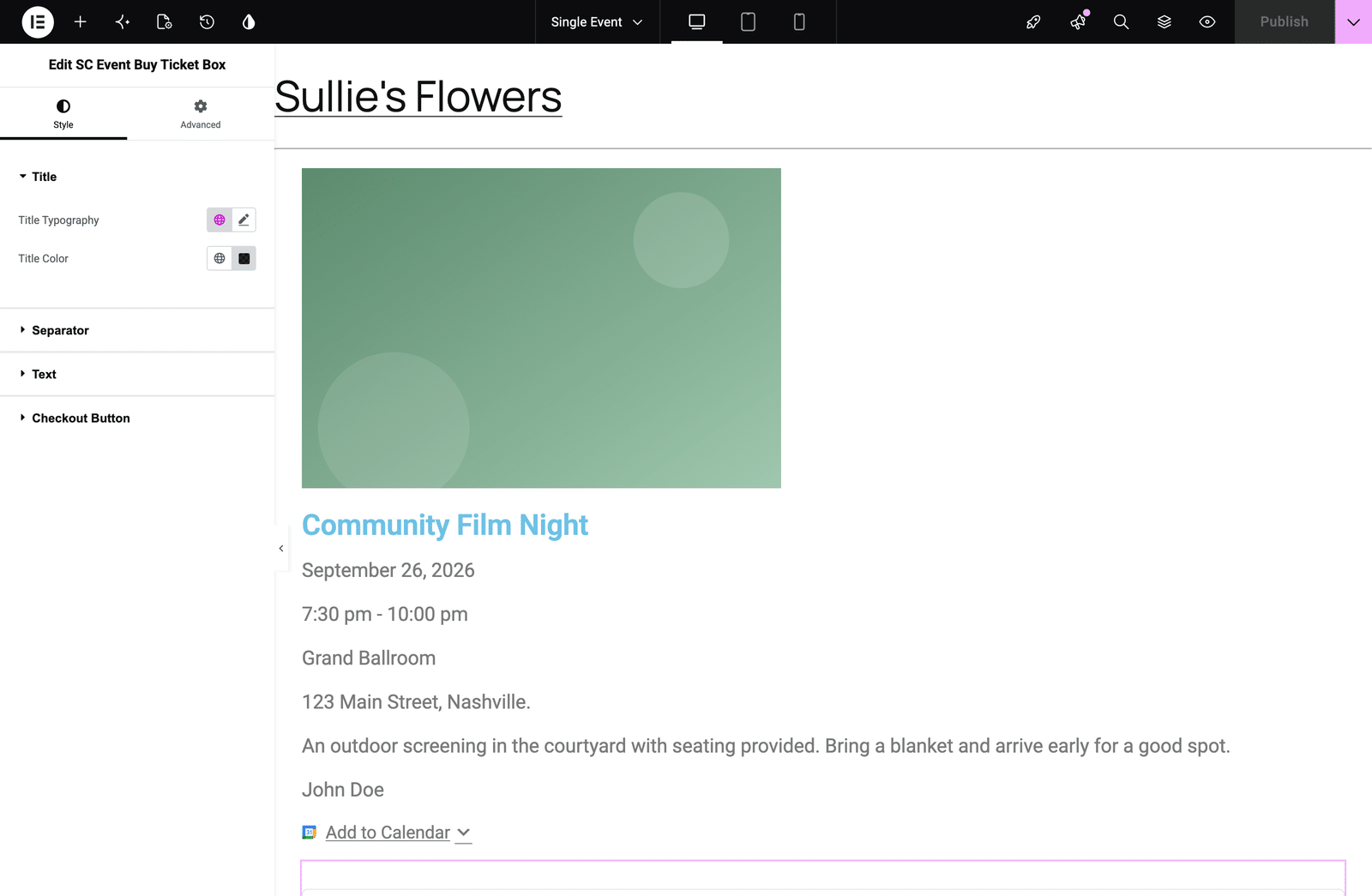
- SC Event Buy Ticket Box displays the full ticket purchase box, including available tickets and prices.
- SC Event RSVP Box displays the RSVP form for the event.
- SC Event RSVP Attendee List displays the list of people who have RSVP’d.
Note: The ticket widgets are deliberately left out of the panel inside a Loop Item template, since a purchase box belongs on a single event page rather than in a grid of events.
Building a Single Event Template
Elementor Pro’s Theme Builder lets you design your event page once and apply that design to every event on your site. Sugar Calendar registers a Single Event part for exactly this purpose.
From your WordPress admin dashboard, go to Elementor » Theme Builder. Single Event sits at the top of the site parts list. Select it, then click Add New.
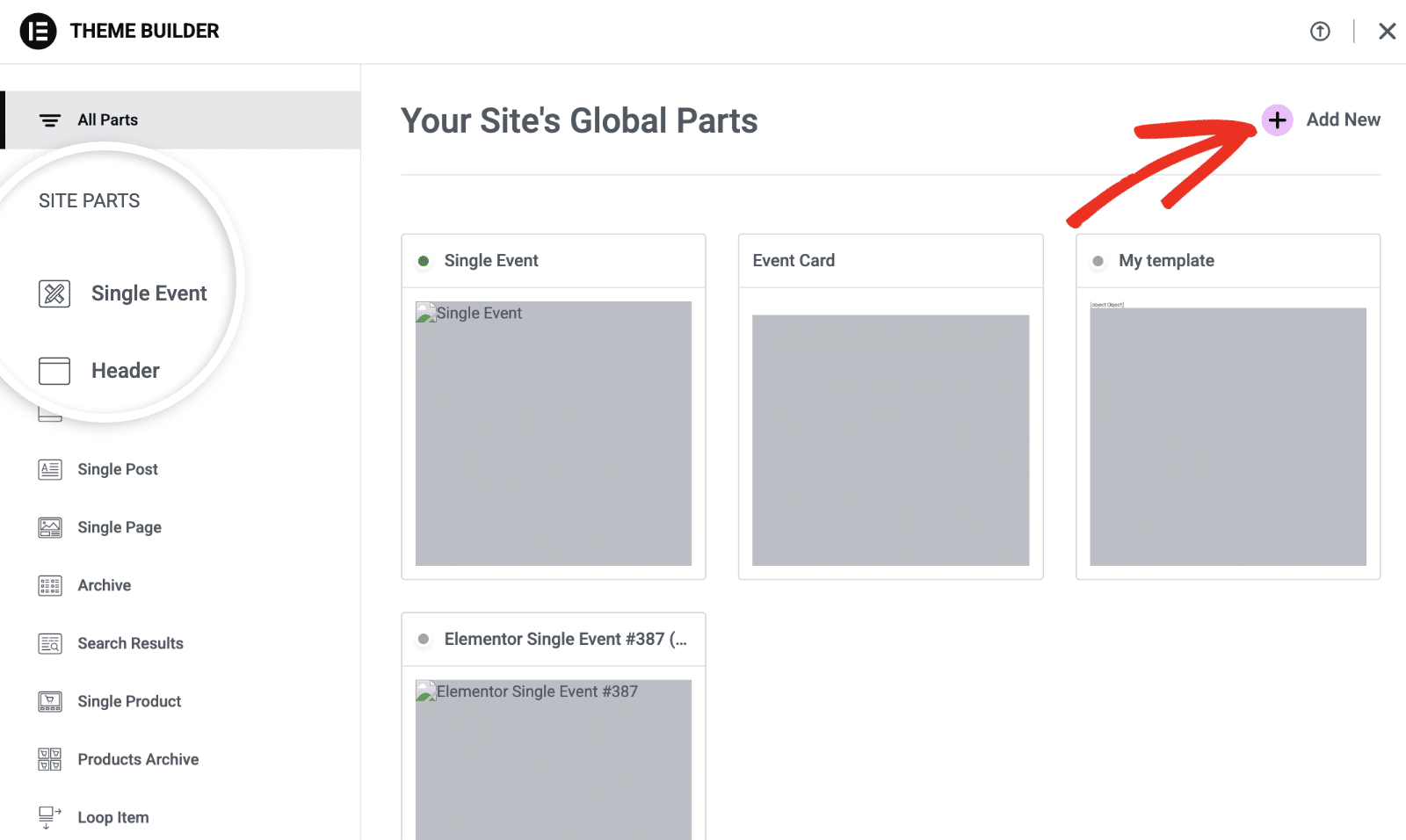
Elementor opens a new template and loads one of your events as a preview, so you see real content while you work.
Now build the layout. Drag the SC Event widgets from the panel onto the canvas and arrange them however suits your site. Each widget carries its own style controls for typography, color, and spacing.
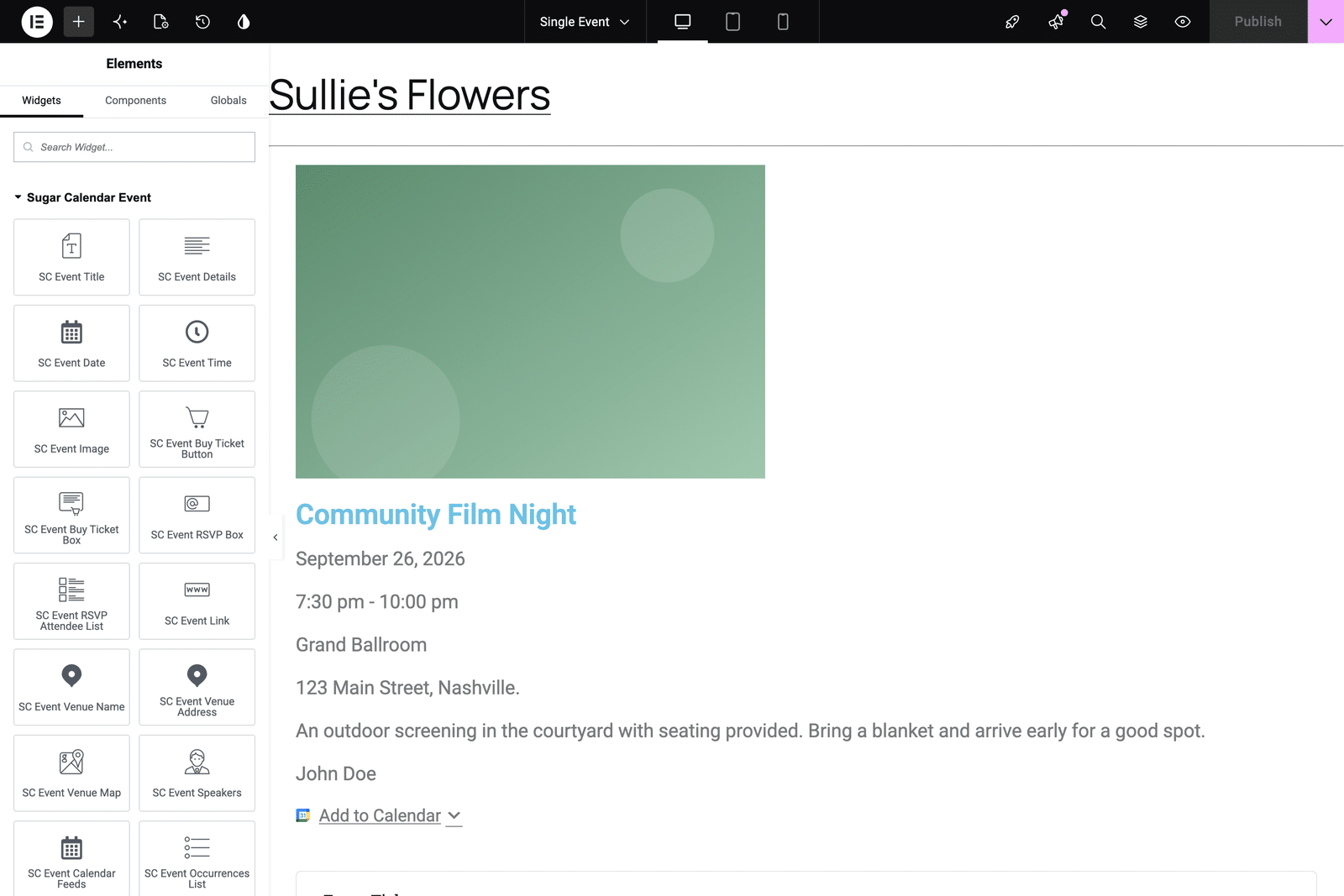
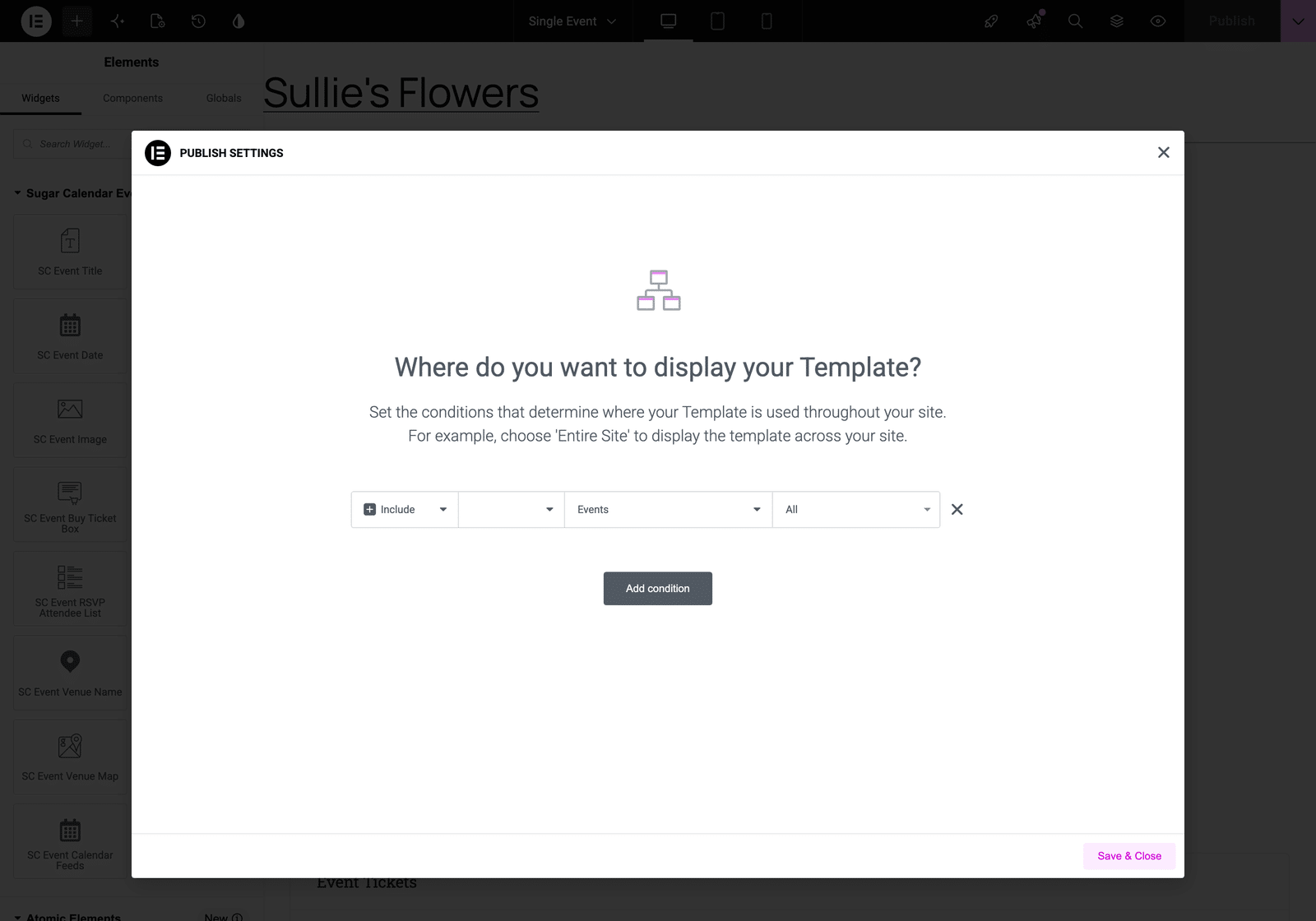
Once the layout looks right, click Publish. Elementor asks where to apply the template.
Add a condition that includes your events, then click Save & Close.
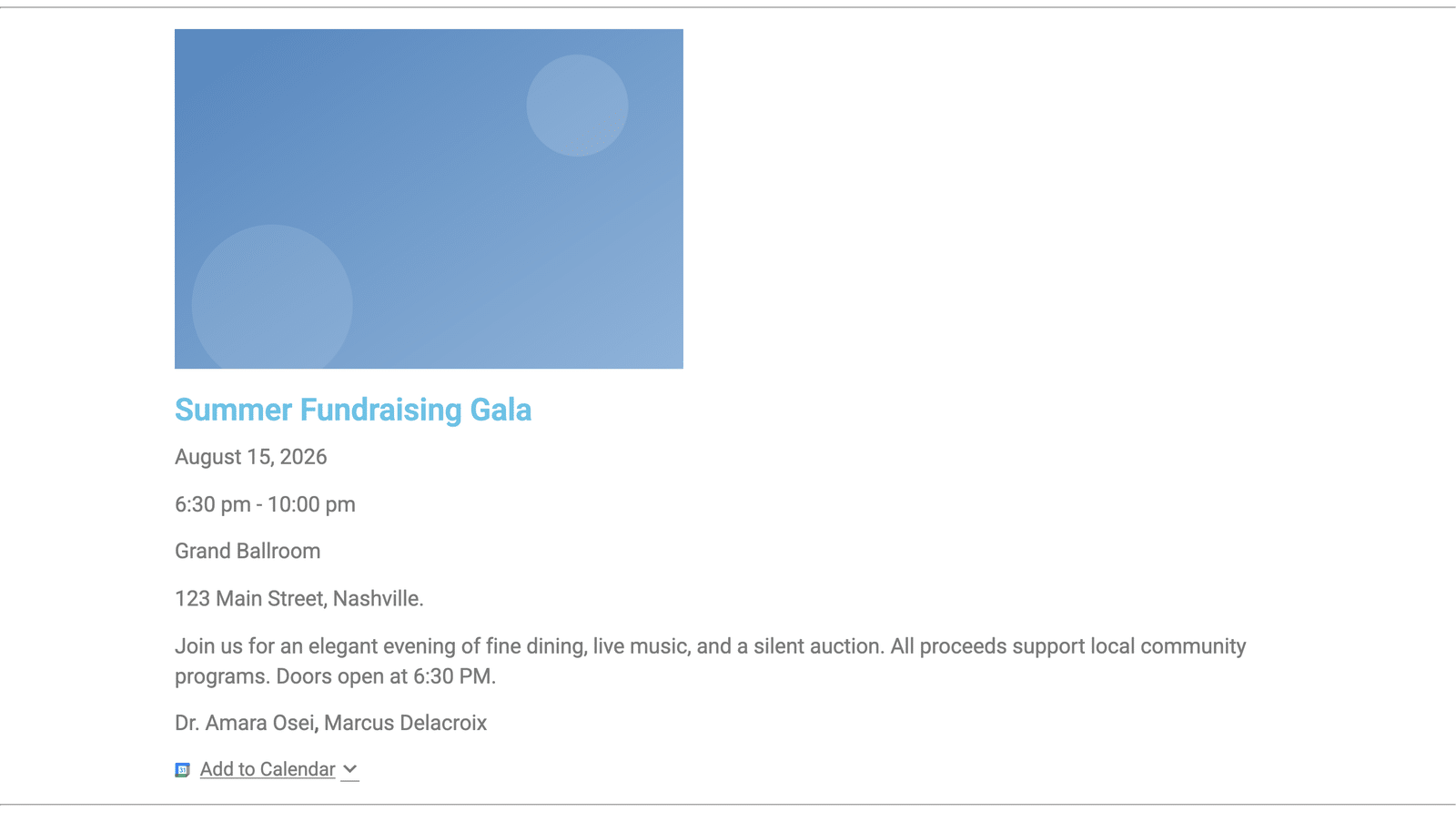
Every event on your site now uses this layout.
Note: A Single Event template applies to one-time events and to individual dates of a recurring event. It doesn’t yet apply to a recurring event’s own page, which falls back to your theme’s default layout instead.
Displaying Events in a Loop Grid
Elementor Pro’s Loop Grid widget repeats a layout you design once across many items. Sugar Calendar Events registers events as a source, so you can build a grid of events from the same SC Event widgets.
Add a Loop Grid widget to the page you want the grid on. Its settings open on the Content tab in two sections that matter here: Layout, where you choose the card design, and Query, where you choose which events fill the grid.
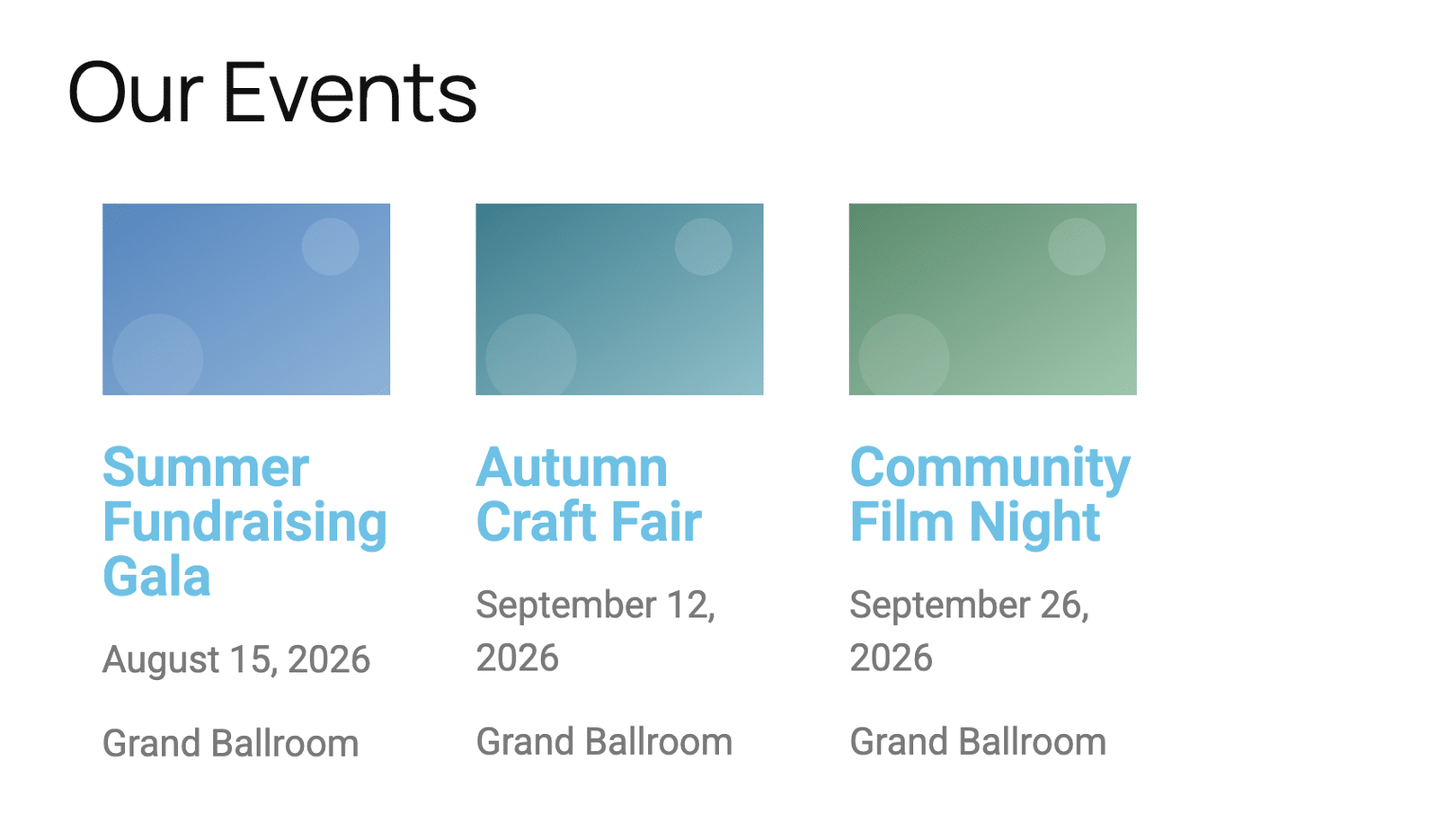
Start by designing the card. Create a Loop Item template and lay out the card with the SC Event widgets, exactly as you do in a Single Event template. A title, a date, and an image usually carry a grid well.
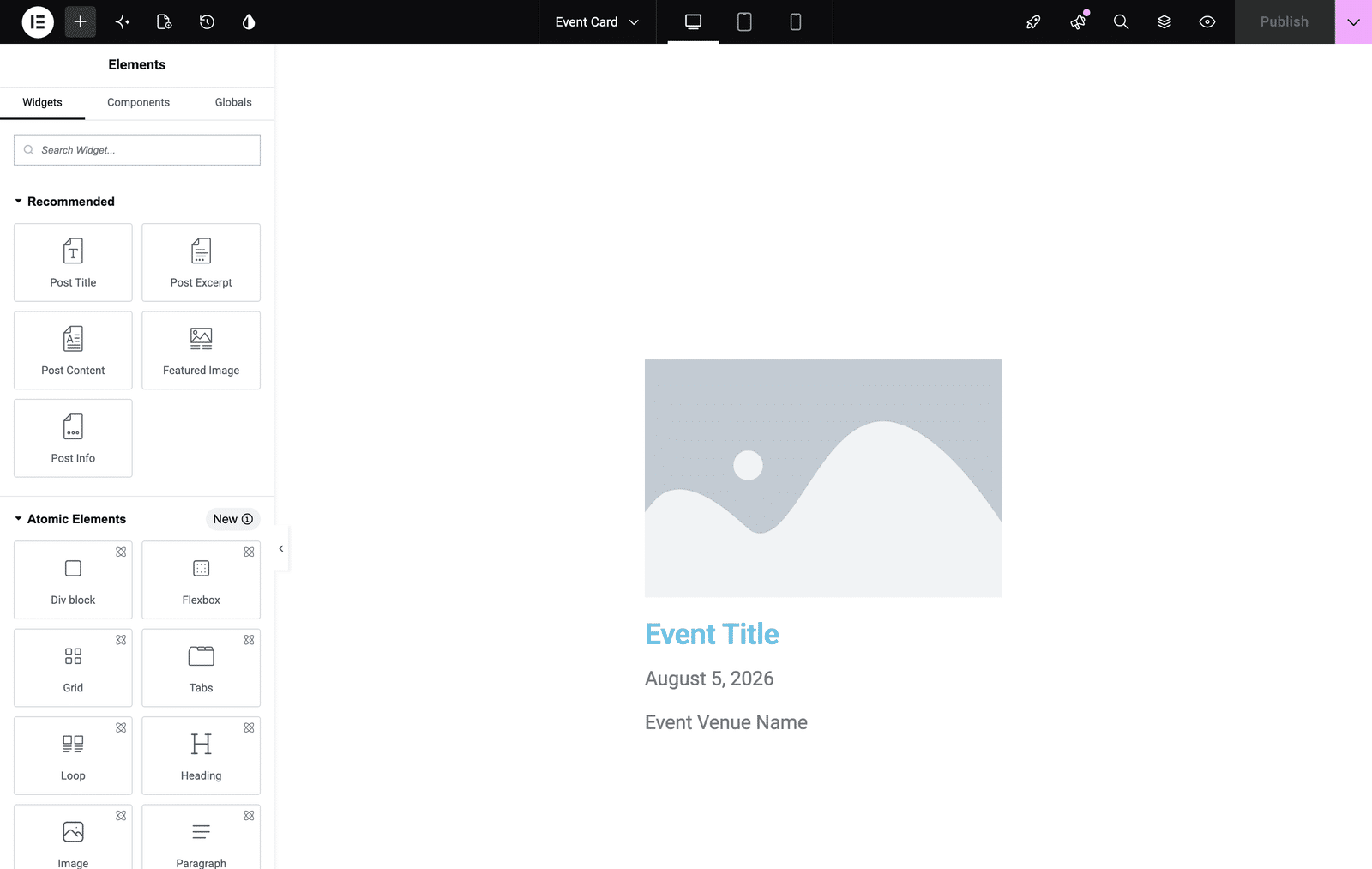
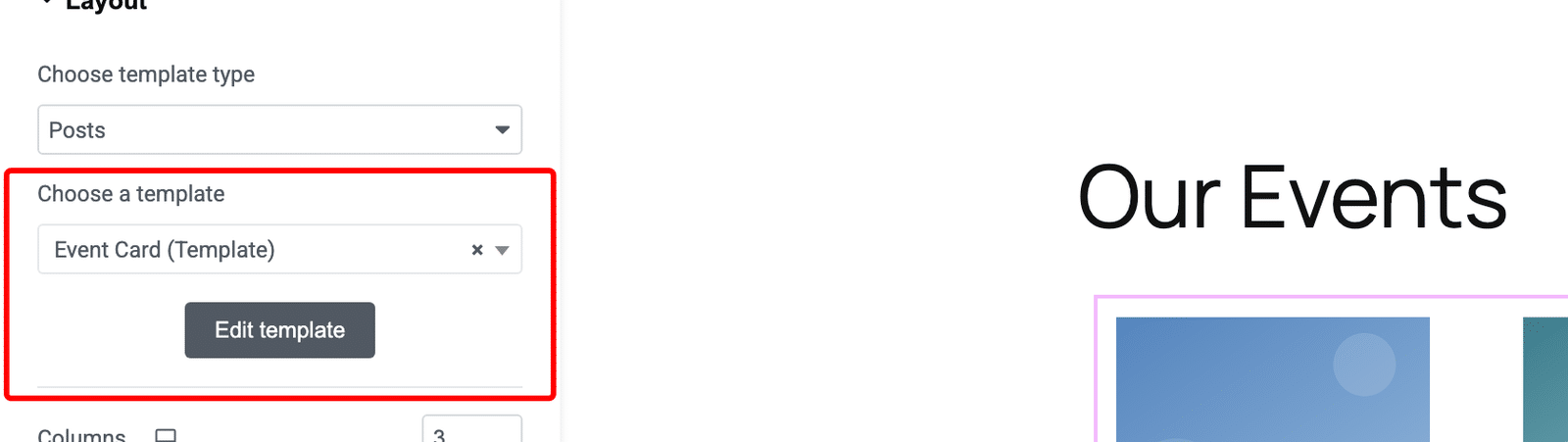
Then point the grid at that card. In the Layout section, set Choose template type to Posts and select your event card under Choose a template.
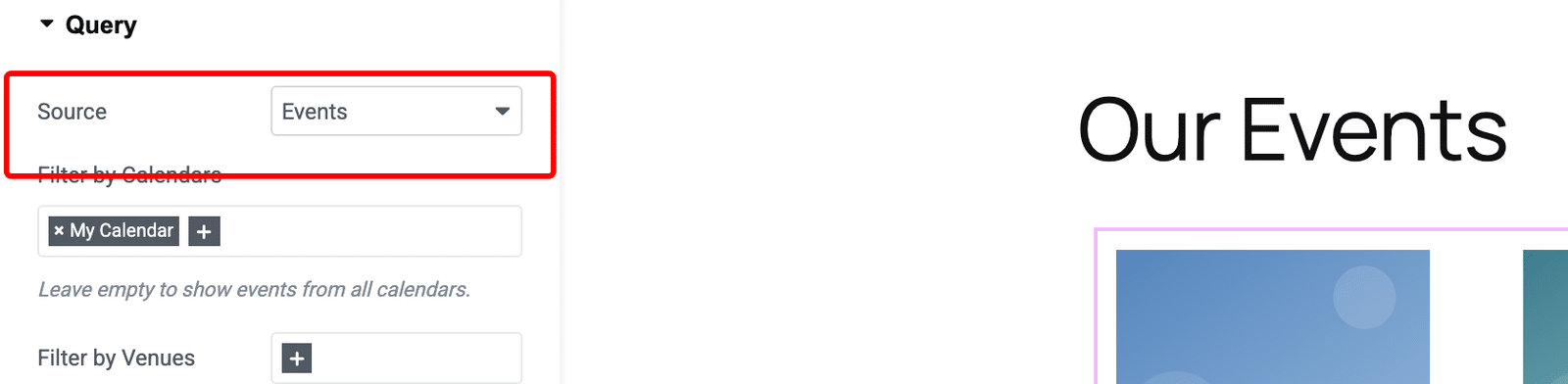
Now open the Query section and set Source to Events. This is the setting that points the grid at your events rather than at posts or products.
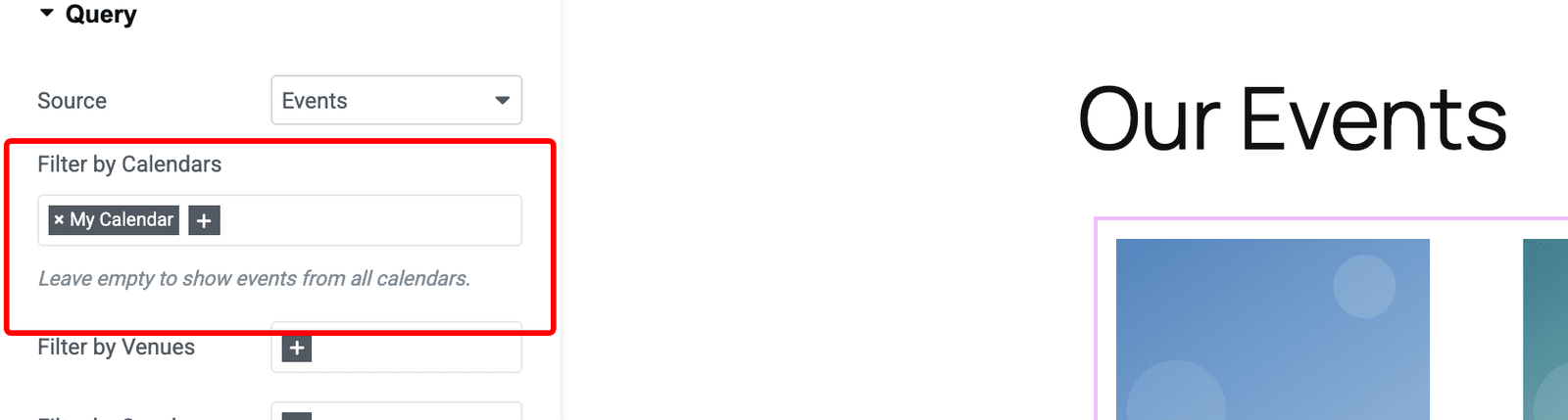
Selecting Events reveals filters for narrowing the grid.
Filter by Calendars limits the grid to events from the calendars you select. Leaving it empty shows events from every calendar.
Filter by Venues limits the grid to events held at the venues you select, and Filter by Speakers limits it to events featuring the speakers you select. Both require a Pro license.
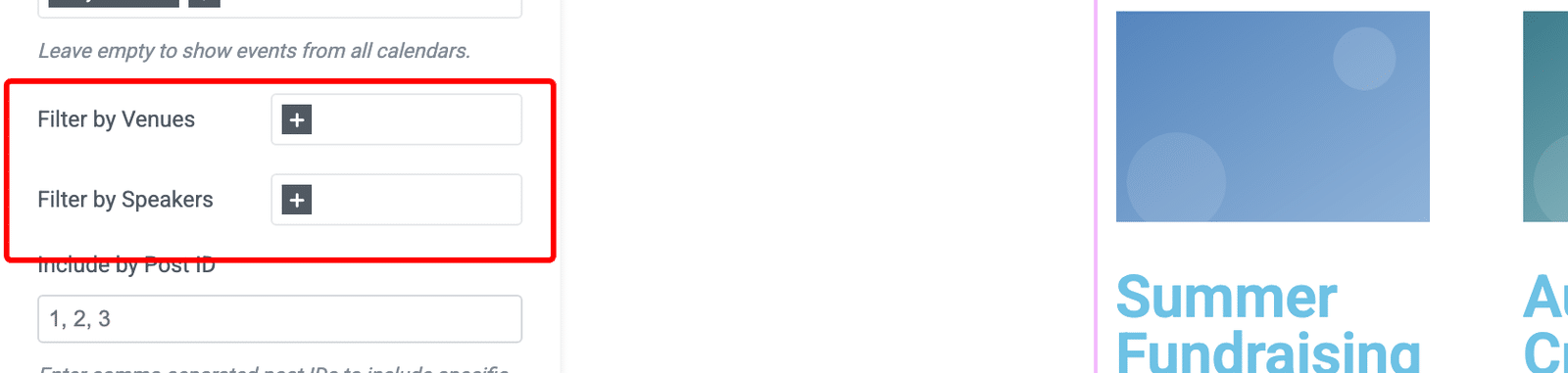
Include by Post ID and Exclude by Post ID target specific events by ID. Enter the event IDs separated by commas.
Publish the page to see the finished grid on your site.
Frequently Asked Questions
Below, we’ve answered some of the most common questions about using Sugar Calendar Events with Elementor.
Why don’t I see the SC Event widgets in Elementor?
Three things hide them. First, check that Events is ticked under Elementor » Settings » General » Post Types. Second, remember that these widgets only appear inside a Single Event template, a Loop Item template, or an event you’re editing with Elementor. On a standard page, Elementor doesn’t offer them.
Third, if you’re editing a specific event and only some widgets are listed, the event has no content for the missing ones. Attach a venue to see the Venue widgets, assign a speaker to see the Speakers widget, and so on.
What’s the difference between SC Event Location and SC Event Venue Name?
SC Event Location displays the plain-text location entered for the event itself and is part of Sugar Calendar Events Lite. SC Event Venue Name displays the name of the venue record linked to the event and requires a Pro license. On a Pro site, the Venue widgets replace the Location widgets, so expect to see only the Venue ones in the panel.
Do I need Elementor Pro to use these widgets?
The widgets themselves work with the free version of Elementor when you edit an event directly. The Single Event template and the Loop Grid are both part of Elementor Pro, so both workflows require a Pro license.
Can I still use the calendar shortcodes and blocks?
Yes. The Elementor widgets sit alongside the existing blocks and shortcodes rather than replacing them. Mix whichever suits each page.
That’s it! You now know how to build event pages and event grids with Sugar Calendar Events and Elementor.
Next, would you like to reuse the same venue details across many events? Check out our guide on creating and managing event venues to learn how to set them up.