Would you like to keep your Sugar Calendar events and your Google Calendar in sync, or host online events with Google Meet? Sugar Calendar Events connects to your Google account, so your events stay up to date in both places.
In this tutorial, we’ll show you how to set up and use the Google Calendar integration in Sugar Calendar Events.
In This Article
Before getting started, make sure Sugar Calendar Events is installed and activated on your site.
Connecting Your Google Account
Sugar Calendar Events connects to Google at the site level. One Google account powers the integration for the whole site, and a site administrator manages the connection.
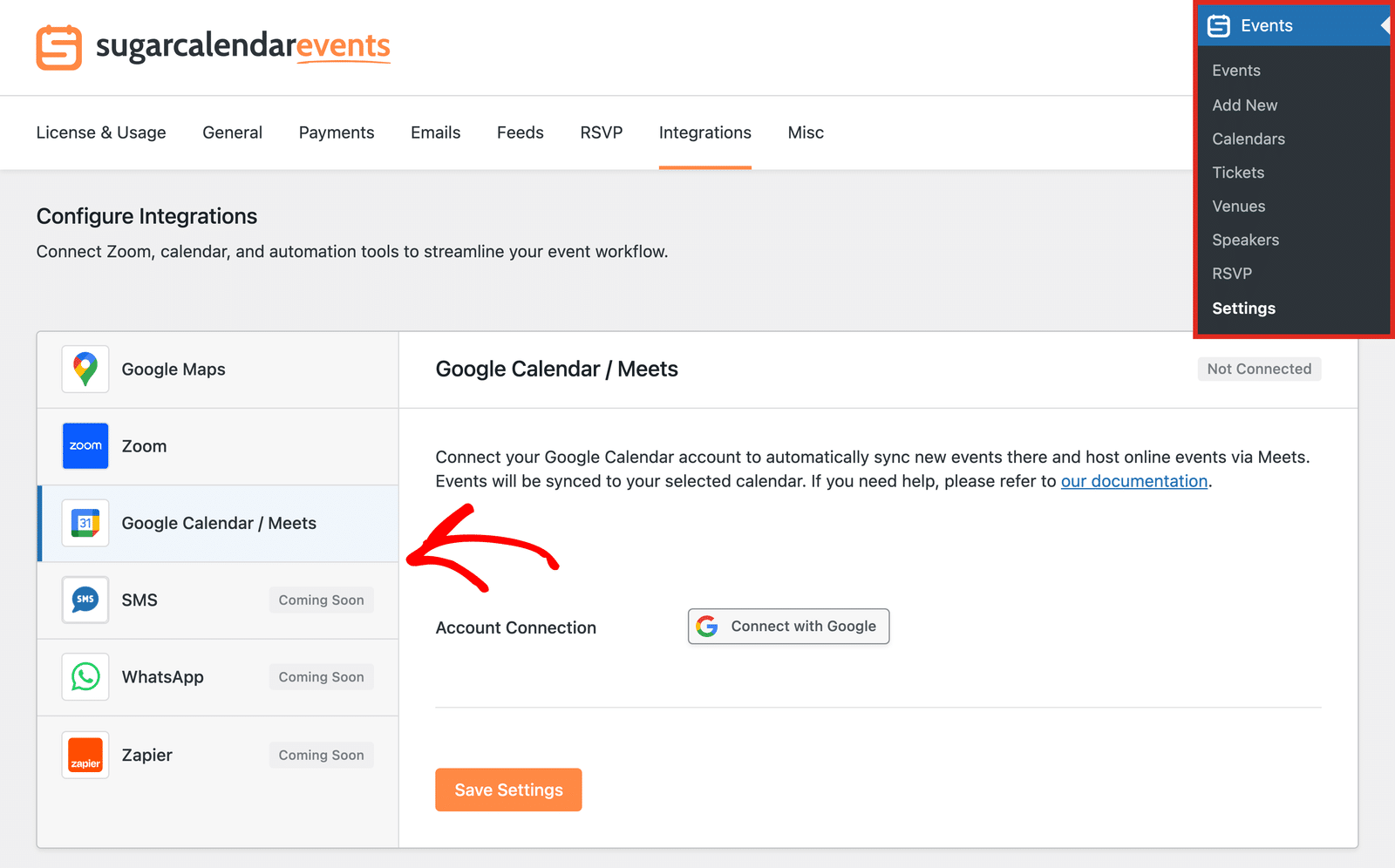
To connect your Google account, go to Events » Settings in your WordPress dashboard and click the Integrations tab. Then, select Google Calendar / Meets from the sidebar.
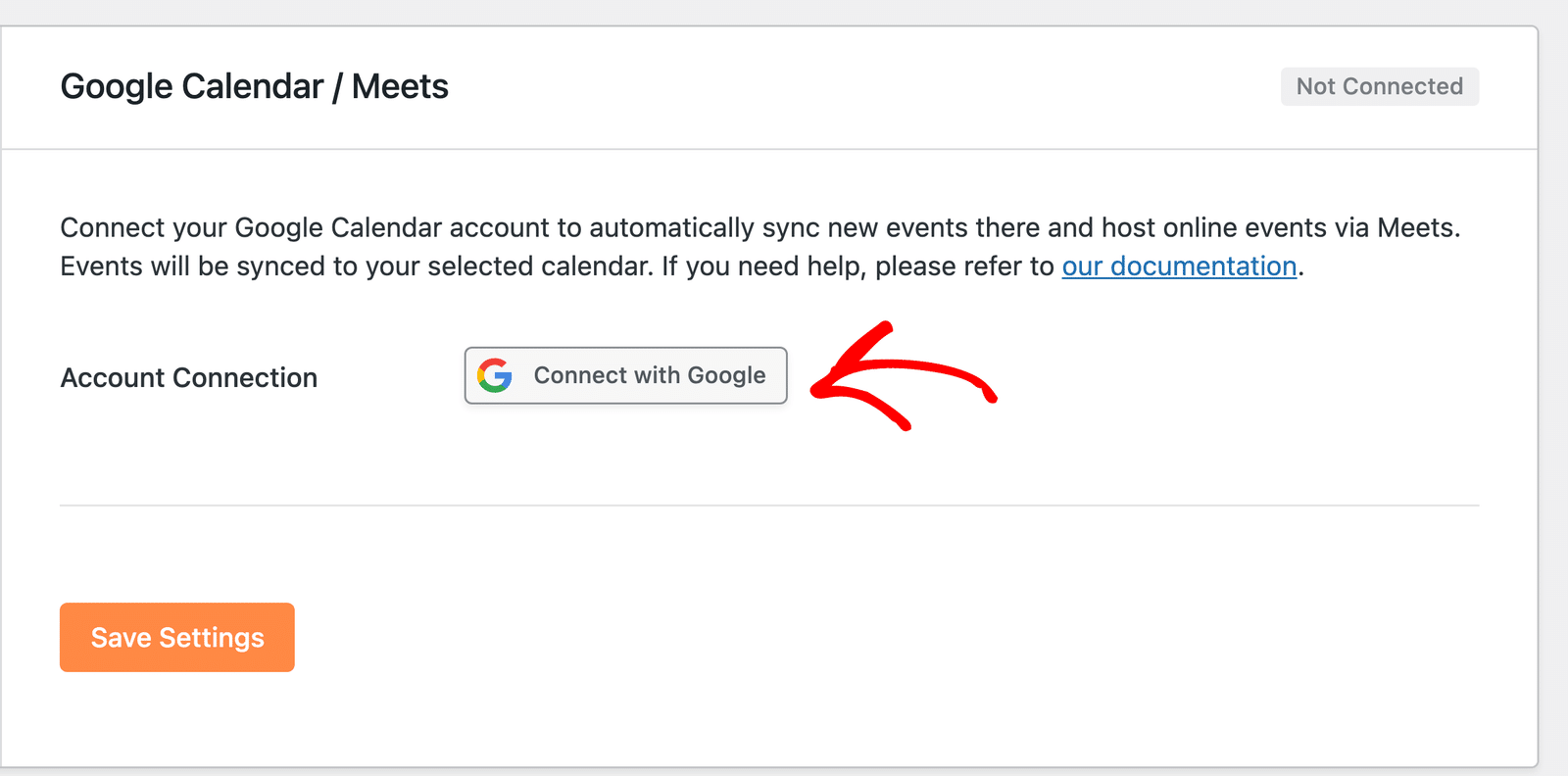
Next, click the Connect with Google button.
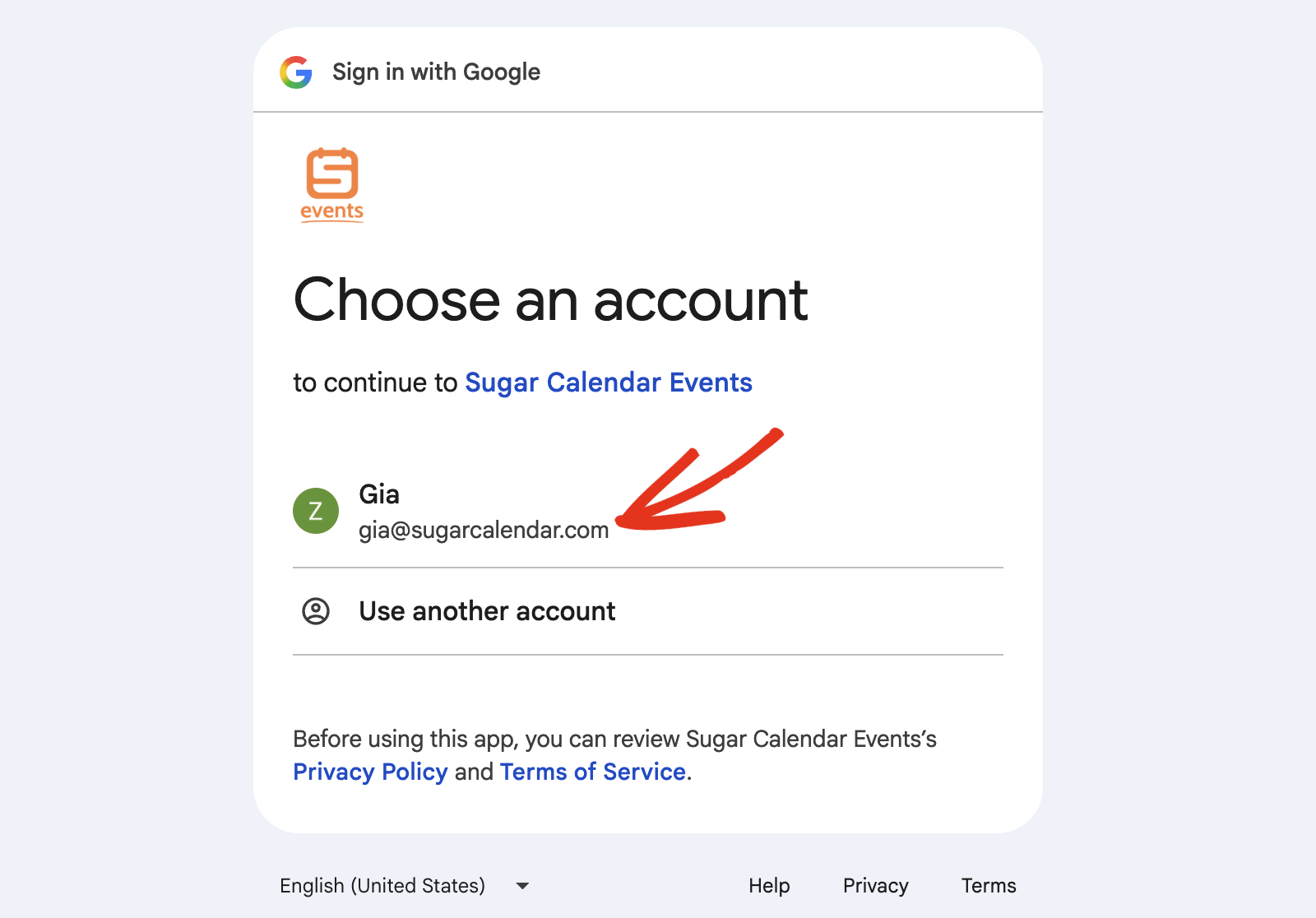
Google’s sign-in page opens in your browser. Choose the Google account you’d like to connect, or sign in if you aren’t already.
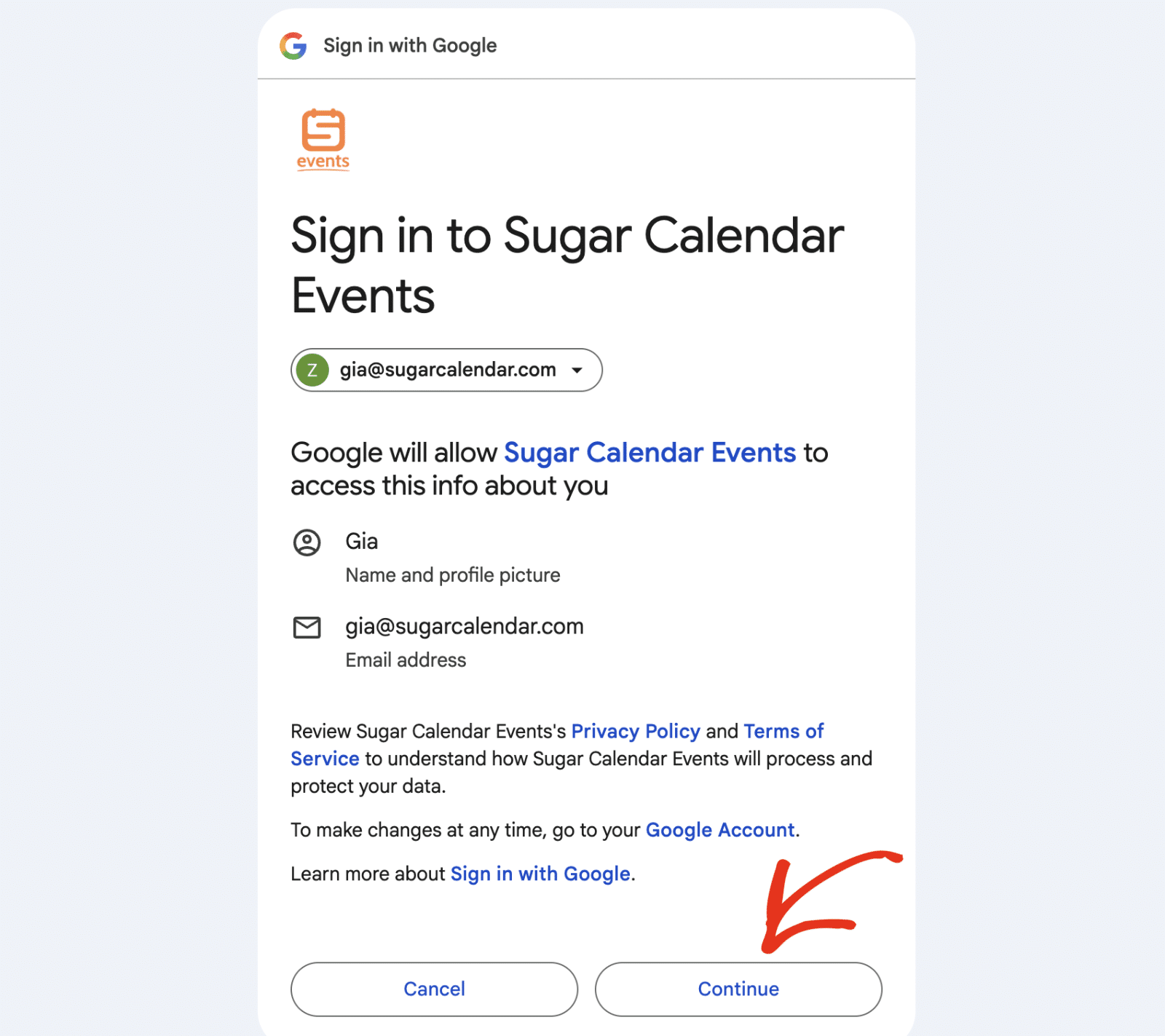
Then, click Continue to sign in to Sugar Calendar Events.
On the next screen, Google asks what Sugar Calendar Events can access. Check Select all to approve every permission, and then click Continue.
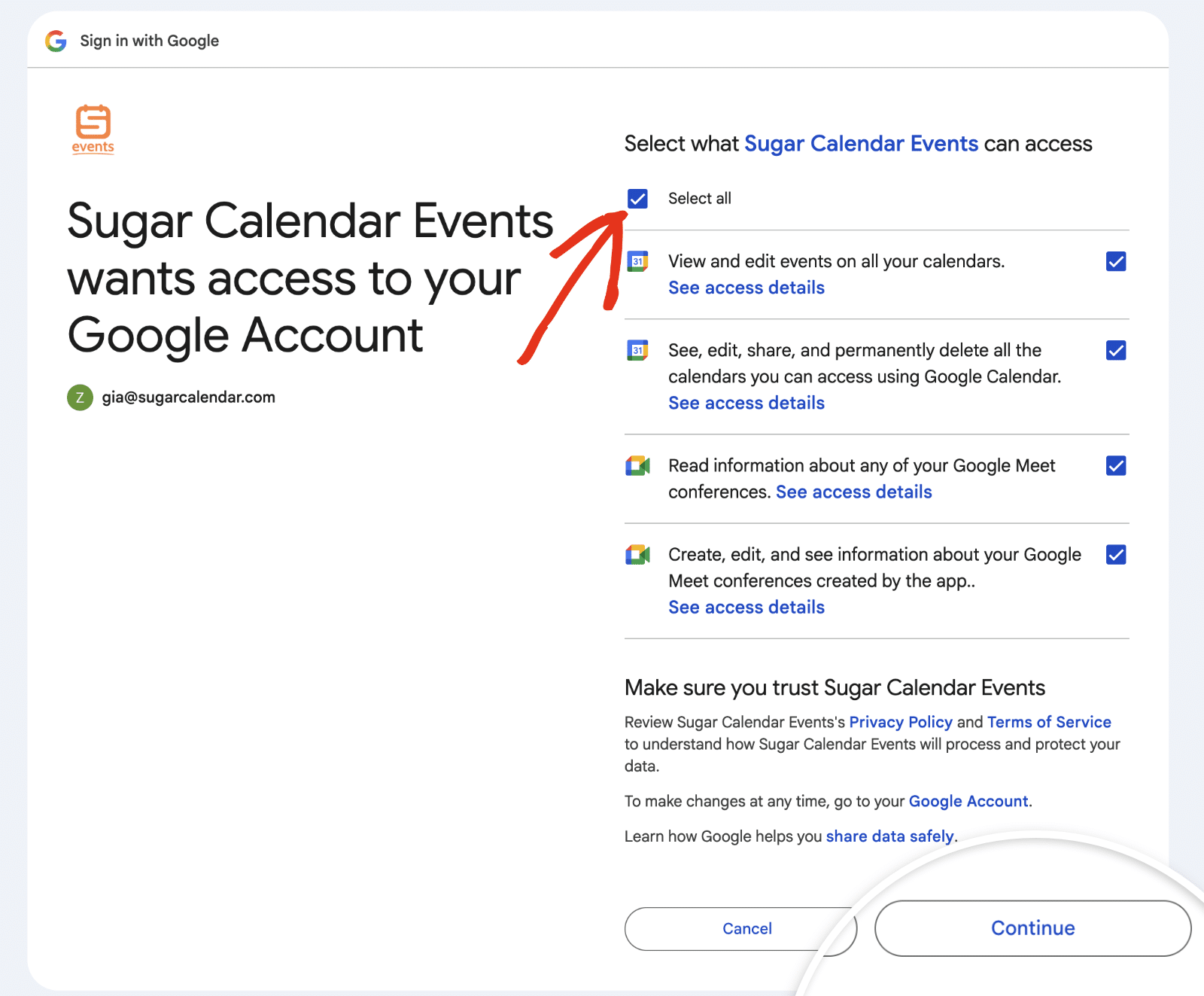
The Google Calendar permissions let Sugar Calendar Events sync your events, and the Google Meet permissions let it create meeting links for online events.
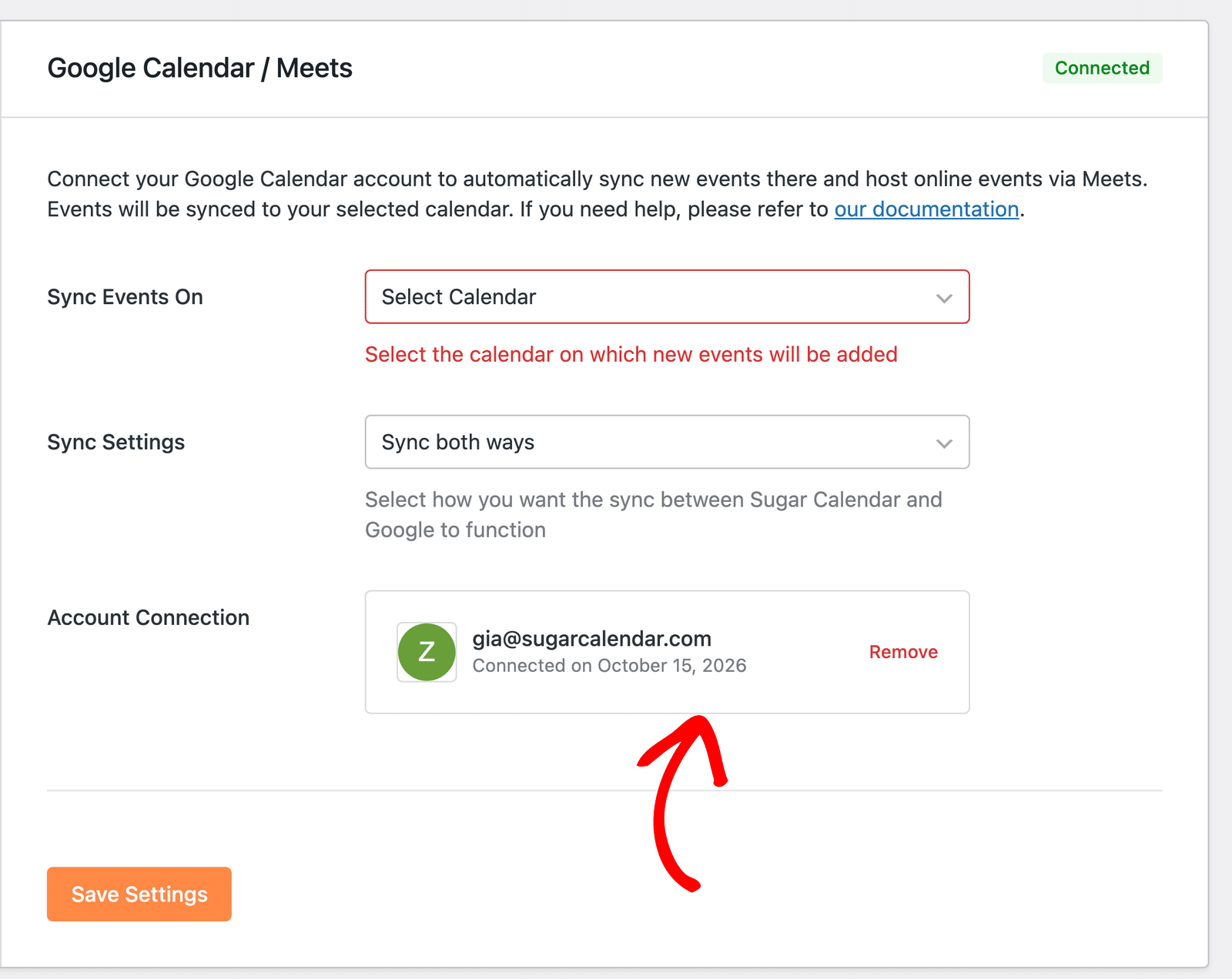
After you’ve approved the permissions, you’ll be redirected back to the Integrations page. Here, you’ll see the connected Google account in the Account Connection section.
Choosing a Calendar and Sync Direction
After you connect your account, choose which Google calendar to sync with and how the sync works.
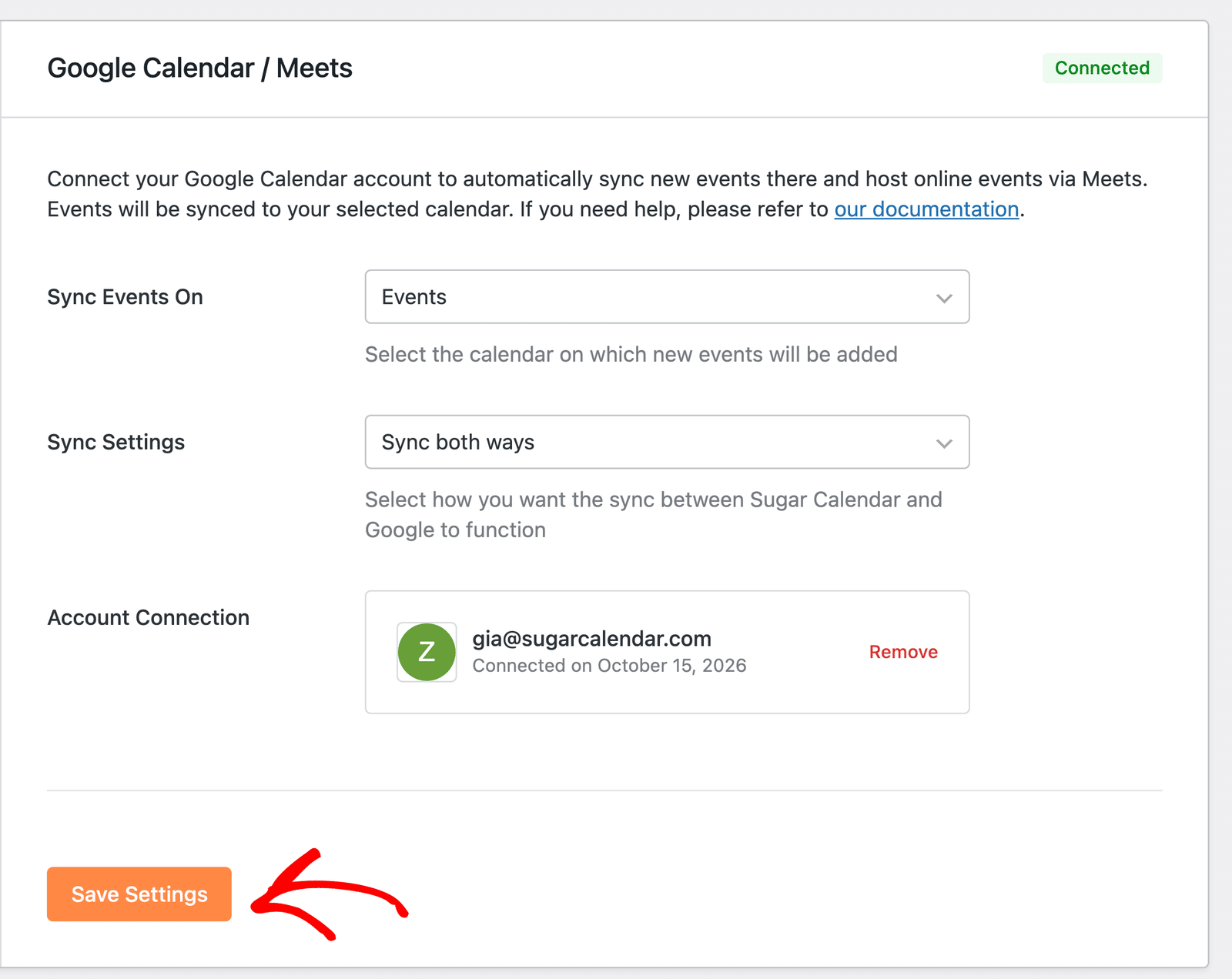
In the Sync Events On dropdown, select the Google calendar you’d like to sync your events with. The dropdown lists every Google calendar your account can add events to.
If you only want to use Google Meet, select Don’t Sync Events instead. Your events then stay on your site only.
Next, choose an option from the Sync Settings dropdown:
- Sync both ways: Keeps your site and Google Calendar in sync. Changes on either side appear on the other. This is the default.
- Sync from Sugar Calendar to Google Calendar: Sends your site’s events to Google Calendar. Changes made in Google Calendar don’t come back to your site.
- Sync from Google Calendar to Sugar Calendar: Brings events from Google Calendar to your site. Changes made on your site don’t go to Google Calendar.
After making your selection, click Save Settings.
How Syncing Works
After you save your settings, Sugar Calendar Events keeps your events and the selected Google calendar in sync, depending on the direction you chose.
What Syncs
Each synced event carries its title, description, date, time, time zone, all-day setting, and recurrence. If the event has a Google Meet meeting, the meeting link syncs too.
Other event details stay on your site only. These include the venue and location, calendars, tickets, RSVPs, speakers, and images.
Sugar Calendar to Google Calendar
When you publish or update an event in the event editor, Sugar Calendar Events adds it to your Google Calendar or updates the copy that’s already there. Drafts don’t sync until you publish them.
Saving your sync settings doesn’t send the events you already have. Each existing event syncs the next time you update it.
If you permanently delete an event, Sugar Calendar Events removes it from Google Calendar as well. Moving an event to the trash leaves the Google copy in place.
Google Calendar to Sugar Calendar
When you create or change an event in the selected Google Calendar, Sugar Calendar Events adds or updates it on your site as a published event. New events go into the calendar set as your Default Event Calendar in Events » Settings » General. To learn more, see our guide to Sugar Calendar Events settings.
If you delete an event in Google Calendar, Sugar Calendar Events moves it to the trash on your site.
If the same event changes on both sides, the most recent change wins.
Recurring Events
Sugar Calendar Events Pro keeps the full repeat pattern of recurring events in both directions. To learn more, see our guide to setting up recurring events.
In Sugar Calendar Events Lite, a recurring Google event comes over as a single event on its first date. You’ll need a paid license for Sugar Calendar Events to sync every date in the series.
Adding Google Meet to an Event
After you connect your Google account, you can use Google Meet as the online location for your events.
To get started, create a new event or edit an existing one. Then, click the Location tab in the Sugar Calendar Event Settings section.
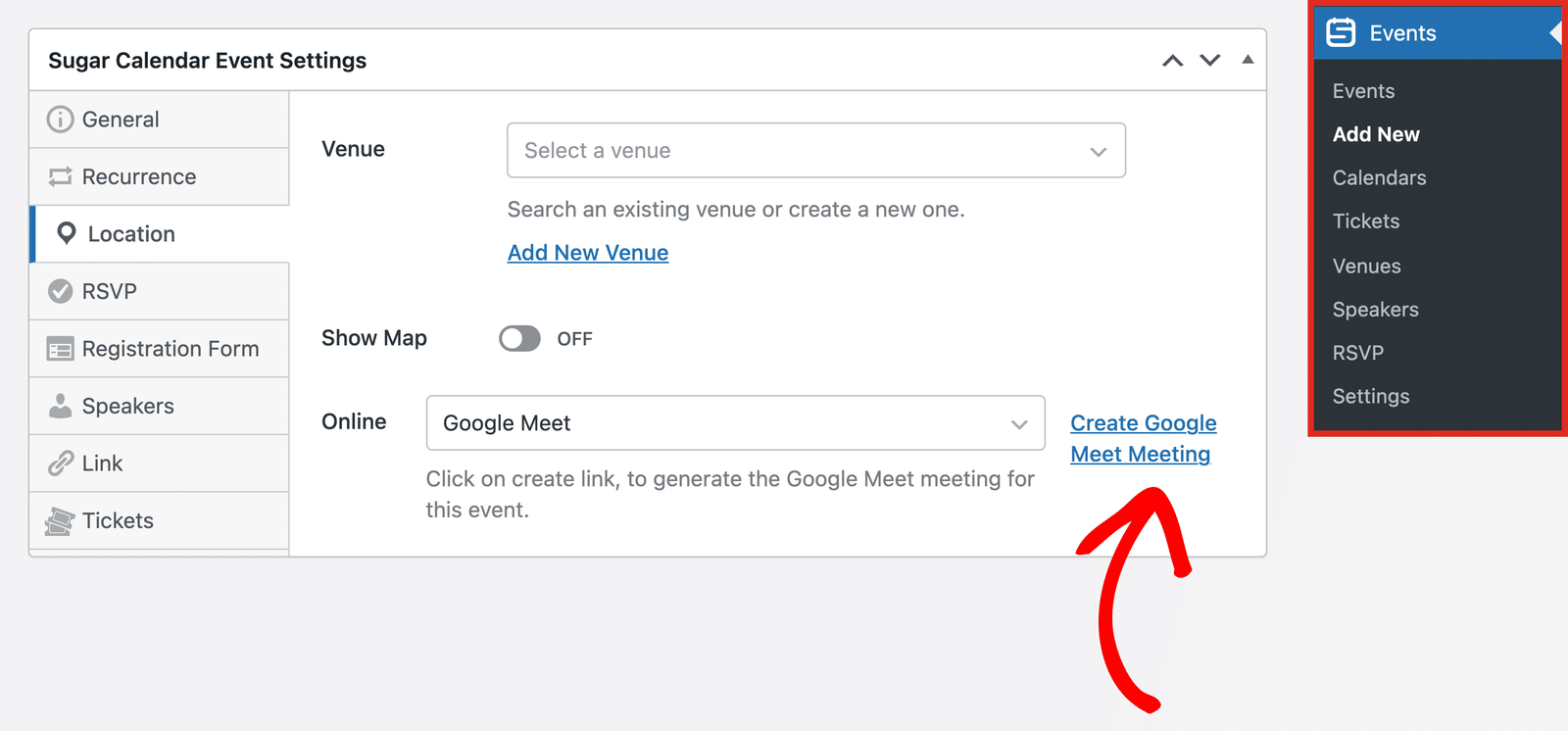
In the Online dropdown, select Google Meet. Then, click the Create Google Meet Meeting link.
Sugar Calendar Events creates the meeting and shows its Join Link with a Copy link.
Use the Show to option to choose who can see the meeting link. Select Everyone to show it to all visitors, or Only Attendees to show it only to people with a ticket or an RSVP for the event.
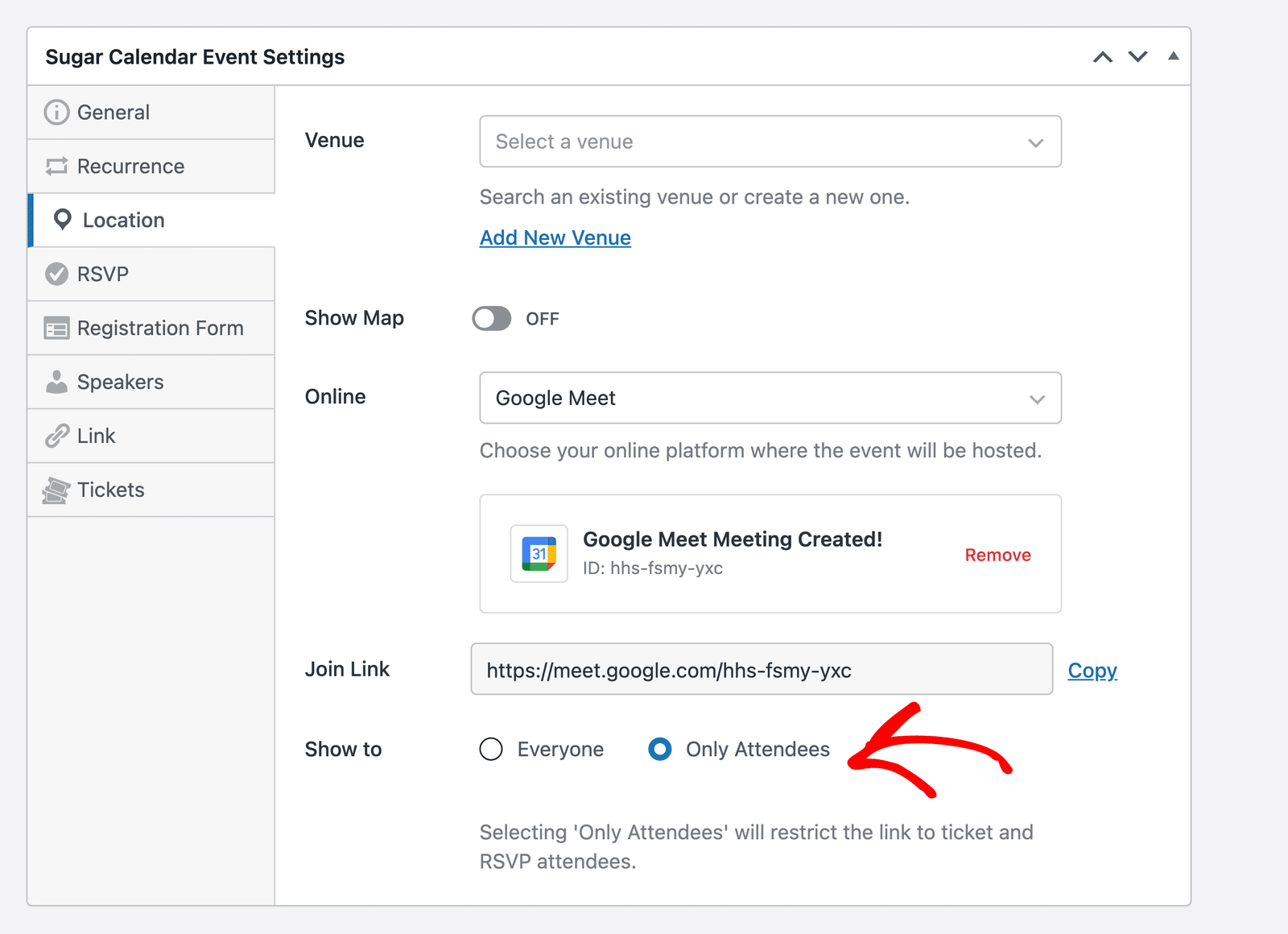
Once done, publish or update the event.
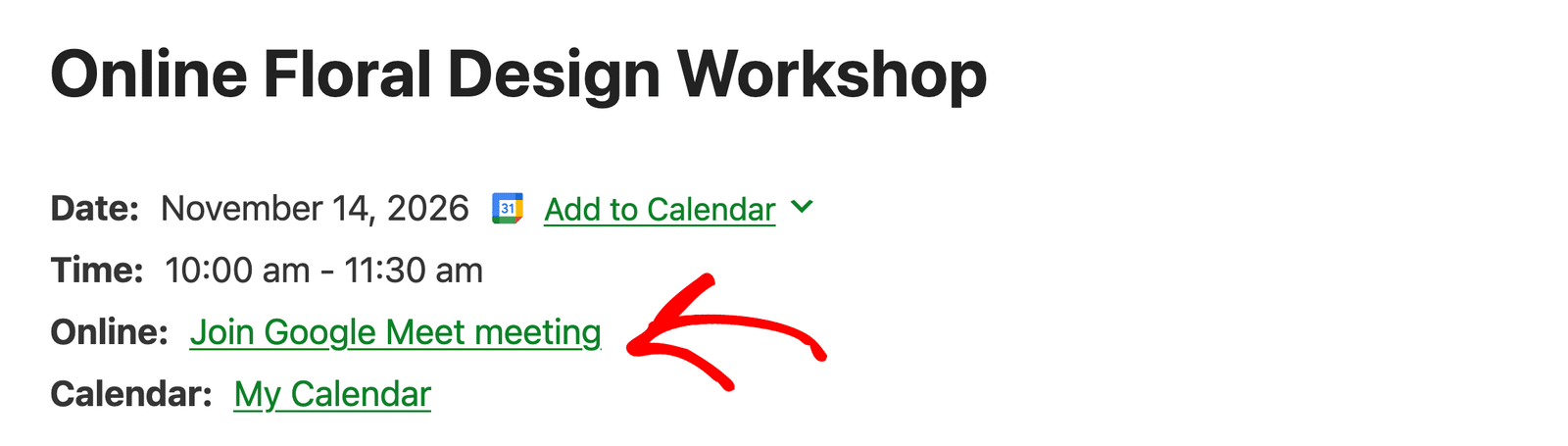
On the event page, visitors who can see the link get a Join Google Meet meeting link. Attendees also receive the link in their ticket and RSVP emails.
To remove the meeting from an event, click Remove on the meeting card.
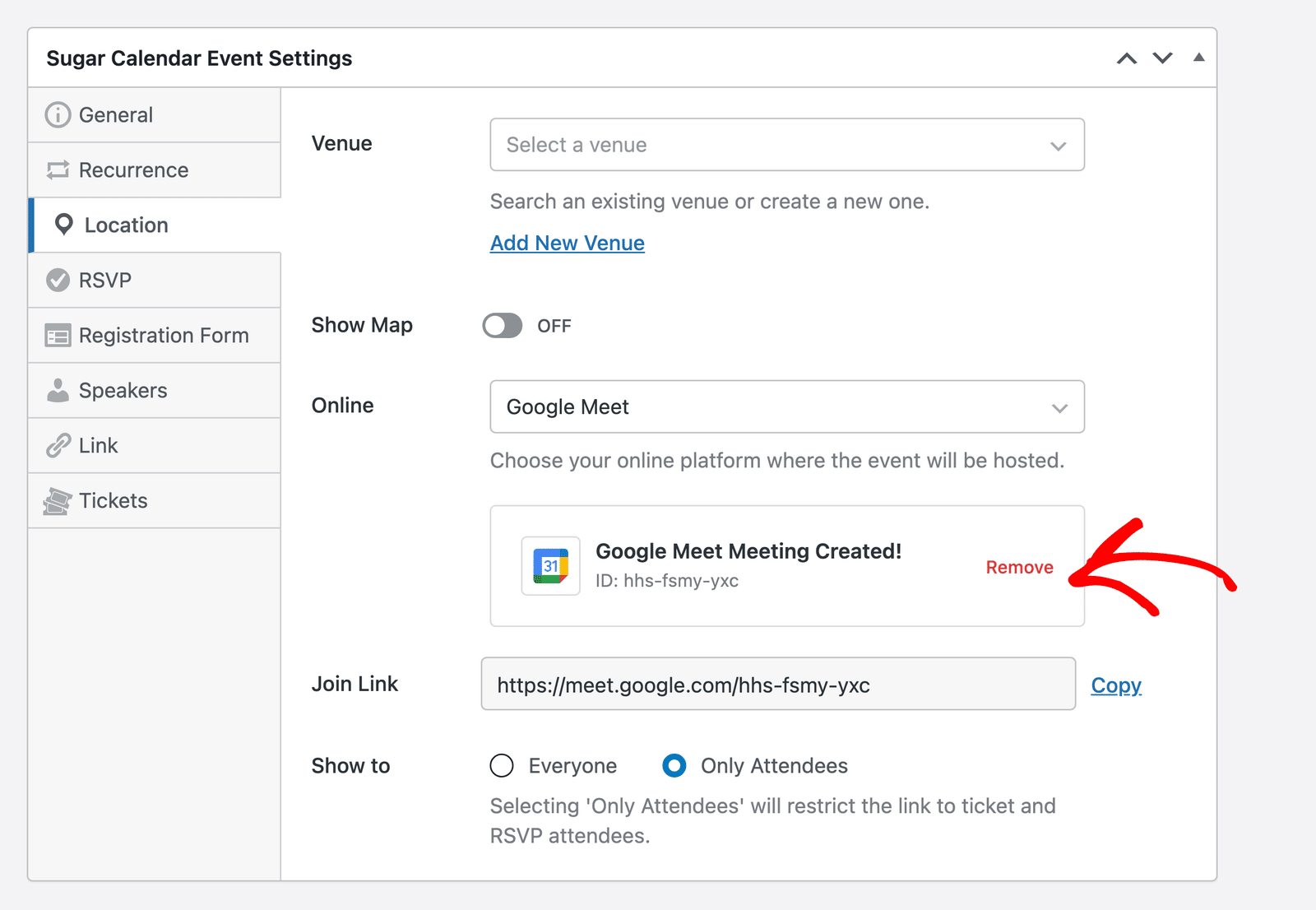
Then, click Remove in the confirmation window. The event’s online location switches back to None.
Disconnecting Your Google Account
To disconnect your Google account, go to Events » Settings, click the Integrations tab, and select Google Calendar / Meets. Then, click the Remove link on the Account Connection card.
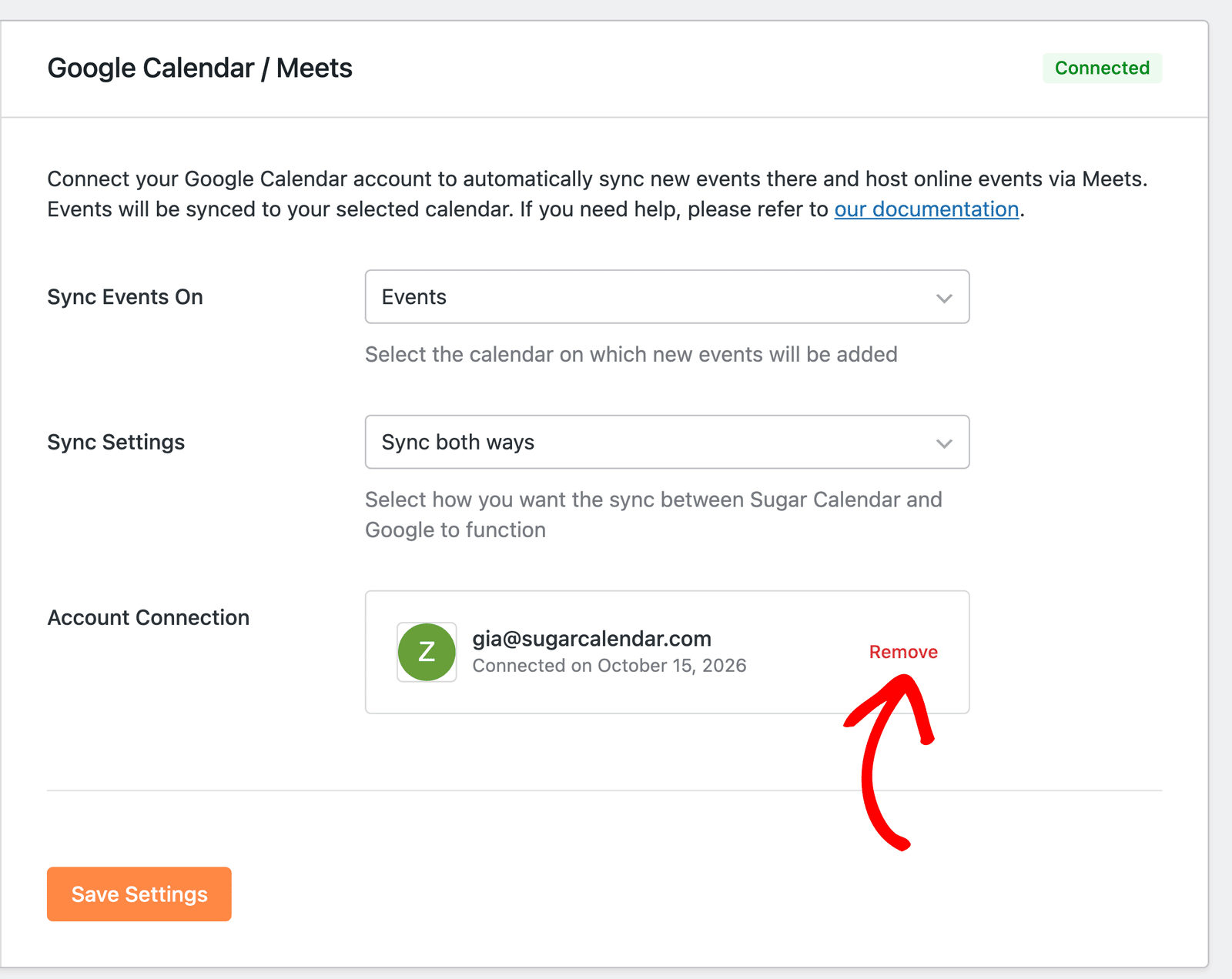
A confirmation window appears. Click Remove to disconnect.
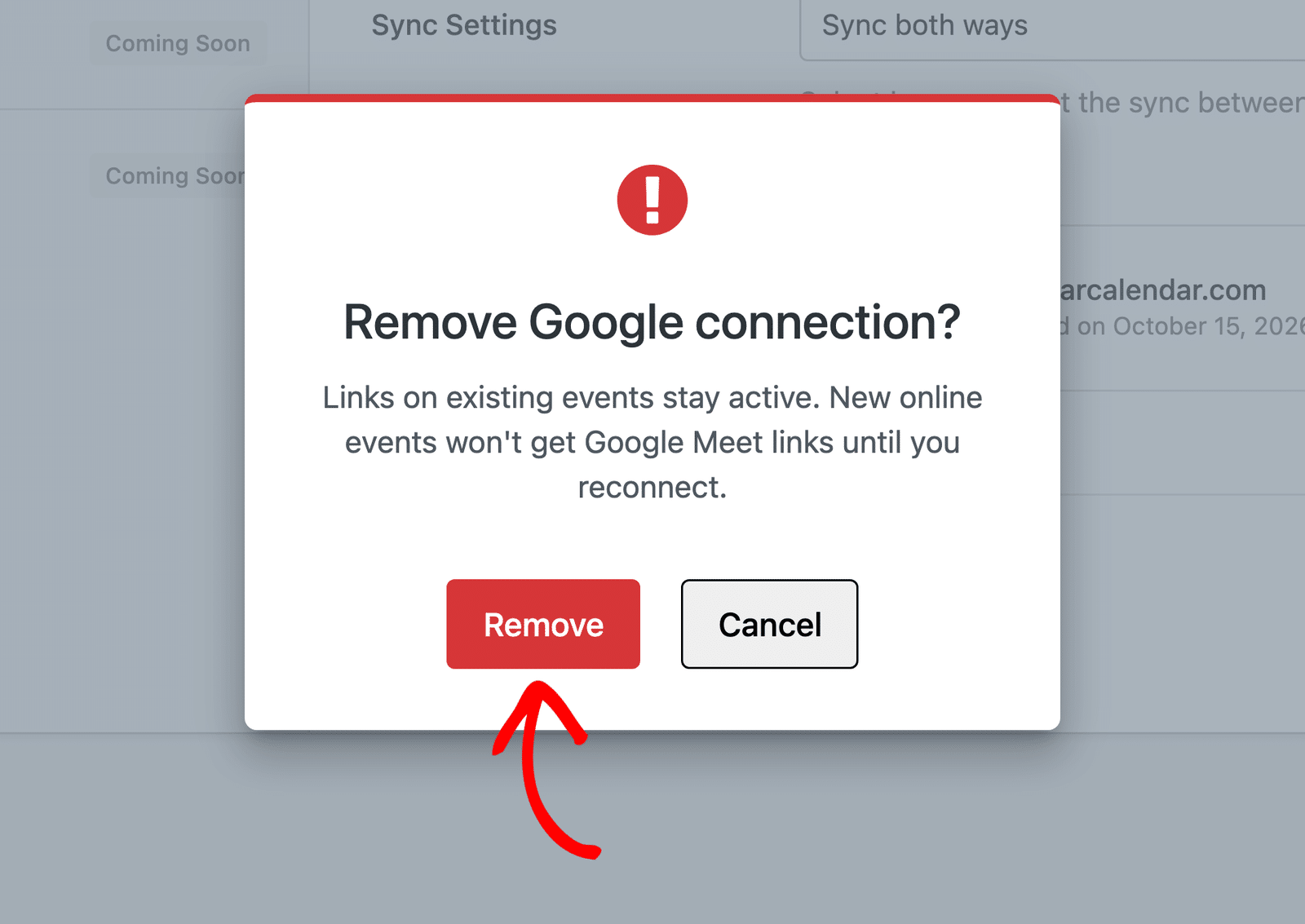
Disconnecting stops the sync. Your events stay on your site and in Google Calendar, and existing Google Meet links keep working. New online events can’t get Google Meet links until you reconnect.
Frequently Asked Questions
Below, we’ve answered some of the most common questions about the Google Calendar integration.
Why aren’t my existing Google Calendar events showing on my site?
The sync only brings over Google events you create or change after connecting. To add events that were already in your Google Calendar, import them from Google Calendar. Also check that Sync Settings isn’t set to Sync from Sugar Calendar to Google Calendar, since that option doesn’t bring events to your site.
Why didn’t my event sync to Google Calendar?
Publish the event if it’s still a draft, and then update it in the event editor. Existing events sync the next time you update them; drafts don’t. Also check that Sync Settings isn’t set to Sync from Google Calendar to Sugar Calendar.
Does the Google Calendar integration use integration credits?
Yes. Creating a Google Meet meeting and adding a new event to Google Calendar each use 1 integration credit. Updating an event that’s already in Google Calendar doesn’t use credits. To learn more, see our guide to understanding integration credits and usage limits.
Can I use Google Meet without syncing my events?
Yes. Select Don’t Sync Events in the Sync Events On dropdown, and save your settings. Google Meet stays available in the event editor.
That’s it! You now know how to set up and use the Google Calendar integration in Sugar Calendar Events.
Next, would you like to host online events with Zoom instead? See our guide on using the Events Zoom integration to learn how.