Would you like to draw attention to your most important events? When every event on your calendar looks the same, a sold-out headline show sits at the same visual weight as a weekly staff meeting, and visitors have no way to tell which one matters.
In this tutorial, we’ll show you how to feature events in Sugar Calendar so they stand out with a star in your admin calendar and on your site.
In This Article
Before getting started, make sure the Sugar Calendar Events plugin is installed and activated on your WordPress site.
Marking an Event as Featured
To feature an event, open it for editing and scroll to the event settings metabox. Then select the General tab.
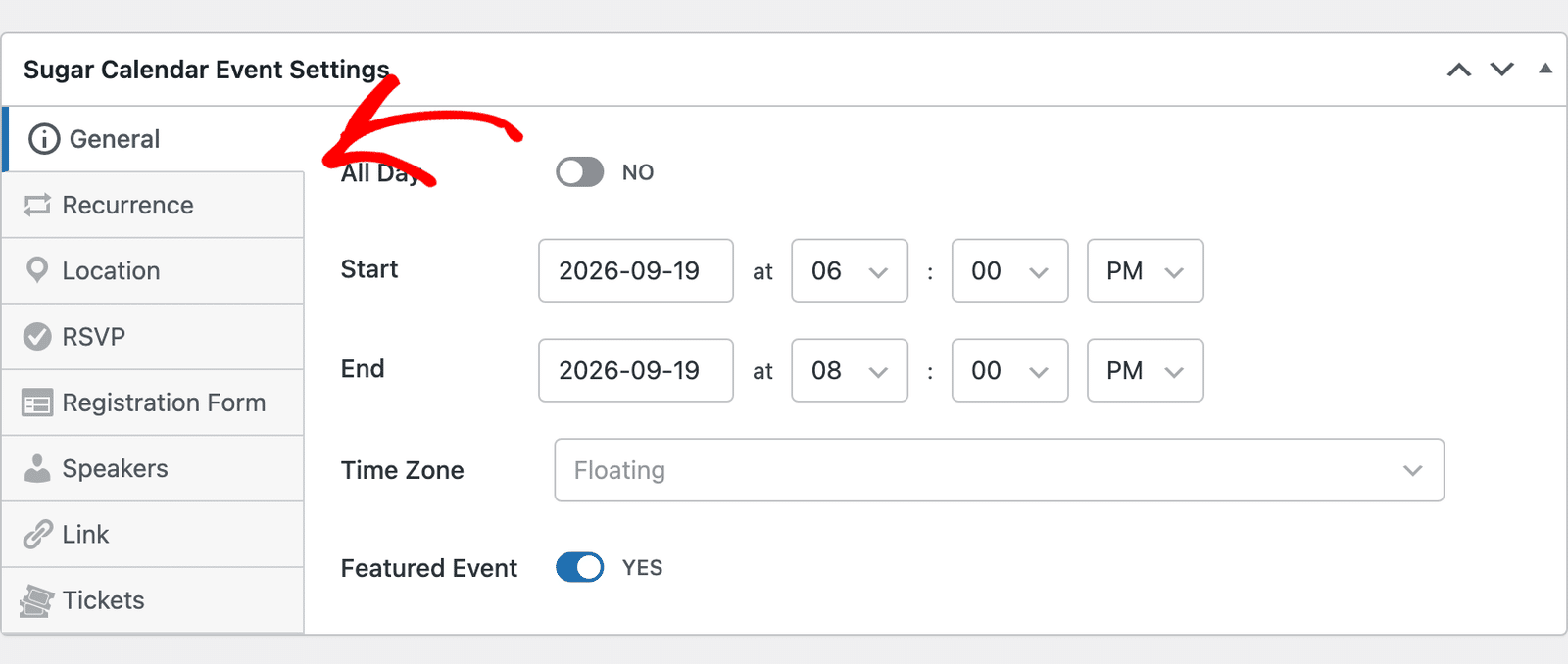
Below the date fields, switch the Featured Event toggle to YES.
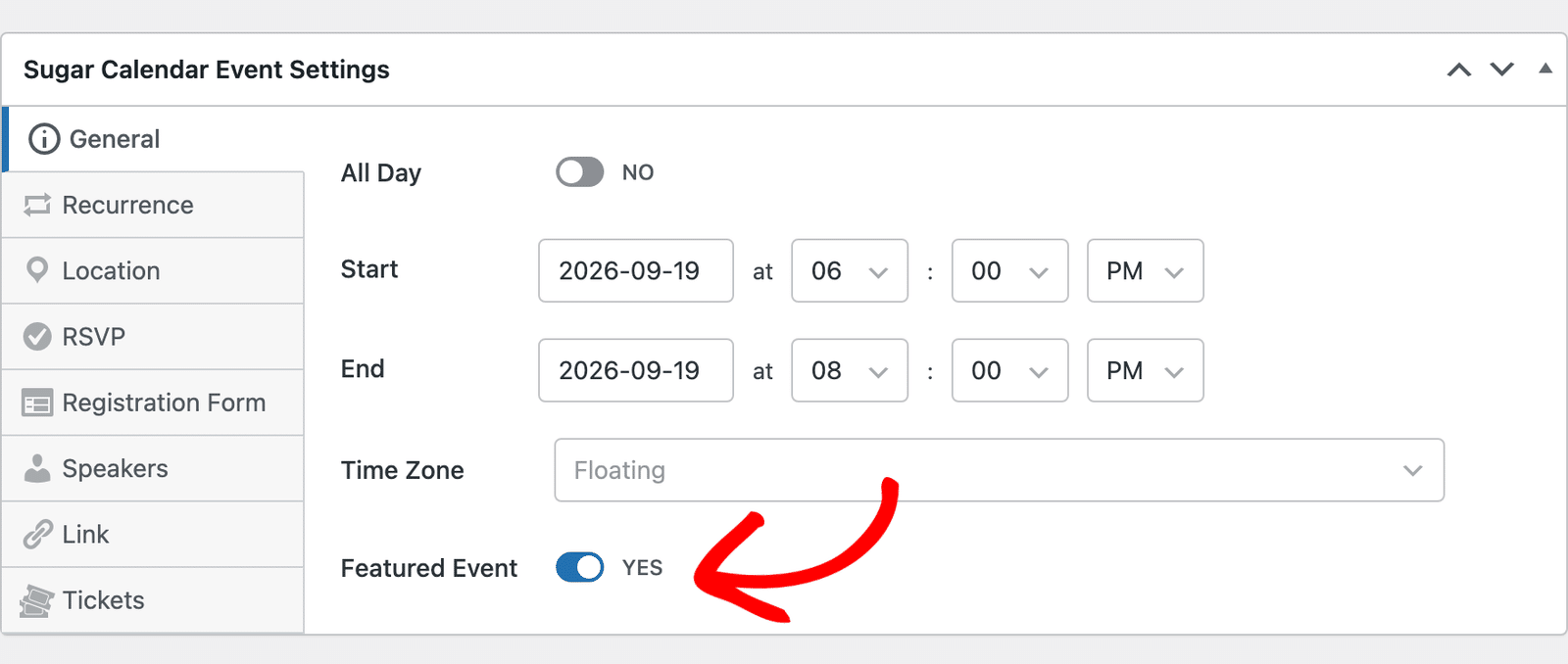
Then save or update your event. Once marked, a star appears everywhere Sugar Calendar displays the event once you save.
Finding Featured Events in Your Admin
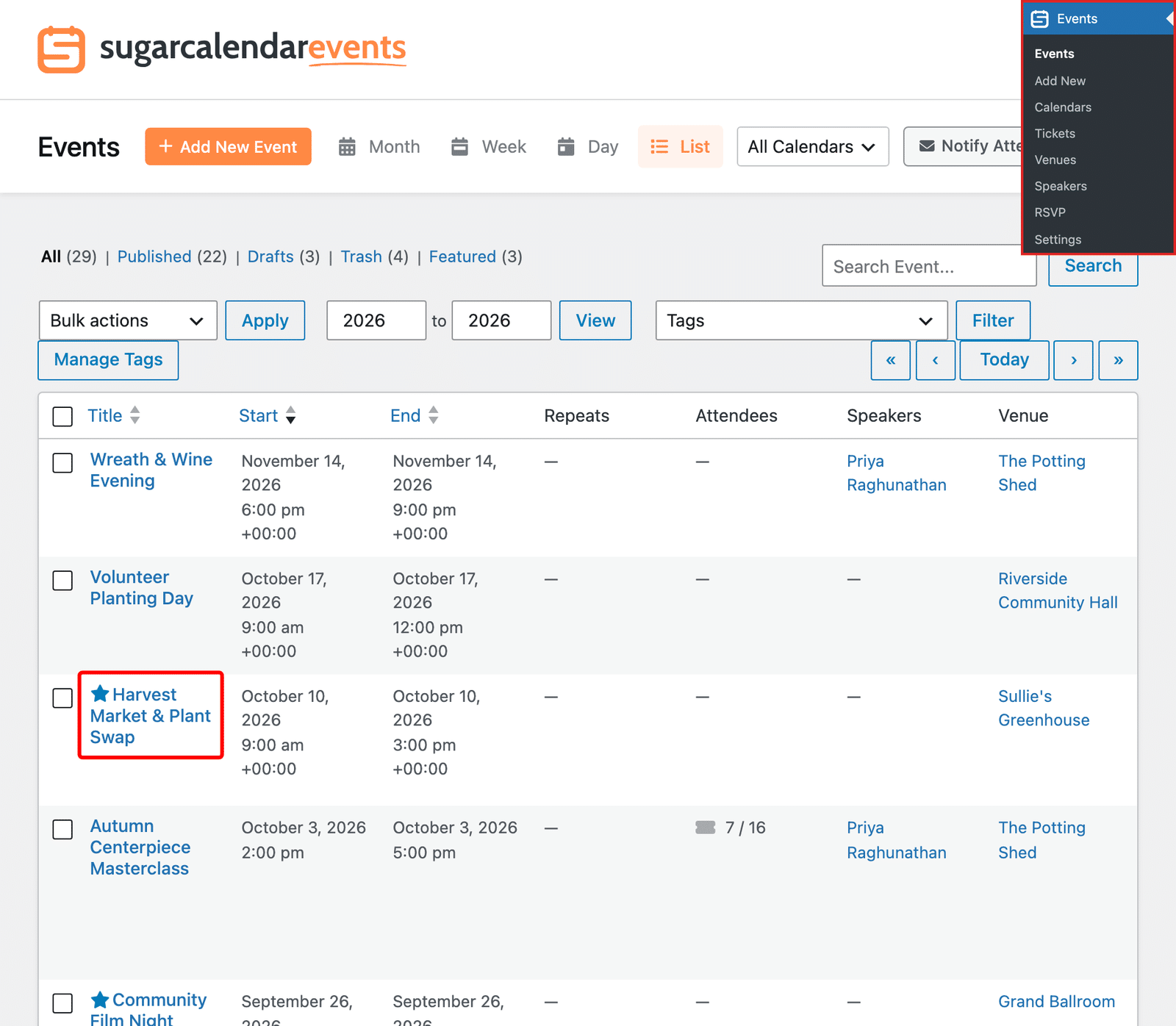
To open your events list, go to Events » Events in your WordPress admin menu.
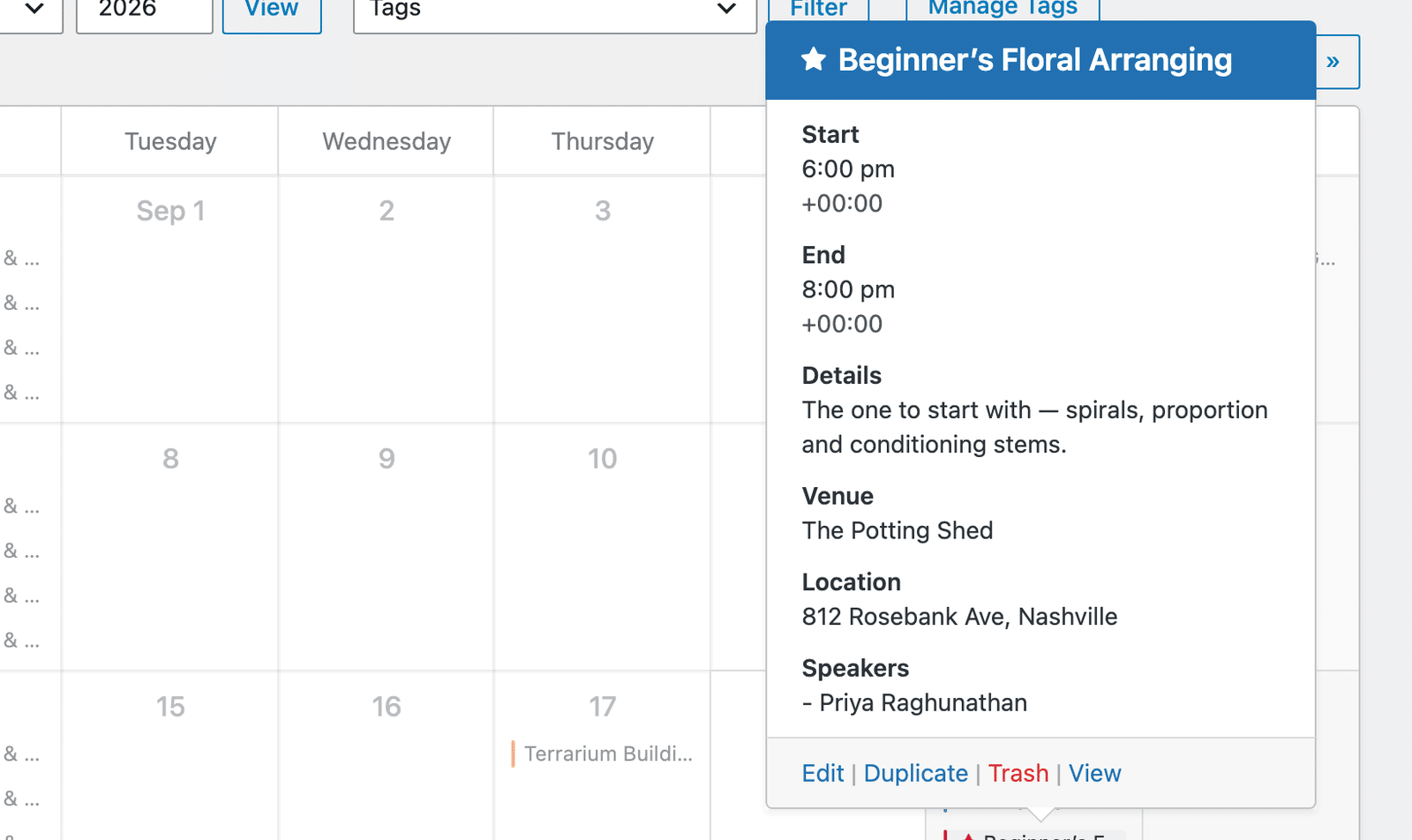
Featured events carry a star in front of the event title everywhere Sugar Calendar lists them in your admin, including the Month, Week, Day, and List views. Hovering over the star shows a Featured tooltip.
To see only your featured events, click the Featured link in the status row above the calendar. The link sits after the other status links and shows a count of the featured events in the current view.
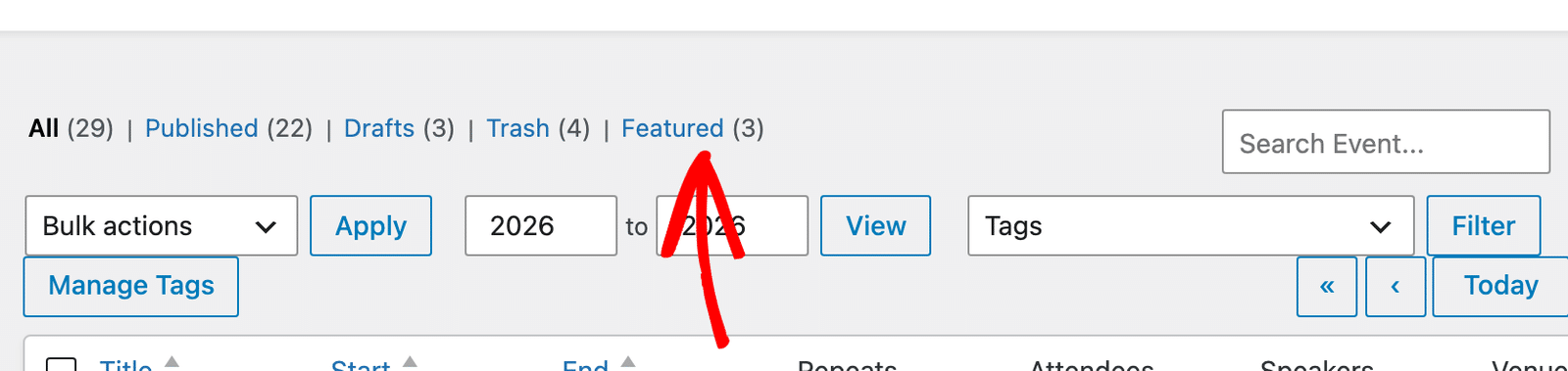
The filter applies to whichever view you’re in, so switching between Month, Week, Day, and List keeps the filter active.
Clicking an event in your admin calendar opens its details popup, and the star appears there too, beside the event title.
How Featured Events Appear on Your Site
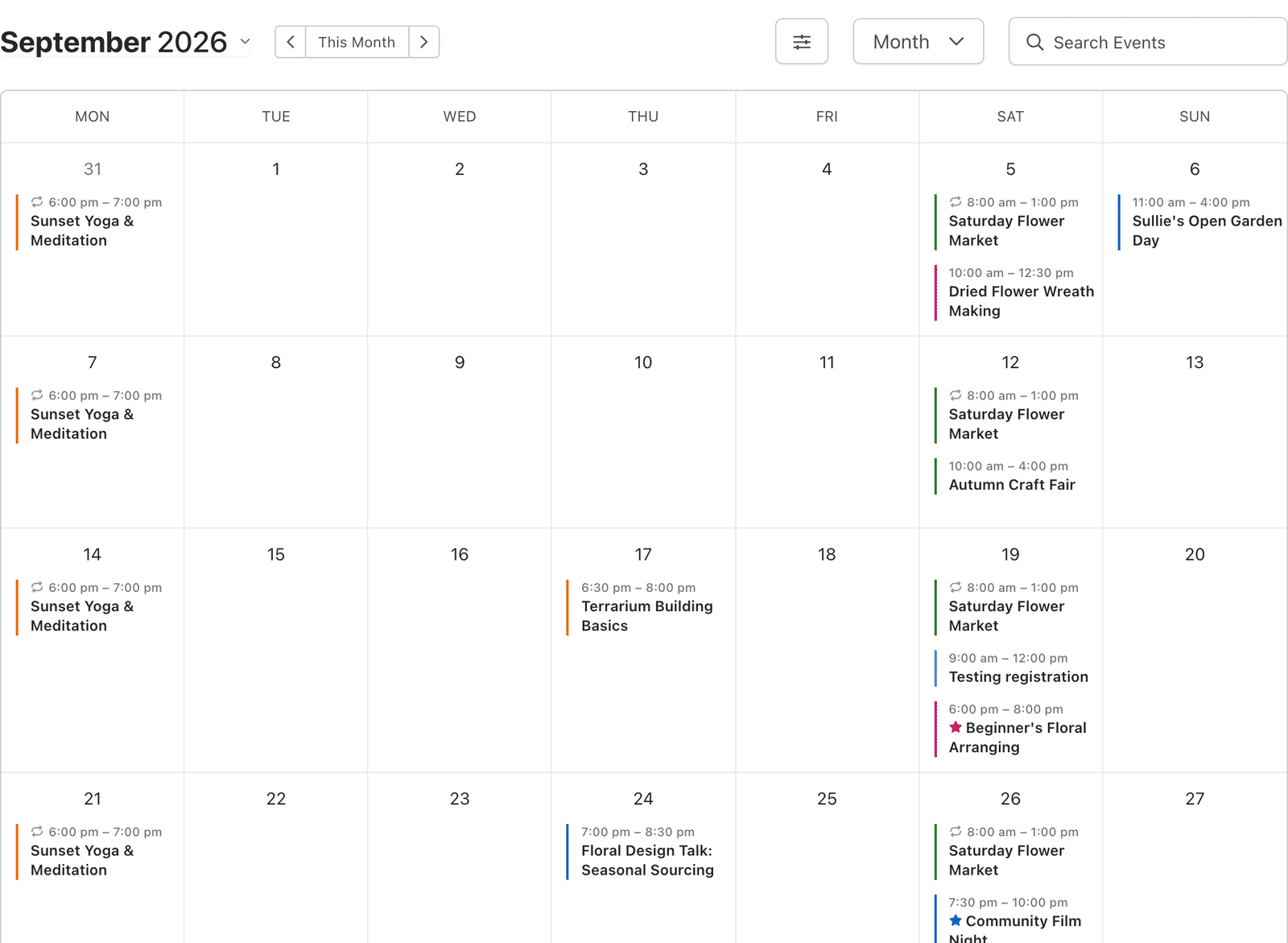
On the frontend, the star appears next to the event title in your calendar blocks and your event lists. Visitors see the same Featured tooltip when they hover over it.
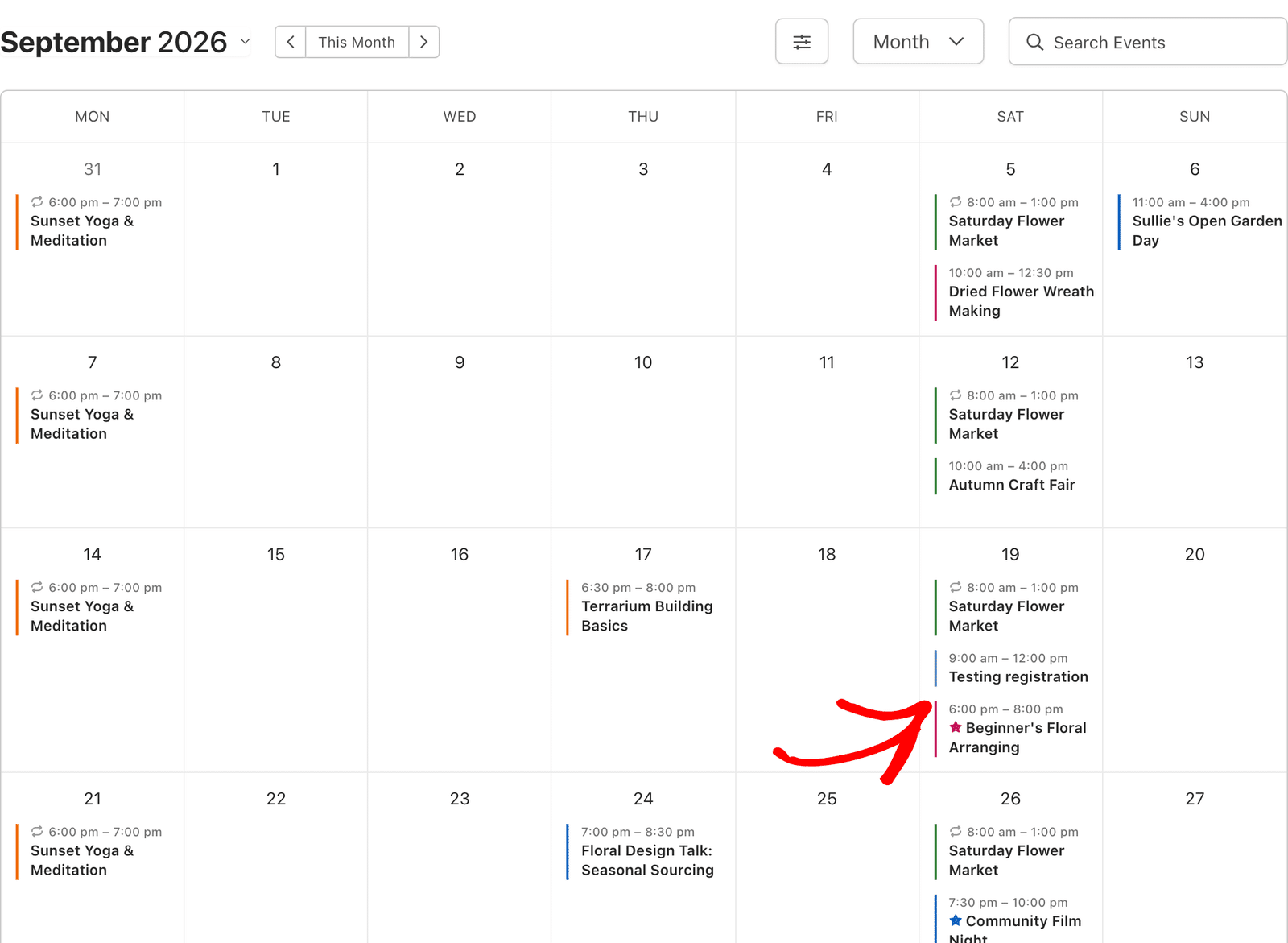
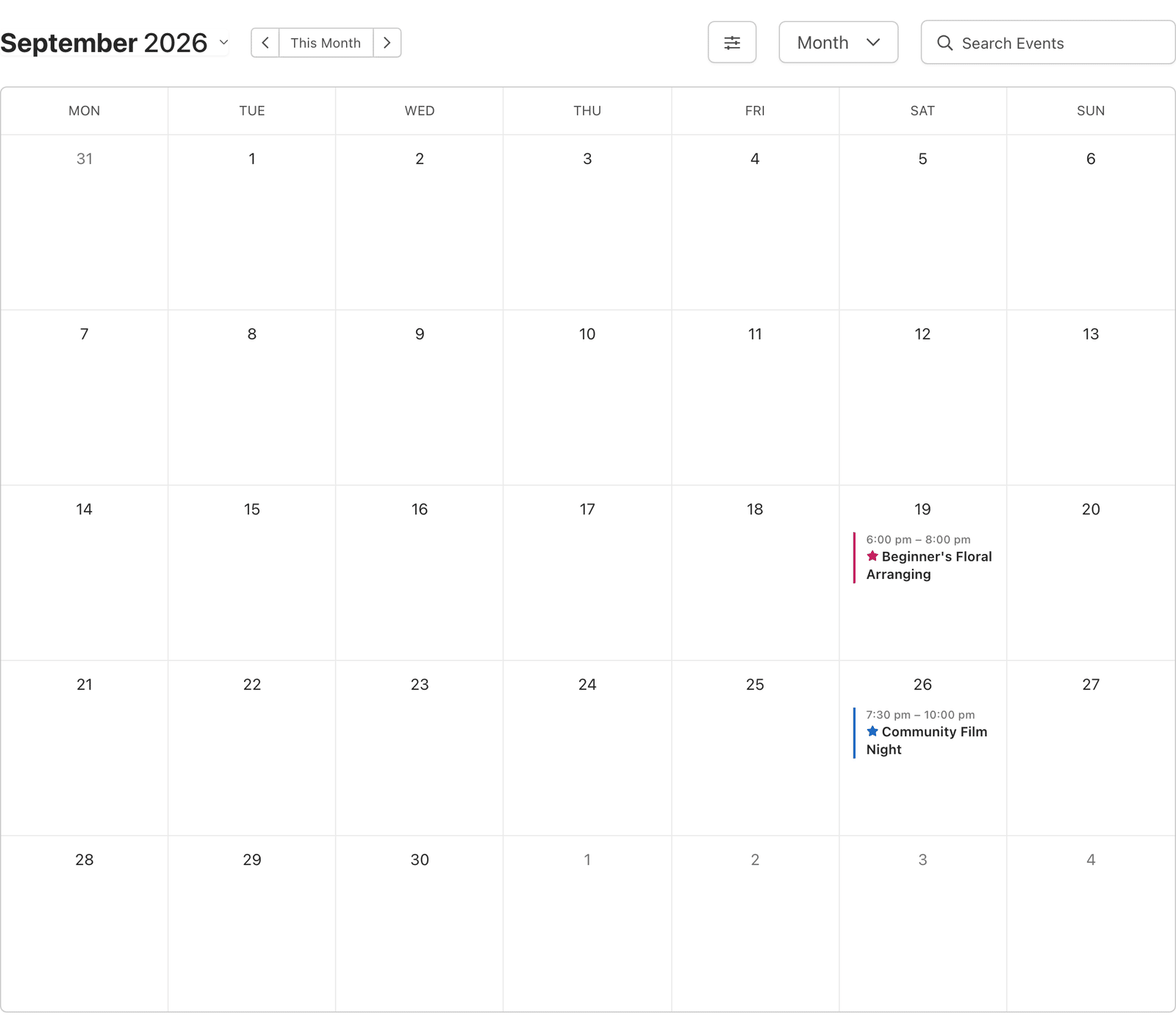
In the Month, Week, and Day calendar views, the star takes its color from the event’s calendar, so a featured event in a crimson calendar shows a crimson star, and one in a green calendar shows a green star.
In event lists and in your admin, the star uses your theme’s link color instead.
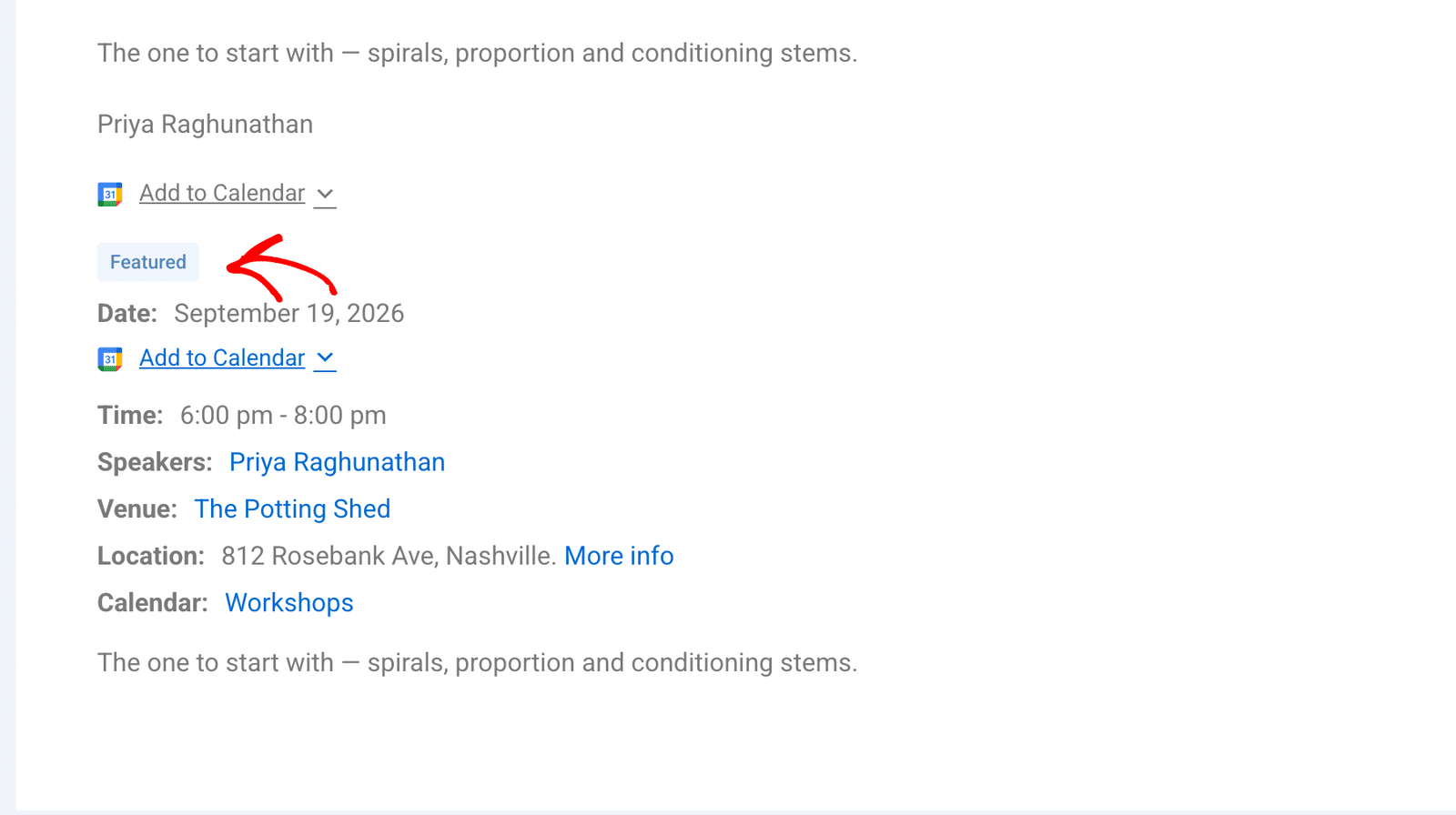
On the single event page, Sugar Calendar shows a Featured badge alongside the event’s other badges rather than a star.
Showing Only Featured Events
Beyond the star, Sugar Calendar 3.14 or higher lets a calendar or event list display nothing but your featured events. That turns the feature into a way to build a curated “highlights” calendar rather than only a visual marker.
Select your Sugar Calendar block, then find Show only Featured Events in the Settings panel of the block sidebar. It sits below the Speakers filter. Switch it on.
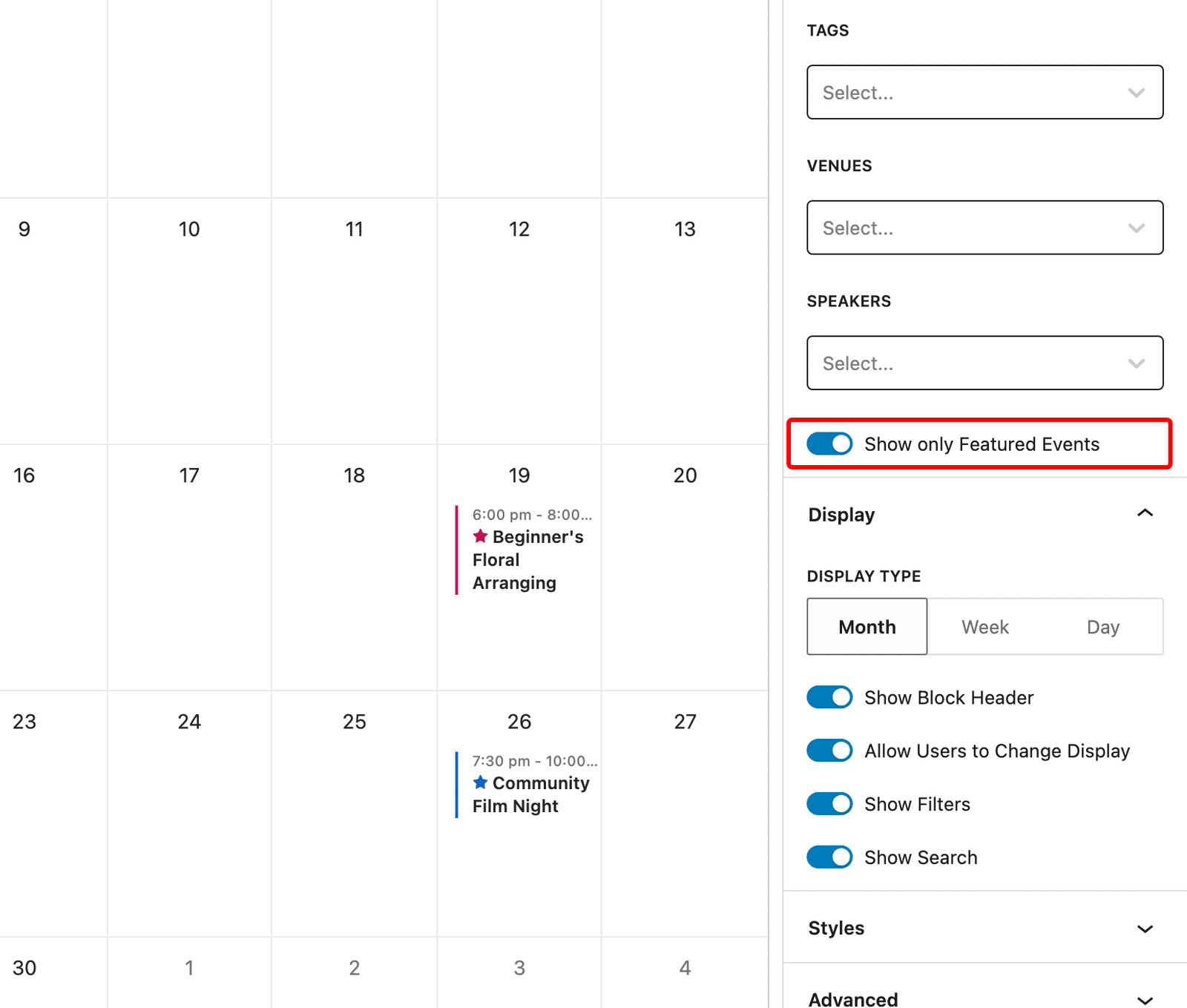
The block then lists only the events you’ve featured, and everything else about it stays the same, so your chosen view, filters, and colors all still apply.
If you place your calendar with a shortcode instead of a block, pass the same setting as the featured_only attribute:
[sugarcalendar_events_calendar featured_only="true"]
Note: This setting works on both the Calendar block and the Event List block. It’s switched off by default, so existing calendars keep showing every event until you turn it on.
Renaming the Featured Label (Advanced)
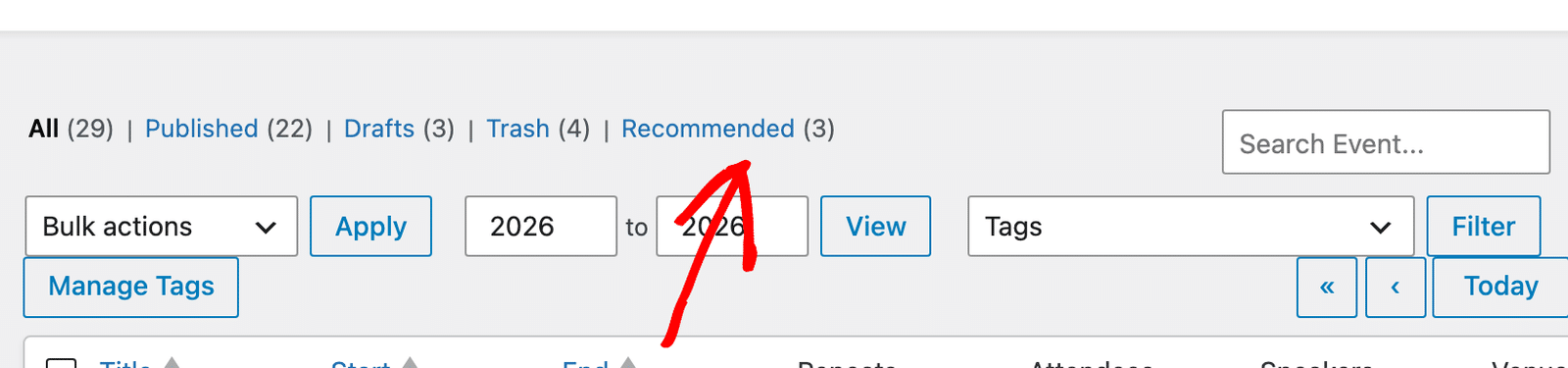
The word Featured appears in the star tooltip, the admin status link, and the badge on the single event page. To use a different word, such as “Recommended” or “Spotlight,” filter the label with a code snippet.
add_filter(
	'sugar_calendar_featured_events_label',
	function () {
		return 'Recommended';
	}
);
Add the snippet with a code snippets plugin or in your child theme’s functions.php file.
The new label then replaces “Featured” on every surface at once, including the admin filter link.
Frequently Asked Questions
Below, we’ve answered some of the common questions we receive regarding featured events in Sugar Calendar Events.
Does featuring an event change its order in my calendar?
No. Featuring an event adds the star and makes the event available to the Featured filter. It doesn’t reorder your calendar or pin the event to the top of a list. Events keep their normal chronological order.
Can I feature a recurring event?
Yes. Featuring a recurring event applies the star to the series, so every occurrence of that event displays it.
Do I need Sugar Calendar Pro to feature events?
No. Featured Events is available in Sugar Calendar Lite and Sugar Calendar Pro.
Can I feature more than one event at a time?
Yes. There’s no limit on how many events you feature. Featuring most of your calendar defeats the purpose, since the star only stands out when it’s uncommon.
Where do I control how the star looks?
In the calendar view, the star follows the event’s calendar color, which you set when you organize your events with calendars. Everywhere else, it inherits your theme’s link color. The star itself has no separate color setting.
That’s it! You now know how to feature events in Sugar Calendar and filter your admin calendar down to them.
Next, would you like to put those featured events in front of visitors? Take a look at our guide on displaying the calendar to add a calendar to any page on your site.