Would you like to offer discounts on your event tickets? Coupon codes let you run early-bird offers, reward members, give school or group discounts, and honor printed gift vouchers without changing your ticket prices.
In this tutorial, we’ll show you how to create and manage coupon codes in Sugar Calendar Events.
In This Article
Requirements: Coupon codes require Sugar Calendar Events Pro. You’ll also need Stripe connected to your site to sell paid tickets. To use coupons on events that sell several ticket types, install version 1.9.0 or higher of the Event Ticketing addon.
Before you get started, install and activate Sugar Calendar Events on your site and verify your license. You’ll also need to connect Stripe and enable tickets for your events.
Accessing the Coupons Tab
To get started, go to Events » Tickets in your WordPress dashboard and select the Coupons tab.
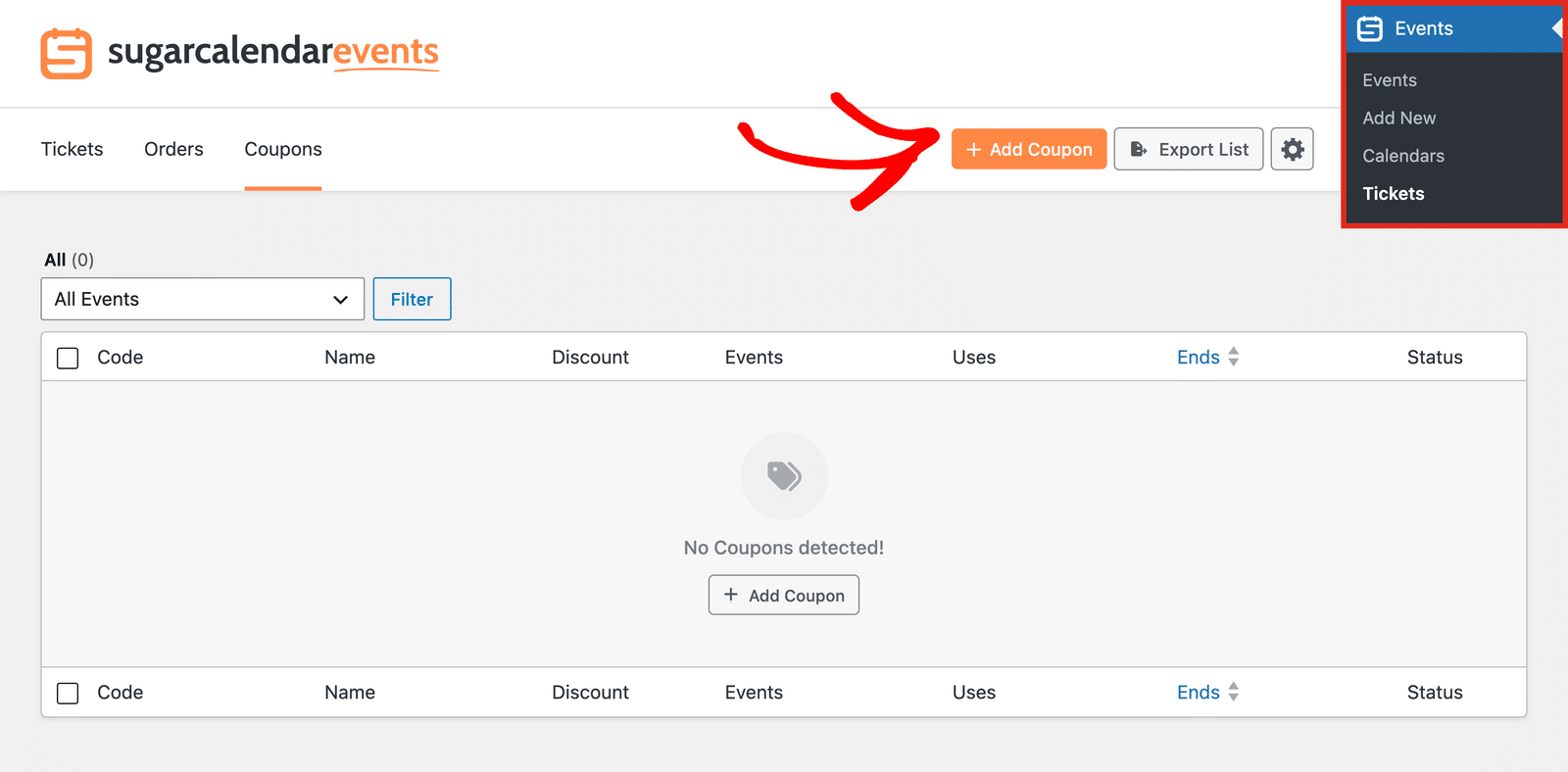
If you haven’t created a coupon yet, the tab shows an empty list with an Add Coupon button.
Creating a Coupon
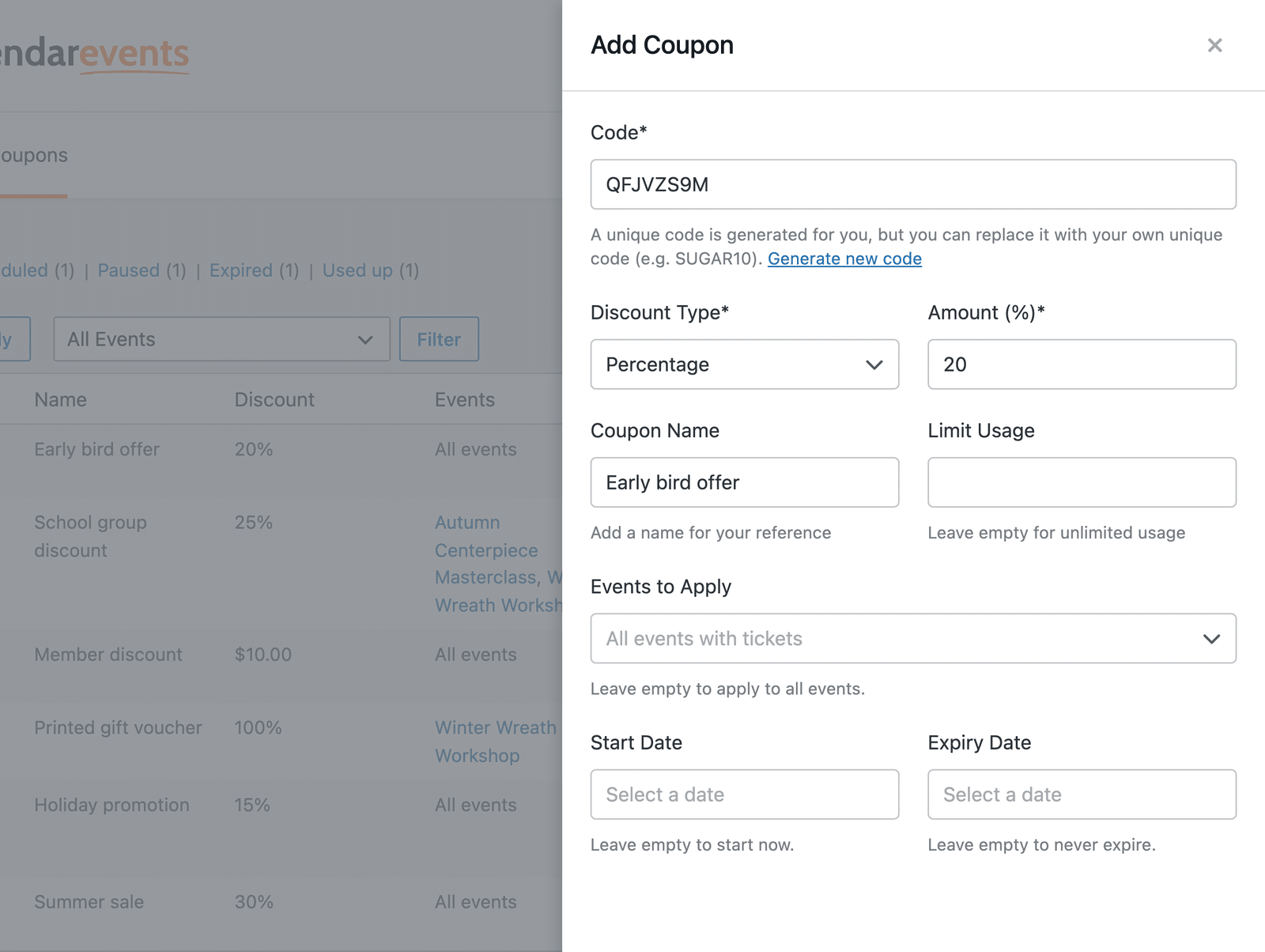
Click Add Coupon to open the coupon panel on the right side of the screen.
Setting the Code
Sugar Calendar generates a unique code each time you open the panel. Keep it, click Generate new code for a different one, or type your own, such as EARLYBIRD20.
Codes follow these rules:
- Must be 3 to 20 characters long.
- They can use letters, numbers, hyphens, and underscores.
- Case-insensitive, so buyers can type SUGAR10 or sugar10.
- Each code must be unique.
Choosing the Discount Type and Amount
Under Discount Type, choose one of these options:
- Percentage: Takes a percentage off the order total. Enter a value from 1 to 100 in the Amount (%) field.
- Flat amount: Takes a fixed amount off the order. The Amount field shows your store currency.
A flat amount comes off once per order, not once per ticket. A discount never takes an order total below zero.
Naming the Coupon
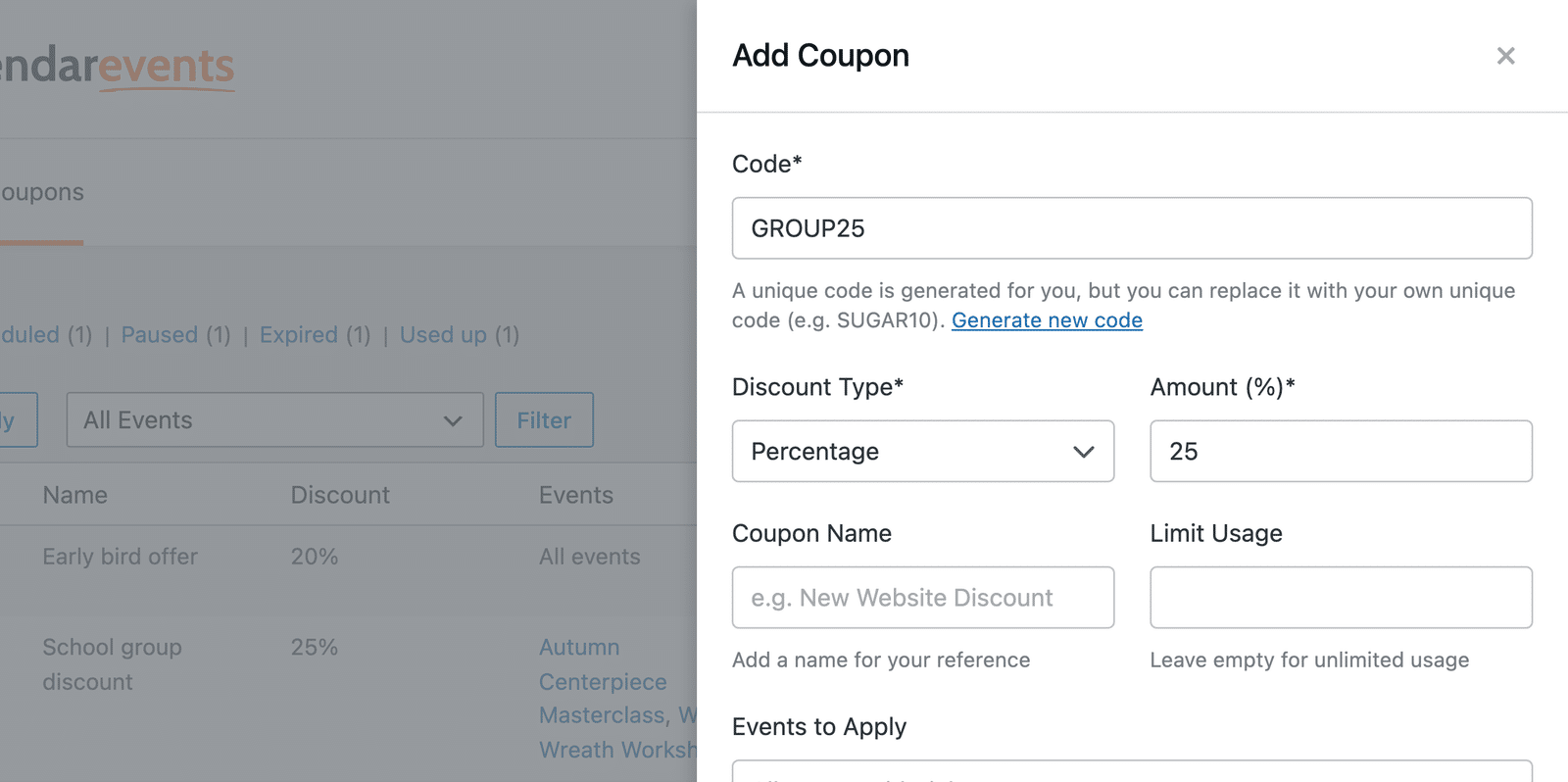
In the Coupon Name field, add a label that helps you recognize the coupon later, such as New Website Discount. Only you see this name.
Limiting Usage
The Limit Usage field sets how many orders can use the coupon. Leave it empty for unlimited use, or enter a whole number of 1 or more.
Only paid orders count toward the limit. If you refund an order that used the coupon, that use goes back to the coupon.
Applying the Coupon to Specific Events
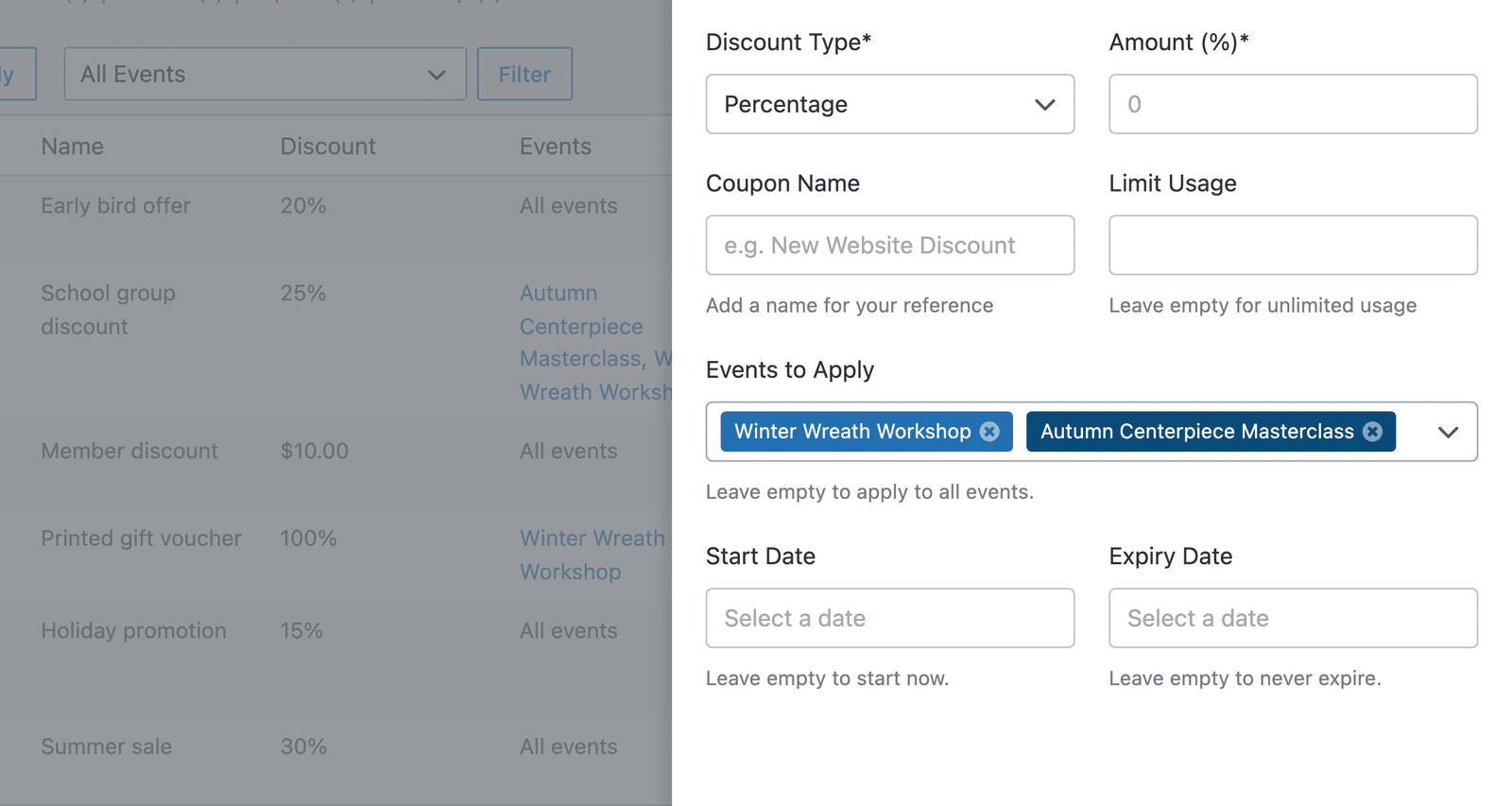
By default, a coupon works on every event that sells tickets. To limit it, click the Events to Apply field and start typing an event name. Select an event from the results to add it.
Repeat this for each event you want to include. Selecting a recurring event applies the coupon to all of its dates. To apply the coupon to every ticketed event again, remove all the selected events.
Setting Start and Expiry Dates
Use the Start Date and Expiry Date fields to control when buyers can use the coupon. Leave Start Date empty to make the coupon work right away, and leave Expiry Date empty so it never expires.
Dates cover whole days in your site’s time zone.
Saving the Coupon
When you’re done, click Save Coupon. The panel closes and your new coupon appears in the list.
If a field has a problem, such as a code that’s already in use or an expiry date before the start date, an error appears under that field and the panel stays open. Fix the field and save again.
Managing Your Coupons
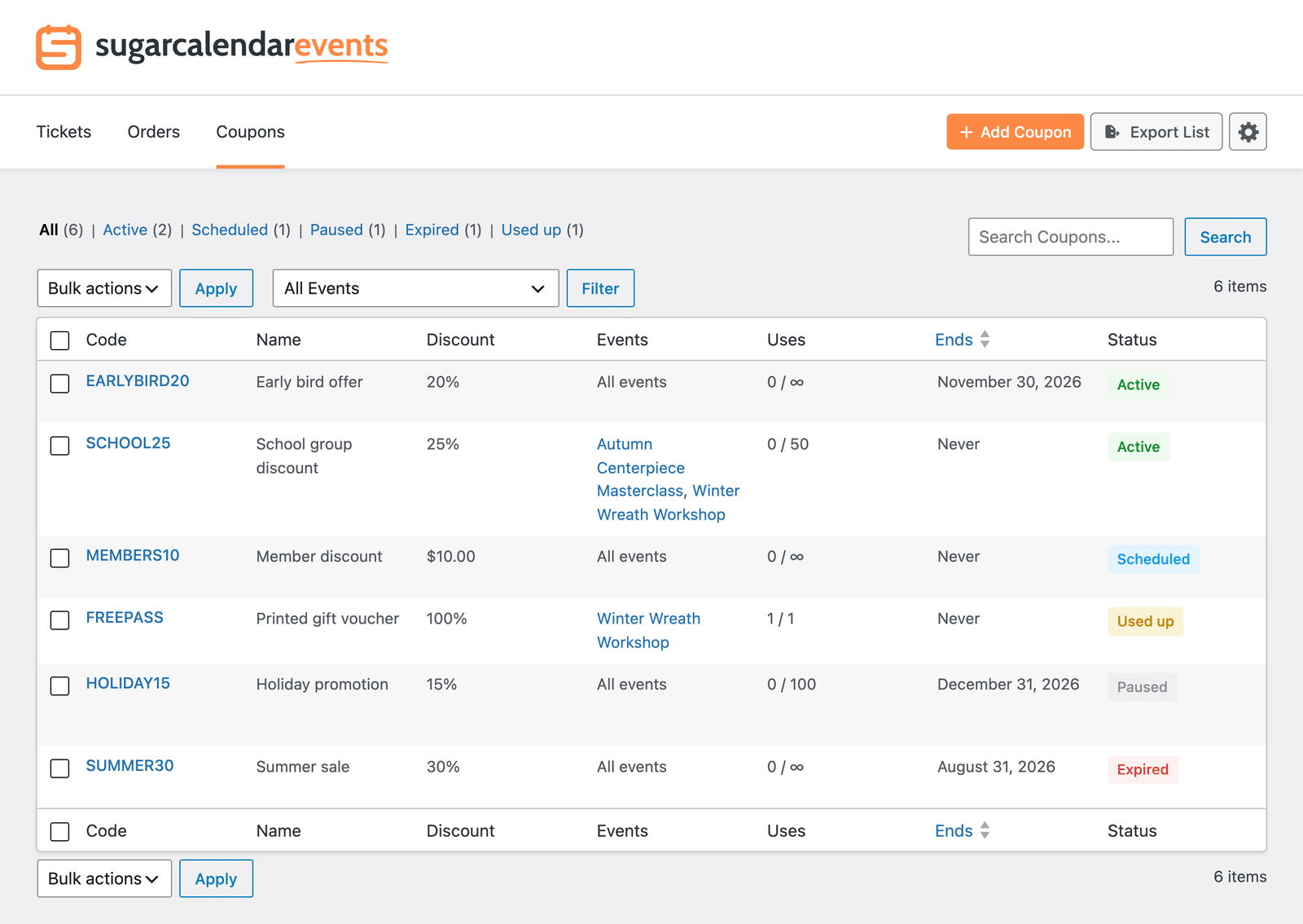
The Coupons tab lists all your coupons with the newest first.
Understanding the Coupons List
Each row shows these details:
- Code: The coupon code. Click it to edit the coupon.
- Name: The name you gave the coupon.
- Discount: The percentage or flat amount.
- Events: The events the coupon applies to, or All events.
- Uses: How many orders used the coupon out of its limit, such as 12 / 50. Coupons without a limit show the used count against unlimited.
- Ends: The expiry date, or Never.
- Status: The coupon’s current state.
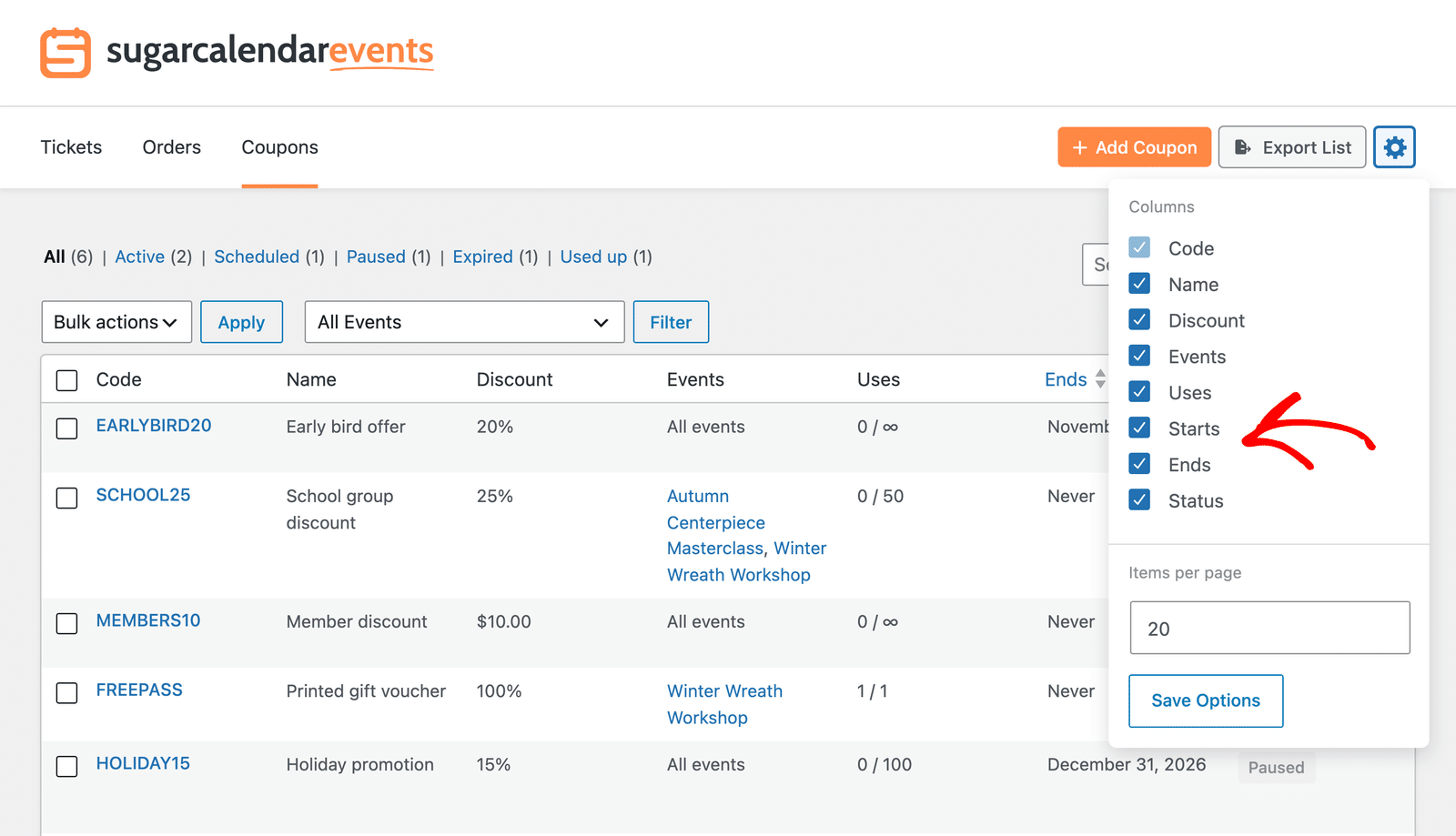
A Starts column is also available. Sugar Calendar hides it by default. To show it, click the gear icon at the top right of the Coupons tab, check Starts, and click Save Options. Click the Starts or Ends column header to sort the list by date.
Coupon Statuses
Each coupon has one of these statuses:
- Active: Buyers can use the coupon now.
- Scheduled: The start date hasn’t arrived yet.
- Paused: You turned the coupon off.
- Expired: The expiry date has passed.
- Used up: The coupon reached its usage limit.
Use the status filters above the list to show only coupons with a given status. To find a specific coupon, use the Search Coupons field.
Editing a Coupon
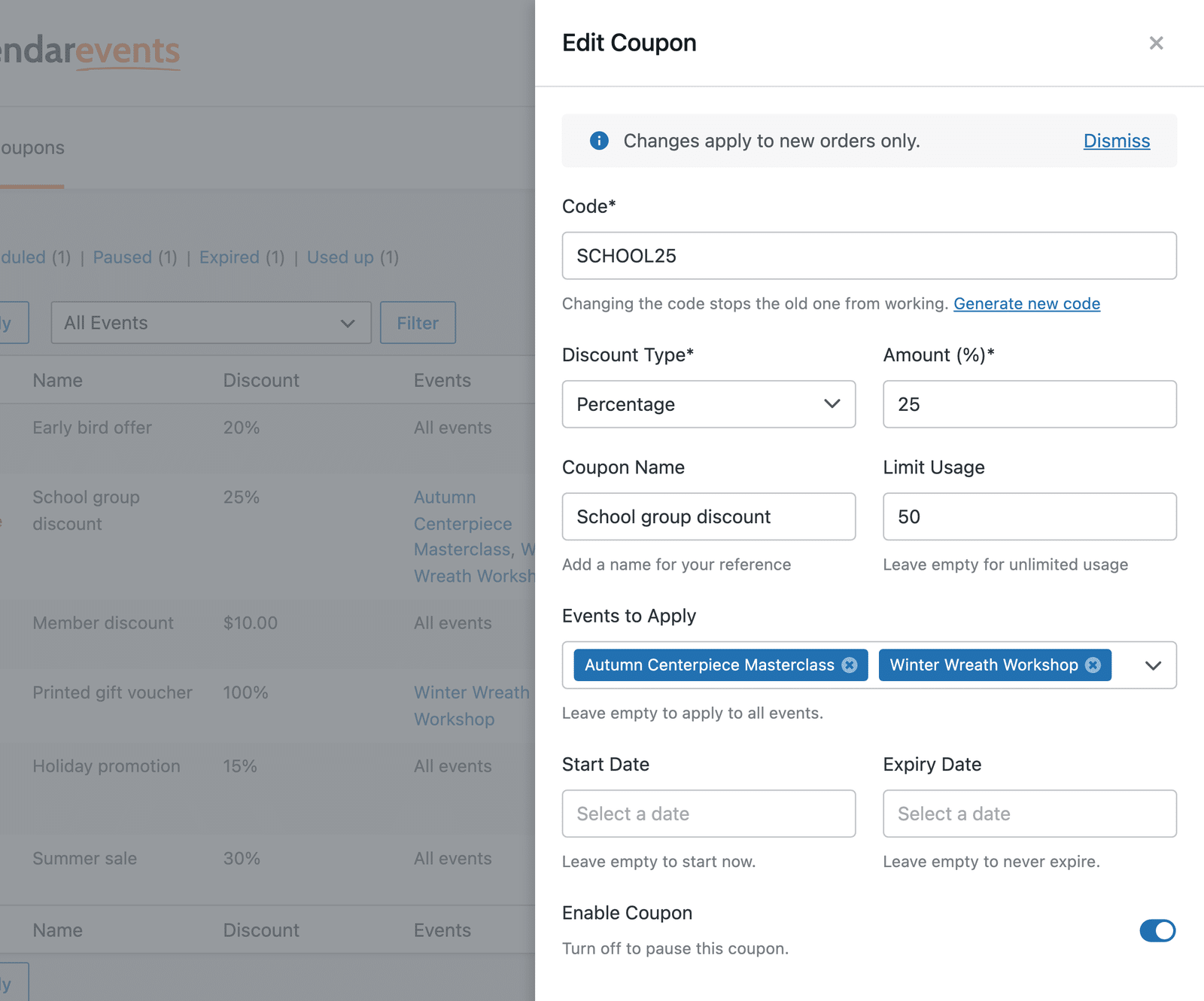
To change a coupon, hover over its row and click Edit, or click its code. The panel opens with the coupon’s current settings.
If you set Limit Usage to a number at or below the coupon’s current uses, the coupon becomes Used up.
When you’re done, click Update Coupon.
Pausing and Activating a Coupon
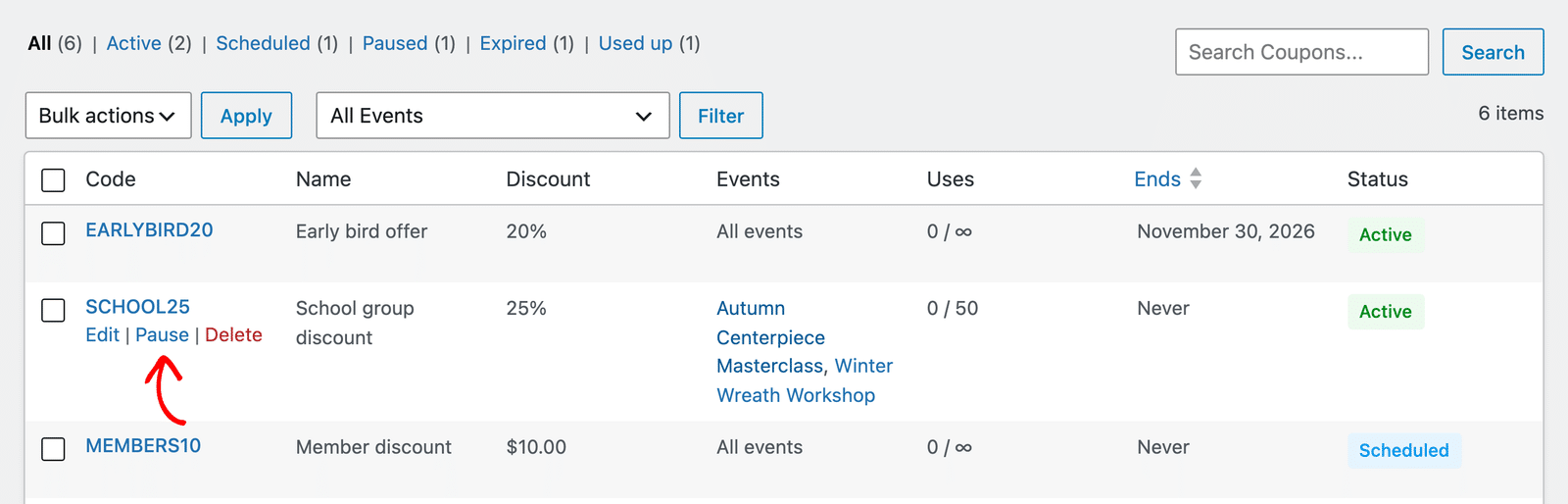
To stop buyers from using a coupon without deleting it, hover over the coupon and click Pause. To turn it back on, click Activate.
You can also pause a coupon from the Edit Coupon panel by turning off the Enable Coupon toggle.
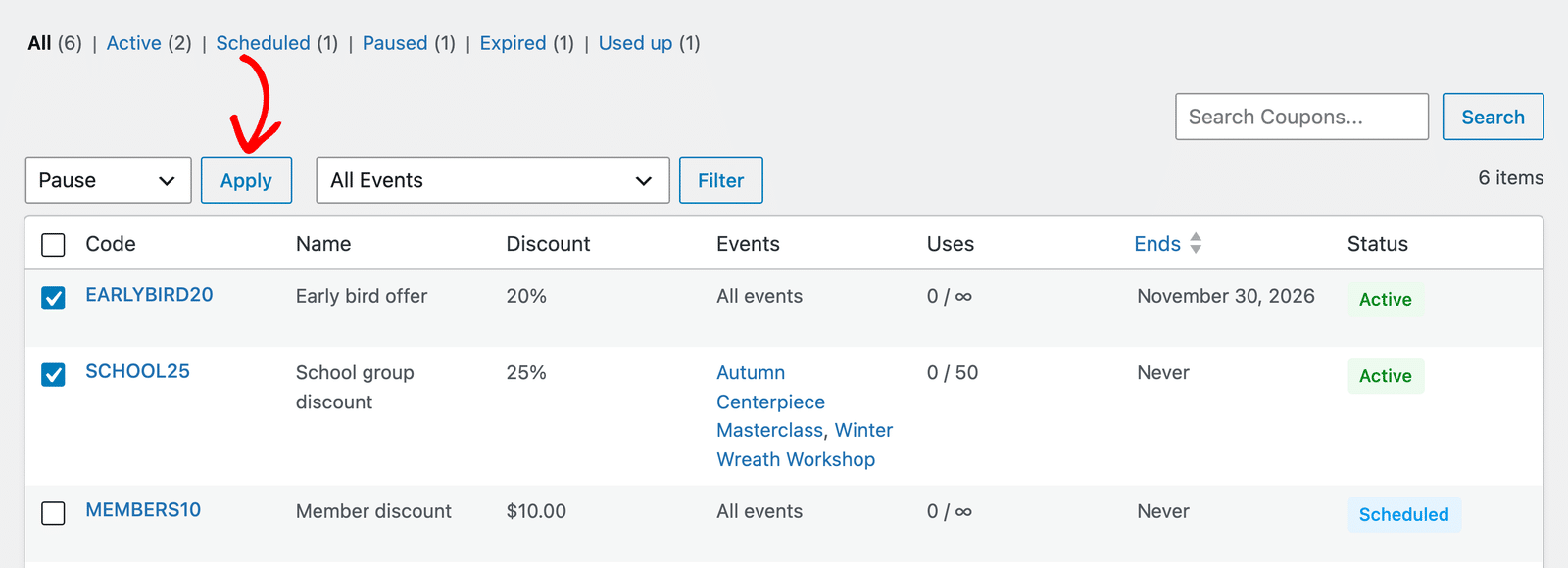
To pause or activate several coupons at once, check the boxes next to them, choose Pause or Activate from the Bulk actions dropdown, and click Apply.
Deleting a Coupon
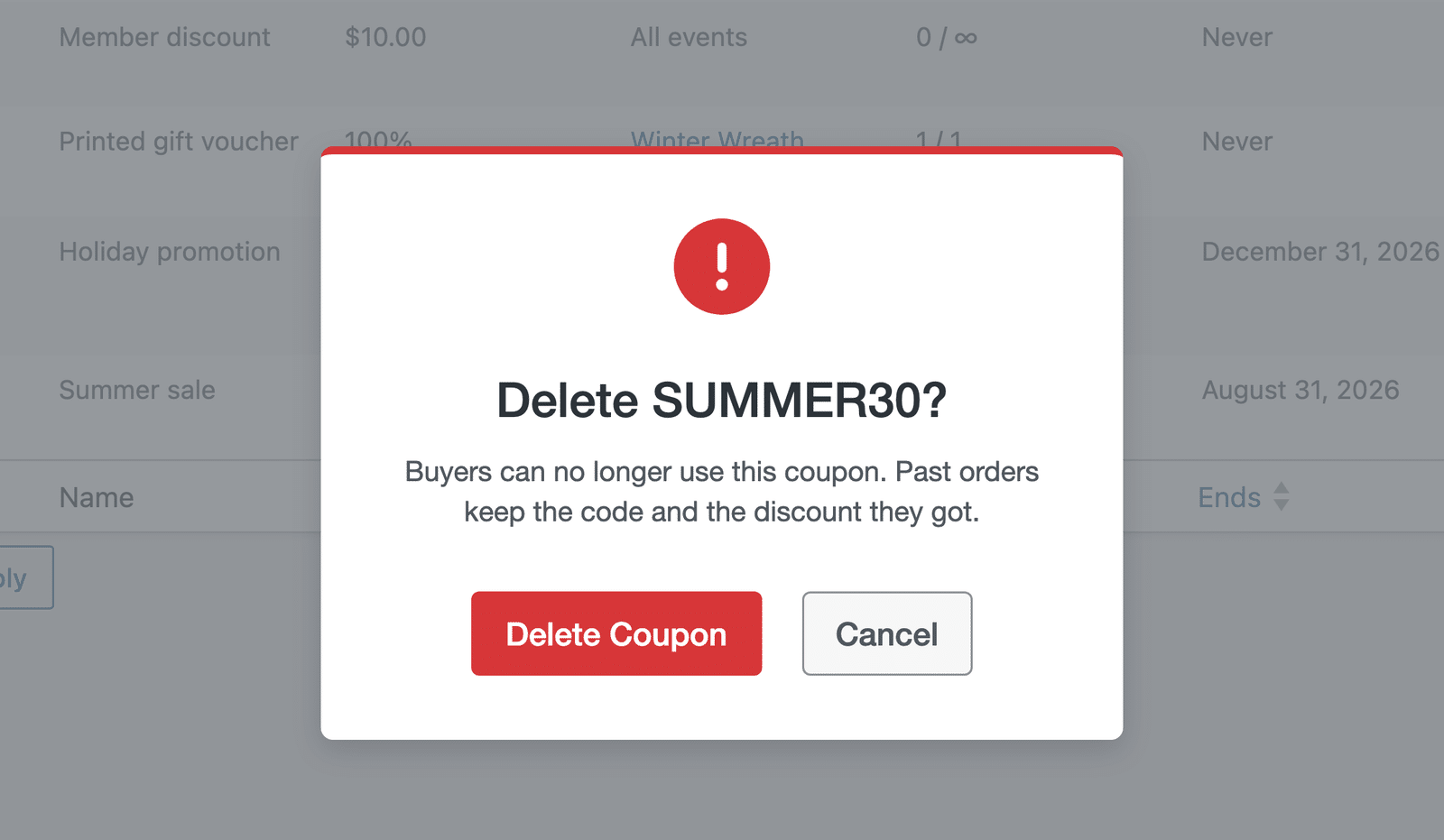
To delete a coupon, hover over it and click Delete, then confirm in the popup. To delete several at once, select them and choose Delete from the Bulk actions dropdown.
Exporting Your Coupons
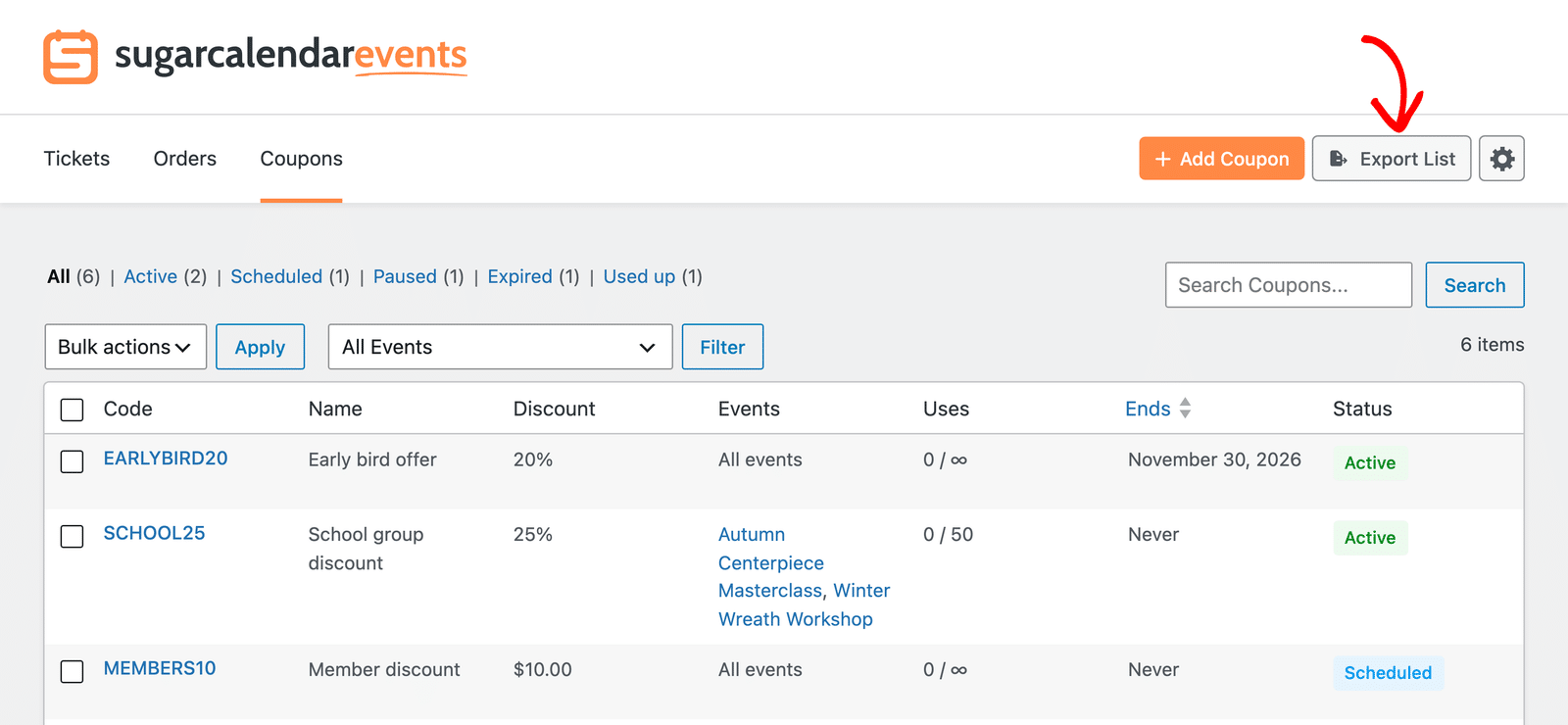
To download your coupons as a CSV file, click Export List at the top of the Coupons tab. The file includes each coupon’s code, name, discount type and amount, events, usage limit, uses, dates, and status.
What Buyers See at Checkout
When a buyer checks out for an event that an active coupon applies to, the Order Summary shows a Have a coupon code? link between the tickets and the total.
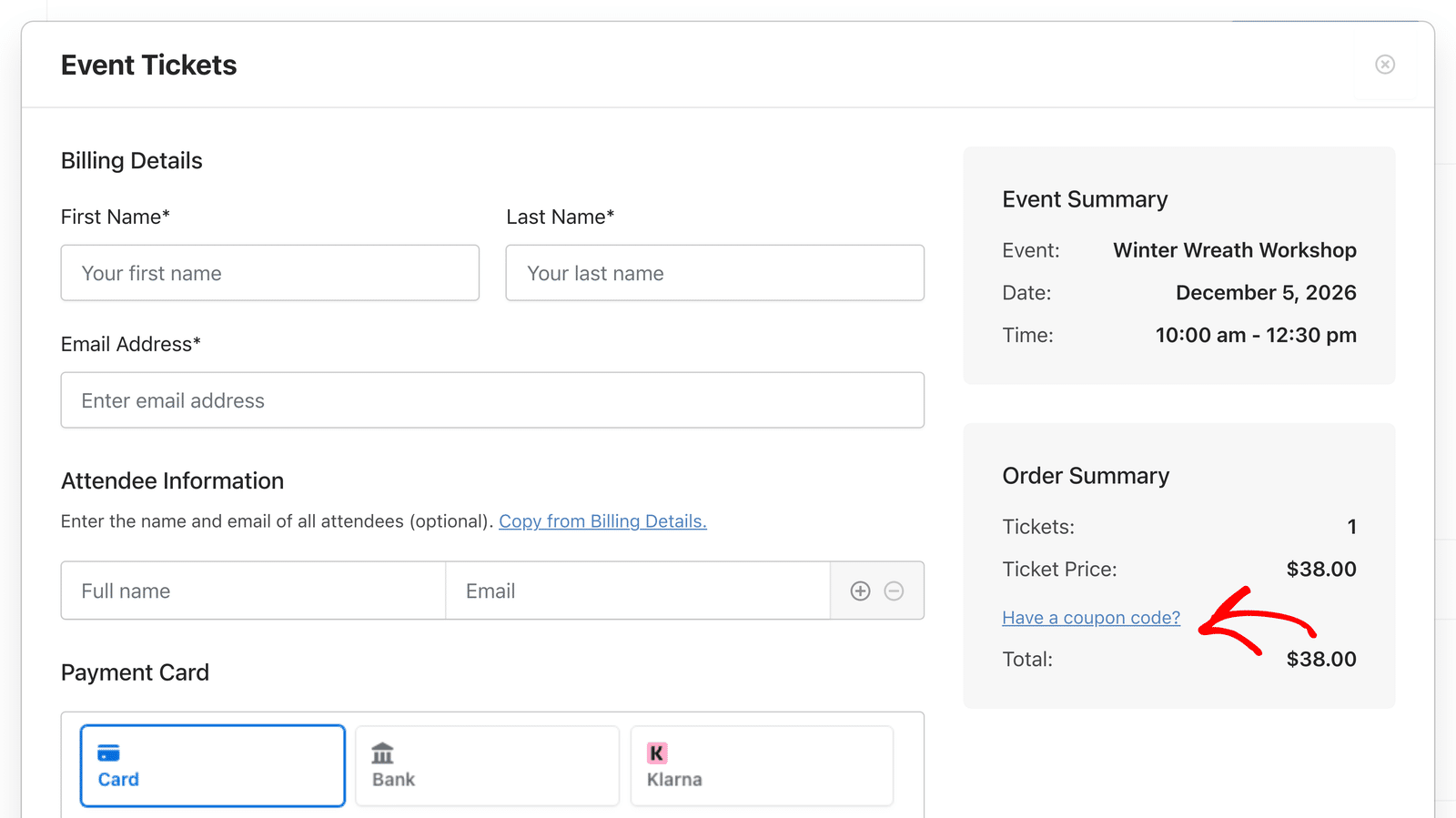
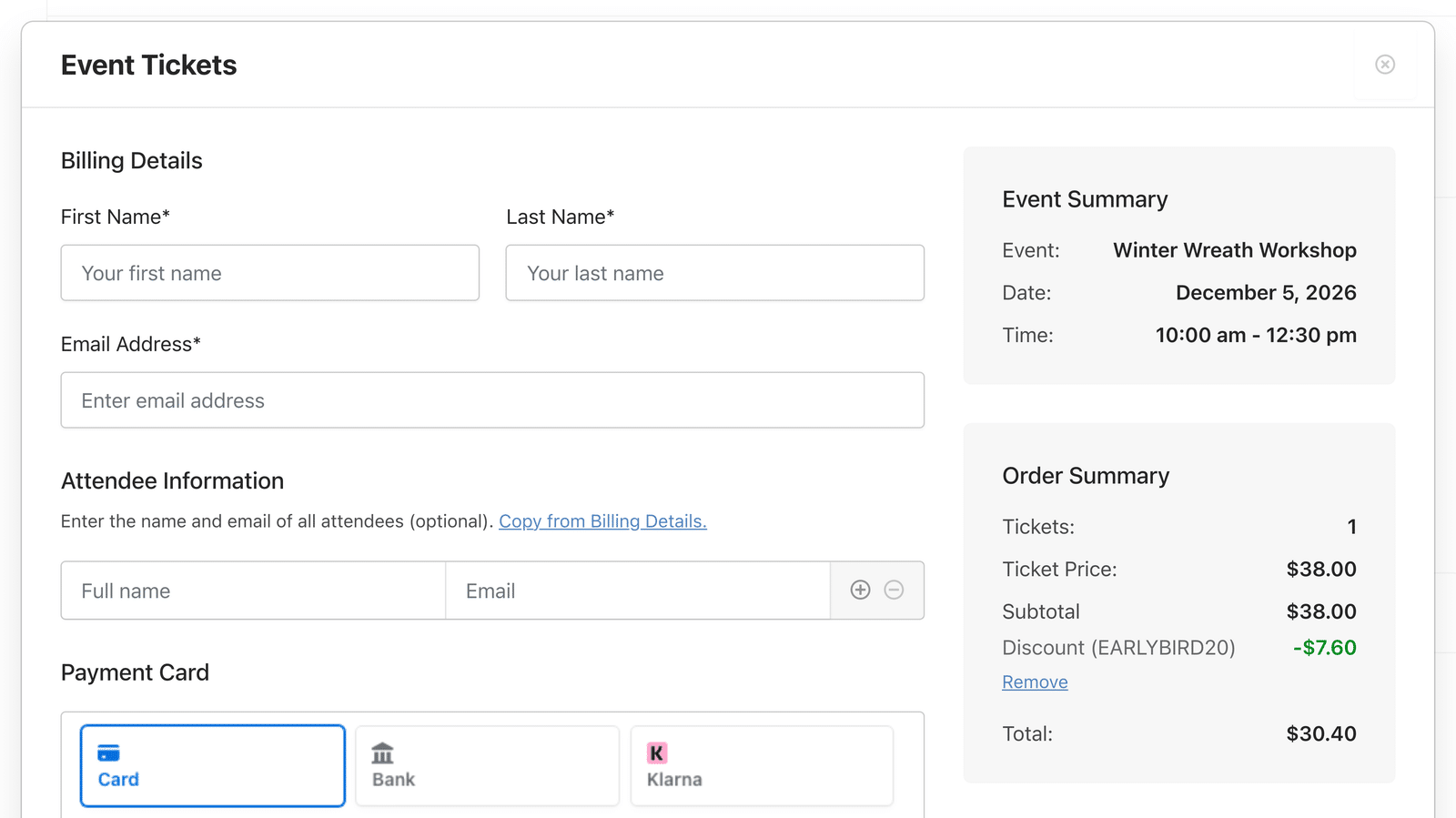
Clicking the link opens a Coupon code field. After the buyer enters a code and clicks Apply, the Order Summary shows the Subtotal and a Discount line with the code, and the total updates right away. Buyers click Remove under the discount to remove the coupon.
If the buyer changes the ticket quantity or ticket type, Sugar Calendar recalculates the discount.
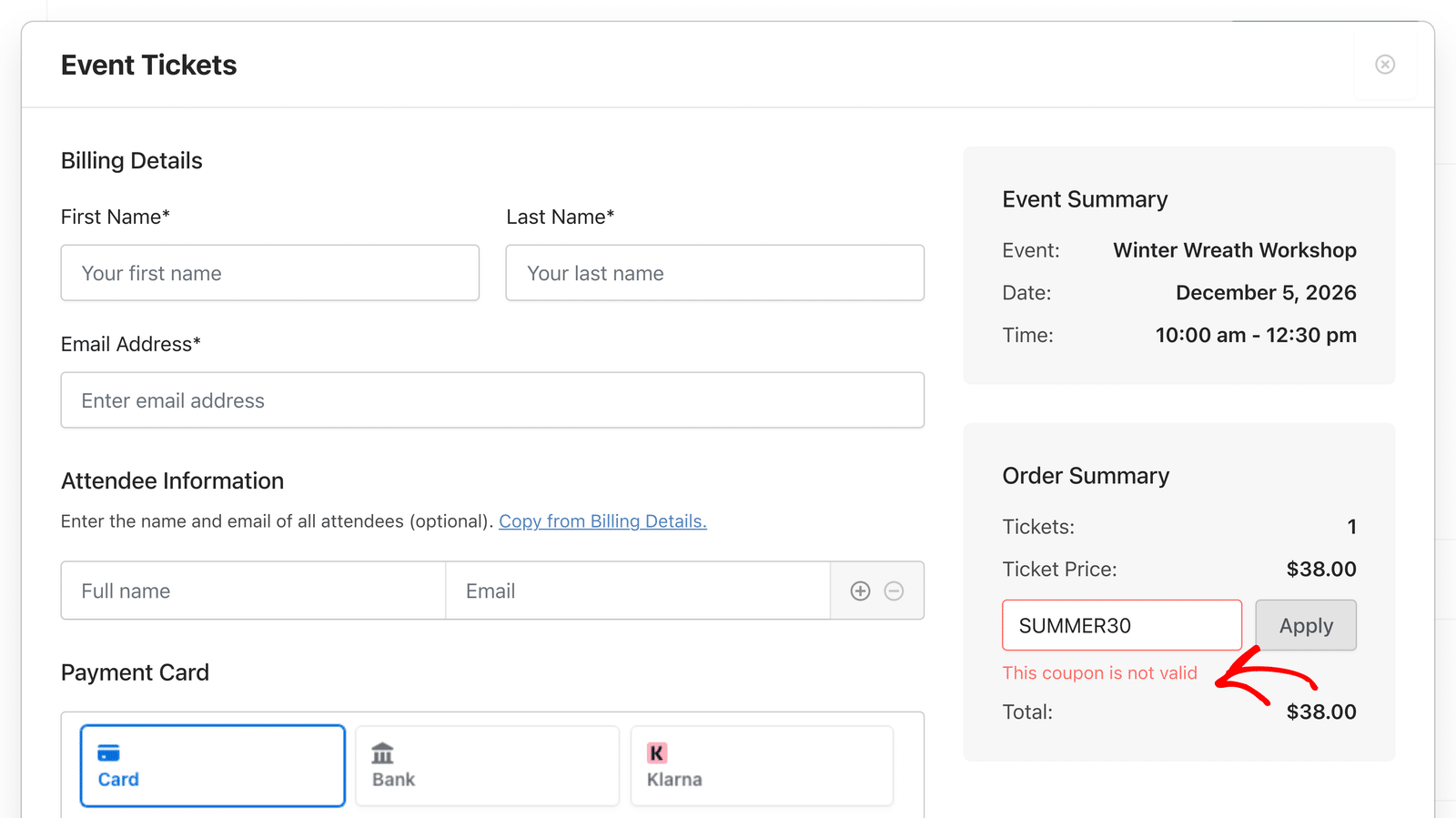
If the code doesn’t work, the field shows This coupon is not valid.
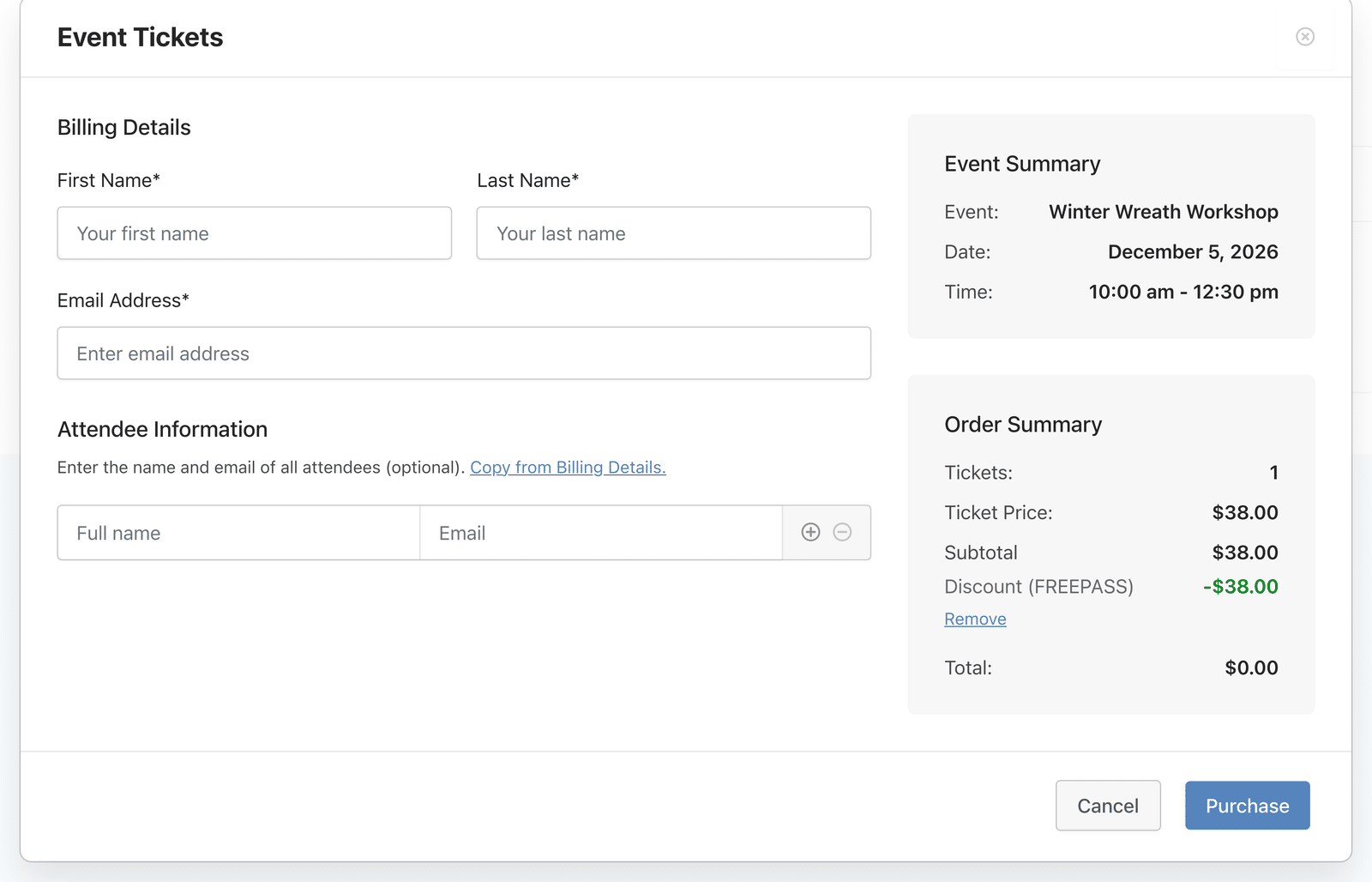
A buyer can use one coupon per order. When a coupon covers the full order, such as a 100% coupon, the total drops to zero, the payment method disappears, and the buyer completes the order for free.
Viewing Coupon Usage in Orders
Sugar Calendar records the code and discount on every order that used a coupon.
In the Orders List
Go to Events » Tickets and select the Orders tab. A Discount column shows the amount and code for each discounted order.
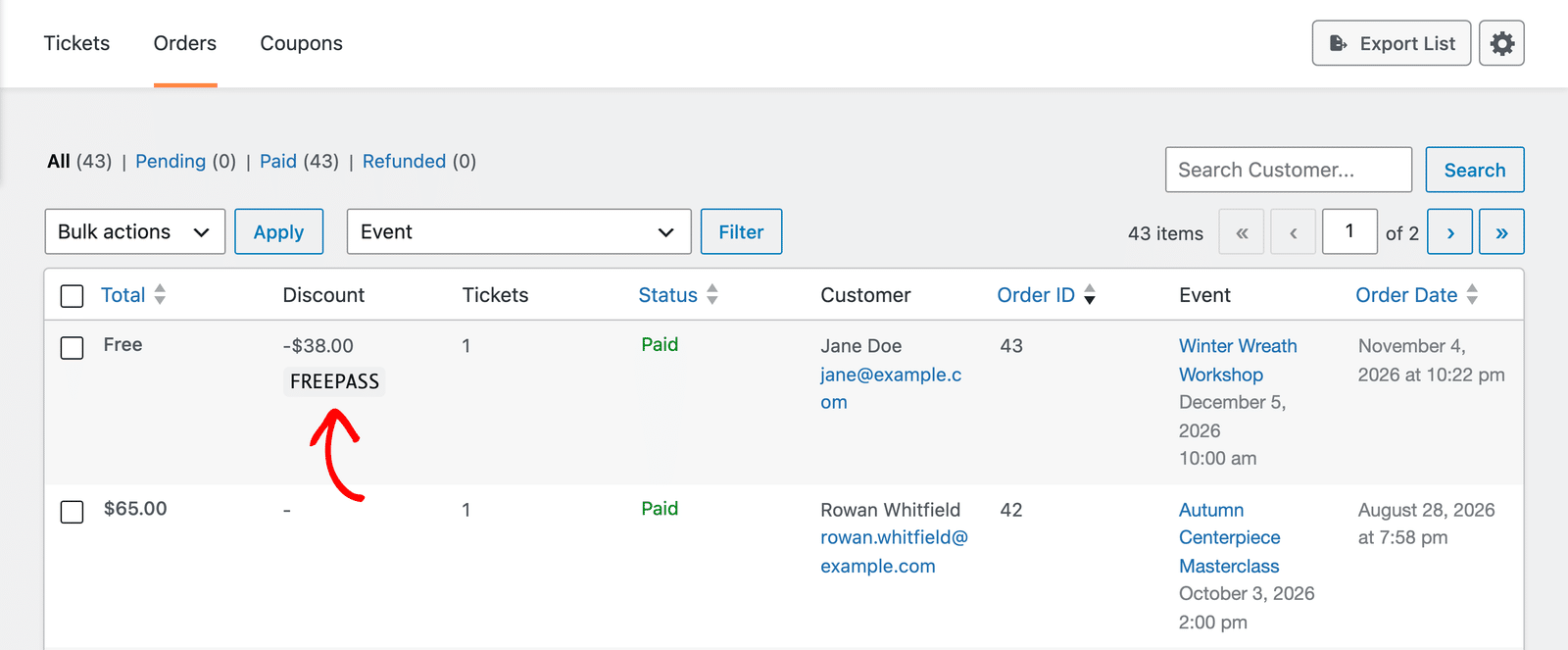
To hide or show it, click the gear icon at the top right of the tab, check or uncheck Discount, and click Save Options.
In the Order Details
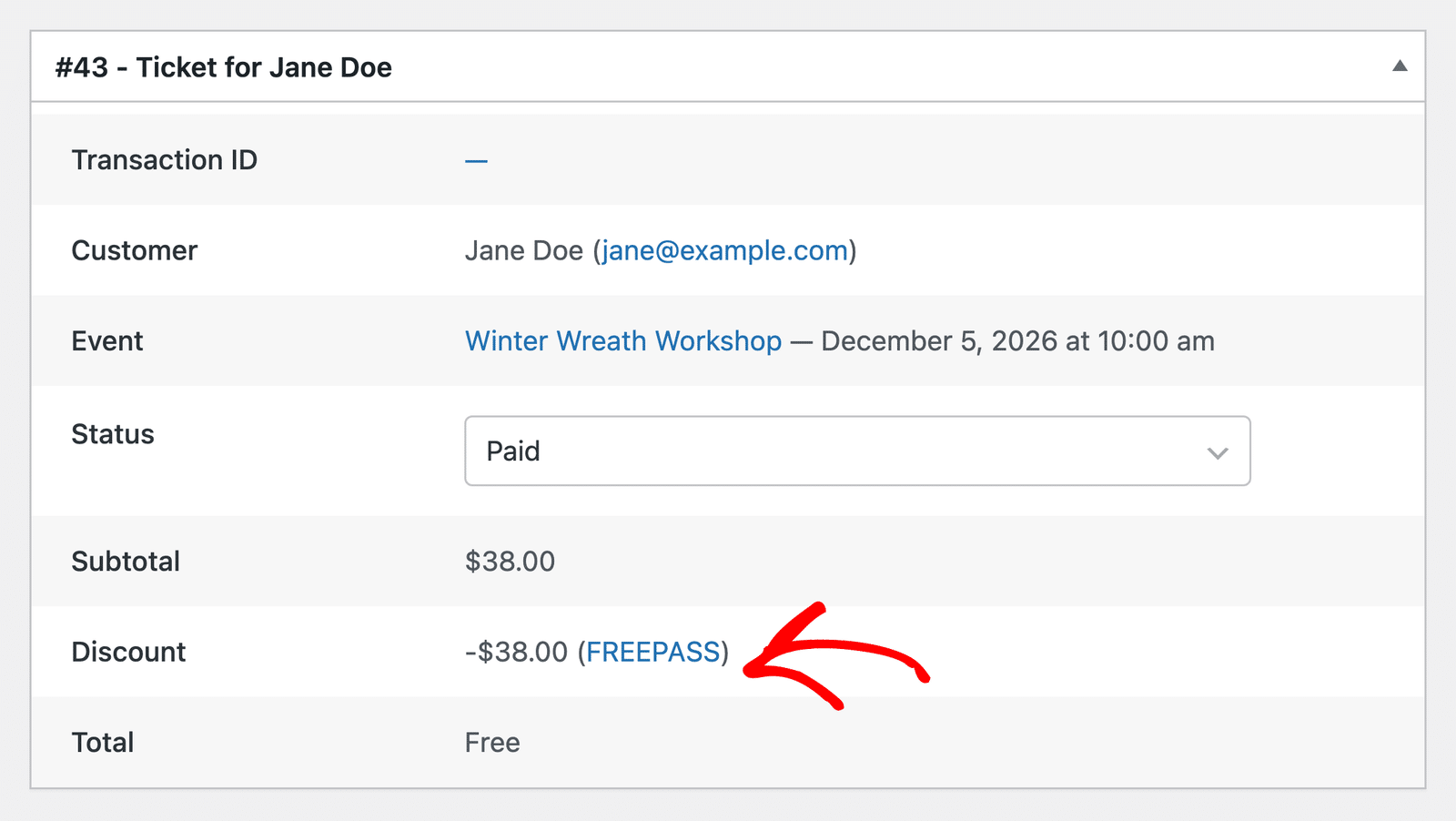
Open an order to see a Subtotal row and a Discount row, such as -$38.00 (FREEPASS). Click the code to open the coupon’s Edit panel right from the order. If you’ve deleted the coupon, the code shows as plain text with “deleted” next to it.
On the Receipt and in Emails
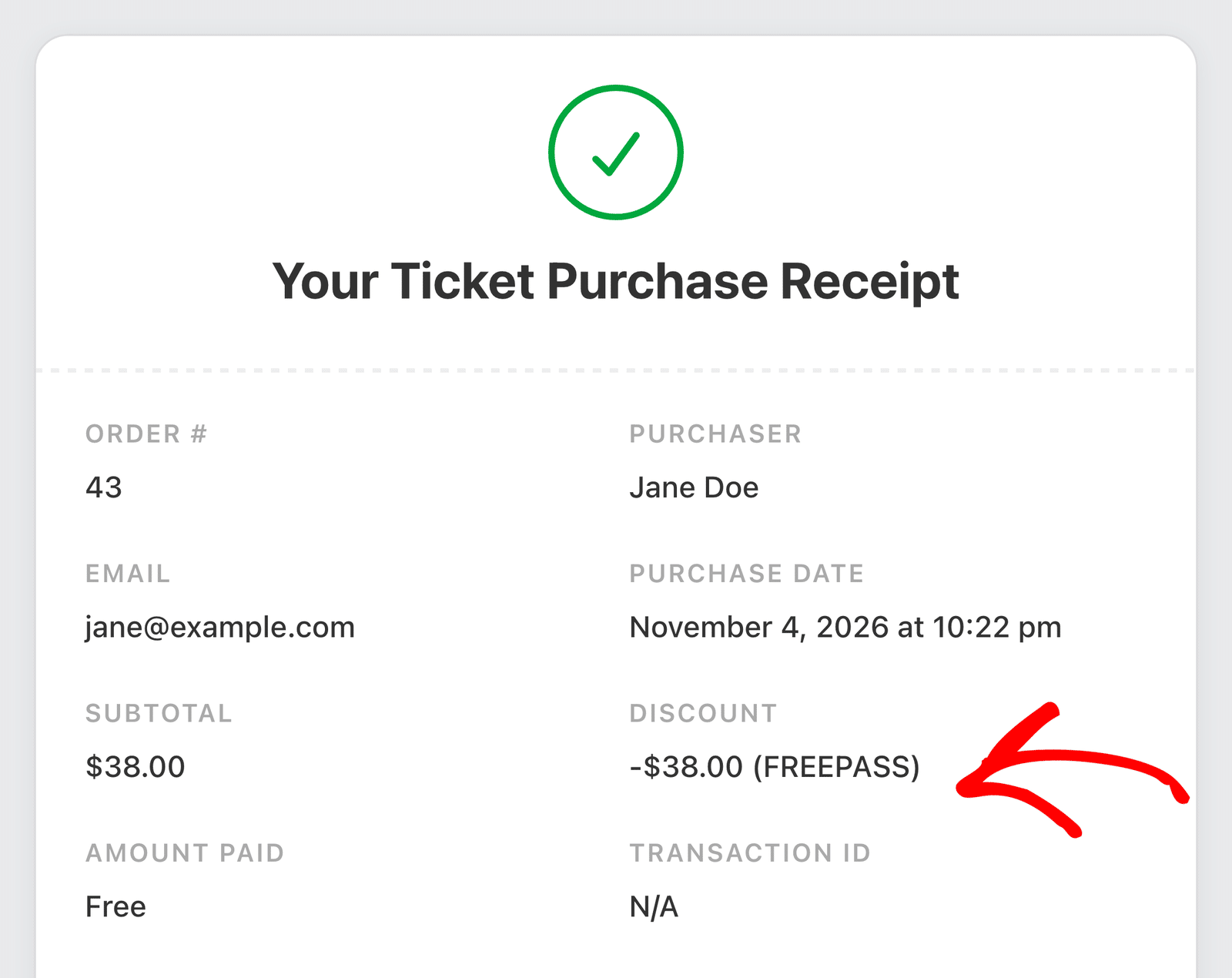
The buyer’s receipt page lists the Subtotal and Discount before the amount paid. Order emails show the same lines.
To add coupon details to your own email messages, use these smart tags:
{order_discount}: The discount amount on the order.{coupon_code}: The coupon code the buyer used.
For more on smart tags, see our guide to Sugar Calendar event emails.
Frequently Asked Questions
These are answers to some of the top questions we see regarding using Coupon Codes in Sugar Calendar Events.
Can buyers combine more than one coupon?
No. Buyers can apply one coupon per order.
Do coupons work with WooCommerce checkout?
No. Currently, coupons apply at the Sugar Calendar Events ticket checkout. Events that send buyers to WooCommerce use WooCommerce’s own checkout, where WooCommerce coupons apply instead.
Will my coupons from The Events Calendar move over when I migrate?
Not yet. The migration tool doesn’t import coupons from The Events Calendar, so recreate them in the Coupons tab after you migrate.
Does editing or deleting a coupon change past orders?
No. Each order keeps the code and discount it used. Your edits only affect new orders.
That’s it! You now know how to create coupon codes, manage them, and track their use in your ticket orders.
Next, would you like to check your payment setup before you start selling? See our guide to testing event ticketing payments.