Are you moving from The Events Calendar and its Community Events addon to Sugar Calendar Events? Our Events plugin brings your submitted events over and lets visitors keep submitting events through a form on your site.
In this tutorial, we’ll show you how to move Community Events from The Events Calendar to Sugar Calendar Events.
In This Article
Before you get started, make sure Sugar Calendar Events is installed and activated on your site and that you’ve verified your license.
What Comes Over From The Events Calendar
When you migrate, the events visitors submitted through Community Events come over with the rest of your events. Each event keeps its status and author, so events still awaiting review remain pending.
The submission form itself doesn’t migrate, along with its moderation settings, emails, spam protection, and who can submit. You’ll set up a new form in WPForms, Formidable Forms, or Gravity Forms, and this guide shows you how to match your old setup.
Migrating Your Submitted Events
To bring your events over, go to Events » Tools and select the Migrate tab. If your site used Community Events, you’ll see a note about it above the Migrate button.
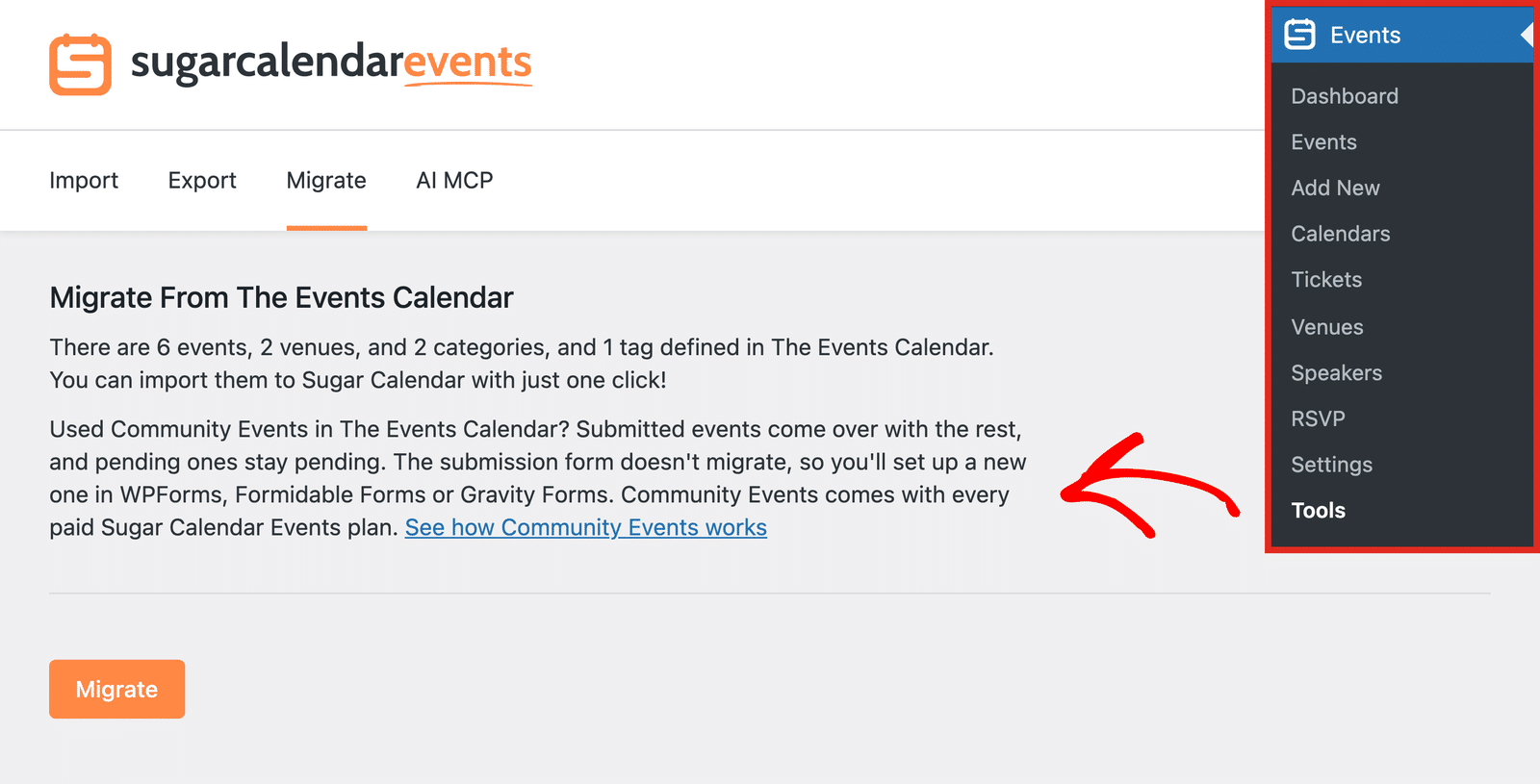
Click Migrate to import your events. For details on everything the tool brings over, see our guide to importing events from The Events Calendar.
Building Your Submission Form
Next, create the form visitors will use to submit events. We’ll use Formidable Forms here. If you use WPForms or Gravity Forms, the steps are similar, and our guide to allowing users to submit events covers each one.
First, create a new form in Formidable Forms and add a field for each event detail you want to collect. The form needs fields for the event title and, at a minimum, the start and end dates. See the list of required and optional fields for the full set.
Note: Formidable’s Date and Time fields require Formidable Forms Pro. With Formidable Forms Lite, use Text fields and ask visitors to enter dates as YYYY-MM-DD and times as HH:MM:SS.
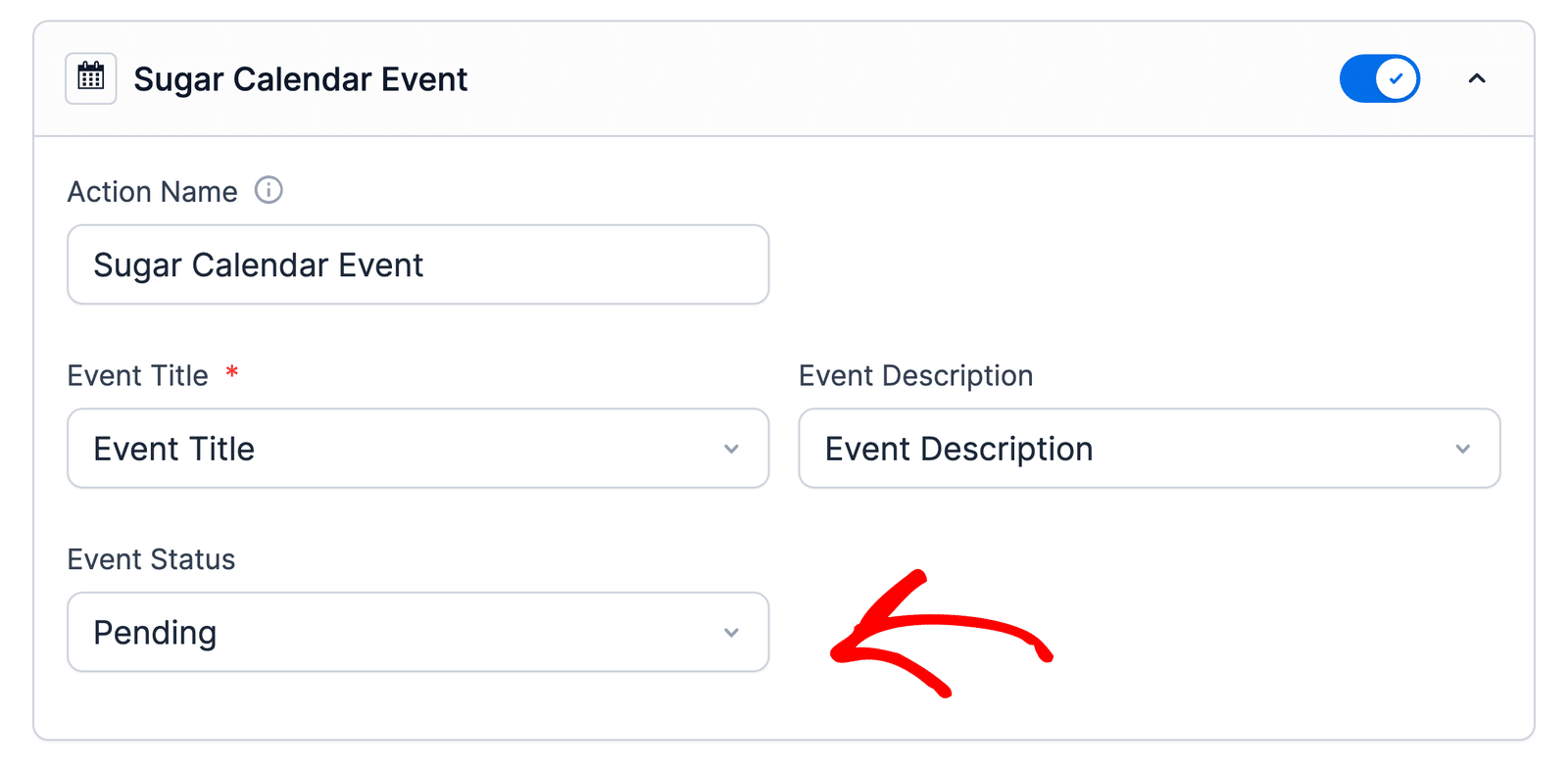
Then, go to the form’s Settings and open Actions & Notifications. Click Sugar Calendar Event to add the action, then match each event detail to a form field.
Once your form is ready, add it to a page so visitors can submit events.
Setting It Up Like The Events Calendar
Use these settings to match how Community Events worked on your old site.
Reviewing Events Before They Go Live
To approve each event before it appears on your calendar, set Event Status to Pending in the Sugar Calendar Event action. WPForms calls this option Pending Review. To publish submissions right away, choose Automatically Publish instead.
Getting an Email for New Submissions
Sugar Calendar Events doesn’t email you about new submissions, so use your form plugin’s notifications. In Formidable Forms, add a Send Email action under Actions & Notifications and send it to your admin email address.
Blocking Spam
Turn on your form plugin’s spam protection. In Formidable Forms, open the Spam tab in the form settings to enable the honeypot, JavaScript spam checks, and CAPTCHA.
Letting Only Members Submit
To let only logged-in users submit events, use your form plugin’s login settings. In Formidable Forms, this is under Form Permissions, which requires Formidable Forms Pro.
Reviewing Submitted Events
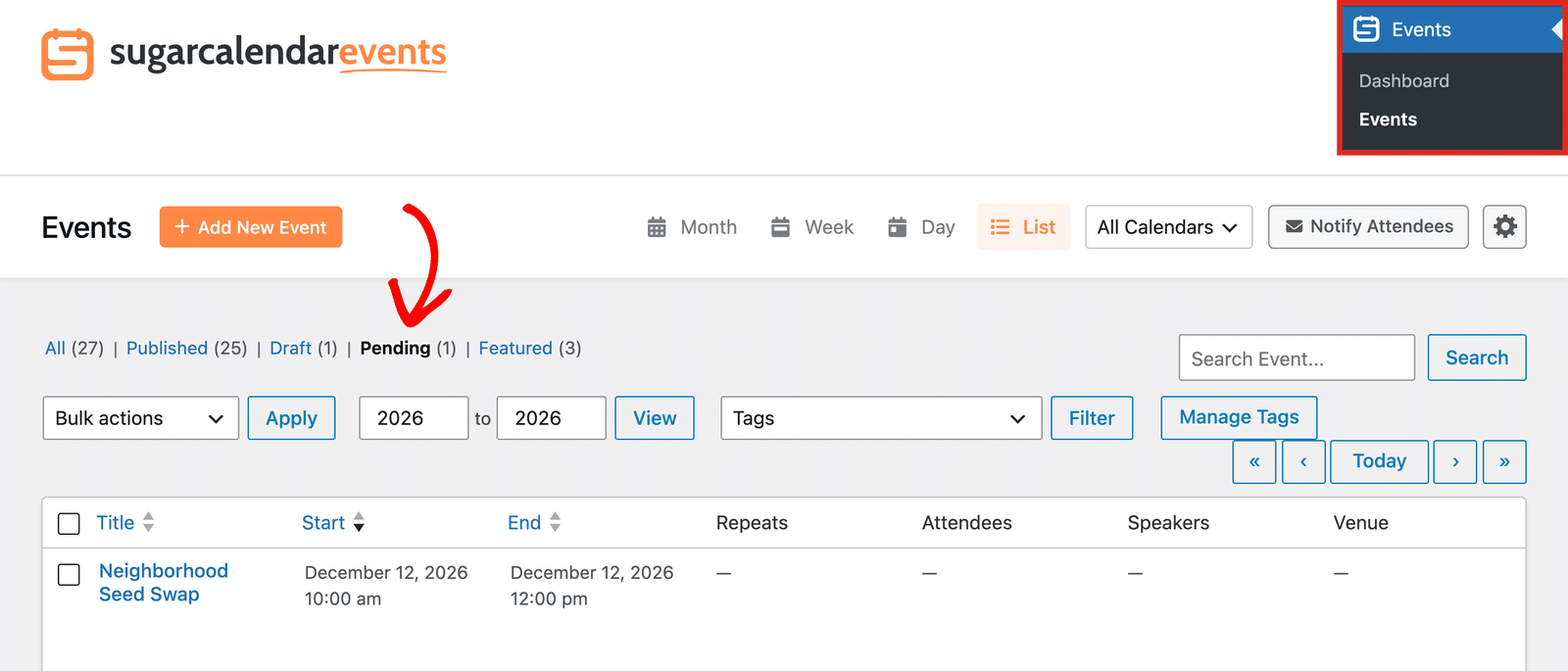
New submissions appear with the rest of your events under Events » Events. To see only the events waiting for review, click Pending at the top of the list.
To review a submission, open the event. The Community Event Submission box shows which form plugin the event came from. Click View Entry to see the full form entry.
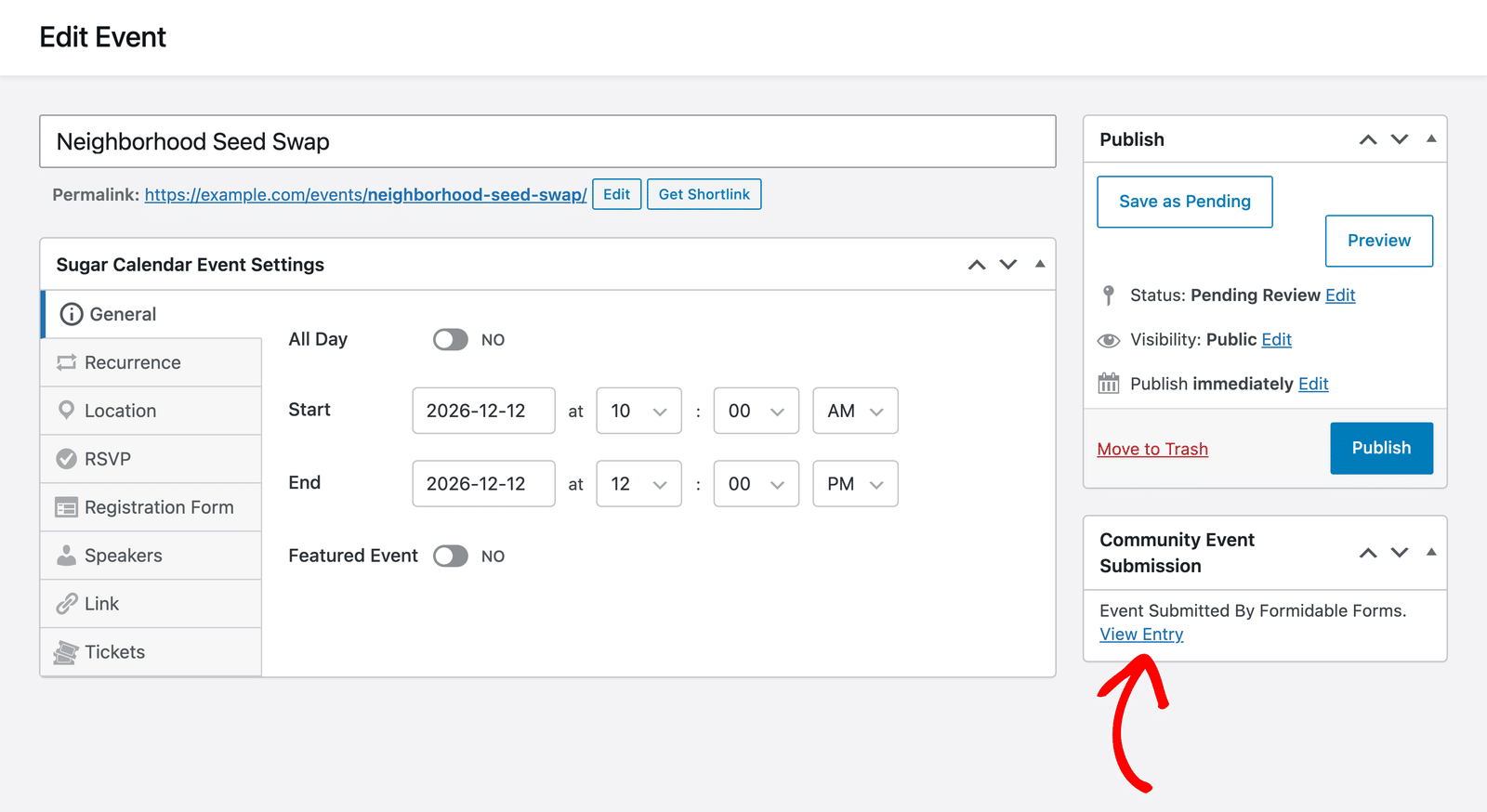
When the details look right, click Publish to add the event to your calendar.
Note: The Community Event Submission box only appears on events submitted through your new form. Events you migrated from The Events Calendar don’t have it.
That’s it! You now know how to move Community Events from The Events Calendar to Sugar Calendar Events.
Next, would you like to fine-tune your submission form? Check out our guide to allowing users to submit events for every field you can add.