Would you like to import your events and calendars from The Events Calendar plugin? Sugar Calendar Events can migrate the event data you created in The Events Calendar plugin.
In this tutorial, we’ll show you how to import events from The Events Calendar into Sugar Calendar Events using the 1-click migration tool.
In This Article
Before you get started, make sure Sugar Calendar Events is installed and activated on your WordPress site and that you’ve verified your license.
What Gets Migrated
The 1-click migration tool brings the following data from The Events Calendar into Sugar Calendar Events:
- Events: titles, descriptions, excerpts, dates, times, time zones, repeat rules, status, author, and the featured setting.
- Categories: each event category becomes a calendar, and nested categories keep their parent calendar. Events without a category go into your default calendar.
- Tags: event tags come over as Sugar Calendar Events tags.
- Series: if you used Series in Events Calendar Pro, events that share a Series get a tag with the Series name.
- Venues: each venue becomes a Sugar Calendar Events venue, linked to its events. Venues need a paid Sugar Calendar Events license.
- Tickets, orders, and attendees: tickets sold with Tickets Commerce in the Event Tickets plugin, along with their paid orders and attendees.
- RSVPs: RSVPs from the Event Tickets plugin come over as Sugar Calendar Events RSVPs.
Note: Activate the Event Ticketing addon and the RSVP addon before you migrate. Without them, the migration tool skips extra ticket types and RSVPs.
Accessing the Event Migration Tool
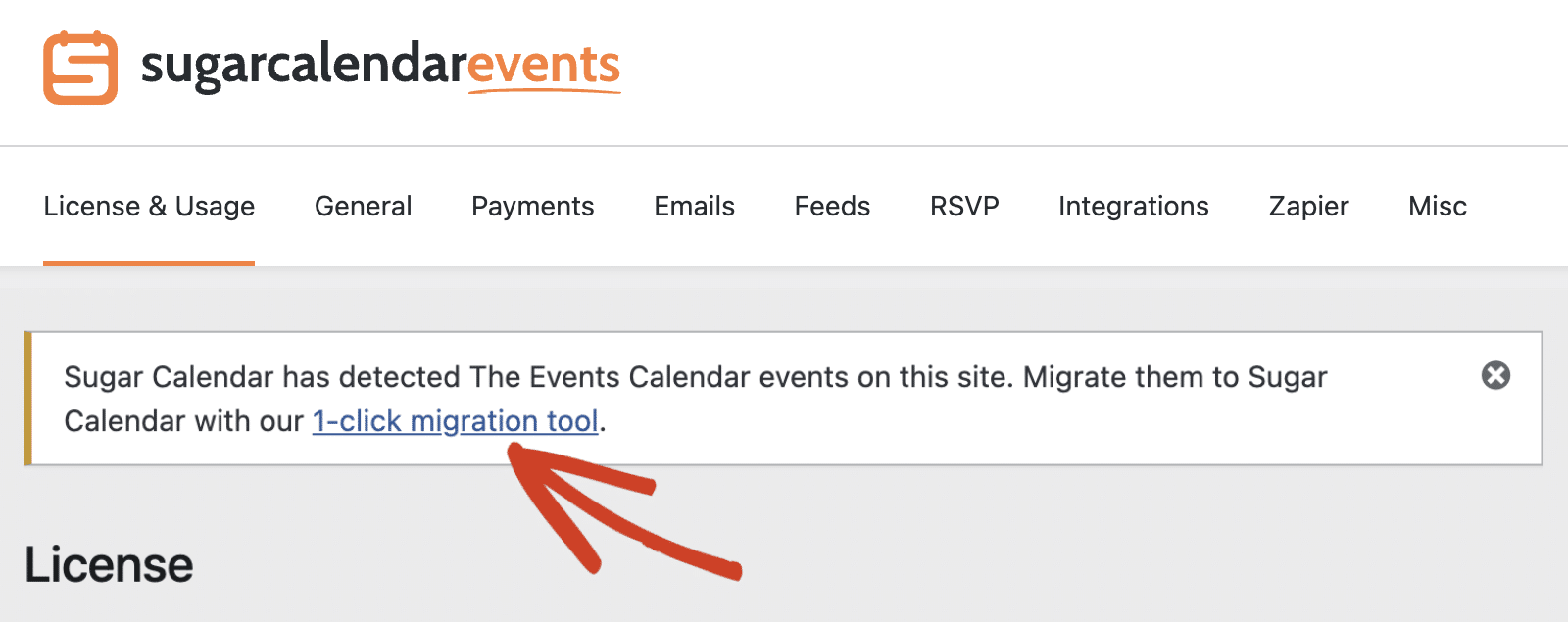
When Sugar Calendar Events finds events from The Events Calendar on your site, you’ll see a notice on the Sugar Calendar Events admin pages. Click the 1-click migration tool link to proceed.
Alternatively, go to Events » Tools and select the Migrate tab.
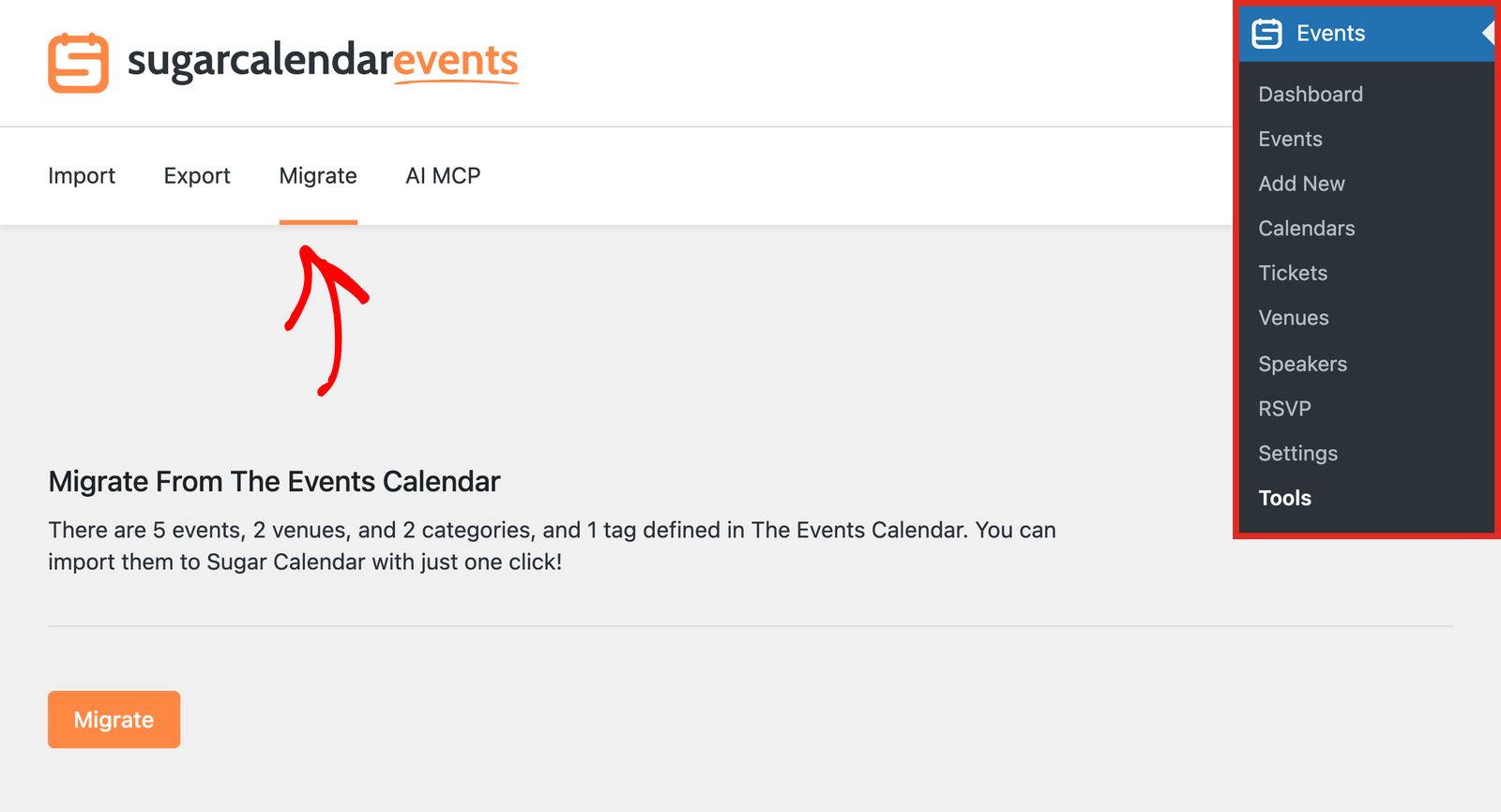
Note: The Migrate tab only appears when your site has events from The Events Calendar that you haven’t migrated yet. If you add more events in The Events Calendar after a migration, the tab comes back, and running it again imports only the new events.
Migrating Your Events
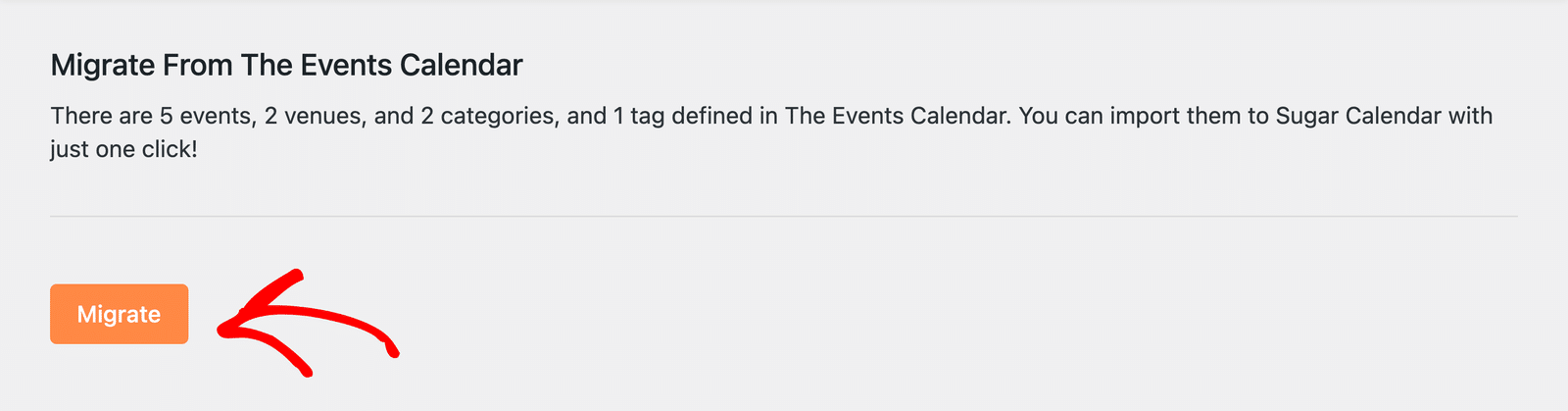
On the Migrate screen, you’ll see a summary of the event data that’s ready to import. To begin, click Migrate.
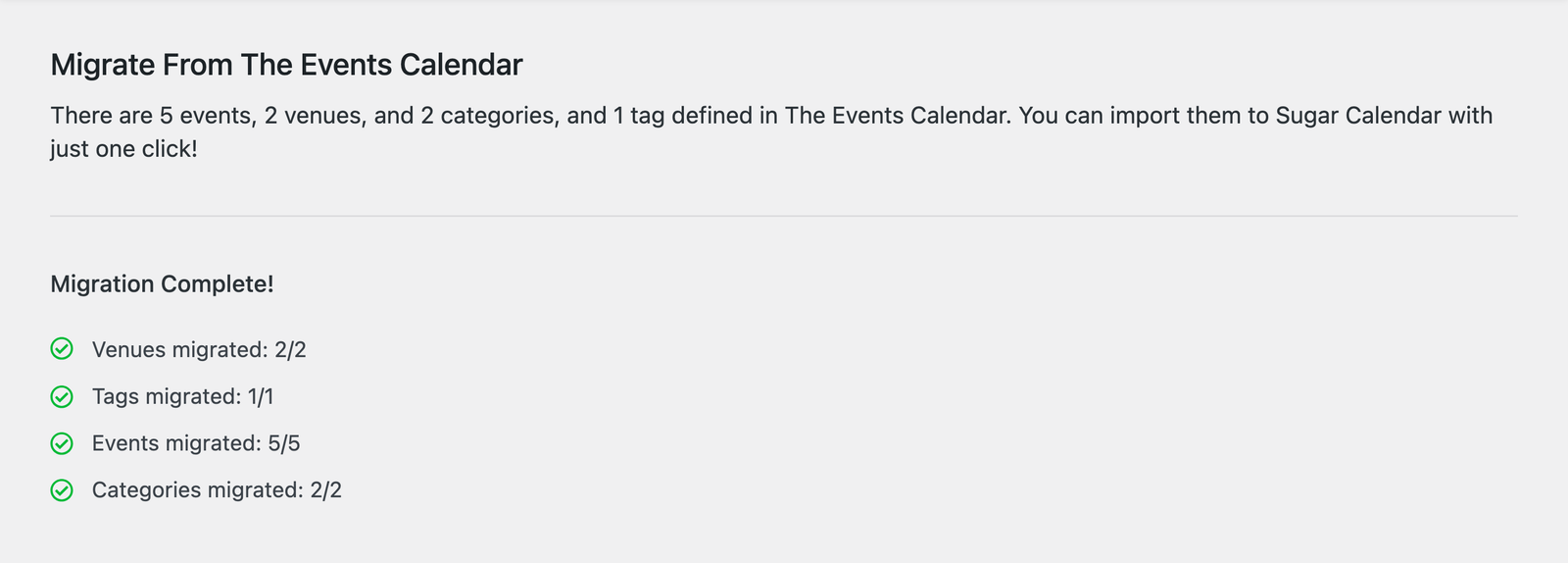
Once the process is complete, you’ll see a Migration Complete! message with a count for each type of data the tool migrated.
If the tool skips anything, it lists those items below the counts, grouped by type, along with the reason each one wasn’t migrated.
If the migration stops before it finishes, for example, because you closed the page, go back to the Migrate tab. You’ll see a message that the previous migration wasn’t completed. Click Continue Migration to pick up where it left off.
Note: If you used Community Events in The Events Calendar, your submitted events come over with the rest, and pending events stay pending. The submission form doesn’t migrate, so you’ll need to set up a new one. For details, see our guide to moving Community Events from The Events Calendar.
What Isn’t Migrated
The migration tool skips some items because Sugar Calendar Events currently can’t bring them over:
- Tickets sold with WooCommerce or Easy Digital Downloads.
- PayPal tickets and RSVPs from older versions of Event Tickets.
- Extra ticket types for an event, unless the Event Ticketing addon is active.
- RSVPs, unless the RSVP addon is active.
- RSVPs on an event that also sells tickets, since an event can’t take RSVPs and sell tickets at the same time.
- Unpaid orders.
- Organizers.
Note: On Sugar Calendar Events Lite, recurring events come over as single, non-recurring events. The Migrate screen warns you about this before you start.
Viewing Your Events
To view the migrated events, go to Events » Events. You’ll see all your site’s events, including the ones you imported from The Events Calendar.
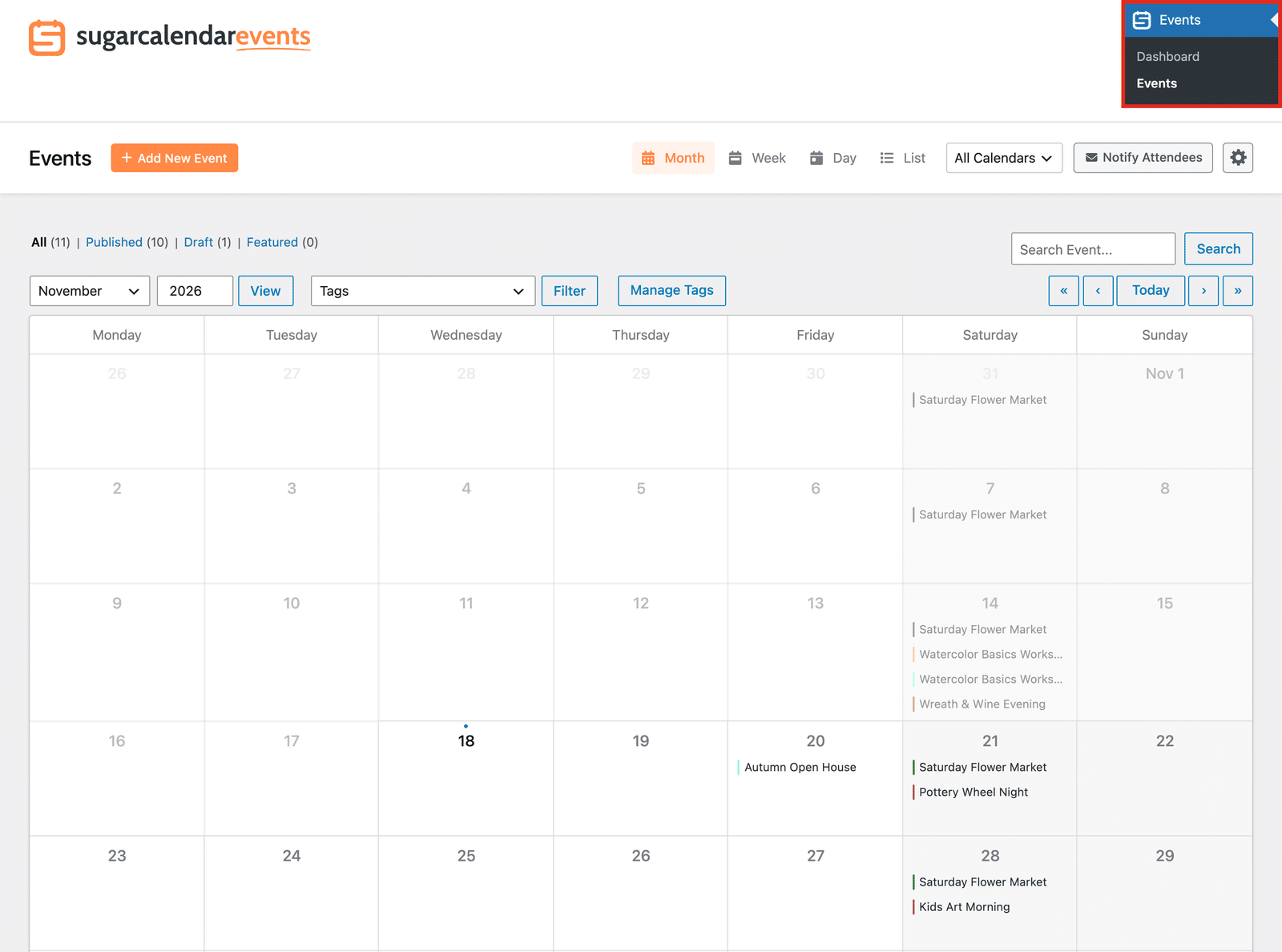
From here, edit your migrated events and manage their ticket sales and attendees like any other event.
That’s it! You now know how to import your events from The Events Calendar plugin to Sugar Calendar Events.
Next, would you like to display the events you imported on your site’s front end? Check out our tutorial on displaying Sugar Calendar events.