Would you like visitors to add your events to Google Calendar, Microsoft Outlook, or Apple Calendar? Calendar feeds turn your events into the standard iCalendar (.ics) format, so visitors can subscribe to your calendars or save a single event in their own calendar app.
In this tutorial, we’ll show you how to use calendar feeds in Sugar Calendar Events.
In This Article
Before getting started, make sure Sugar Calendar Events is installed and activated on your site and that you’ve verified your license.
Accessing the Calendar Feeds Settings
To choose which feeds your visitors see, go to Events » Settings and click the Feeds tab.
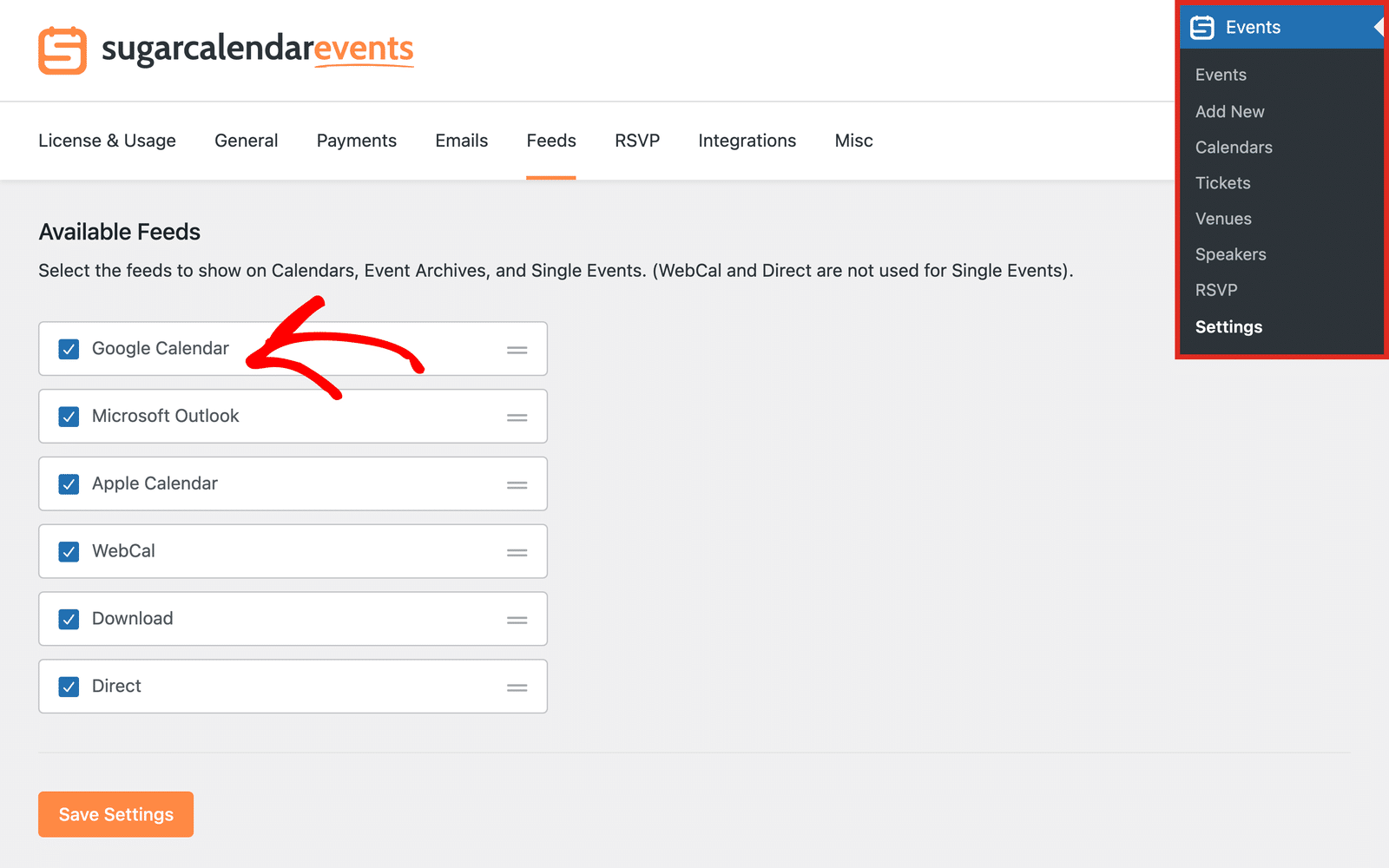
Under Available Feeds, check the feeds you’d like to offer:
- Google Calendar: Opens Google Calendar so visitors can subscribe to a calendar or add a single event.
- Microsoft Outlook: Subscribes to a calendar in Outlook. On a single event, it downloads the event as an .ics file.
- Apple Calendar: Subscribes to a calendar in Apple Calendar. On a single event, it downloads the event as an .ics file.
- WebCal: Opens the default calendar app on the visitor’s device and subscribes to the calendar.
- Download: Downloads an .ics file that visitors can import into any calendar app.
- Direct: Opens the feed’s .ics address in the browser. Visitors can paste this address into calendar apps that offer a “subscribe from URL” option.
To change the order the feeds appear in, drag a feed by its handle. Then, click Save Settings.
Understanding How Event Synchronization Works
Calendar feeds work in two ways, depending on where visitors use them.
Calendar subscriptions: The feeds for a calendar subscribe the visitor’s calendar app to your events. The subscription includes every event in that calendar, including past events and the repeat pattern of recurring events. New events and changes show up the next time the calendar app refreshes the feed.
The calendar app decides how often it refreshes, so updates can take several hours to appear. The Download feed is the exception. It saves a copy of your events at that moment, so later changes don’t reach that file.
Single events: The Add to Calendar links on an event page add that one event to the visitor’s calendar. Later changes to the event don’t update the copy the visitor saved.
Sharing a Calendar’s Feeds
Each calendar you create has its own feeds. To find them, go to Events » Calendars. Then, hover over the calendar you’d like to share and click Feeds.
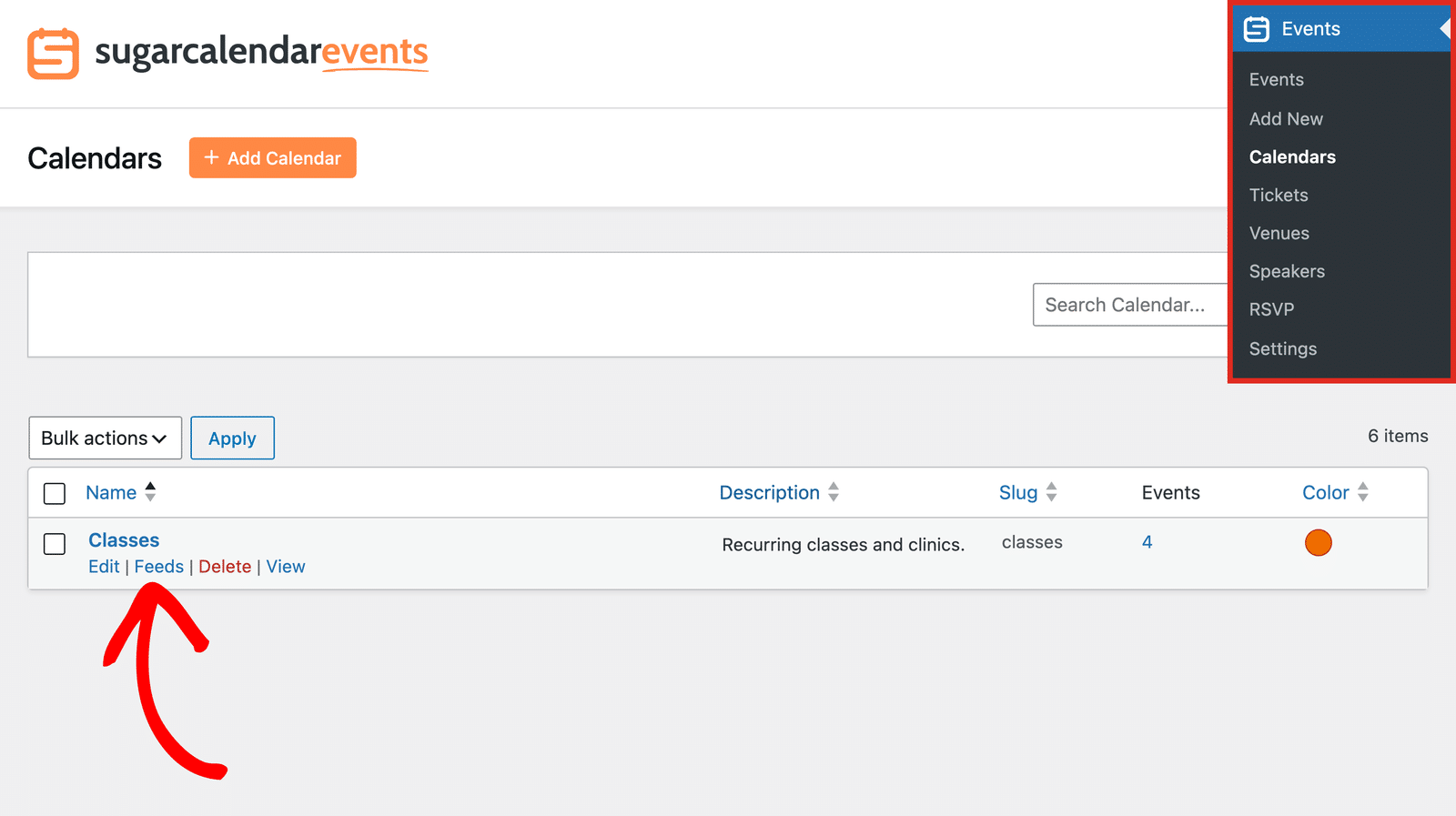
A panel opens below the calendar with a link for each feed you enabled. Click the Copy icon next to a feed to copy its link, and then share it with your visitors, for example, on a page of your site. Click the Visit icon to open the link yourself, such as to subscribe in your own calendar app.
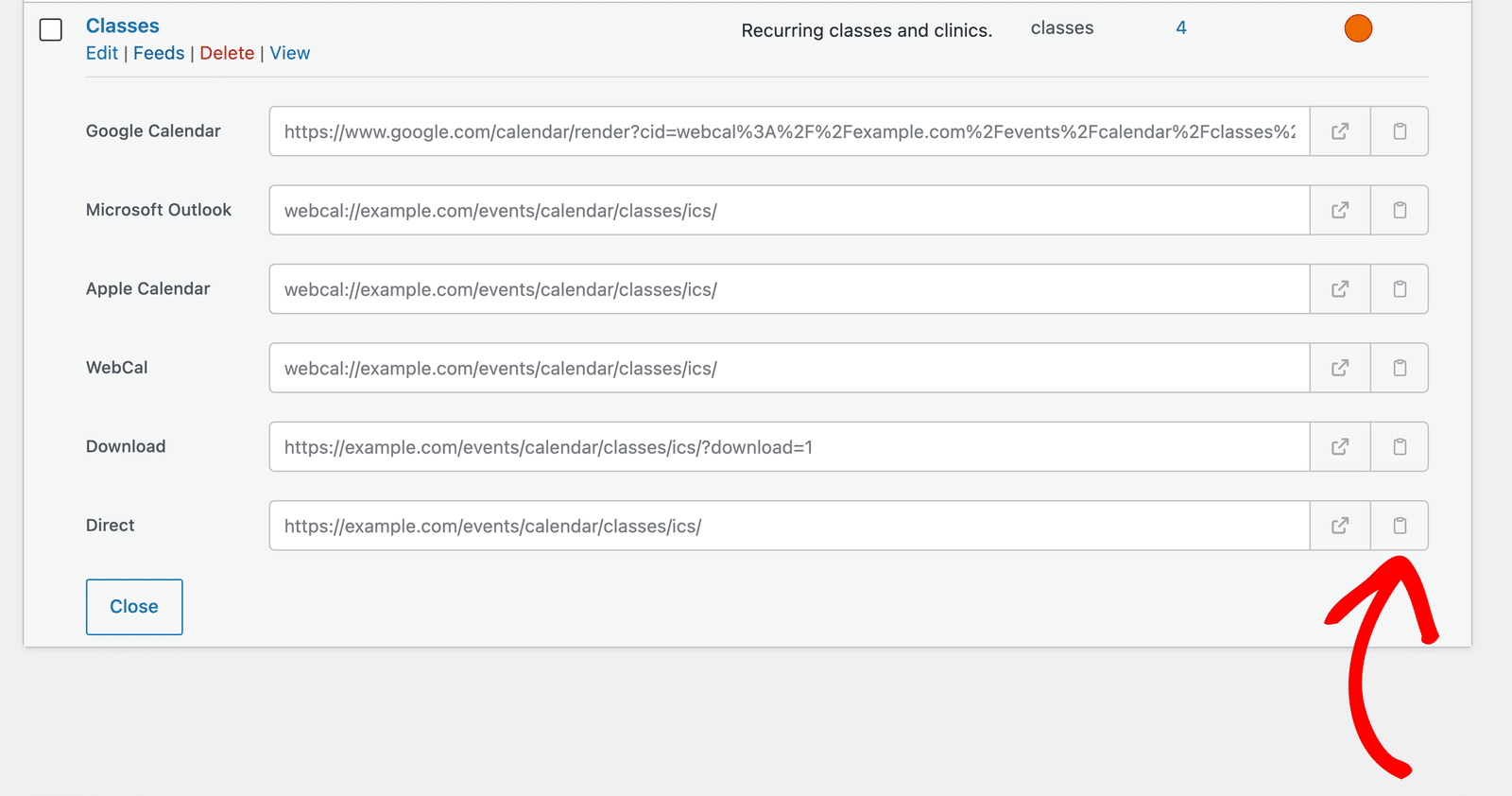
When a visitor opens the Google Calendar link, Google Calendar asks them to confirm that they’d like to add the calendar. After they confirm, the calendar’s events appear in their Google Calendar.
Adding an Event to a Third-Party Calendar
On each event page, visitors see an Add to Calendar menu in the event details, below the date. Hovering over it shows the single-event feeds you enabled.
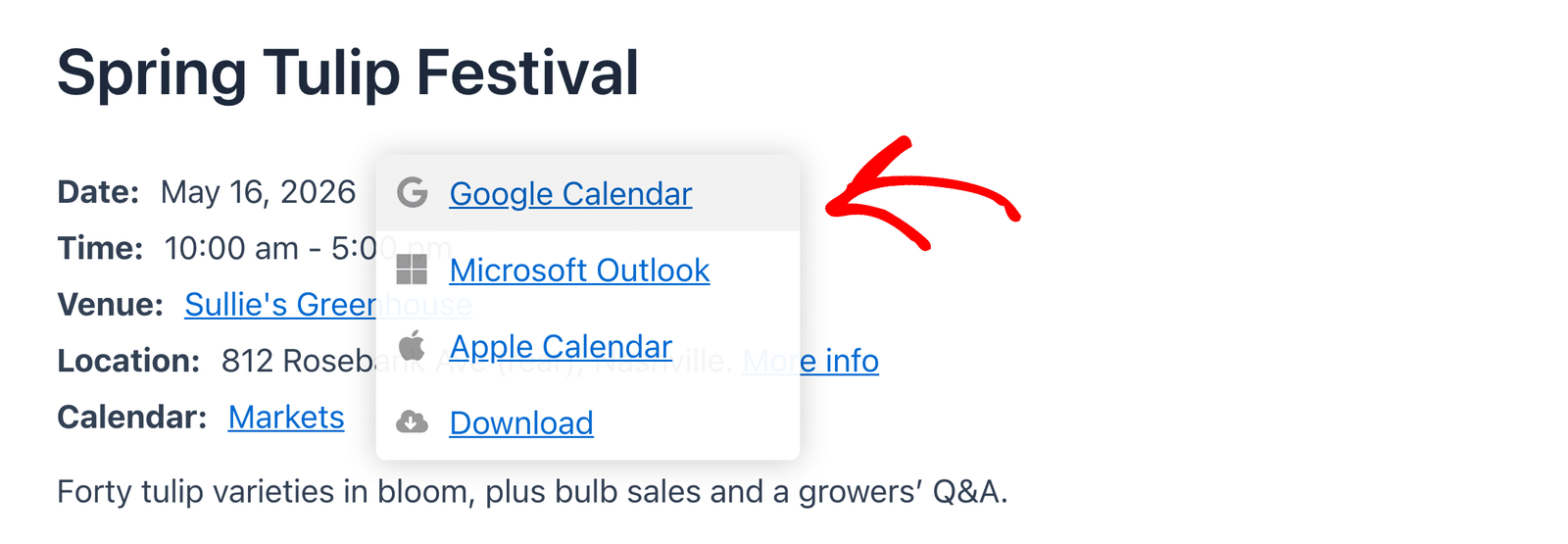
Selecting Google Calendar opens Google Calendar with the event’s details filled in, so the visitor can click Save.
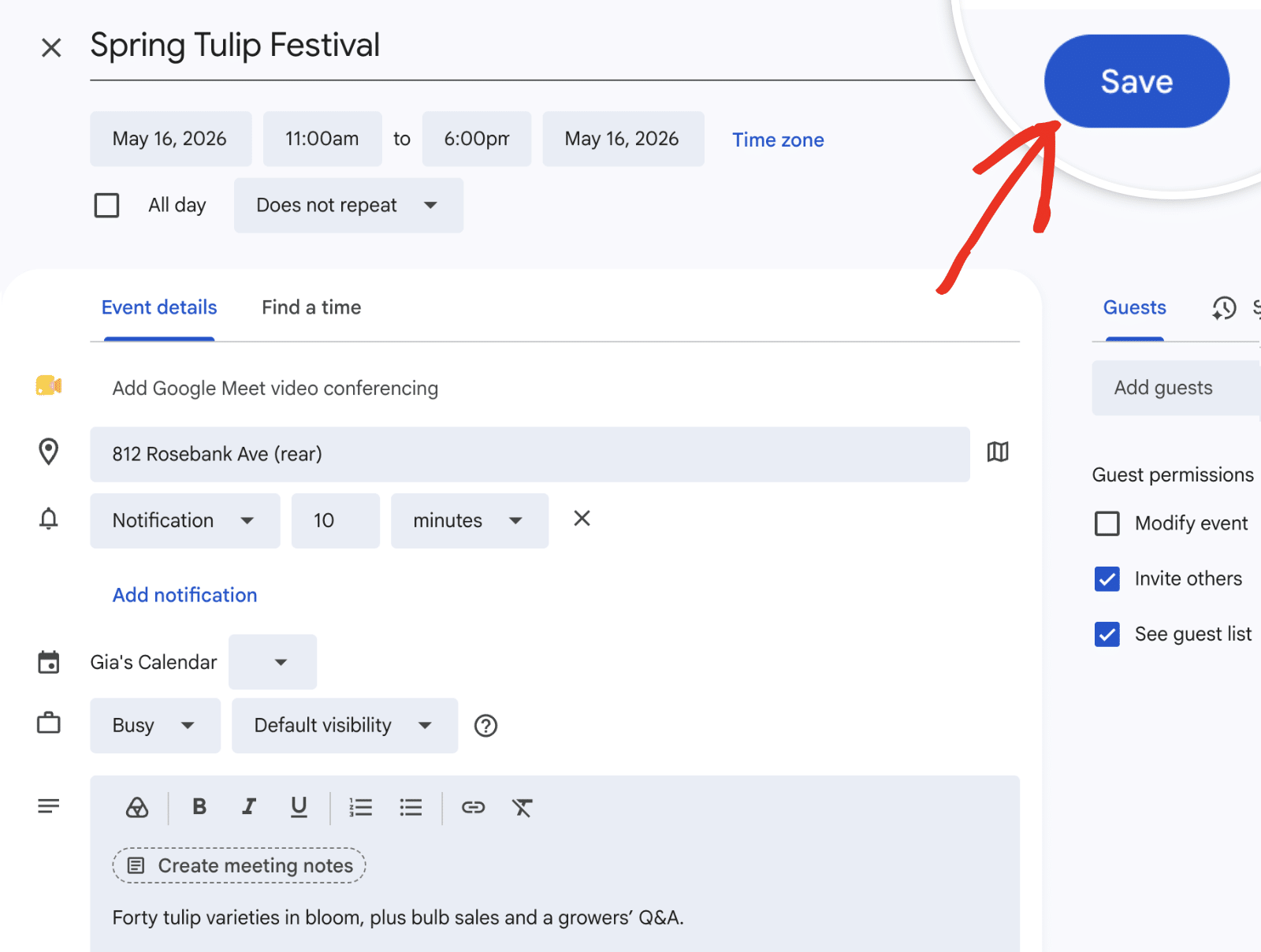
The Microsoft Outlook, Apple Calendar, and Download options download the event as an .ics file that opens in the visitor’s calendar app.
If you sell tickets with the Event Ticketing addon, attendees also get an Add to Calendar button on their ticket details and in their ticket email.
That’s it! You now know how to use calendar feeds in Sugar Calendar Events.
Next, would you like to show an interactive map of your event locations? Be sure to check out our tutorial on using Google Maps to display event locations for all the details.