


Would you like to update your billing information for Sugar Calendar Bookings? Keeping your payment details current ensures your subscription renews smoothly and your license stays active without interruption.
This guide will show you how to update your credit card or billing information.
In This Article
Note: Billing updates will work differently depending on whether you’ve selected Credit Card or PayPal on the Sugar Calendar checkout page.
Accessing the Billing Page
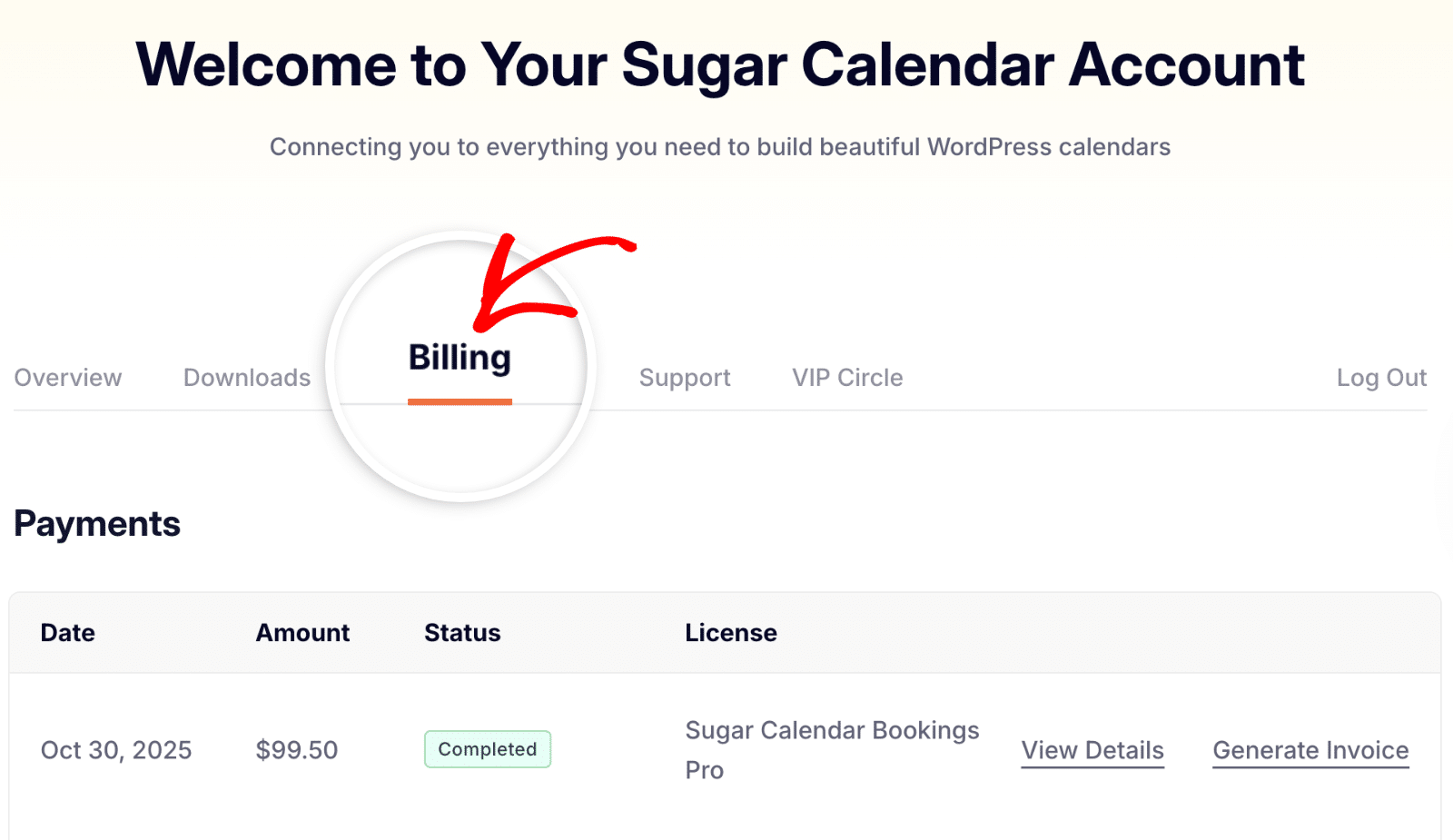
First, log in to your Sugar Calendar account.
Once logged in, click the Billing tab in your account dashboard.
Under the Subscriptions section, locate your active license and click Update Card next to it.
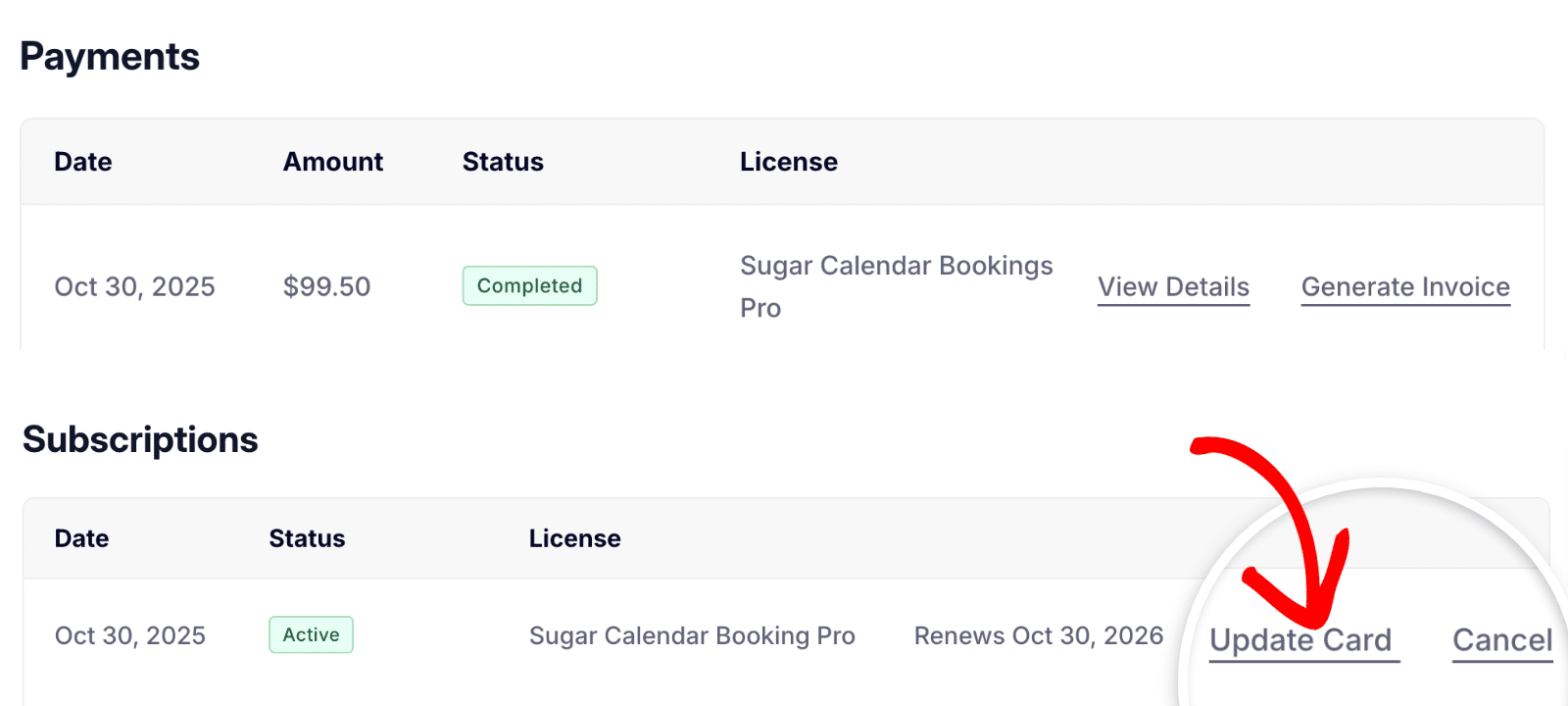
Note: If you don’t see the Update Card link next to your Bookings license, it means you completed your purchase through PayPal.
Updating Your Credit Card Details
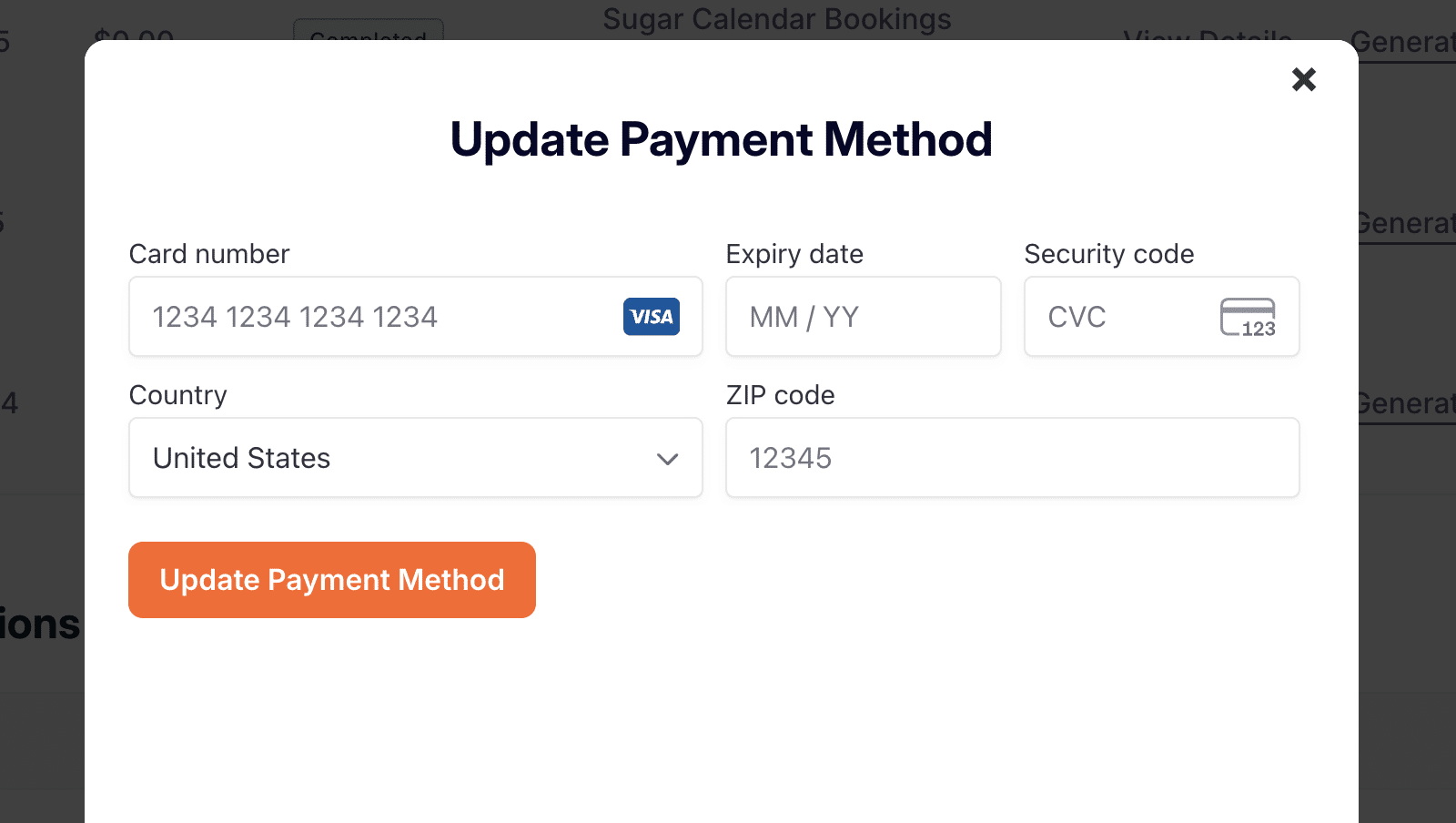
When you click Update Card, a secure overlay will appear where you can enter your new payment details. Fill in your card number, expiry date, security code (CVC), ZIP code, and country.
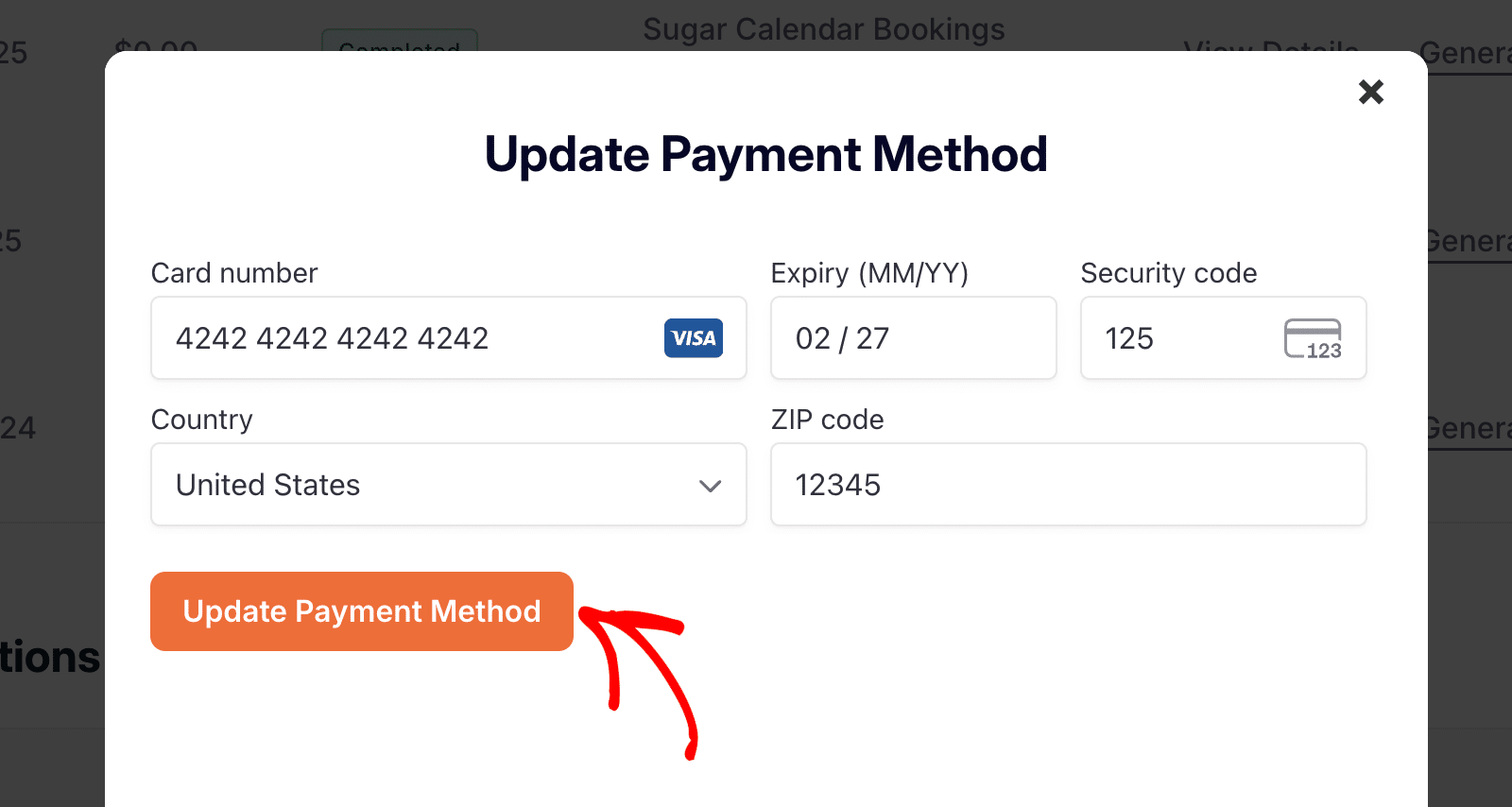
Once all fields are filled out, click the Update Payment Method button to save your new billing details.
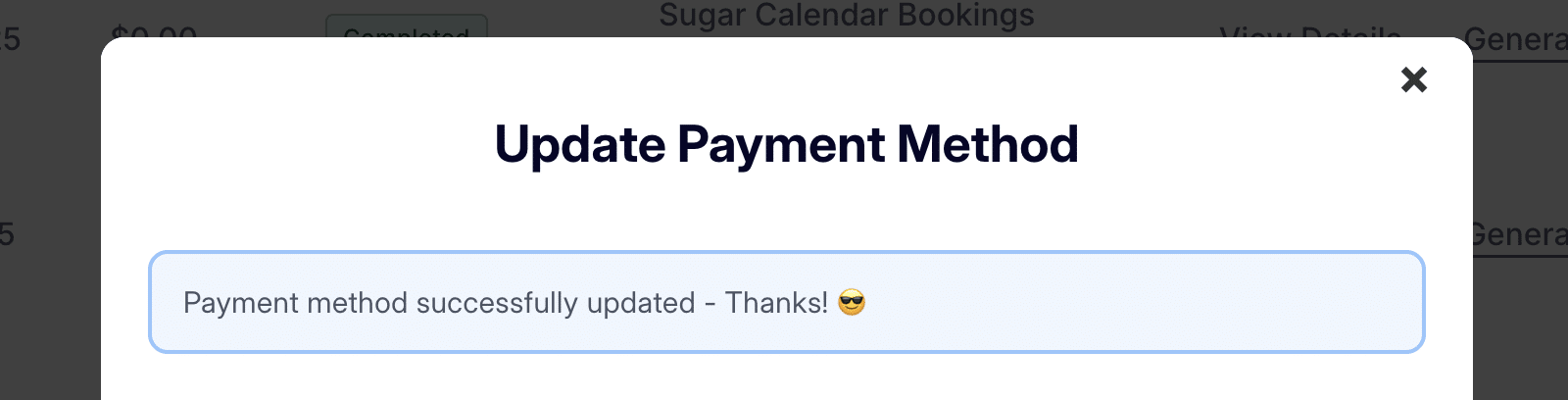
You’ll see a confirmation message letting you know your payment method was successfully updated.
Updating PayPal Billing Information
If your Sugar Calendar Bookings payment was made via PayPal, you’ll need to update your billing information directly from your PayPal account. Sugar Calendar does not store or modify PayPal billing details.
To update your PayPal billing information, visit PayPal’s official help article on how to link, remove, or change a credit card.
That’s it! You’ve now successfully updated your billing information for Sugar Calendar Bookings. Your new payment method will be used for future renewals.
Next, want to upgrade your plan to unlock more features? Check out our guide on upgrading to a higher license level.

