


Would you like to configure your settings in the Sugar Calendar Bookings plugin? The Bookings plugin includes settings that help you specify global configurations for booking-related activities on your site.
This guide will walk you through the available options in the Sugar Calendar Bookings settings page.
In This Article
Before you begin, make sure the Sugar Calendar Bookings plugin is installed and activated on your website.
Accessing Settings
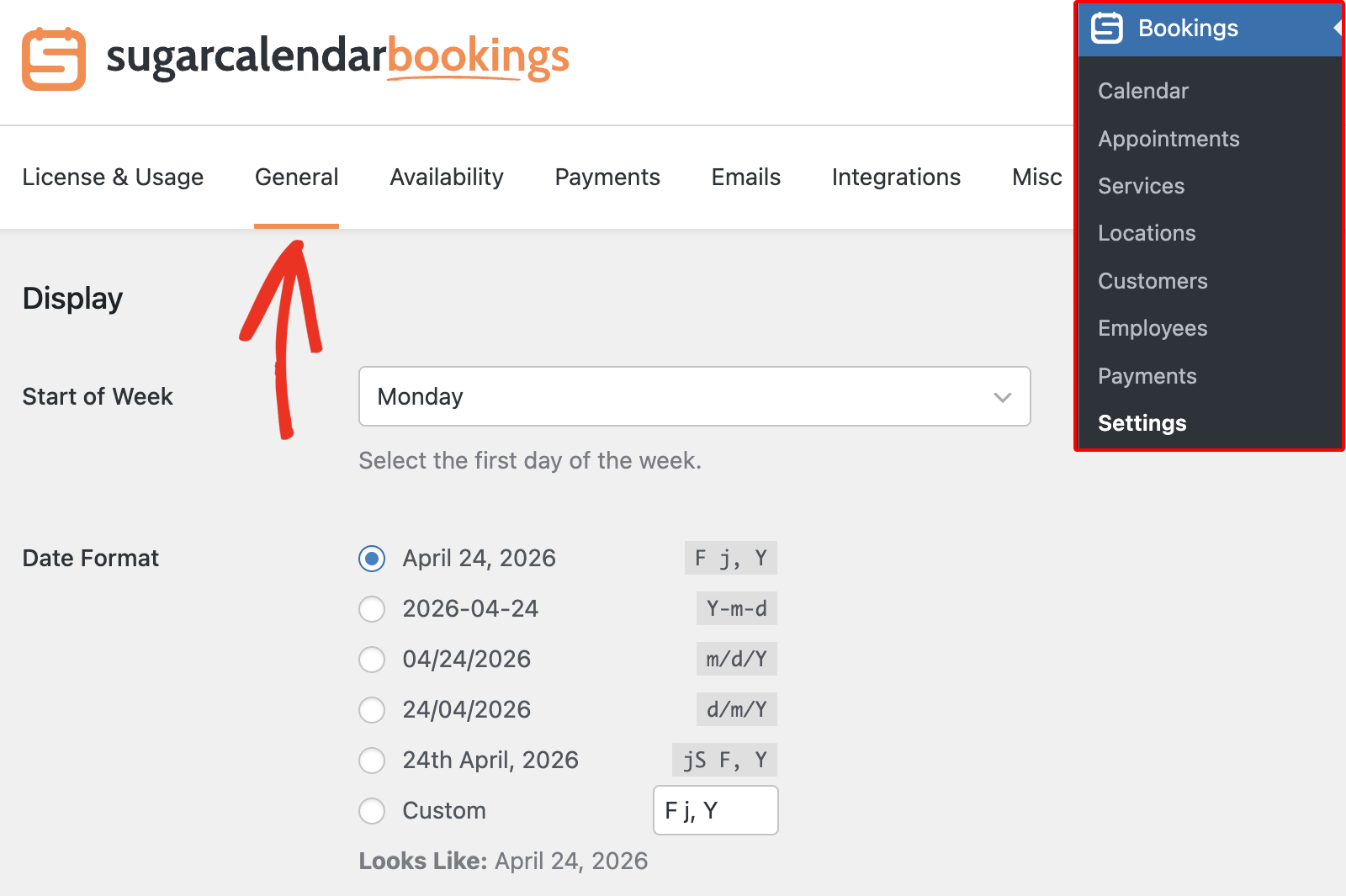
To open your settings, go to Bookings » Settings from your WordPress dashboard. You’ll see several tabs at the top of the screen: General, Availability, Payments, Emails, Integrations, License and Usage, and Misc.
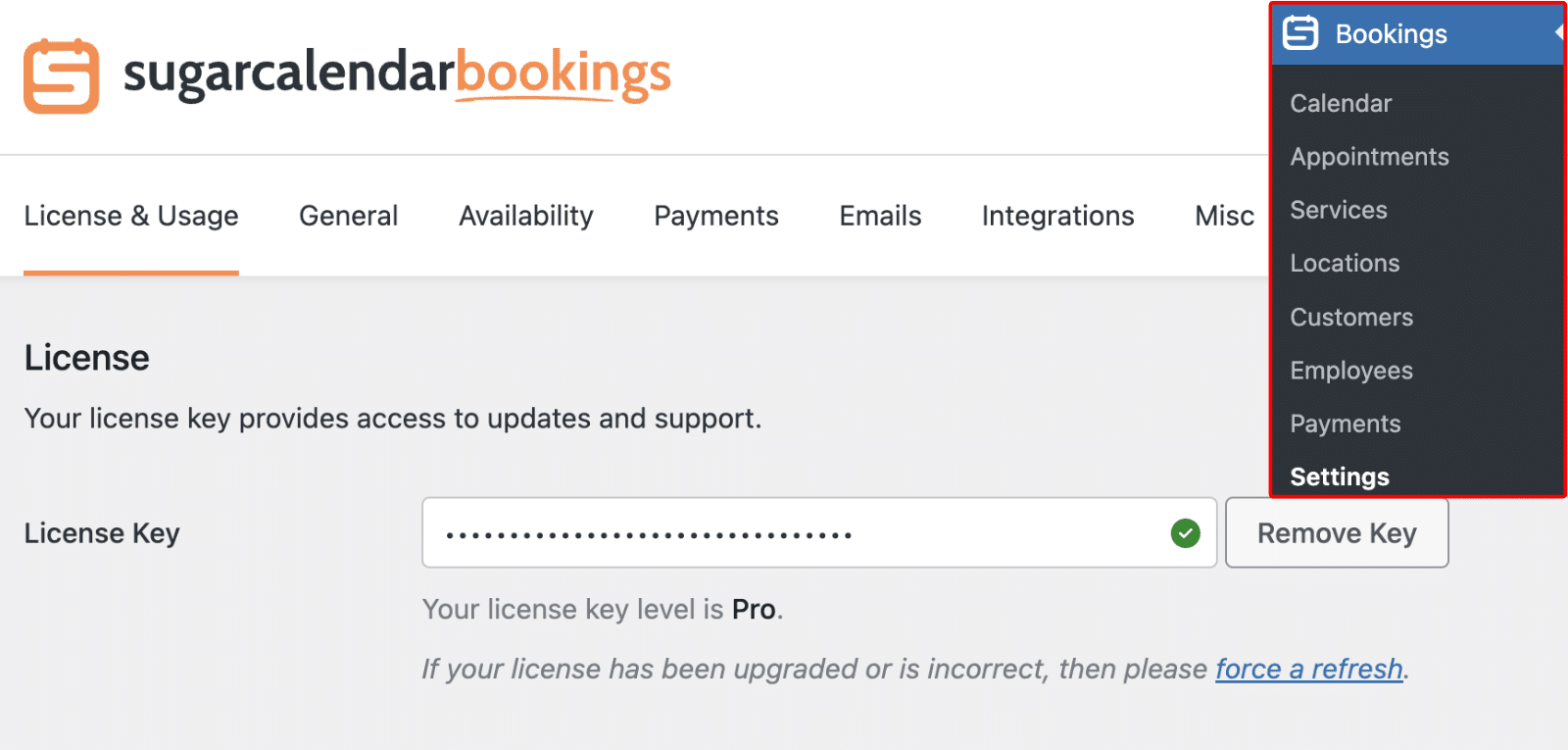
Below, we’ll cover the available settings in each tab.
License and Usage
The License and Usage tab consolidates your license management and integration usage data in one place.
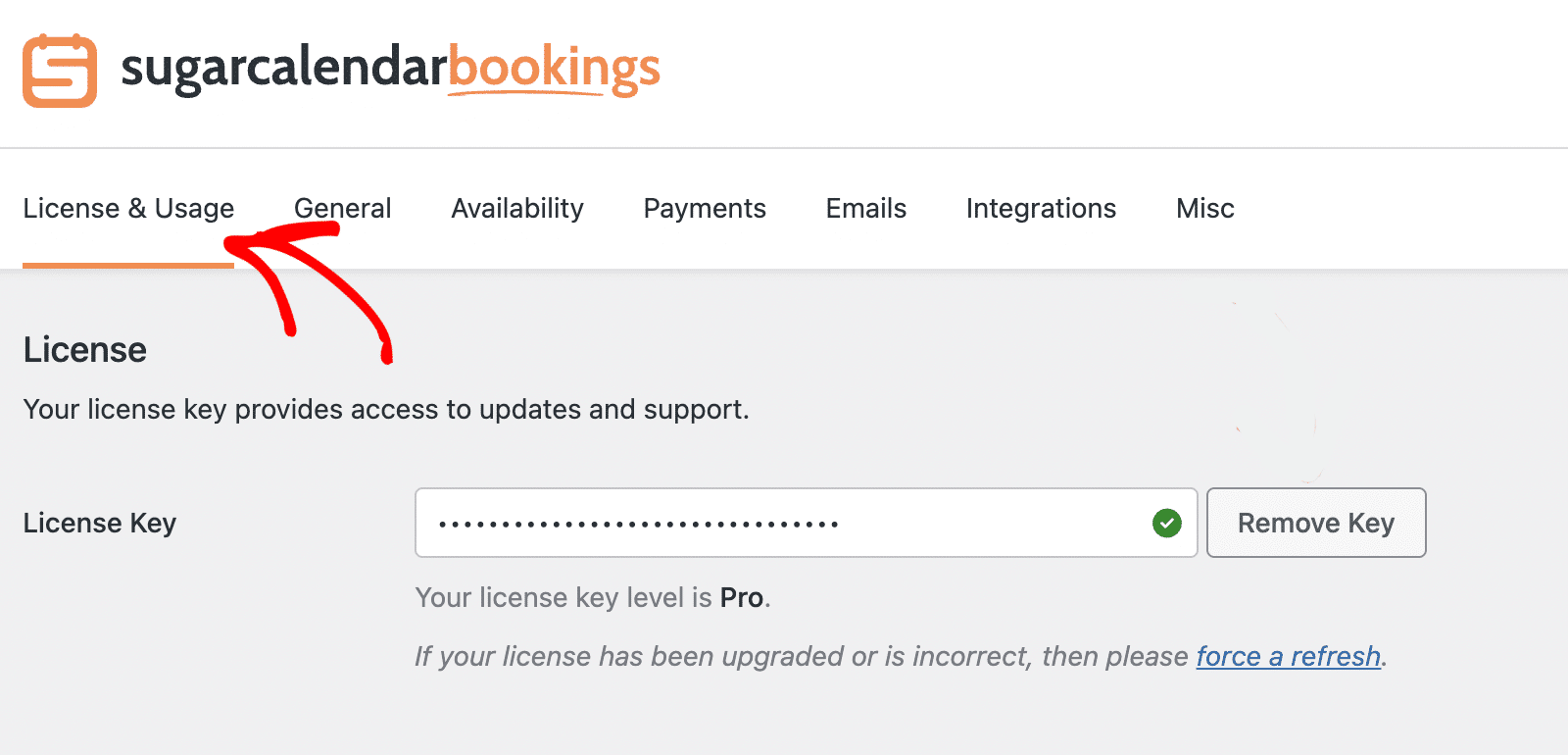
License
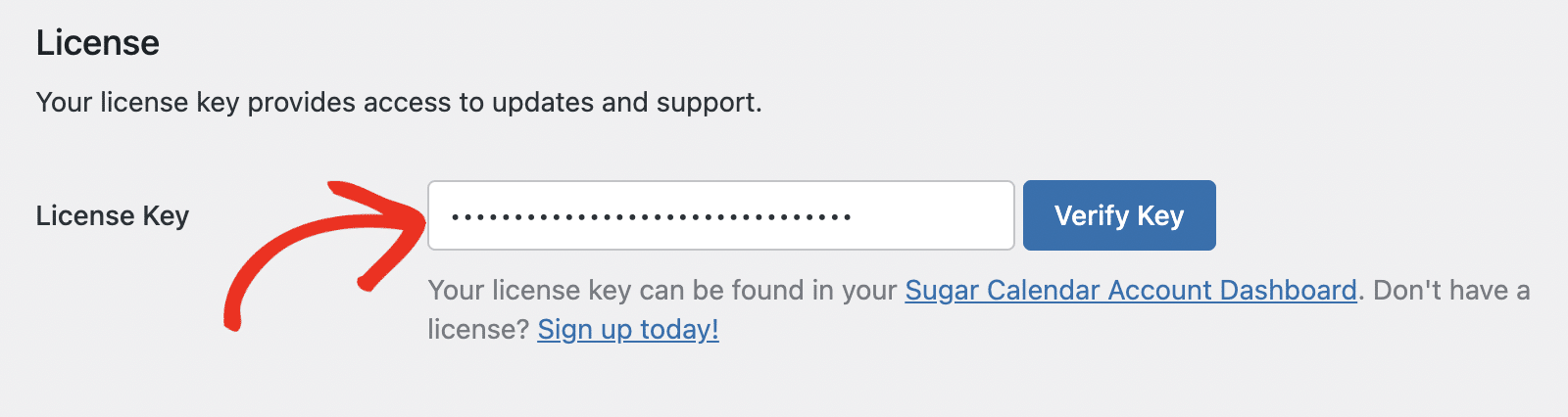
Enter your license key in the License Key field to activate the plugin and access premium features and automatic updates. Your license details will display below the field, showing whether your key is active and which plan is attached to it.
Integration Usage
Below the license section, you’ll see your current integration credit usage: how many credits have been used and how many remain under your plan’s limit. Paid plan credits reset on the first of each month; Free plan credits are a one-time lifetime allocation.
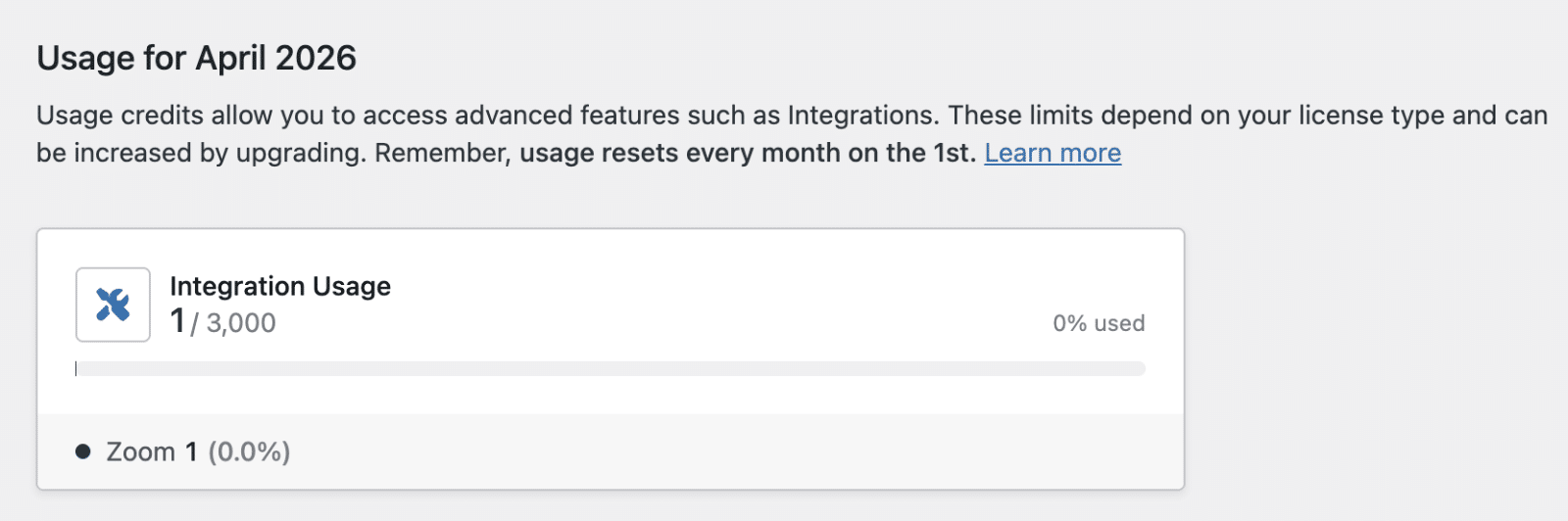
If you need more credits, click Upgrade from this tab to move to a higher plan.
General Settings
The General tab is where you’ll manage display preferences and customer booking options.
Display Settings
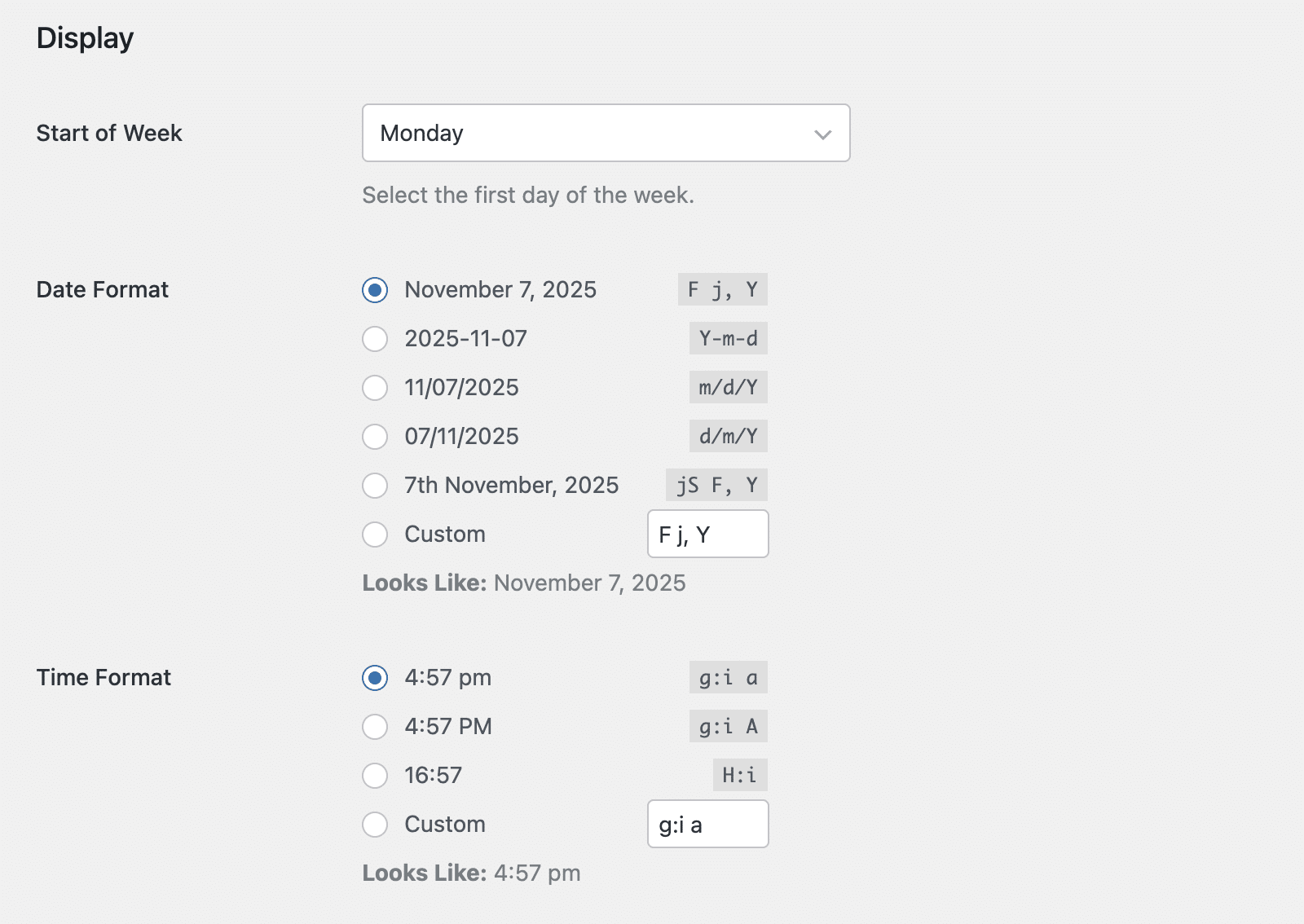
The Display section allows you to customize how dates and times are displayed throughout the plugin. Choose your preferred start day of the week, date format, and time format that best suits your region or business preferences.
Customer Settings
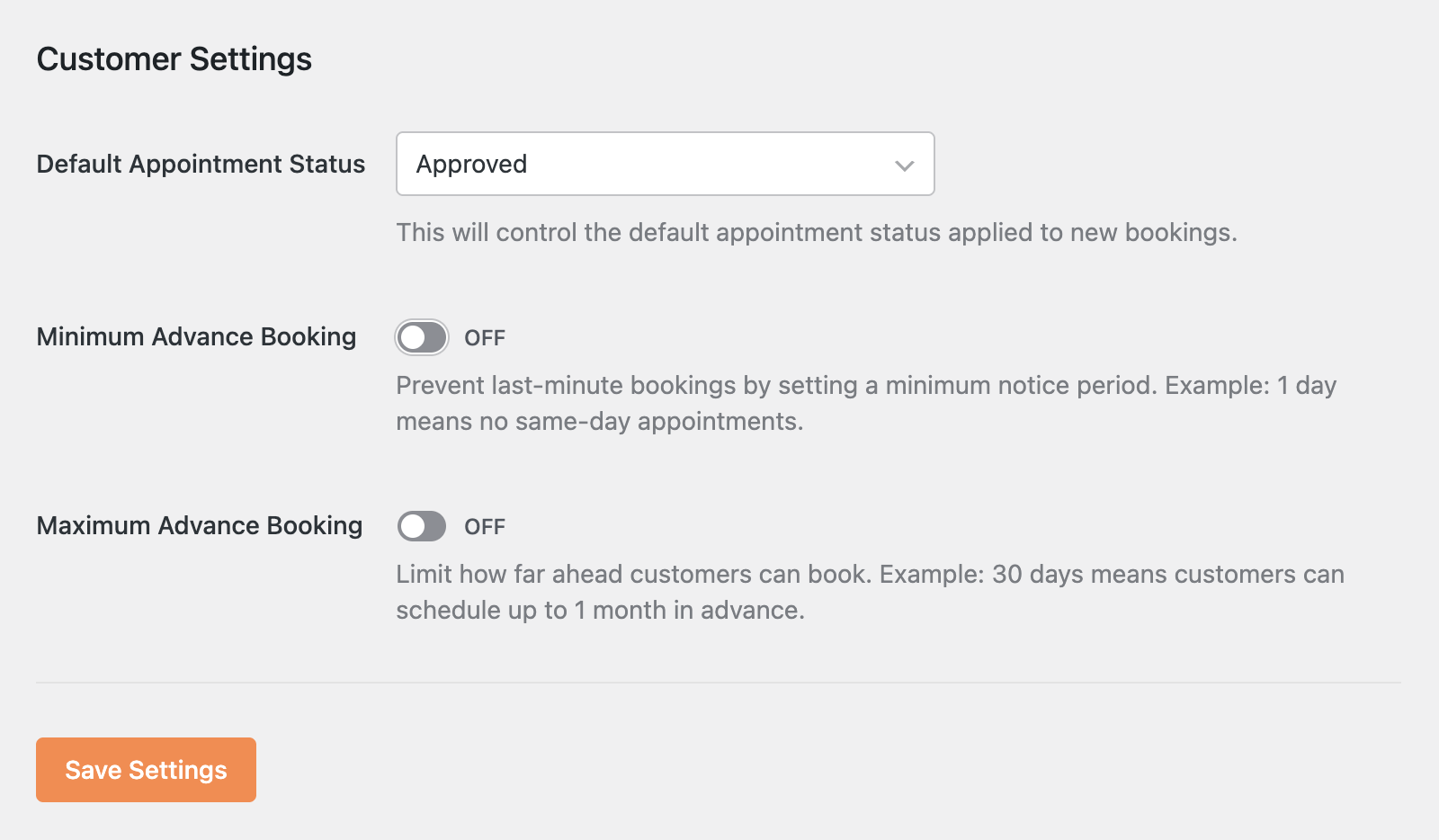
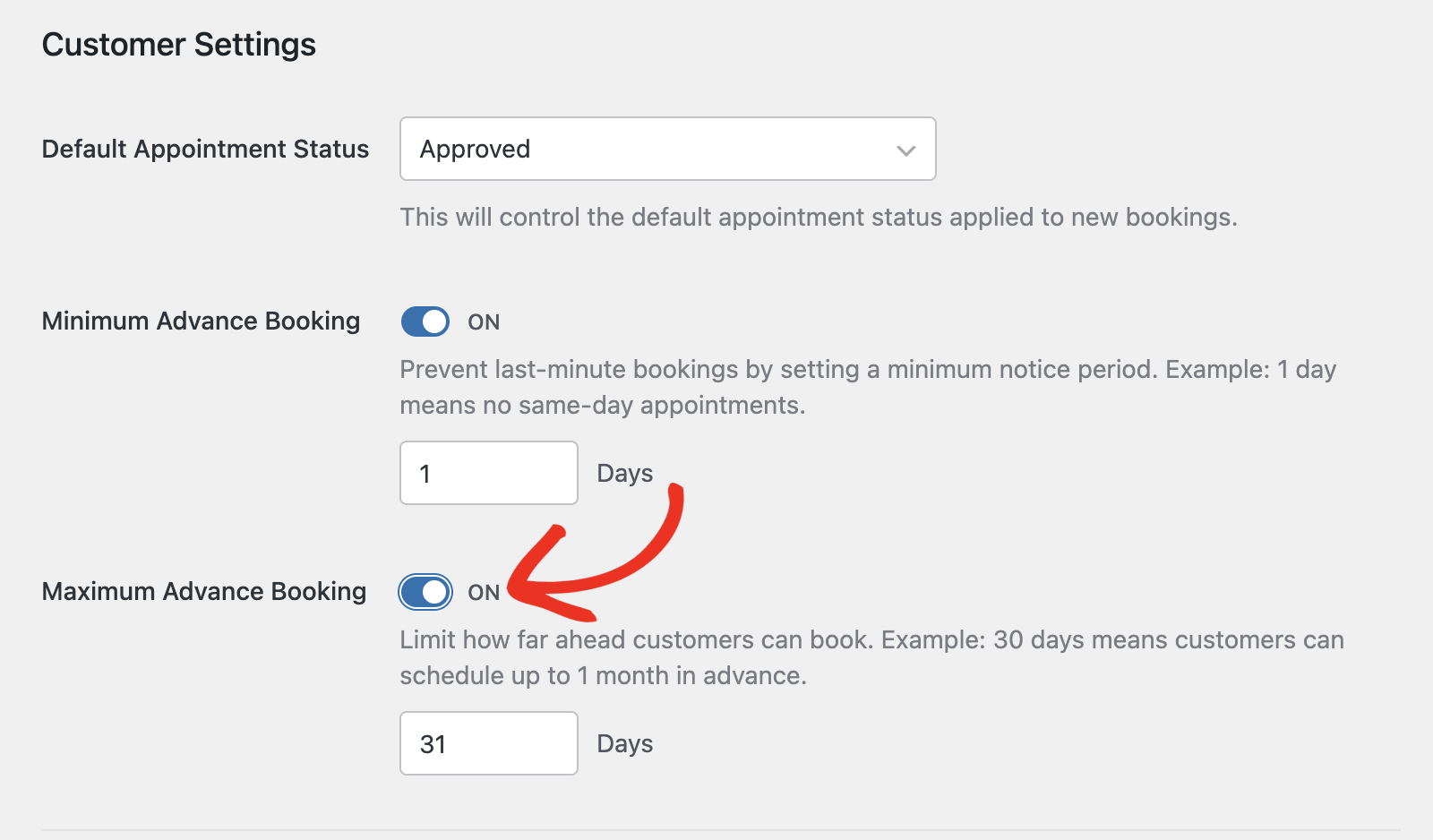
Under the Customer Settings section, you can control how appointments behave for your clients. You’ll be able to set a default appointment status and manage booking notice periods.
Turn on Minimum Advance Booking to prevent same-day appointments. For example, setting it to “1 Day” means clients must book at least one day in advance.
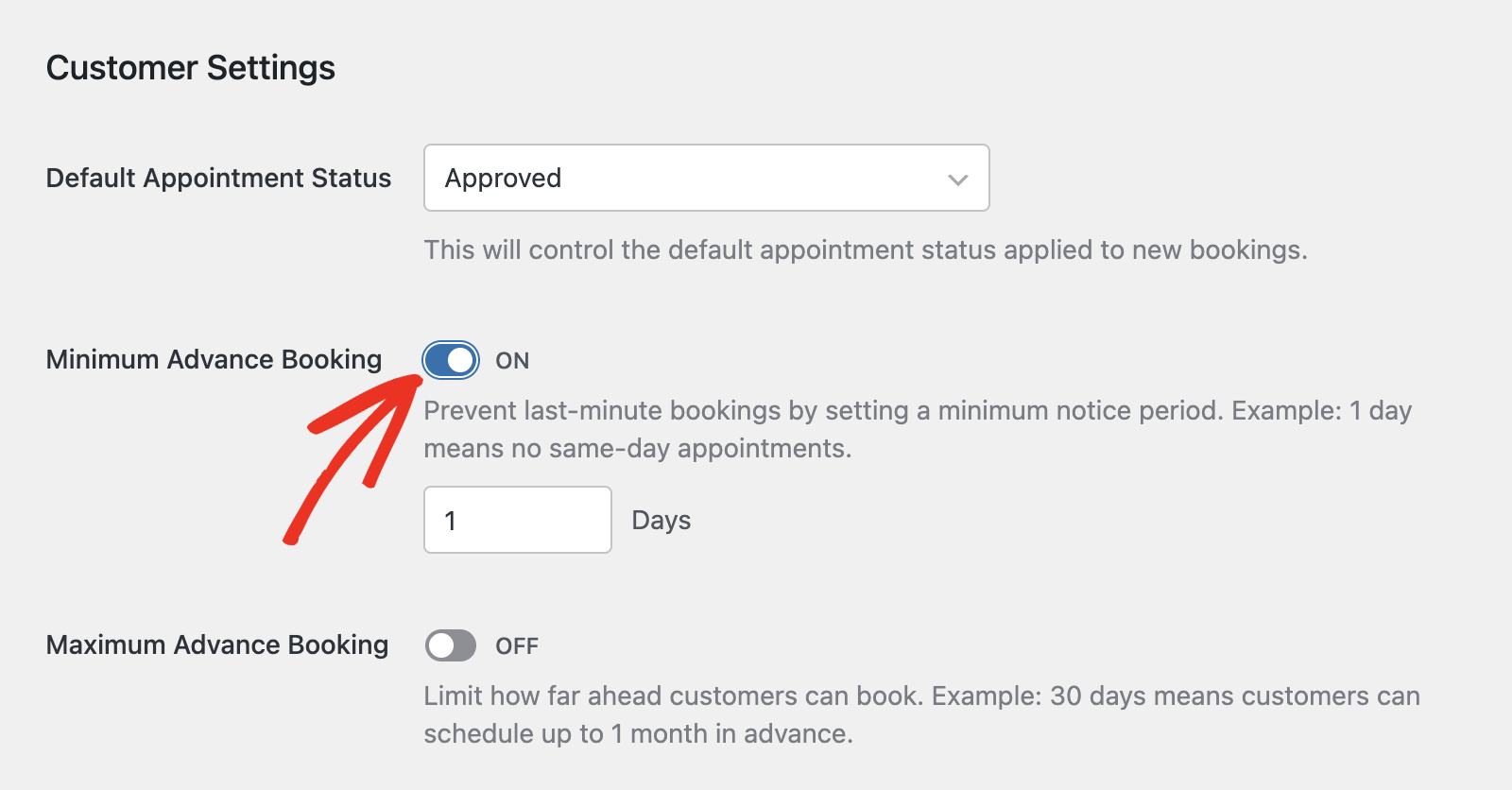
You can also turn on Maximum Advance Booking to limit how far ahead clients can book appointments (e.g., up to 31 days in advance).
Availability Settings
On the Availability tab, you’ll be able to define your working hours and default schedule. These settings will apply to all new services unless you override them in individual service configurations.
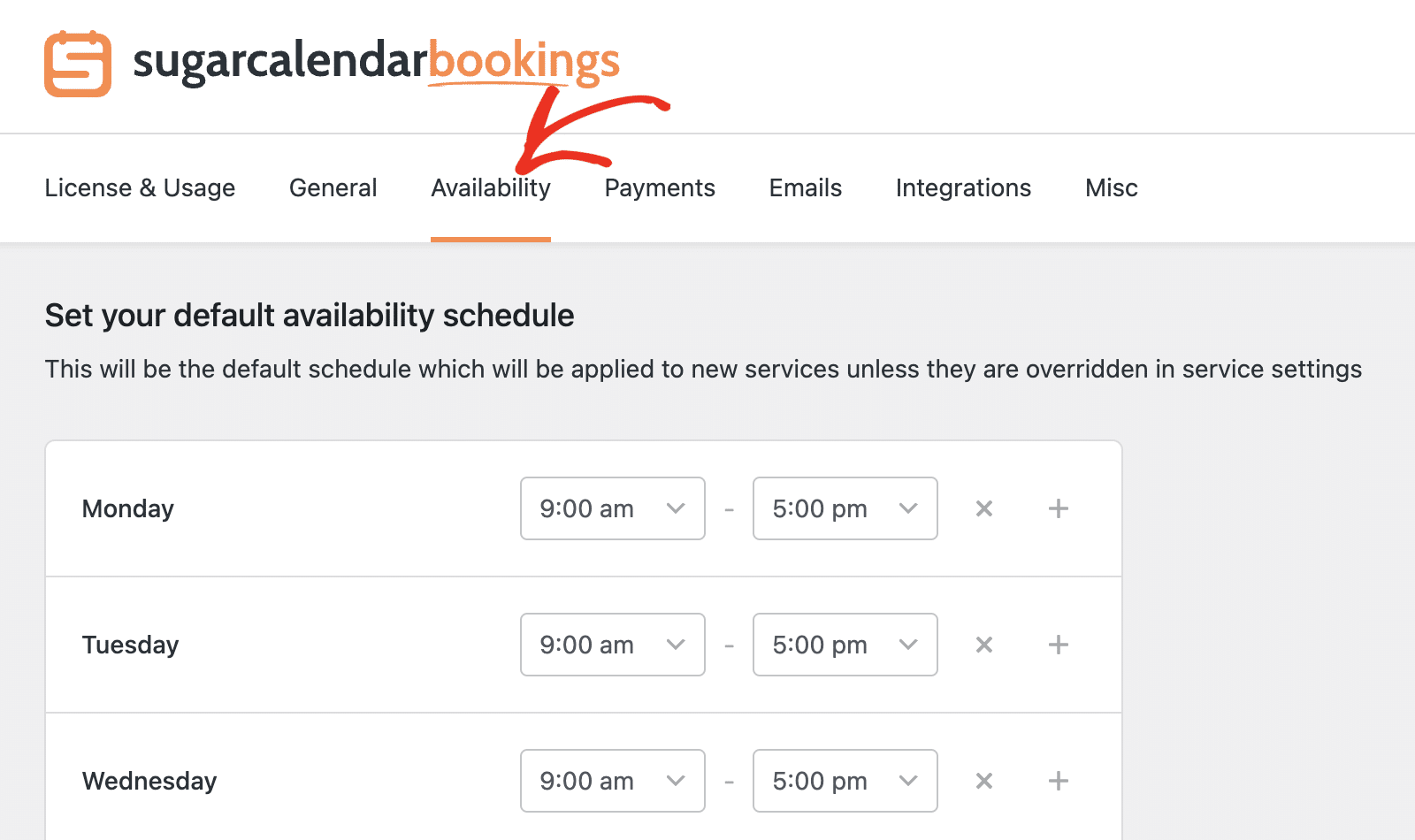
Set your standard working days and times. For example, you can set weekdays from 9:00 AM to 5:00 PM, and mark weekends as unavailable.
Payment Settings
The Payments tab lets you manage your accepted payment methods. You can enable offline payments (On Site) or allow online payments through Stripe.
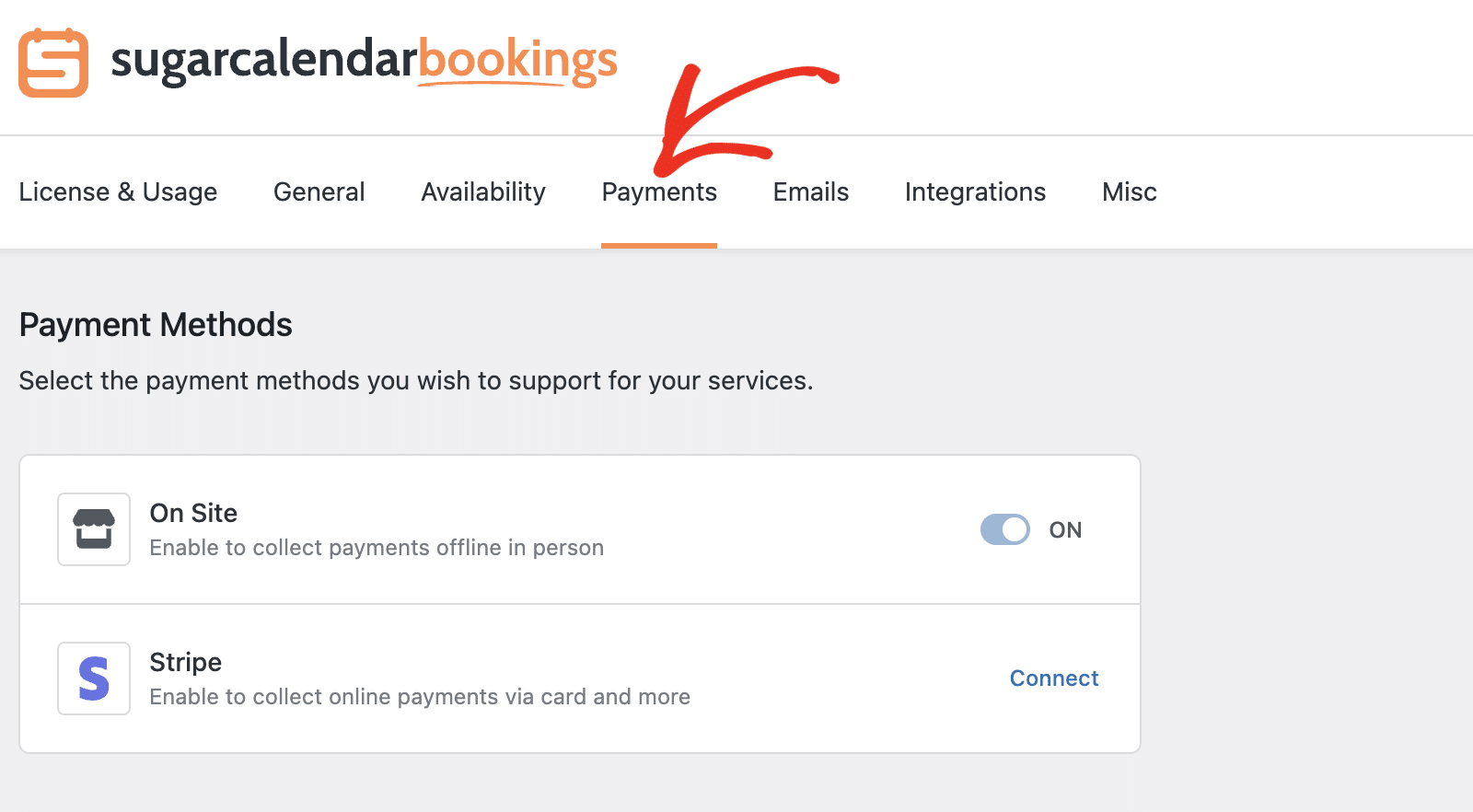
If you’d like to connect Stripe for online payments, click Edit and follow the prompts to connect your Stripe account. Our tutorial on setting up payment options provides a detailed overview of all the steps.
Email Settings
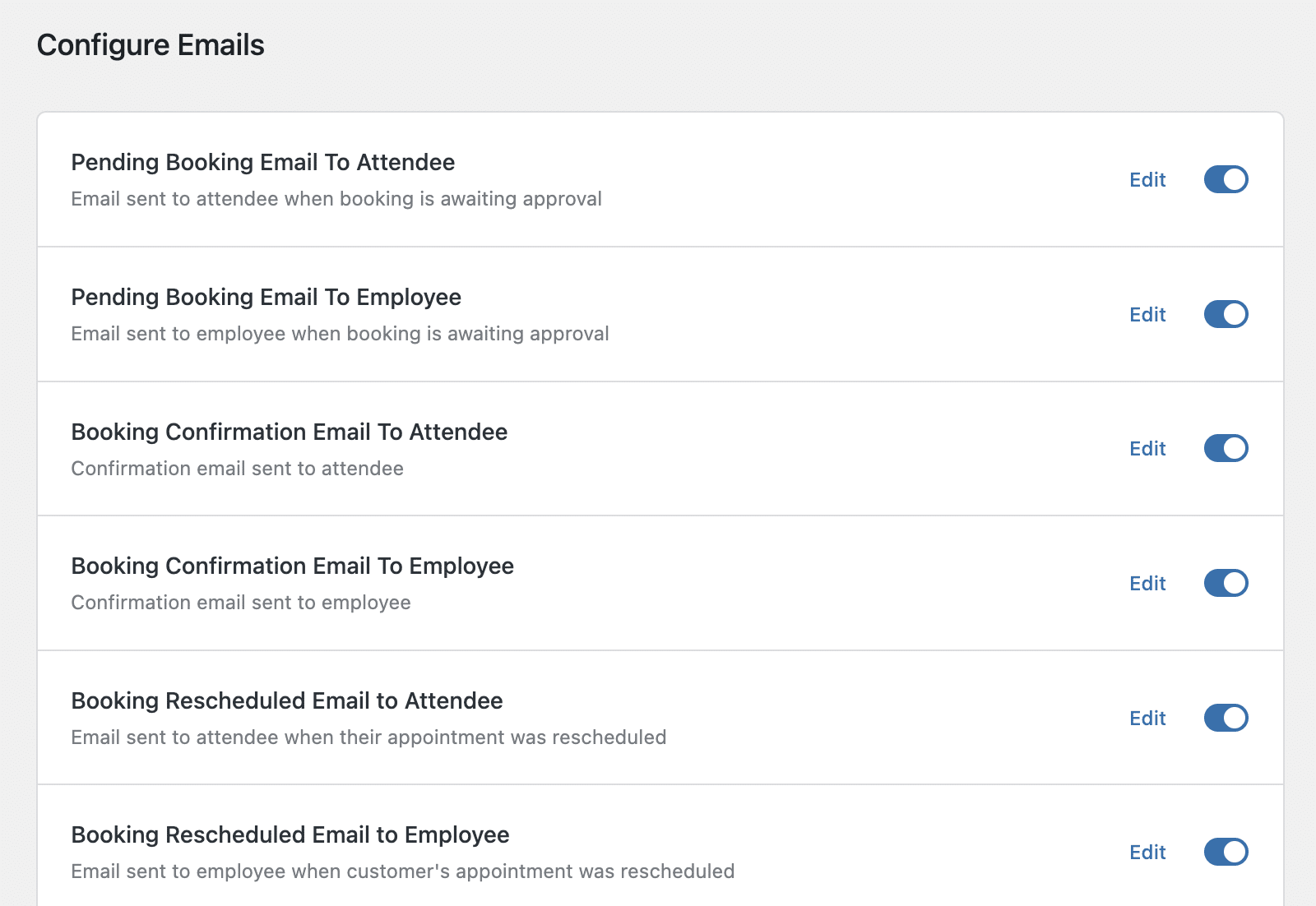
The Emails tab lets you configure all booking-related notifications. You’ll first need to set the sender name and email address under Email Sender.
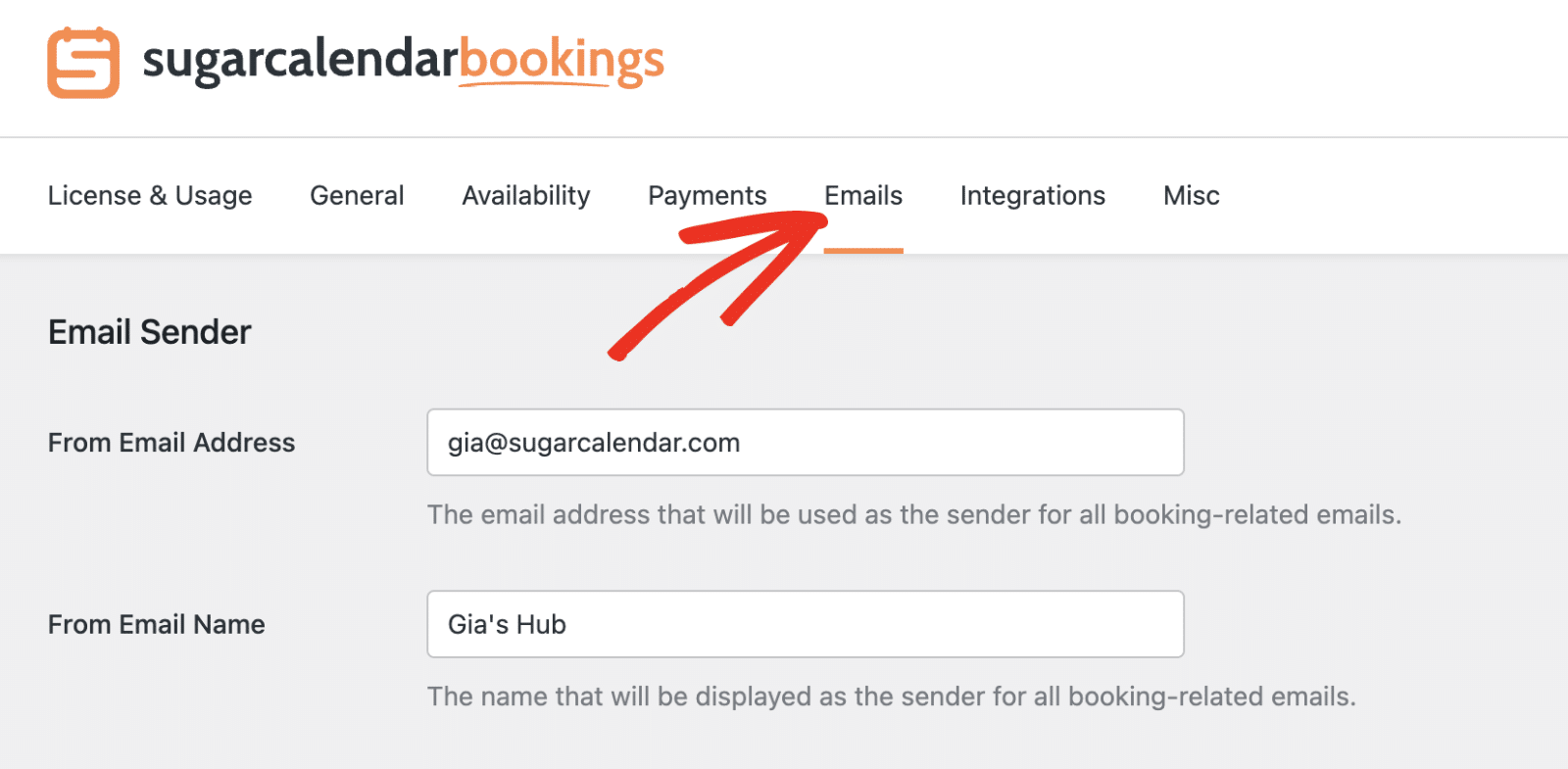
Then scroll down to enable or edit the templates for various automated messages.
Integrations
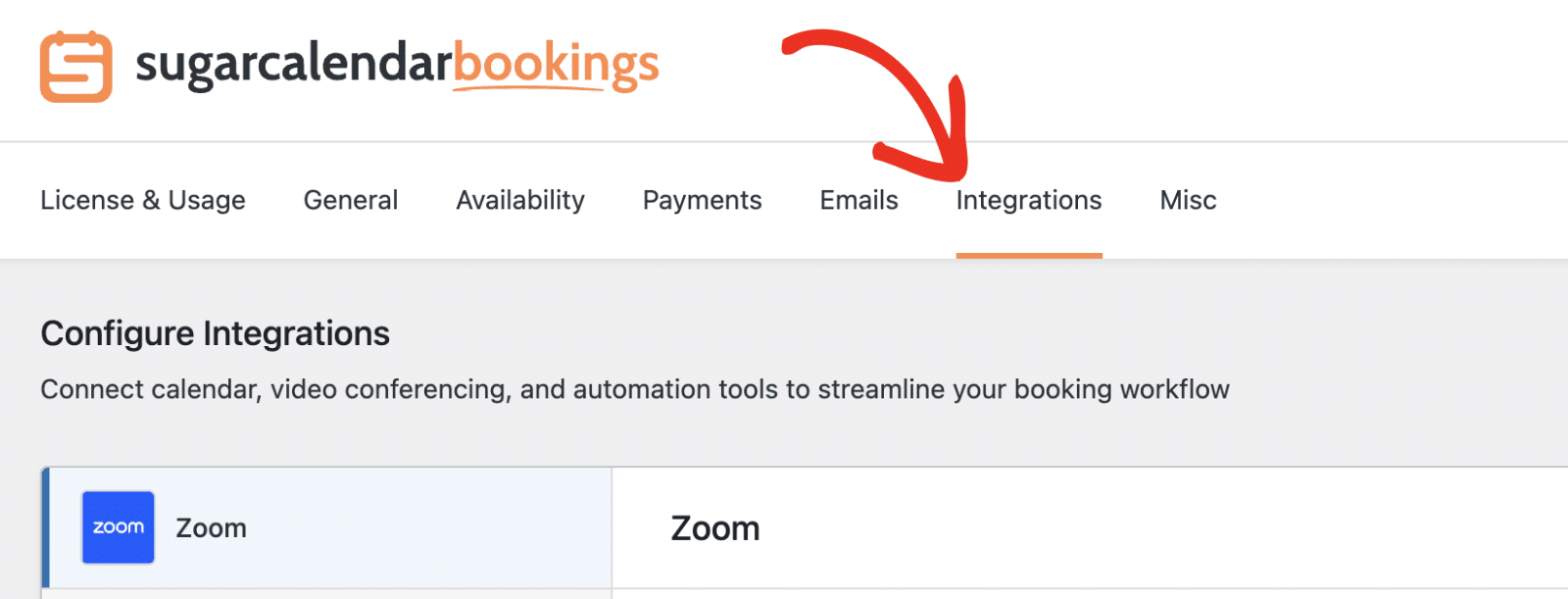
The Integrations tab is where you connect and manage external calendar and conferencing services.
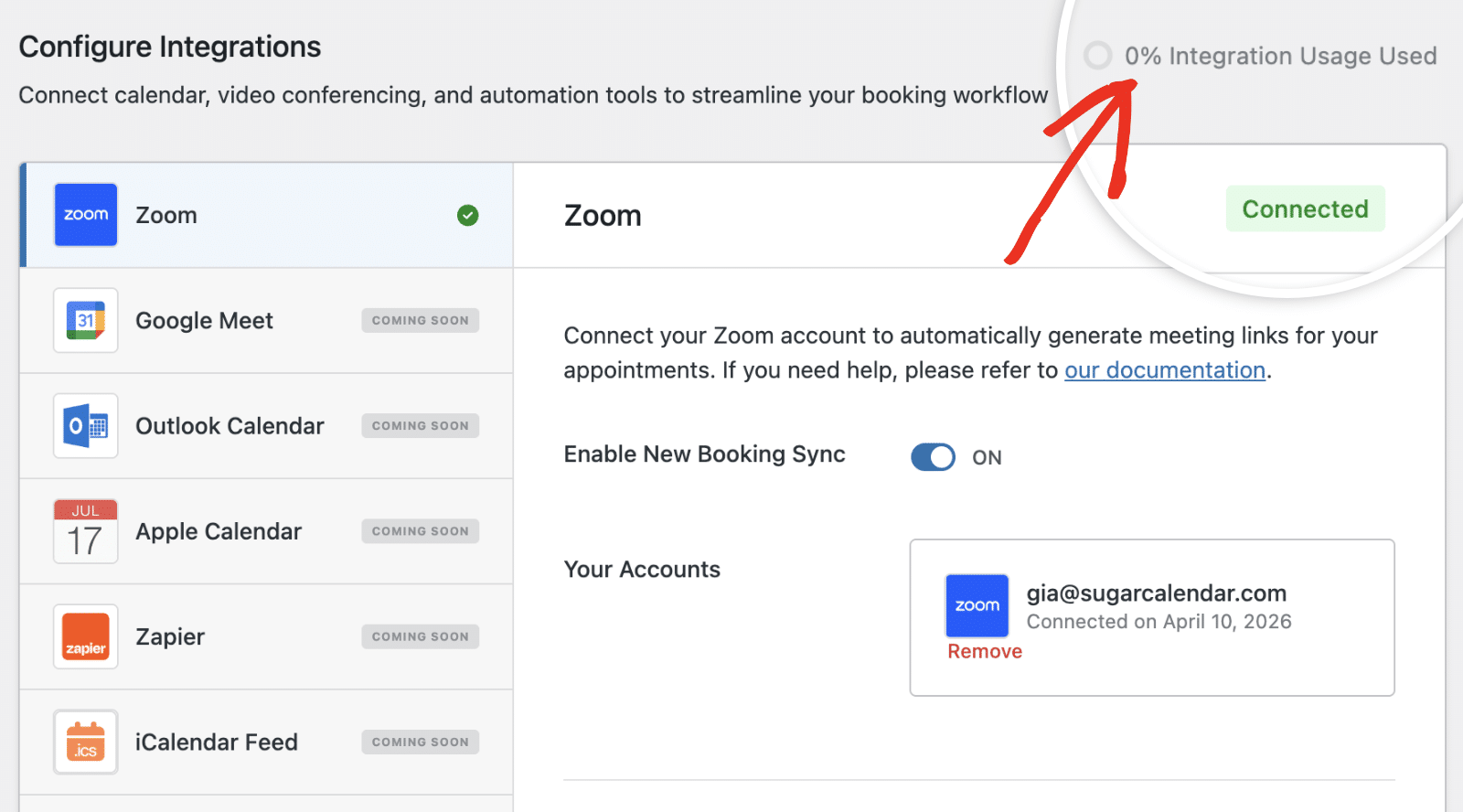
The page uses a two-column layout: the left sidebar lists all available integrations, and clicking one loads its connection settings and status on the right.
Each integration displays one of the following statuses:
- Connected — the integration is active and syncing
- Disabled — the integration has been turned off by an admin (employees see this as “Disabled by admin”)
- Out of Credits — the account’s monthly integration credit limit has been reached; new connections are paused until credits reset or the plan is upgraded
- Paused — the employee has paused their own sync (employee accounts only)
Admins also see an integration credit usage indicator near the top of the page. Clicking it opens a popup showing your current credit balance and plan limit.
Anti-Spam
The Anti-Spam tab lets you protect your booking forms from bot submissions by adding a CAPTCHA challenge. You can choose between two providers, or turn protection off:
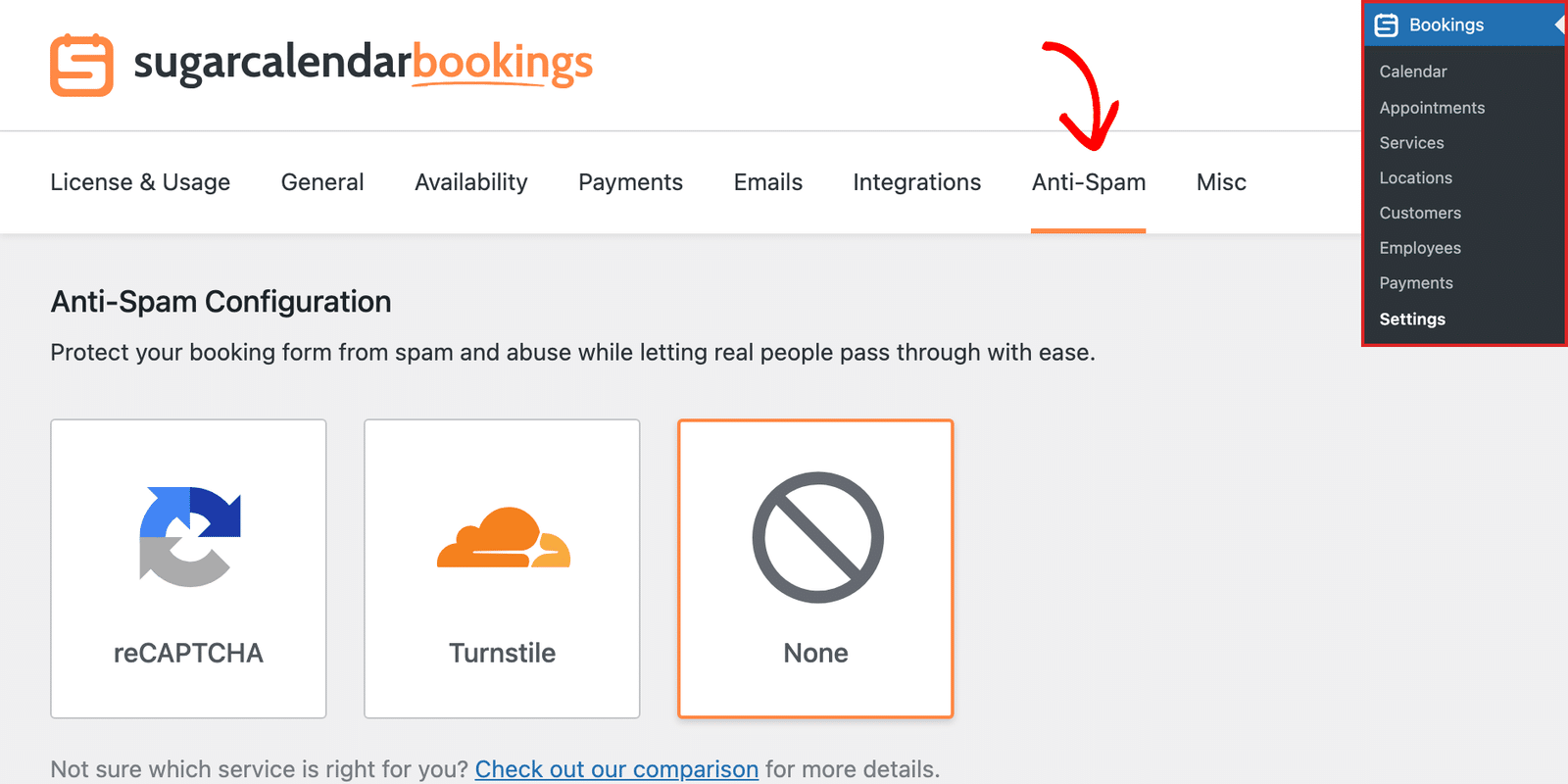
- reCAPTCHA: Google’s anti-spam service, with Checkbox v2, Invisible v2, and v3 methods. See How to Set Up Google reCAPTCHA.
- Turnstile: Cloudflare’s privacy-friendly, low-friction alternative. See How to Set Up Cloudflare Turnstile.
- None: No spam protection is applied to your booking forms.
For a full walkthrough of the available options, see Enabling Spam Protection on Booking Forms.
Misc
The Misc tab (Miscellaneous) contains utility options for controlling plugin behavior and managing plugin data.
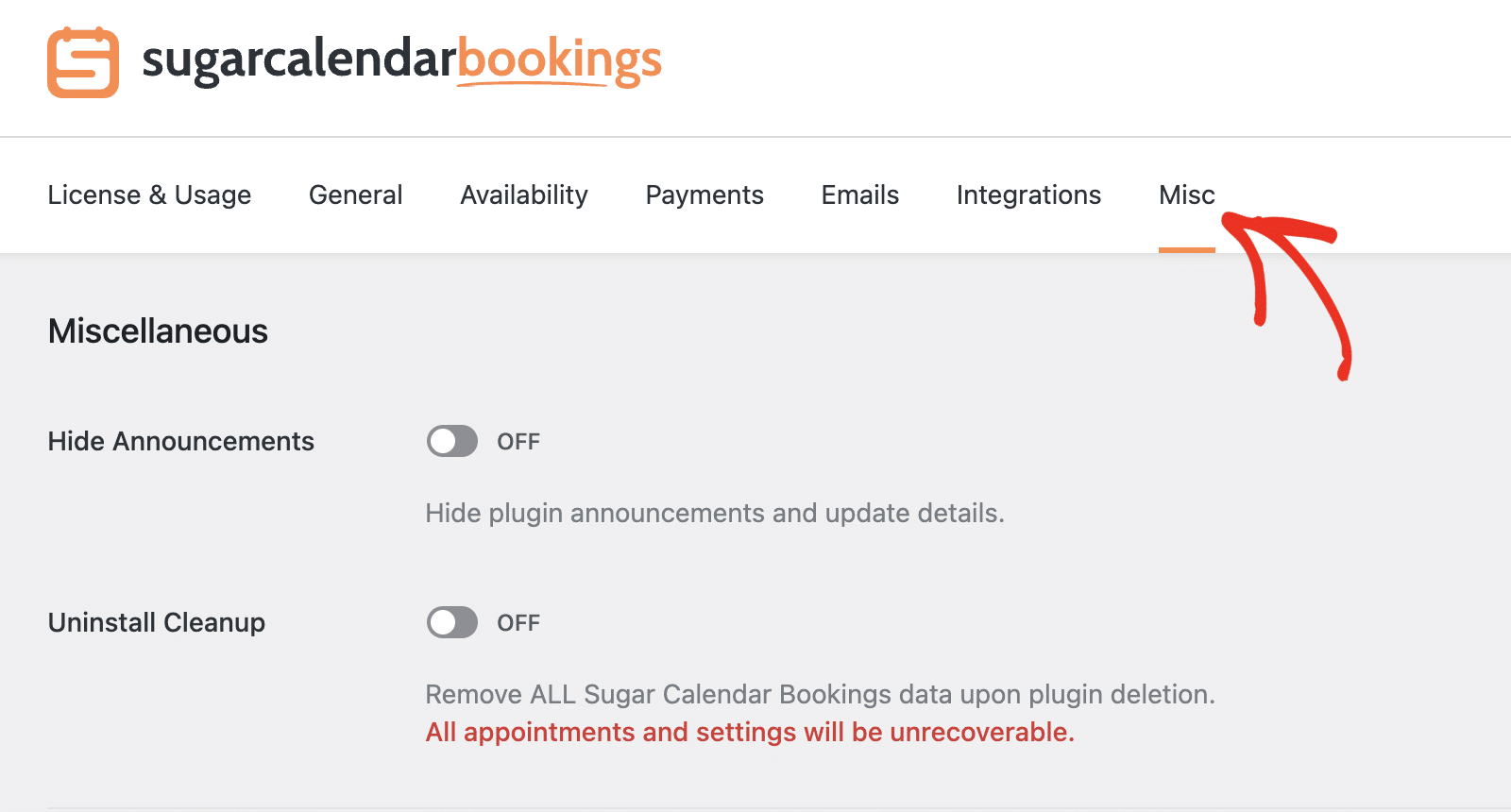
Hide Announcements
Enable Hide Announcements to suppress in-plugin notifications and promotional messages. This is useful for keeping the admin interface distraction-free on production sites.

Uninstall Cleanup
The Delete Sugar Calendar Data option removes all plugin data from your database when the plugin is uninstalled. Leave this off if you plan to reinstall the plugin and want to keep your existing bookings, settings, and configurations.

Saving Your Settings
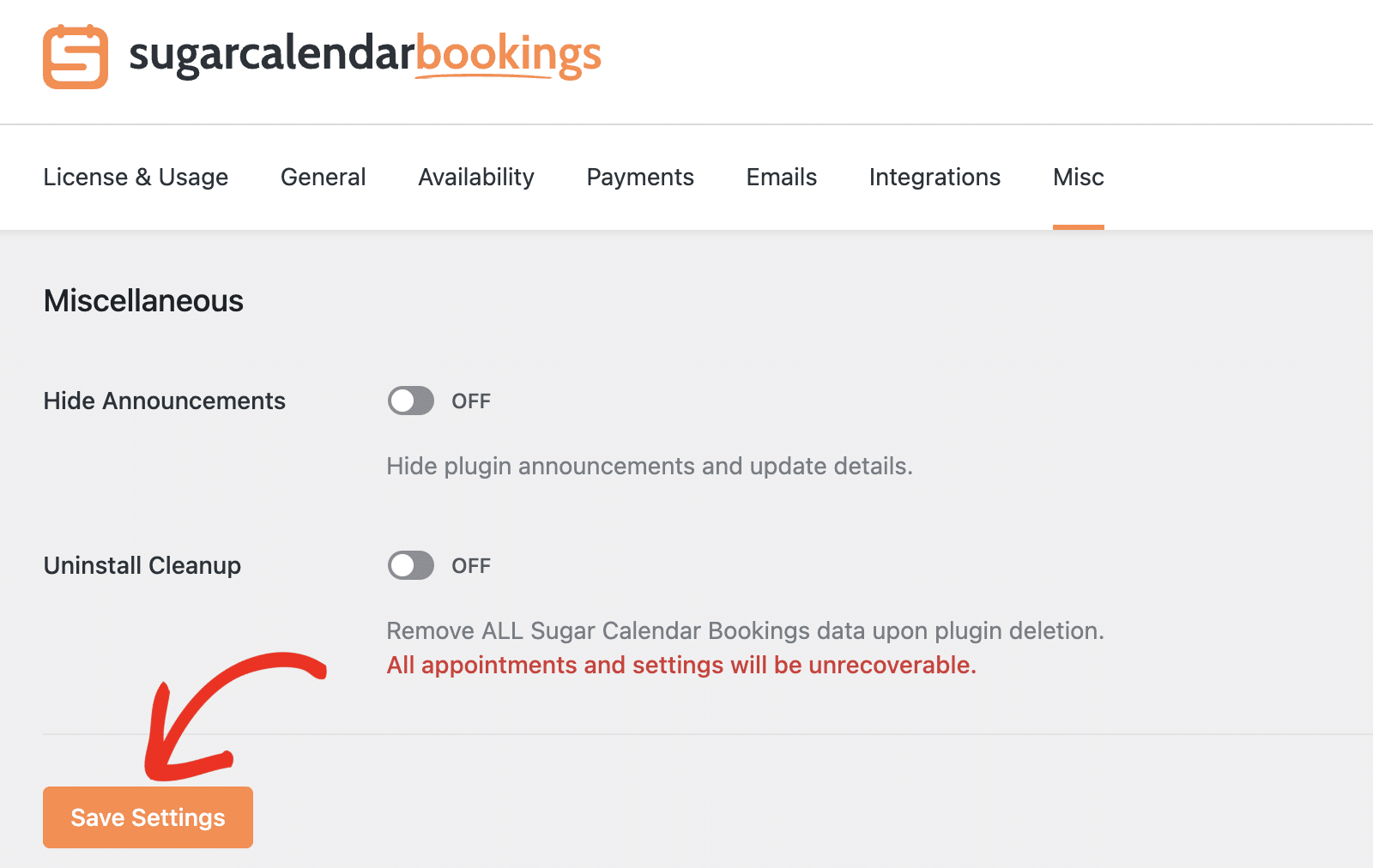
After adjusting your preferences in each tab, click Save Settings to ensure all your changes are applied.
That’s it! You’ve successfully configured your settings in Sugar Calendar Bookings.
Next, would you like to create your first service? Be sure to check our tutorial for details on creating bookable services in Sugar Calendar Bookings.

