


Would you like to use Cloudflare Turnstile to prevent spam submissions on your booking forms in Sugar Calendar Bookings? Cloudflare Turnstile is a free, CAPTCHA-like alternative that offers a user-friendly experience by confirming visitors are real humans without showing them any puzzles.
This tutorial covers how to set up and use Cloudflare Turnstile with Sugar Calendar Bookings.
In This Article
Before you get started, ensure Sugar Calendar Bookings is installed and activated on your WordPress site and that you’ve verified your license.
Generating Cloudflare Turnstile API Keys
To get started, you’ll need to create a Cloudflare account and generate API keys for your site.
Adding Your Site in Cloudflare
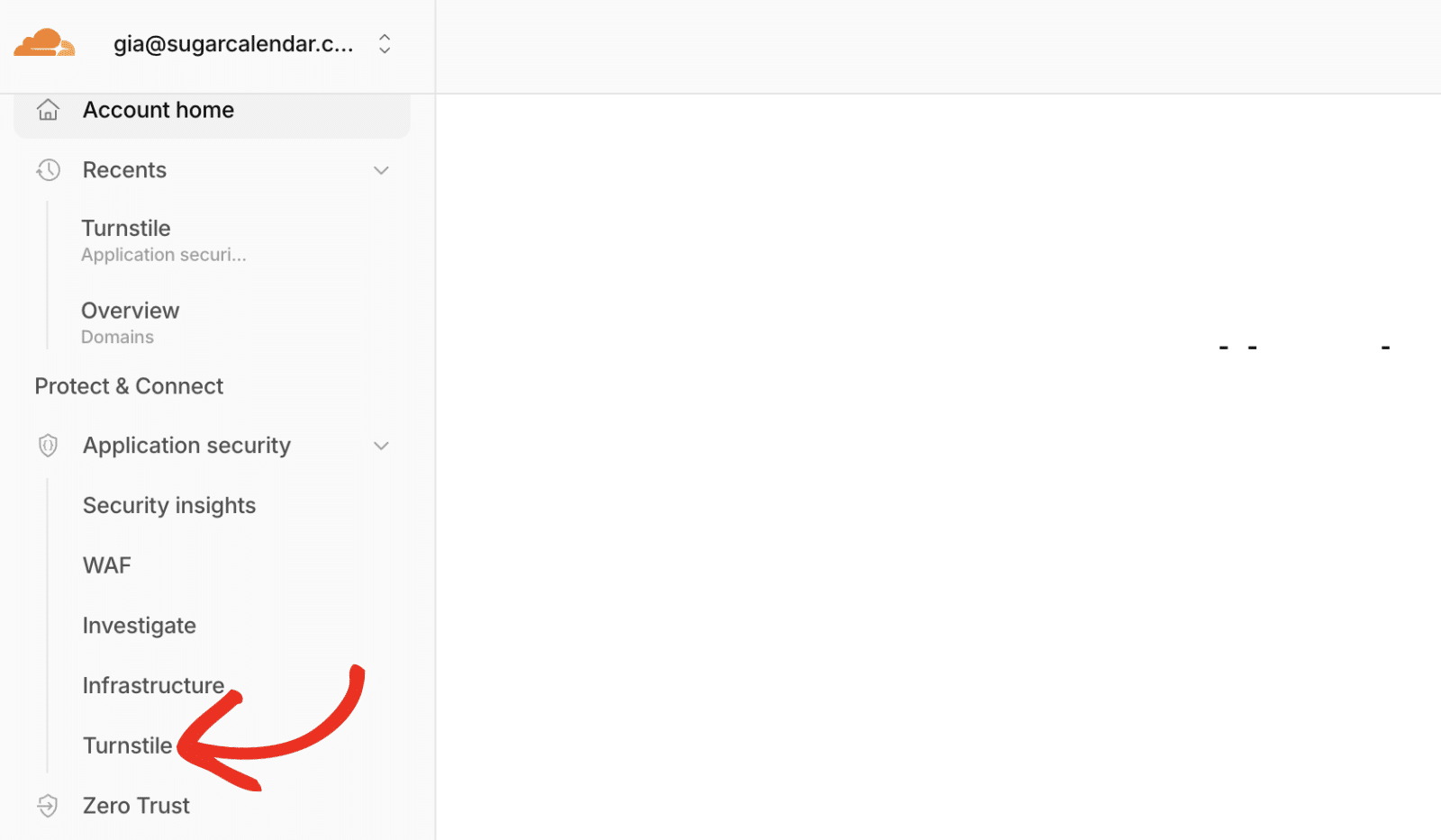
First, log in to your Cloudflare account. Once you’re logged in, navigate to the Application security » Turnstile menu from the sidebar.
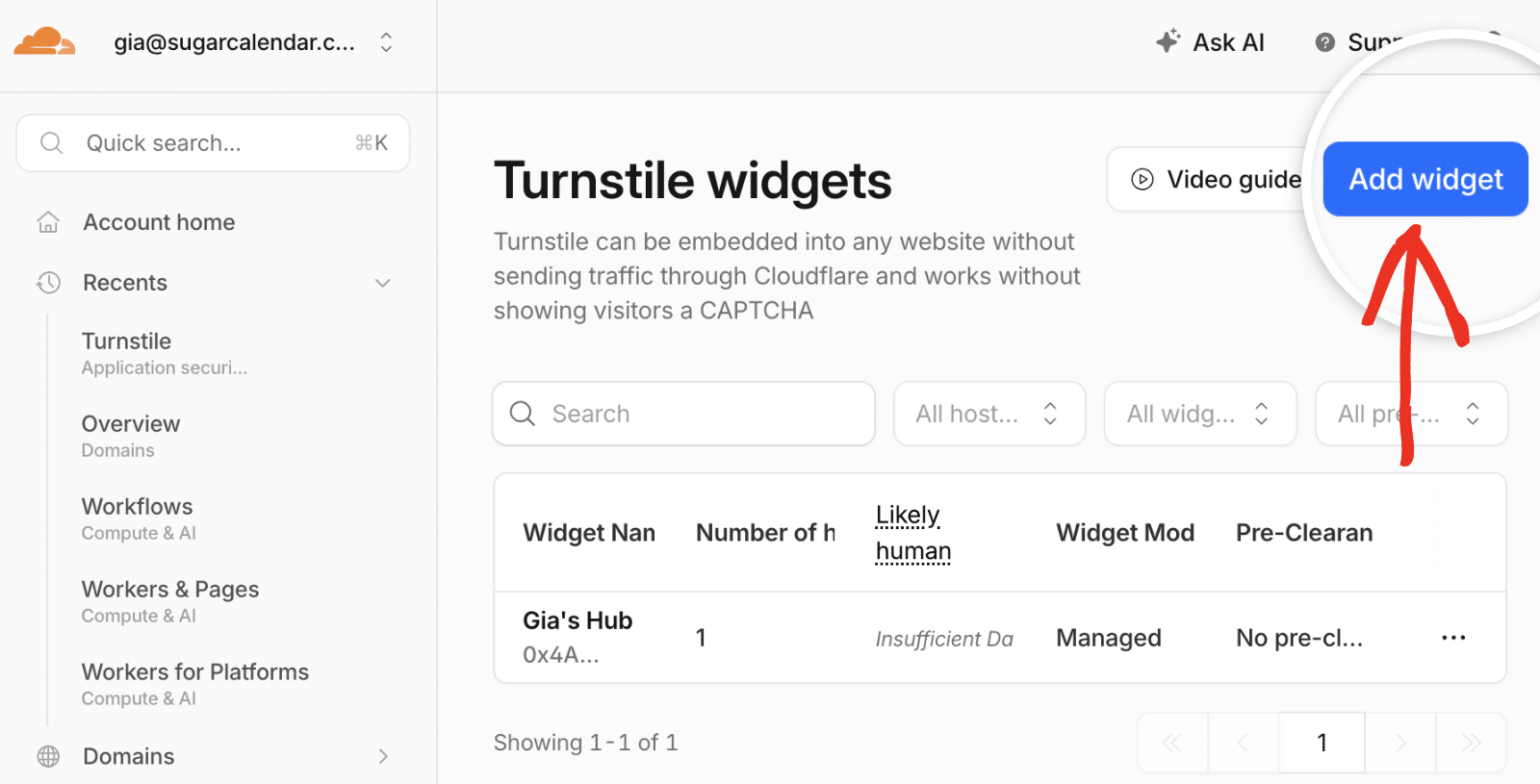
Next, click on the Add widget button.
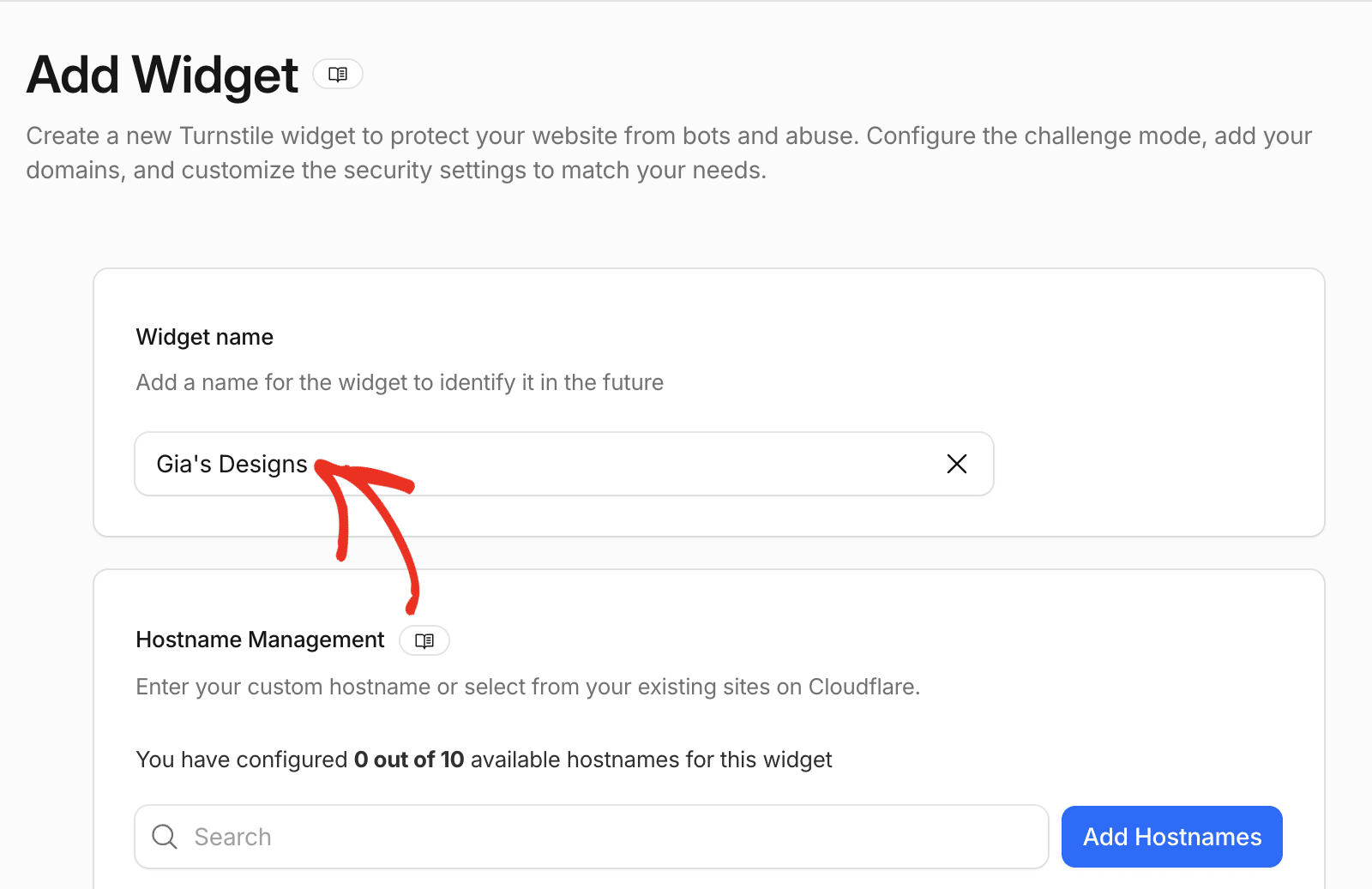
In the Widget setup page, enter a name for your widget in the Widget name field. This name is for internal use only to help you identify widgets on your Cloudflare account.
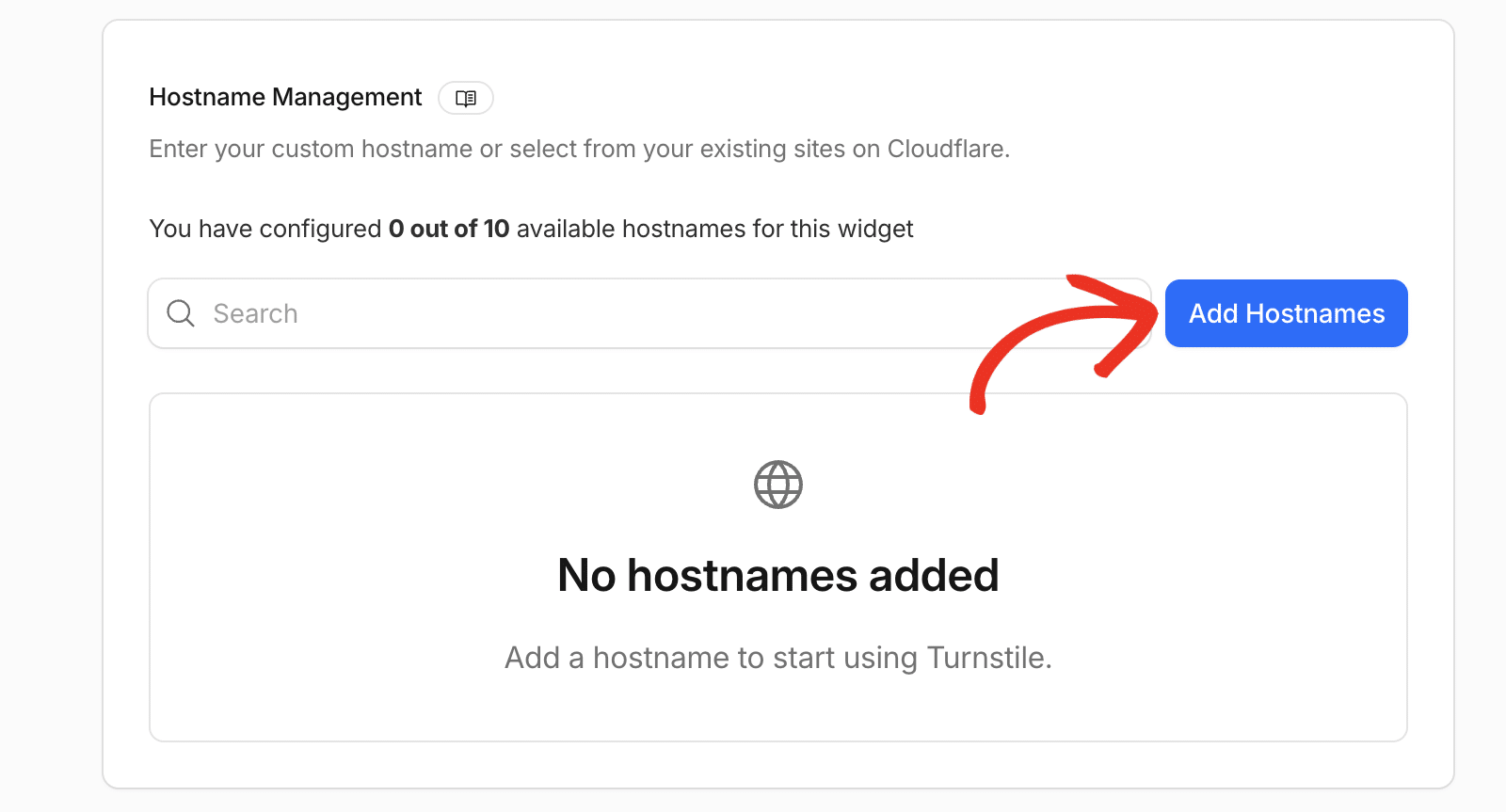
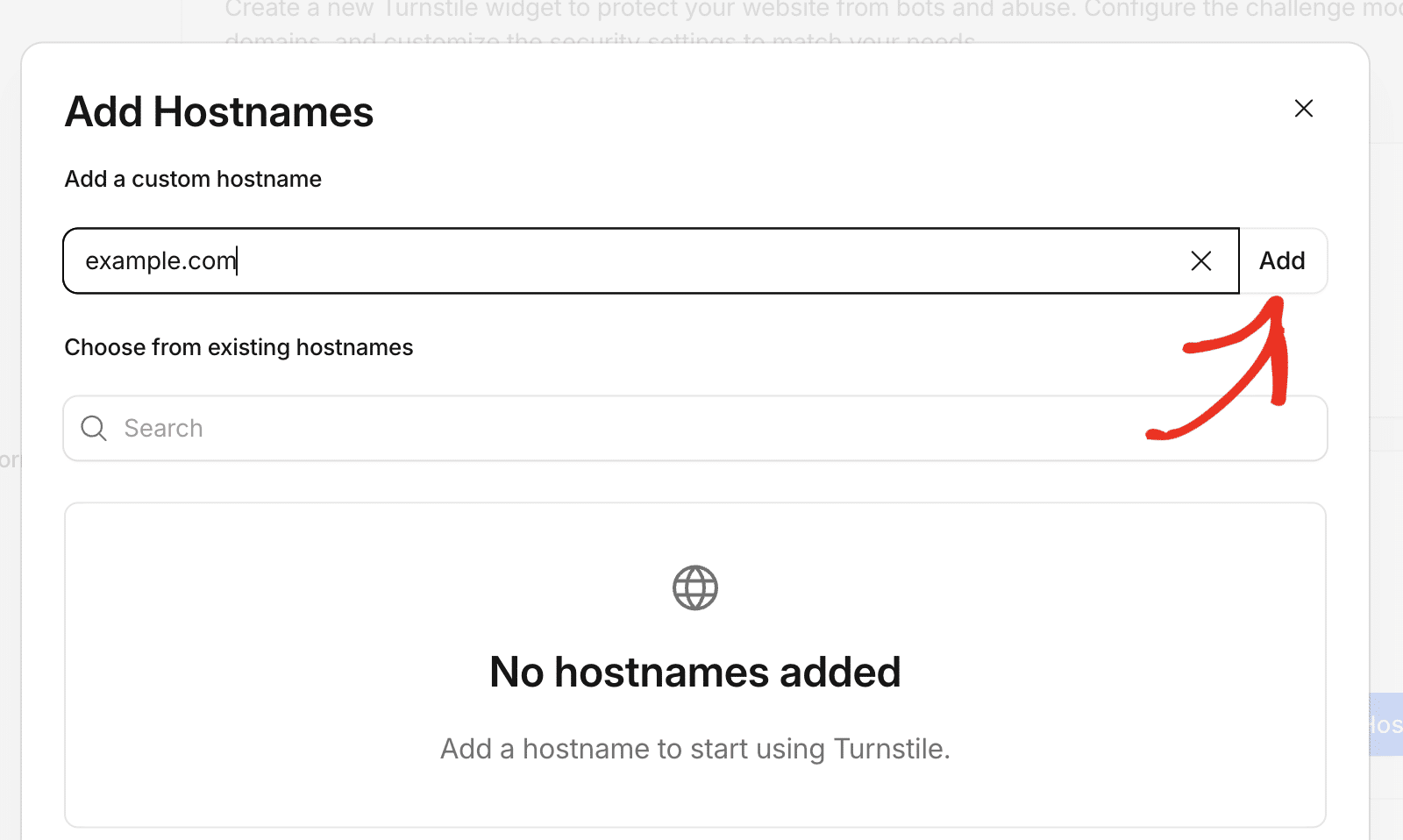
Next, under Hostname Management, click the Add Hostnames button.
In the Add a custom hostname field, enter your site’s domain (e.g., example.com) and click the Add button.
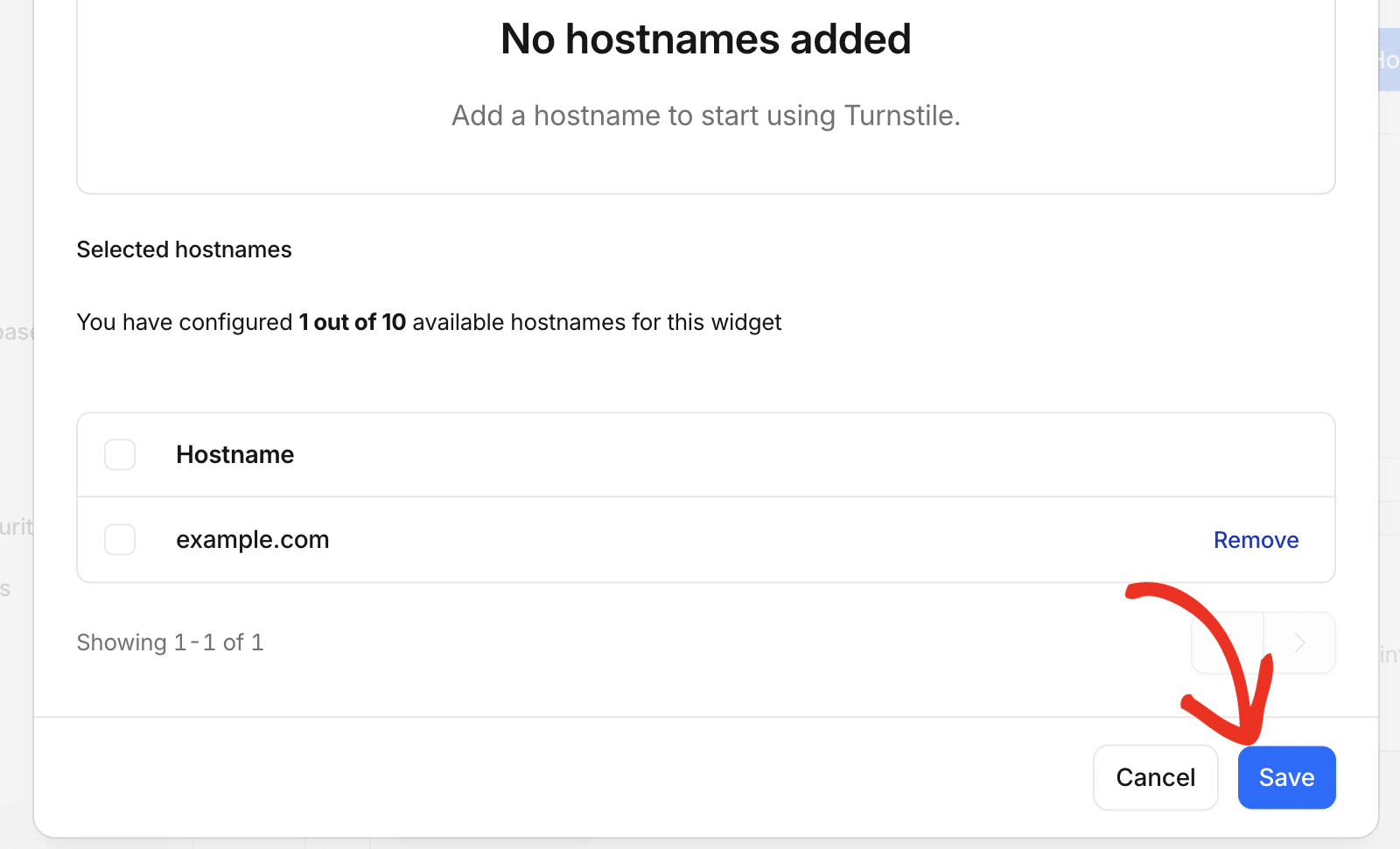
Once your hostname appears in the list, click the Save button at the bottom of the panel to confirm.
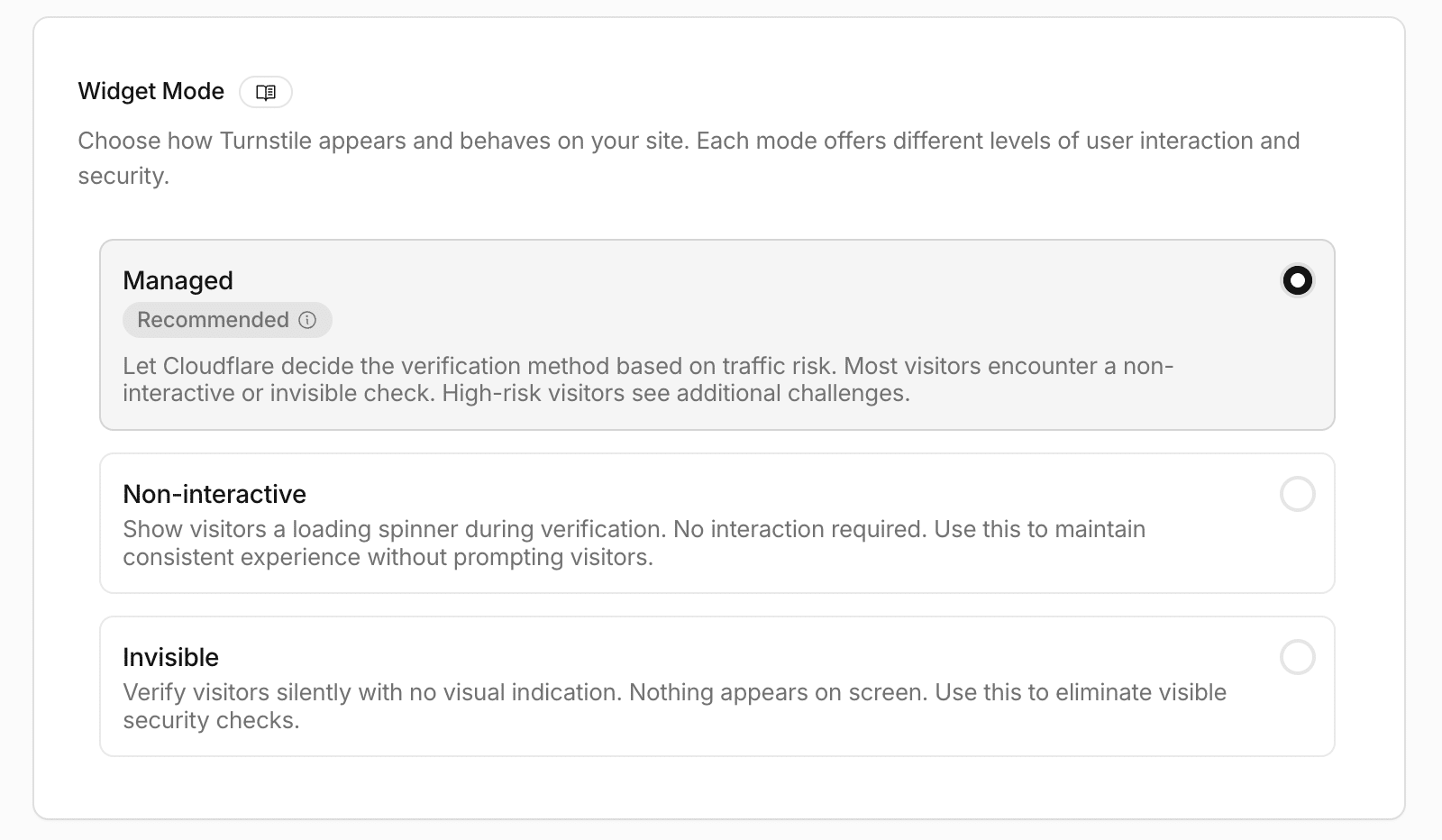
Next, you’ll need to configure the widget mode. We recommend keeping this set to Managed, which is the default option.
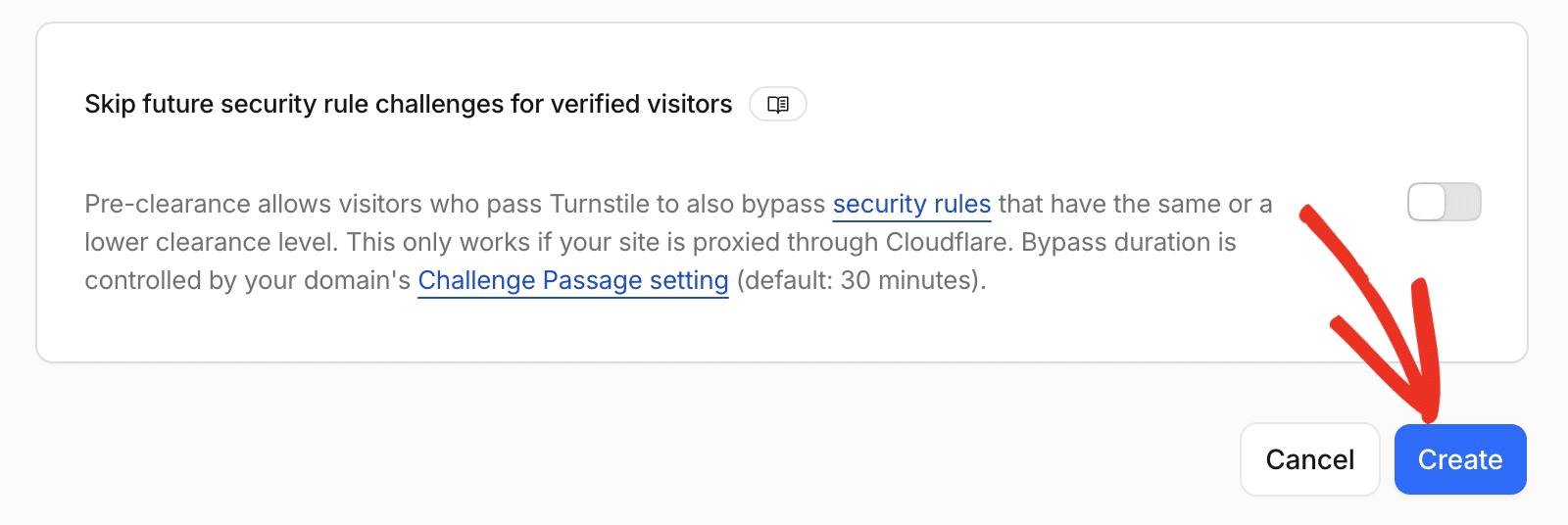
Finally, click the Create button to generate your API keys.
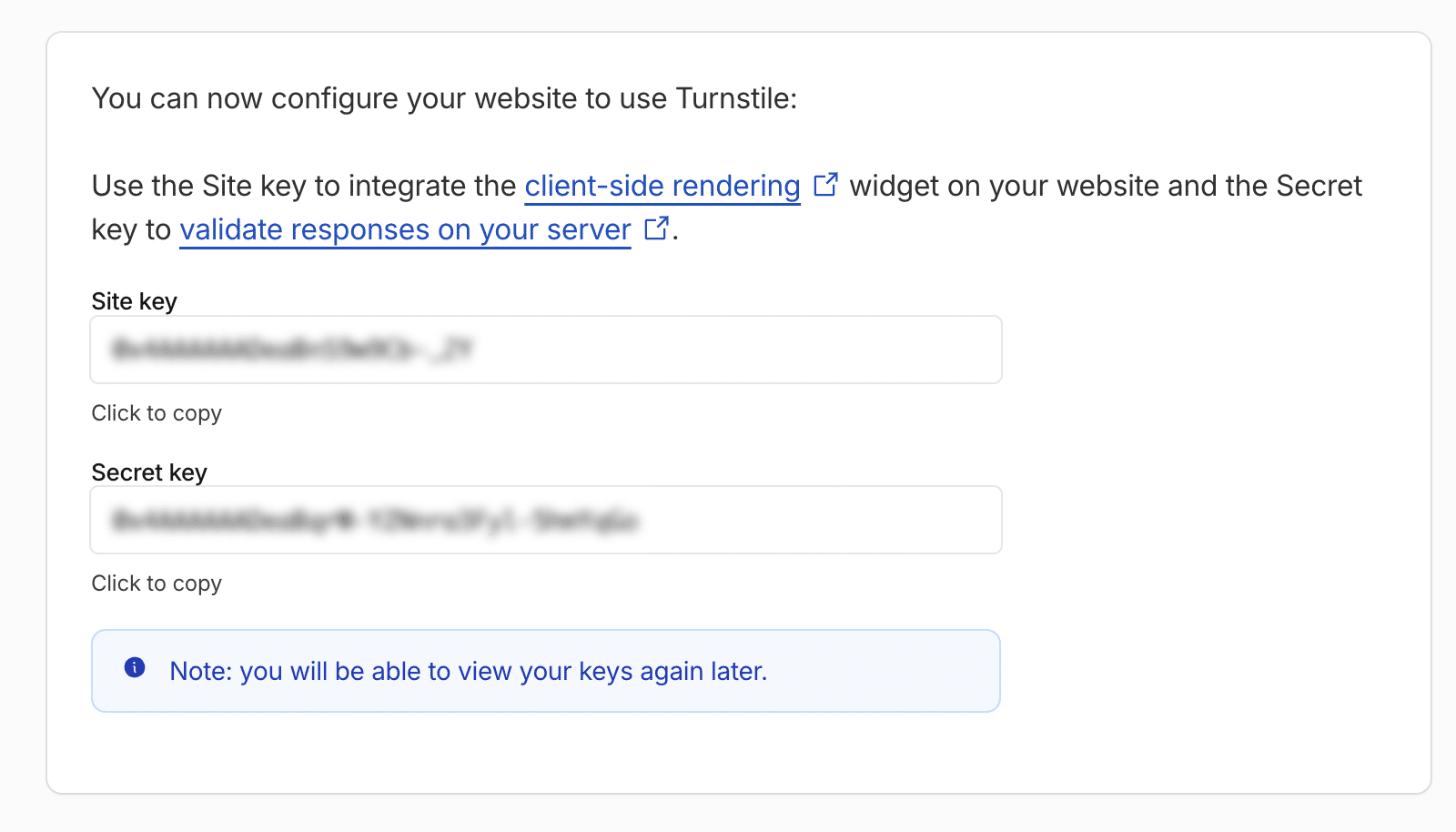
Once done, Cloudflare will generate your Site Key and Secret Key. Make note of these as you’ll need them to configure Sugar Calendar Bookings.
Configuring Booking Form Spam Prevention
Now that you have your Cloudflare Turnstile API keys, it’s time to configure Sugar Calendar Bookings to use them.
In your WordPress admin area, go to Bookings » Settings and click on the Anti-Spam tab.
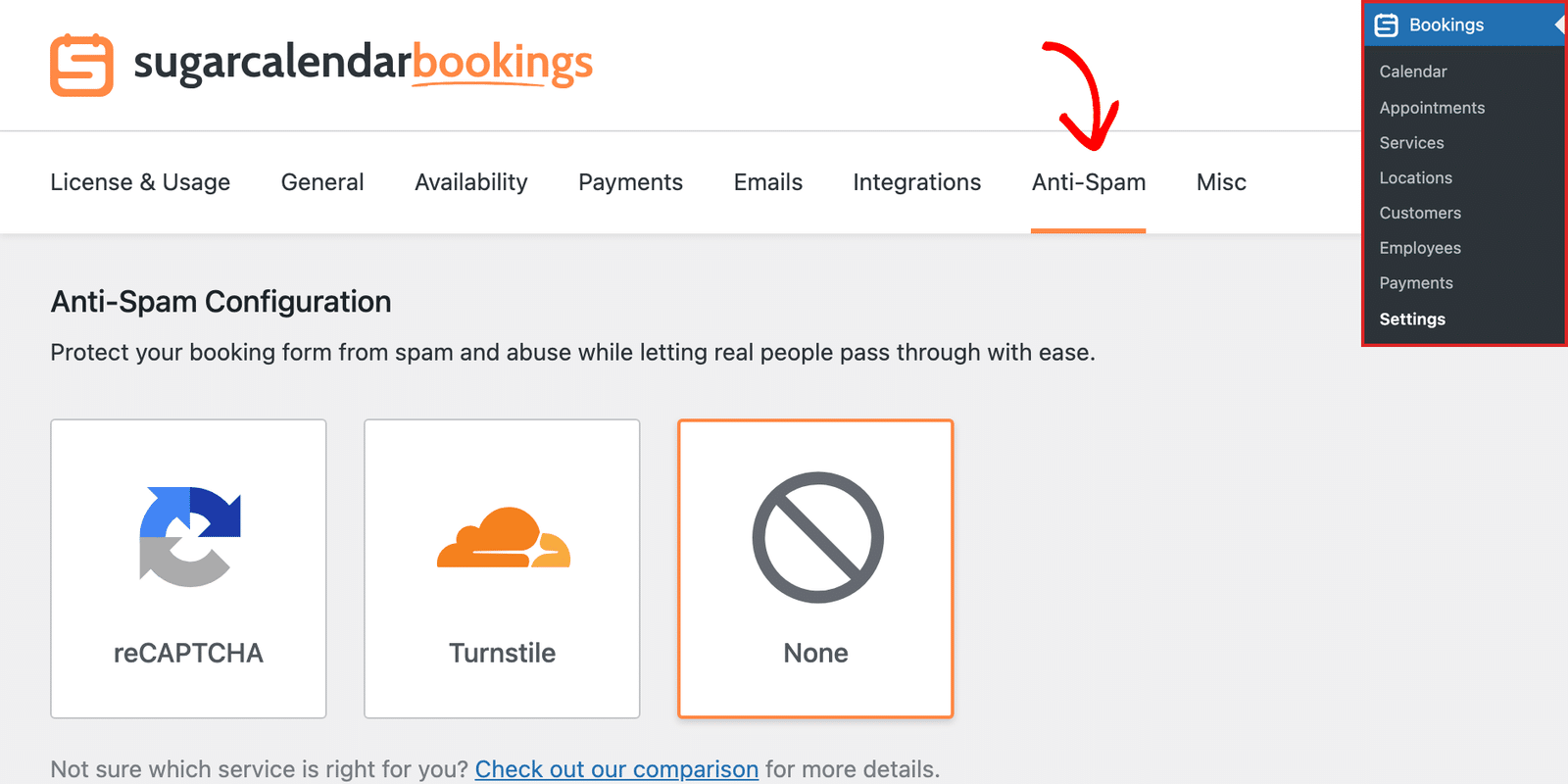
Next, select the Turnstile option to enable Cloudflare Turnstile for your booking forms.
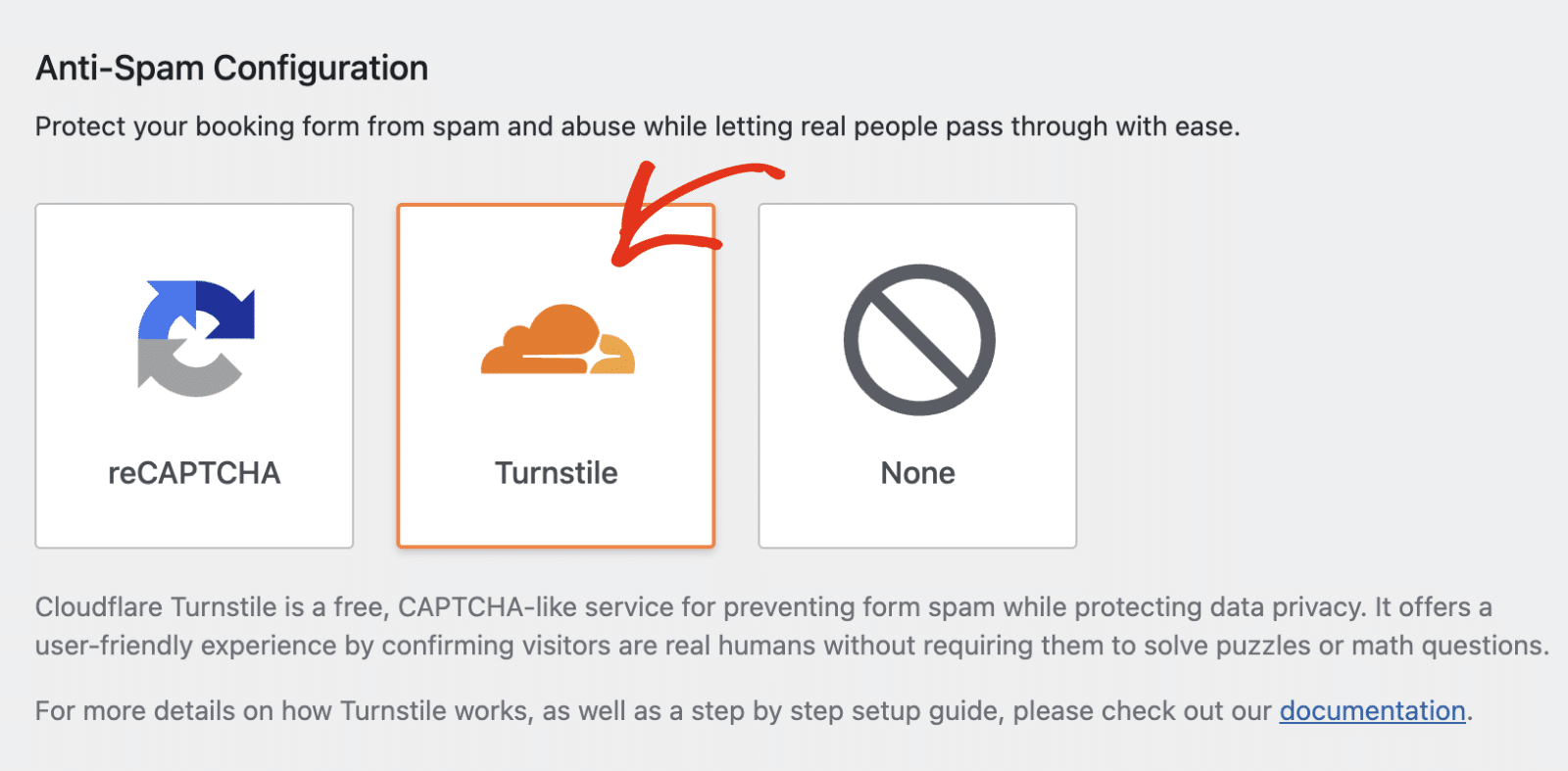
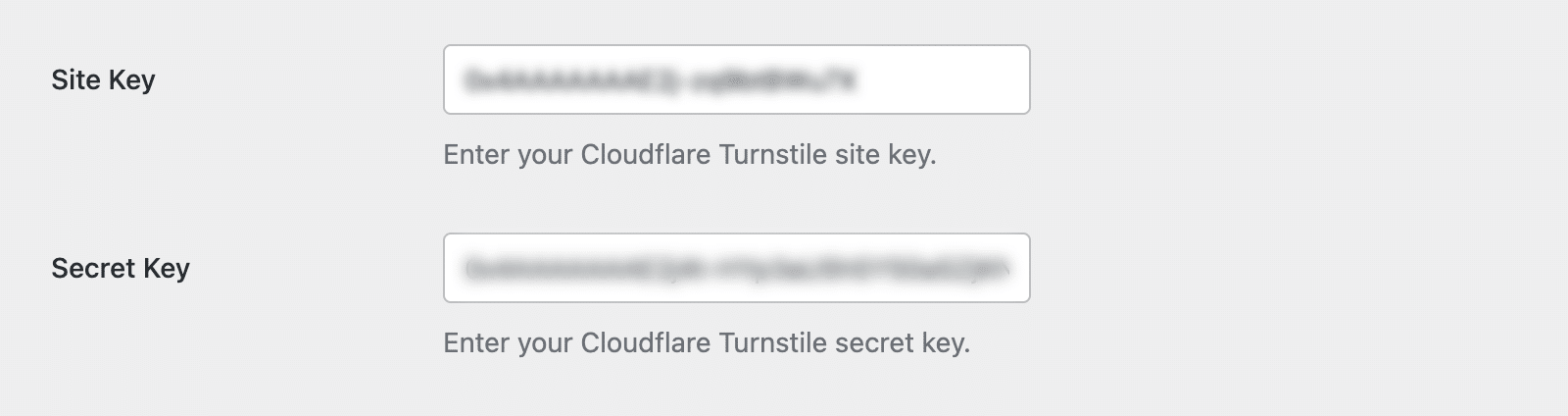
After selecting Turnstile, additional configuration options will appear. Enter your Cloudflare Turnstile Site Key and Secret Key in their respective fields.
Configuring Additional Settings
Below the API keys, you can configure additional settings for the Cloudflare Turnstile widget:
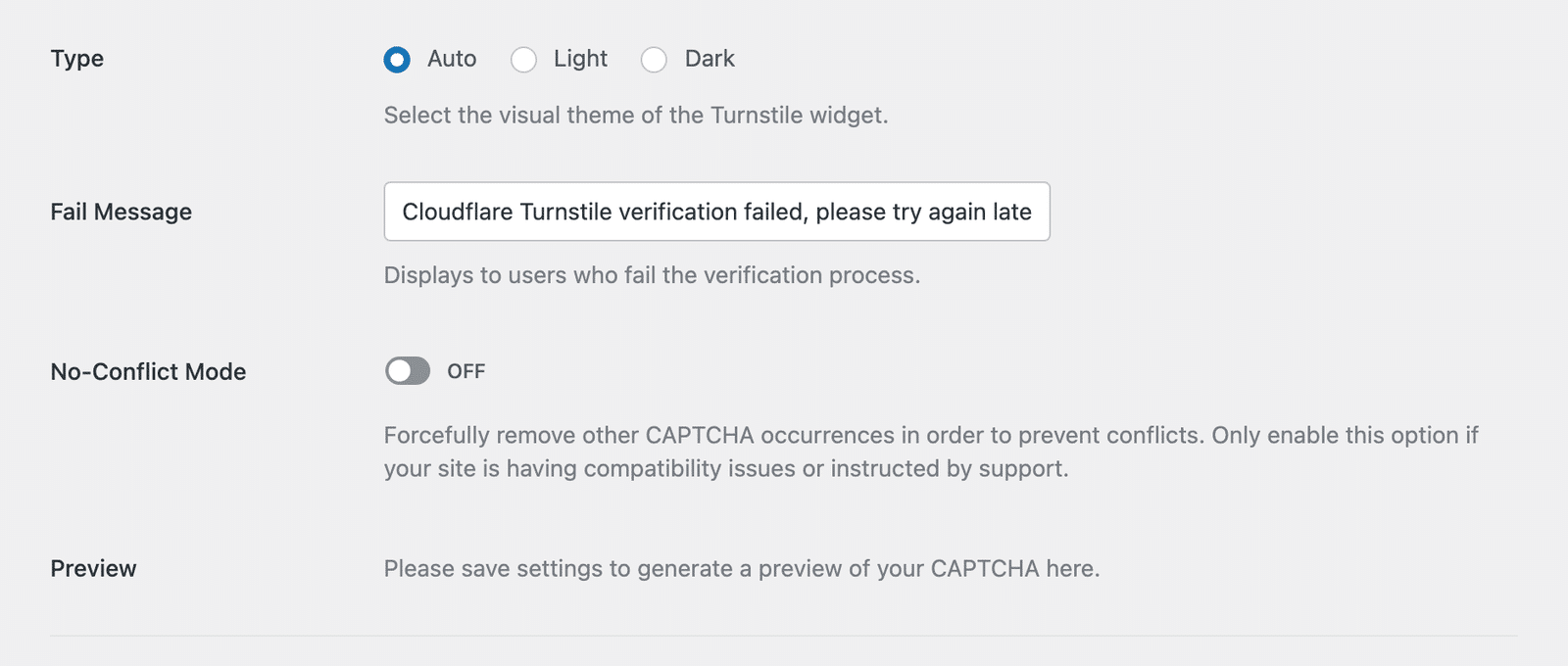
- Type: Choose the visual appearance of the Turnstile widget — Auto (switches between Light and Dark based on the visitor’s device settings), Light, or Dark.
- Fail Message: Customize the error message that appears when Turnstile verification fails. The default message is “Cloudflare Turnstile verification failed, please try again.”
- No-Conflict Mode: Enable this if Cloudflare Turnstile is being loaded multiple times on your site and causing conflicts. It removes other CAPTCHA occurrences to prevent conflicts.
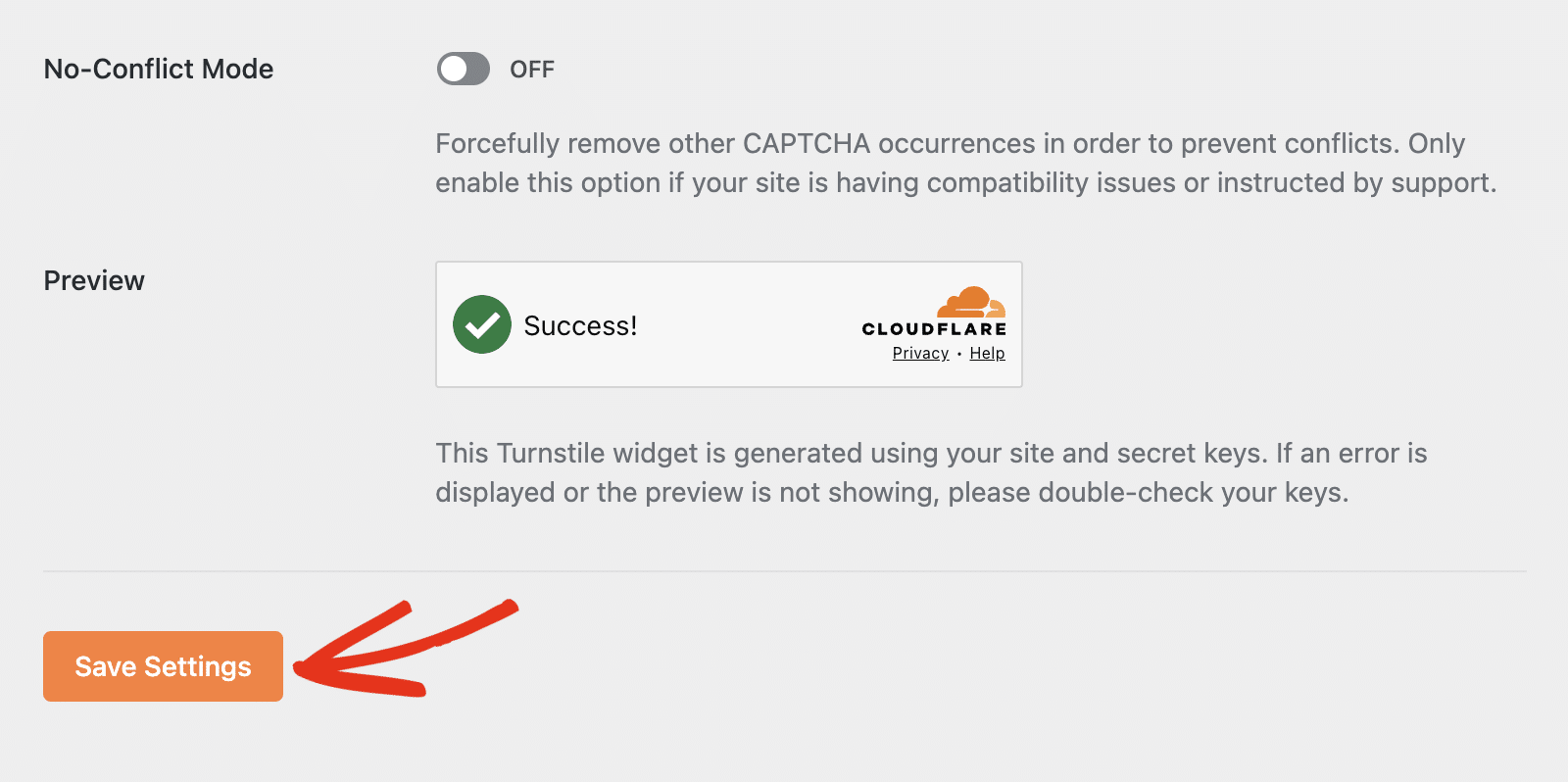
After configuring all settings, click the Save Settings button to apply your changes.
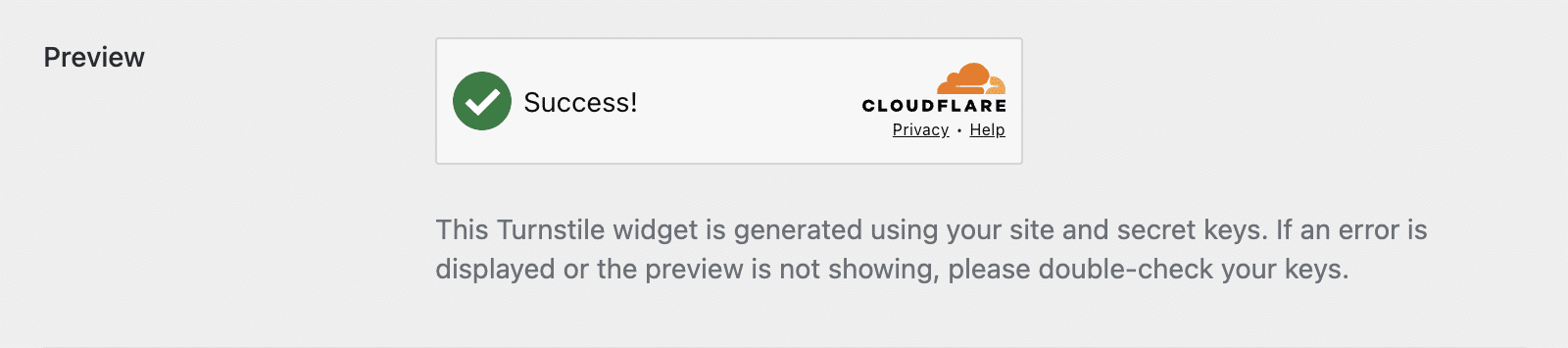
If everything is configured properly, you’ll see a preview of the Cloudflare Turnstile widget.
Testing Cloudflare Turnstile
Once you’ve configured Cloudflare Turnstile, it’s important to test that it’s working properly on your booking forms.
To test the integration, visit a service booking page on your site’s frontend. When you attempt to book, you should see the Cloudflare Turnstile verification widget appear.
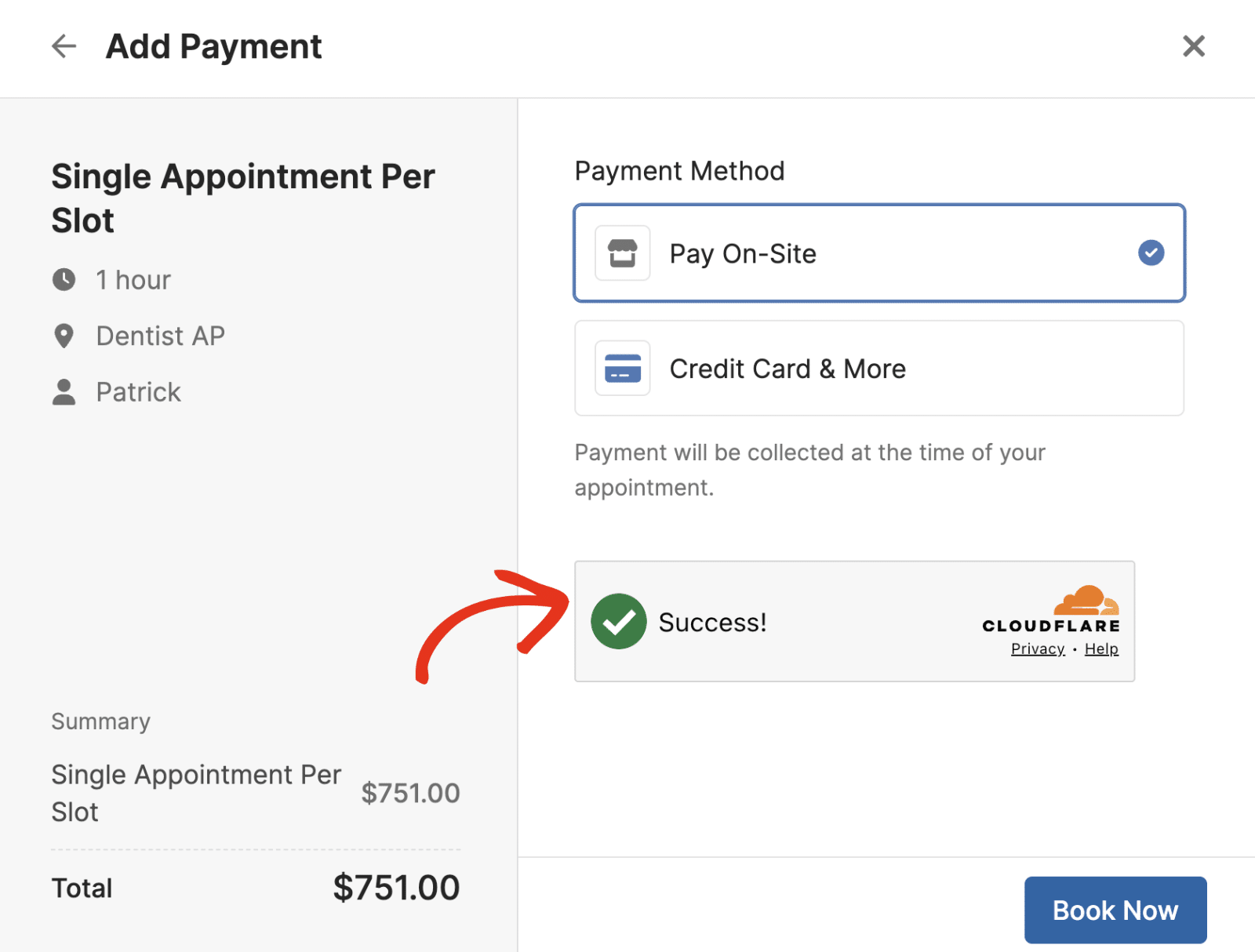
The widget will automatically verify that you’re a human visitor before allowing the booking to proceed.
Frequently Asked Questions
Below are answers to some of the most common questions about using Cloudflare Turnstile with Sugar Calendar Bookings.
What’s the difference between Turnstile and reCAPTCHA?
Cloudflare Turnstile provides a more user-friendly experience compared to traditional reCAPTCHA. While reCAPTCHA often requires users to solve puzzles or identify images, Turnstile typically verifies users automatically without requiring any interaction, making it less intrusive for your visitors.
Can I use Turnstile on multiple websites?
Yes, you can add multiple hostnames to your Cloudflare Turnstile widget configuration. This allows you to use the same Site Key and Secret Key across multiple websites.
Is Cloudflare Turnstile free to use?
Yes, Cloudflare Turnstile is completely free to use for protecting your forms from spam submissions.
What happens if Turnstile verification fails?
If a visitor fails the Turnstile verification process, they’ll see the custom fail message you configured, and their booking submission will not be processed. They’ll need to try submitting again to complete the verification.
That’s it! You’ve successfully set up Cloudflare Turnstile to protect your Sugar Calendar Bookings forms from spam submissions.
Next, would you like to let customers book a specific service directly? Check out our guide on managing booking services to learn how.

