


Would you like to learn more about all of the settings available in Sugar Calendar Events? In addition to tons of customization options for individual events, our plugin has an extensive list of plugin-wide options available.
This tutorial will cover all of the settings available in the Sugar Calendar Events plugin.
In This Article
Before you get started, make sure Sugar Calendar Events is installed and activated on your WordPress site.
Accessing Sugar Calendar Settings
To access plugin-wide settings in Sugar Calendar, go to Events » Settings from your WordPress admin area.
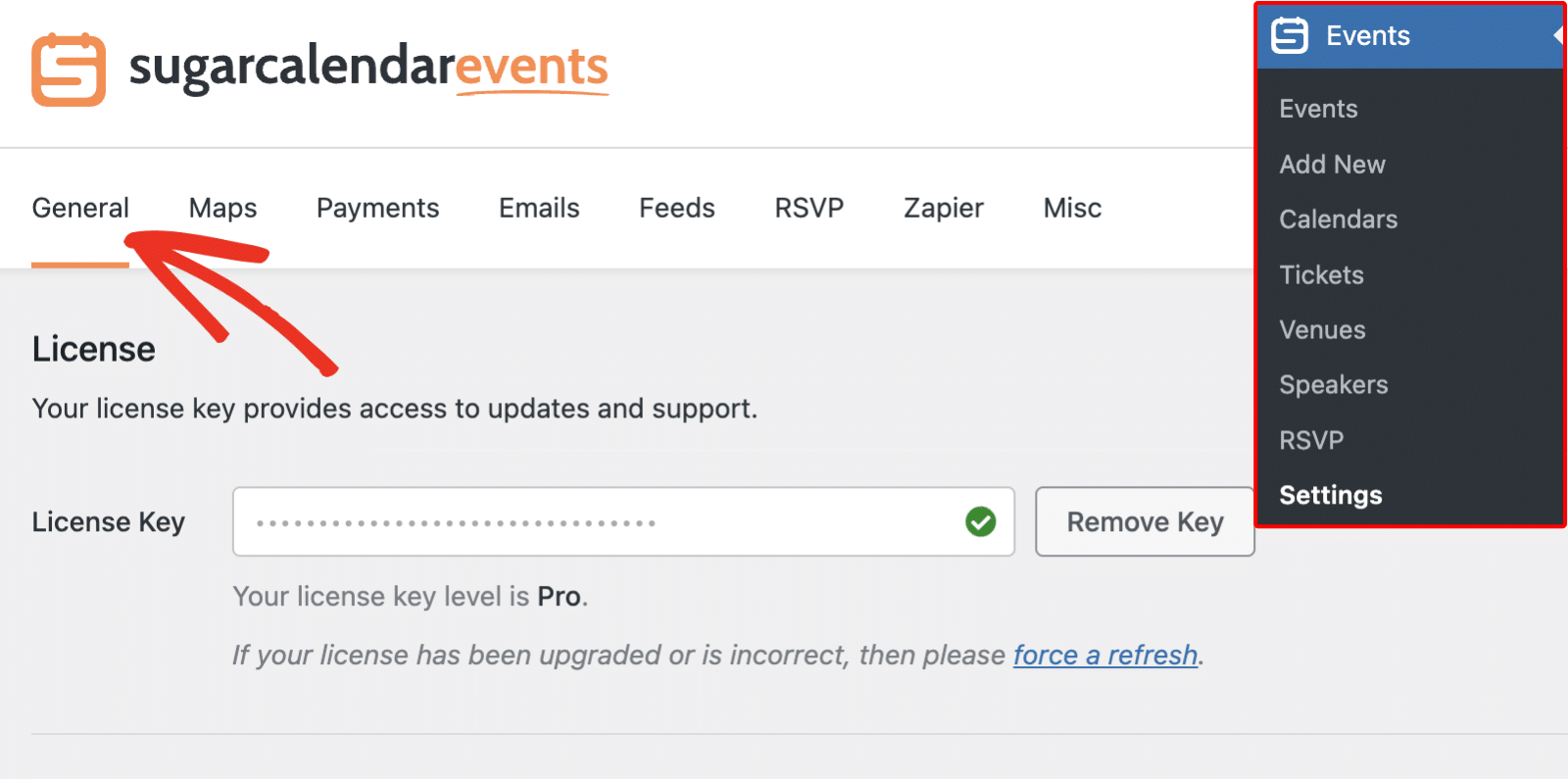
This will automatically open to the General settings tab. However, you can click on any tab along the top of the page to access additional settings.
General Settings
Settings in the General tab are relevant to all users, regardless of which features or addons you use.
License
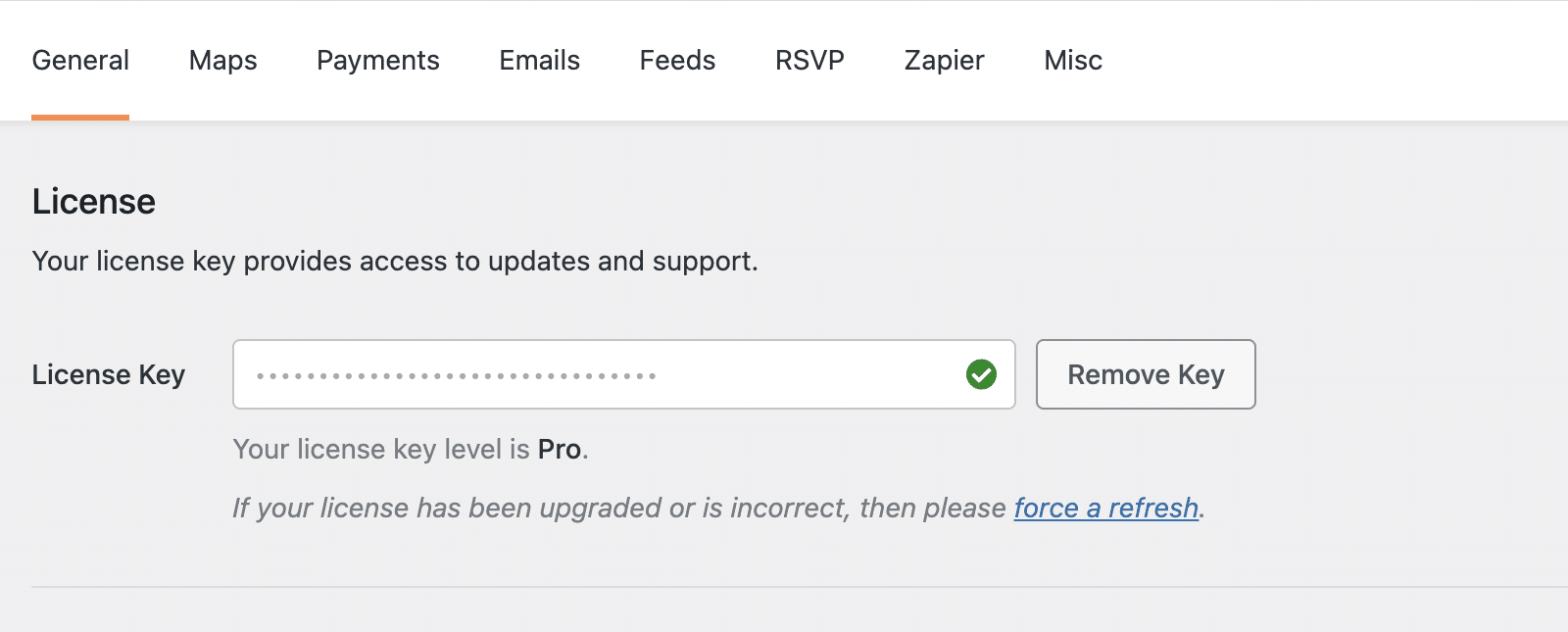
Your license key provides access to updates and support. By verifying your license, you’ll unlock automatic updates and access to premium features.
Display
Under Display, you can customize how events appear throughout your site:
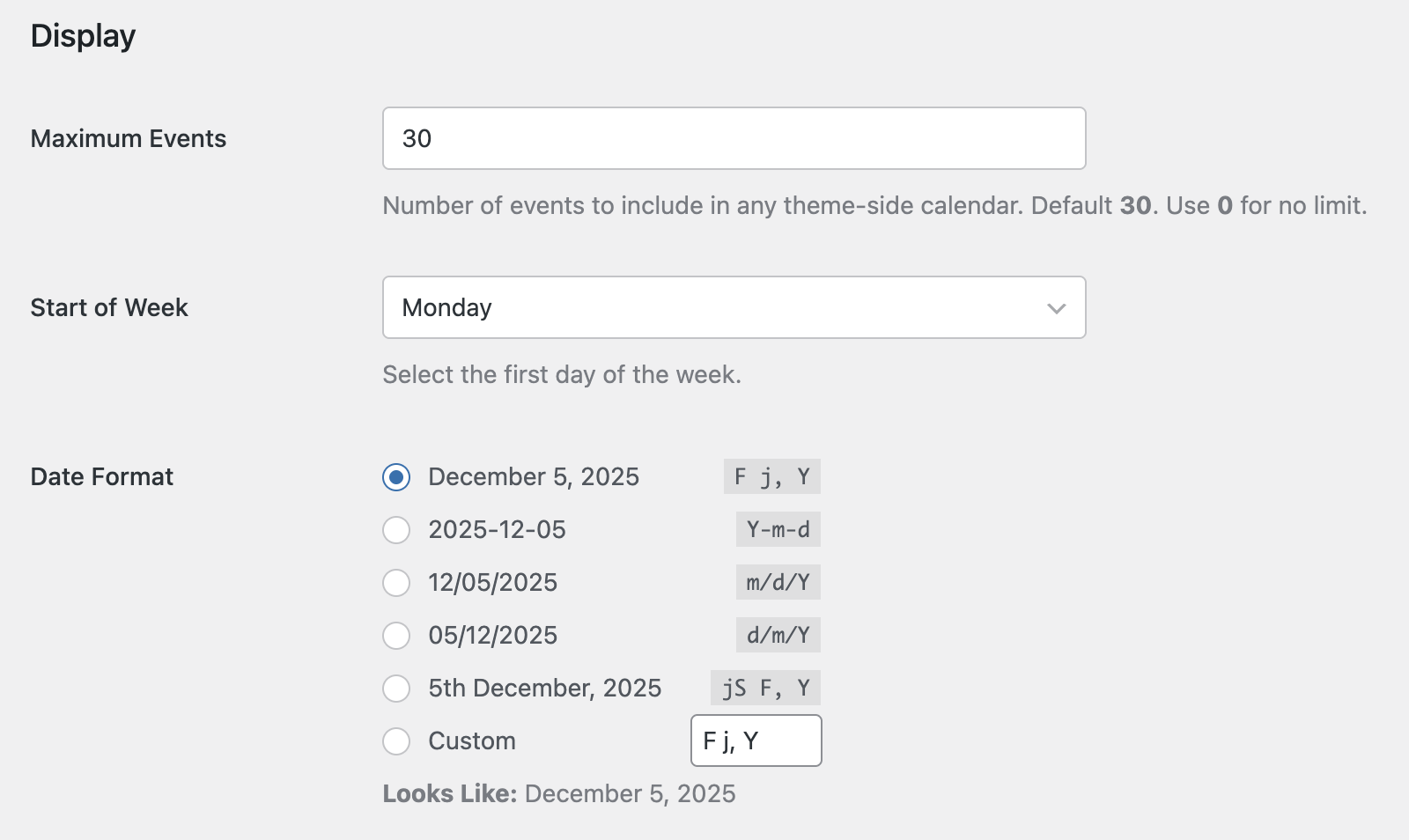
- Maximum Events: Number of events to include in any theme-side calendar. By default, it is set to 30. However, you can specify any value you want. Using 0 will remove the limit and display all events on your site.
- Start of Week: Use this option to select a default for the first day of the week for your calendars.
- Date Format: This option controls how event dates appear on your site’s frontend.
The Time Format setting lets you customize how event time appears when creating events and on your site’s frontend. You can choose between 12-hour and 24-hour time formats.
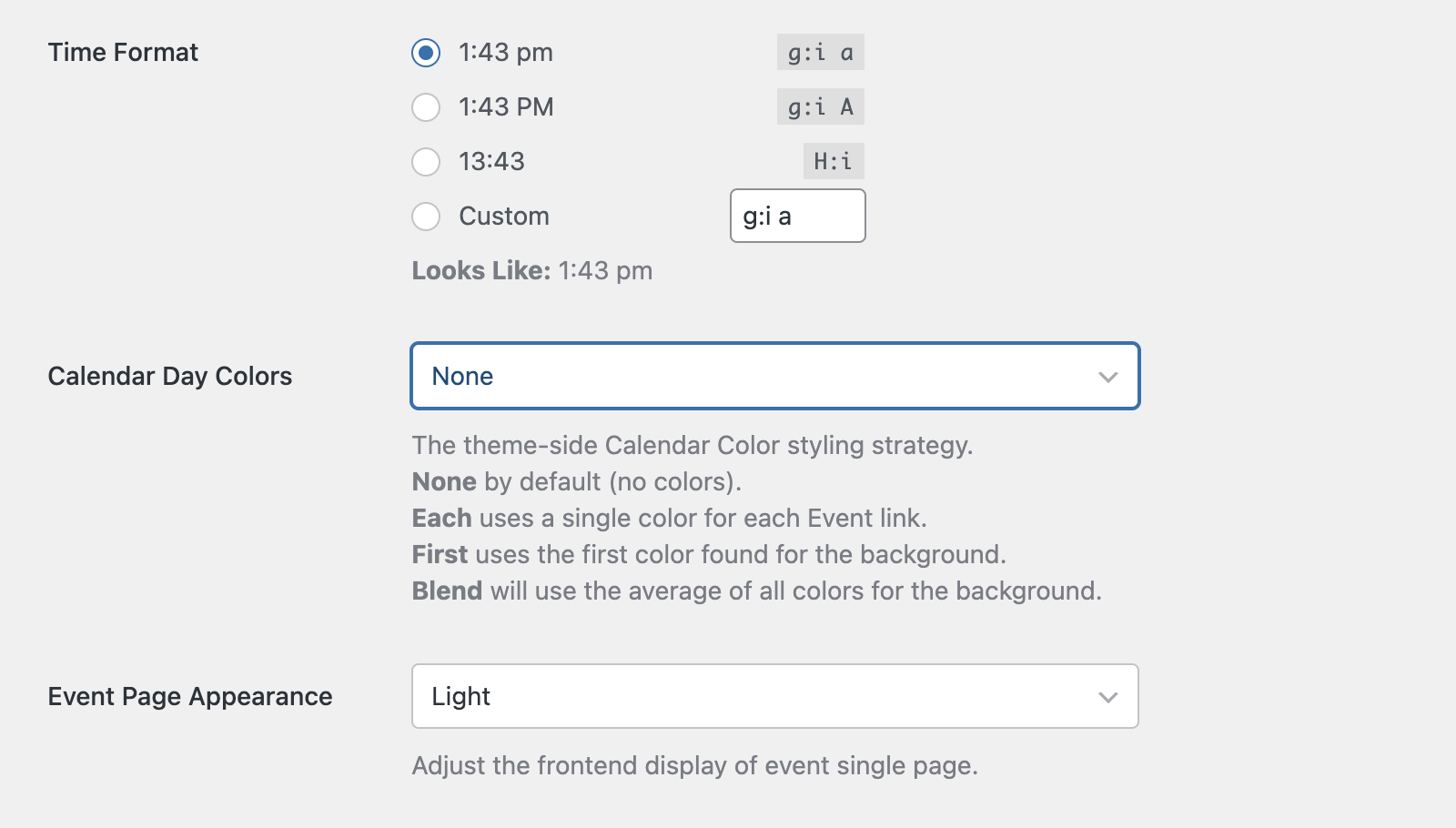
Calendar Day Colors: This option controls the theme-side calendar color styling. Below, we’ve highlighted the available options:
- None: This is the default option. And doesn’t include any colors
- Each: Uses a single color for each event link
- First: Automatically applies the first color found for the background
- Blend: This option uses an average of all colors for the background.
Event Page Appearance: This option lets you choose the frontend display format for your events. Available options include Light and Dark modes.
Editing
The Editor Type dropdown lets you choose which interface to use when adding or editing events. You can select between Classic Editor and Block Editor based on your preference.
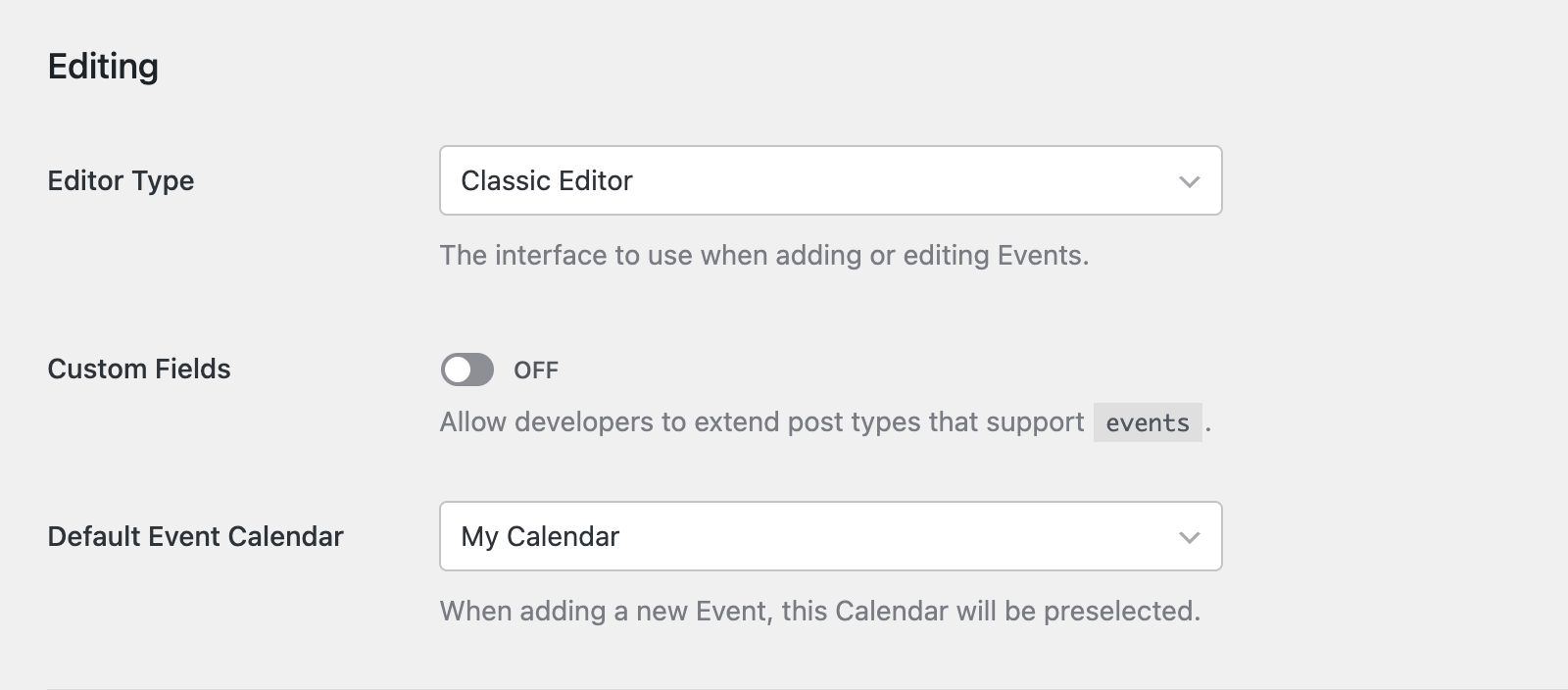
The Custom Fields option allows developers to extend post types that support events. This is an advanced option that most users will not need to enable.
The Default Event Calendar setting determines which calendar will be preselected when adding a new event.
Time Zone
The Time Zones dropdown lets you control how time zones work for your events. You can choose from these options:
- Off: Time zones are disabled (existing time zone data still appears)
- Single: Events can have one time zone
- Multi: Events can have different start and end time zones
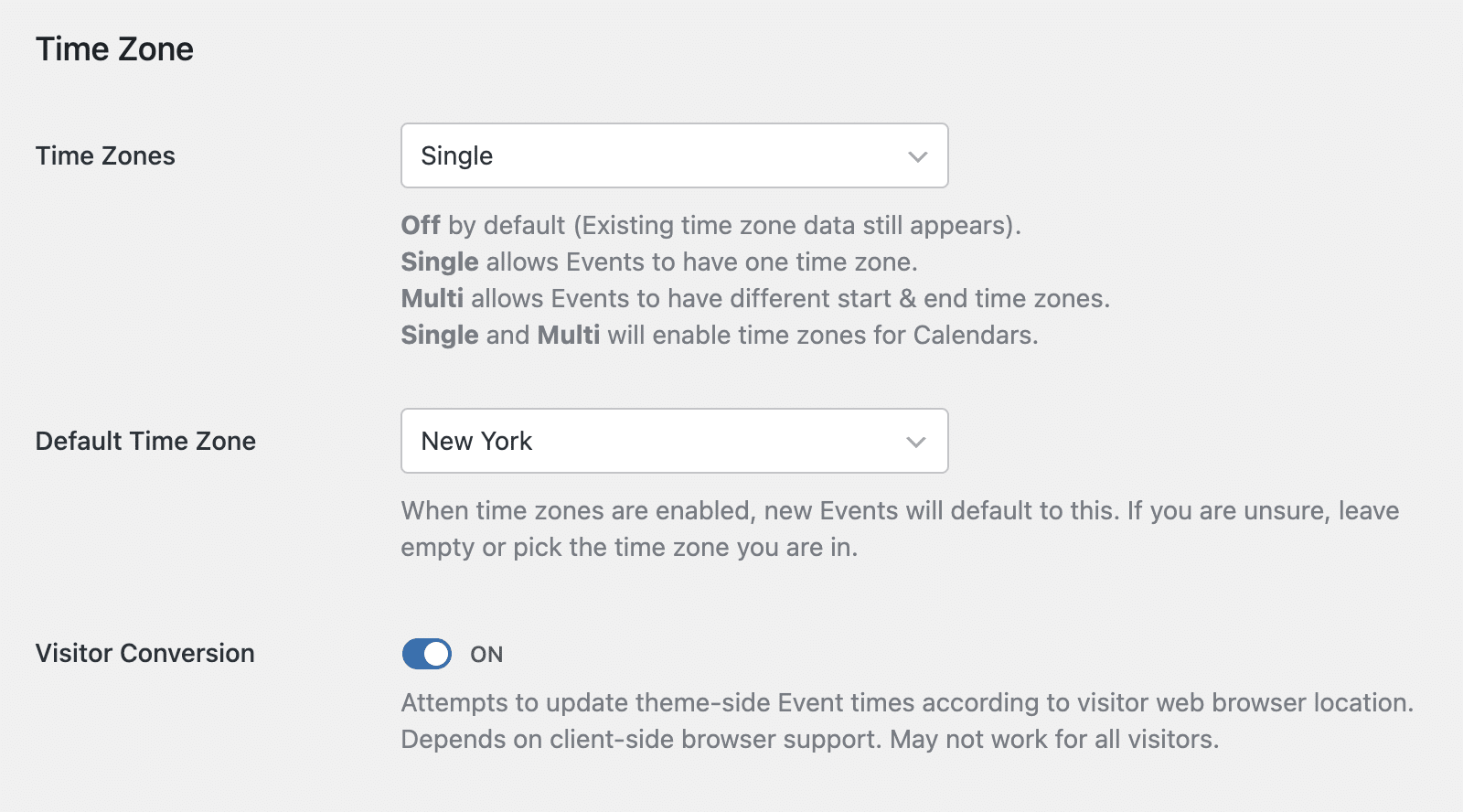
The Default Time Zone setting determines which time zone new events will default to when you enable the option. If you’re unsure, leave it empty or pick the time zone you’re in.
Visitor Conversion

The Visitor Conversion option attempts to update theme-side event times according to the visitor’s web browser location. This depends on client-side browser support and may not work for all visitors.
Maps Settings
The Maps tab lets you configure Google Maps integration for displaying event locations.
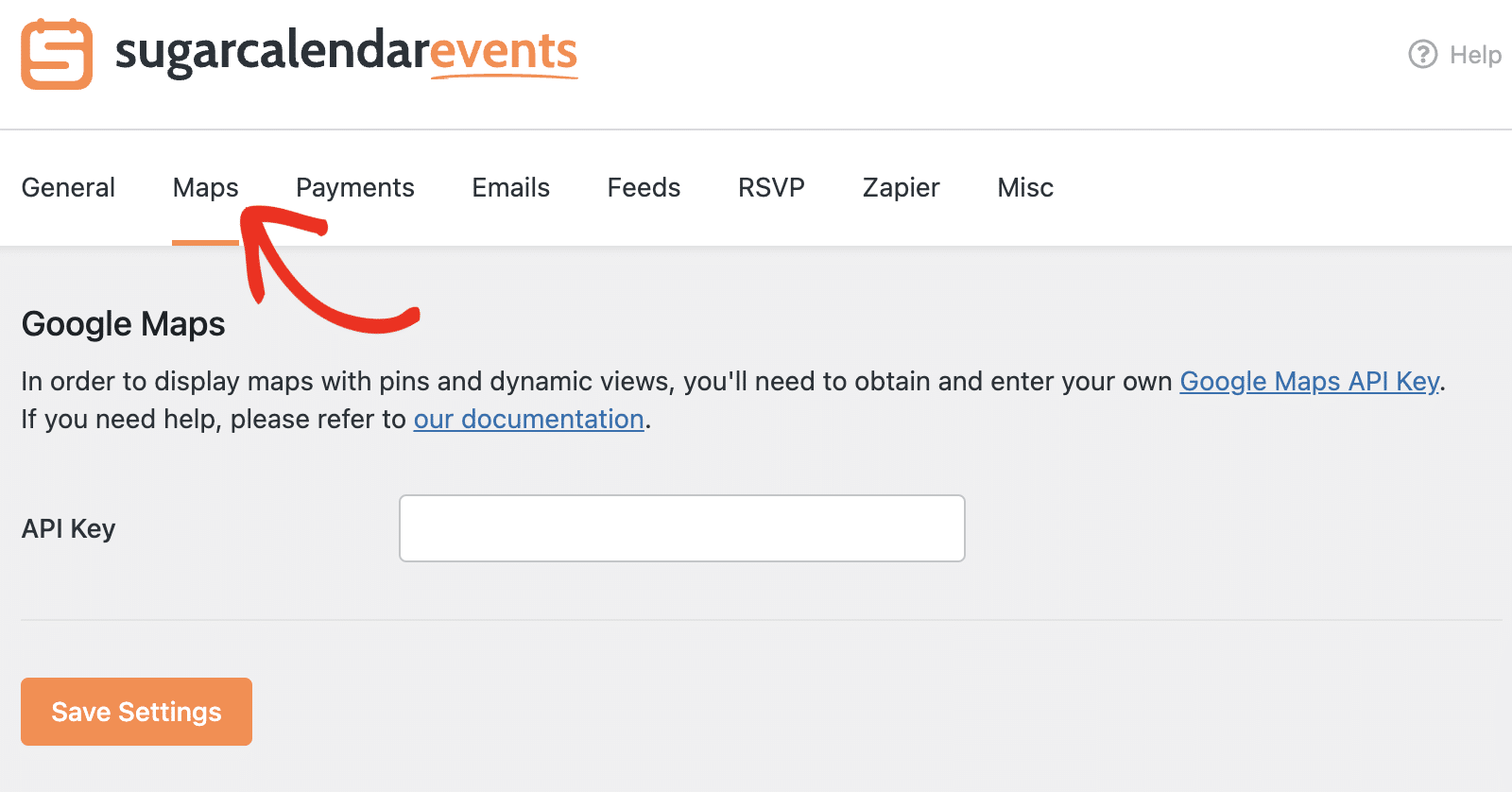
To display maps with pins and dynamic views, you’ll need to obtain and enter your own Google Maps API Key.
Payments Settings
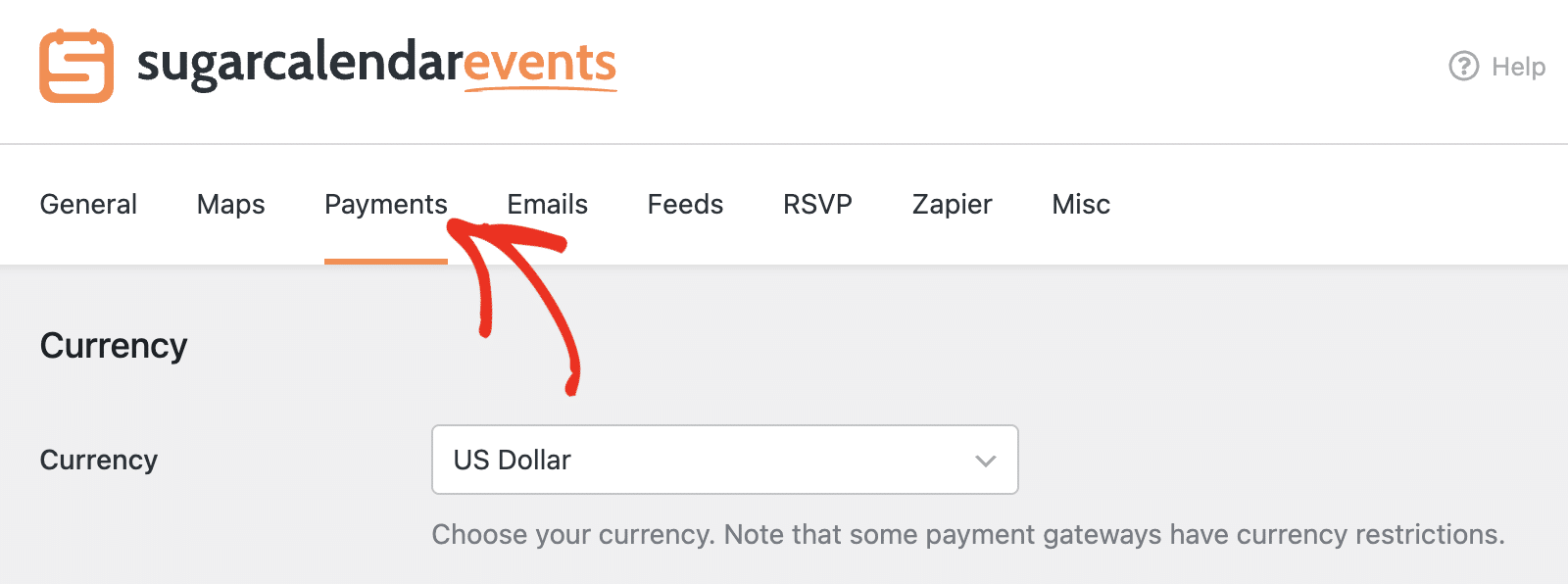
Payment settings are important if you plan to sell tickets for your events. On the Payments tab, you’ll be able to configure your payment currency and gateway.
Currency
Under the Currency section, configure how you want to display prices on your site’s frontend:
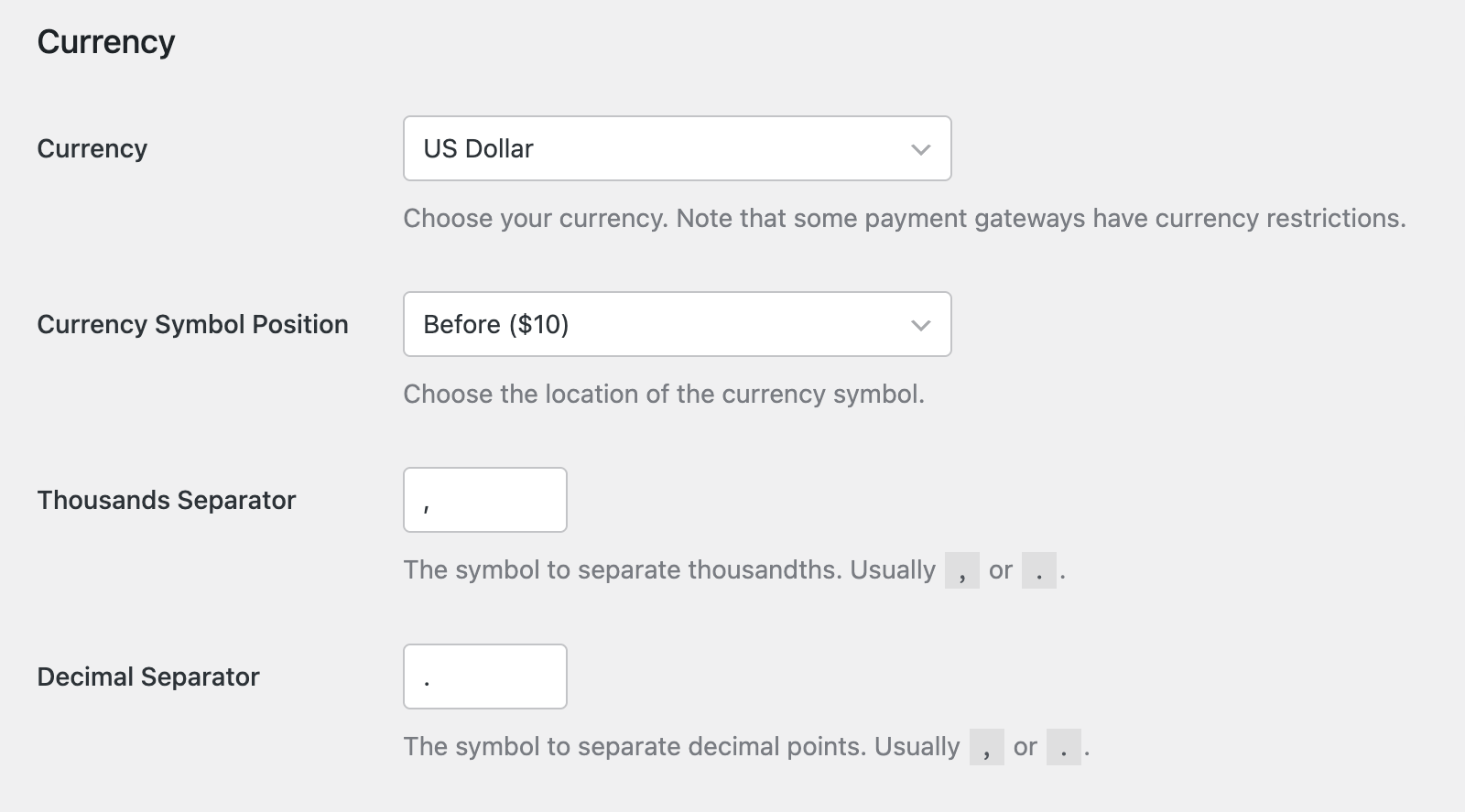
- Currency: Choose your currency. Note that some payment gateways have currency restrictions.
- Currency Symbol Position: This option controls the location of the currency symbol (before or after the amount).
- Thousands Separator: The symbol to separate thousandths.
- Decimal Separator: The symbol to separate decimal points.
Stripe
Sugar Calendar uses Stripe as its payment processor for event ticketing. To connect your account, click the Connect with stripe button and follow the authentication process.
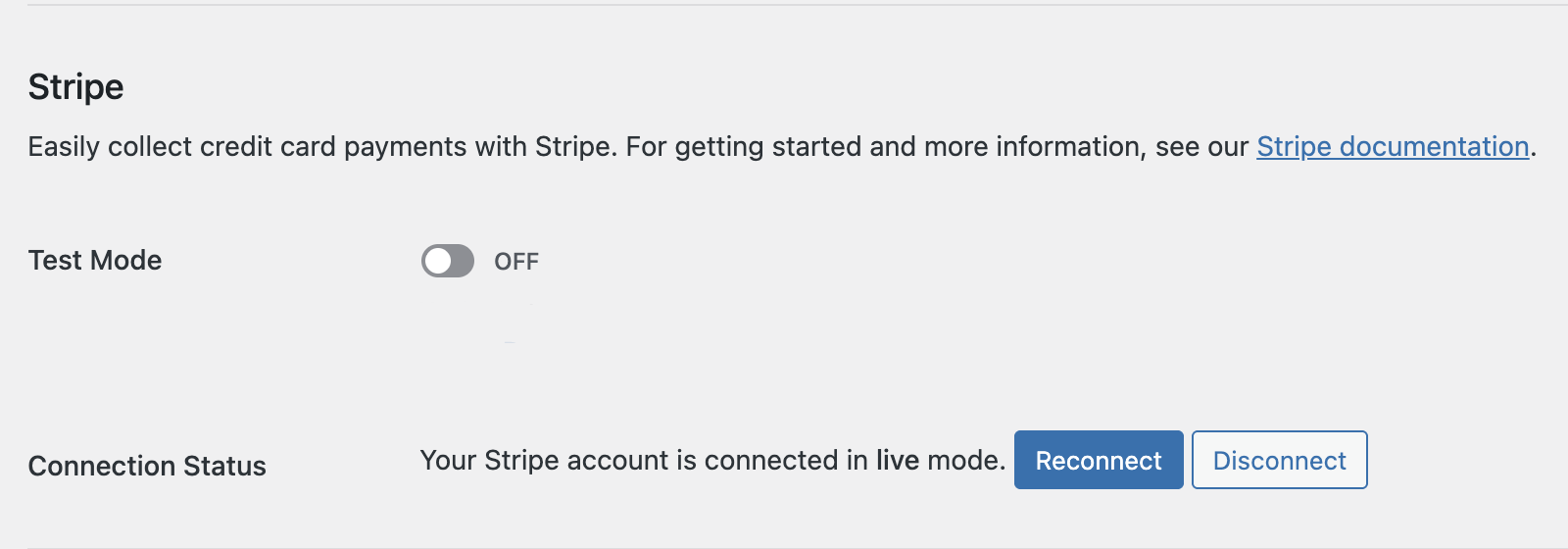
Once connected, you’ll see your connection status and have options to toggle Test Mode (for testing payments without processing real transactions), Reconnect, or Disconnect your account.
Pages Configuration
The Payment Success Page is where you’ll direct customers after completing their ticket purchase. This page must contain the [sc_event_tickets_receipt] shortcode.
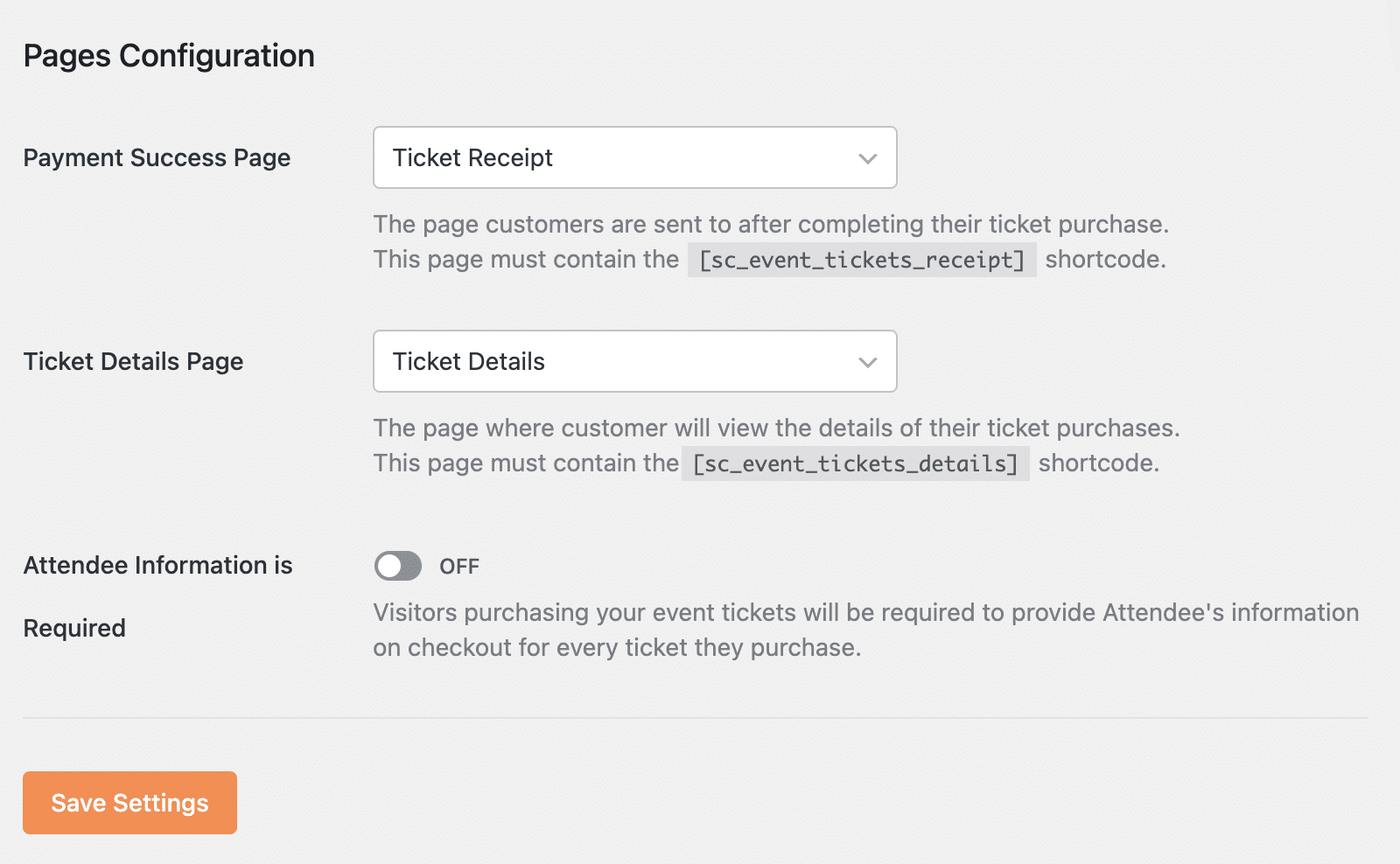
The Ticket Details Page is where customers will view the details of their ticket purchases. This page must contain the [sc_event_tickets_details] shortcode.
The Attendee Information is Required toggle determines whether visitors purchasing event tickets will be required to provide attendee information on checkout for every ticket they purchase.
Emails Settings
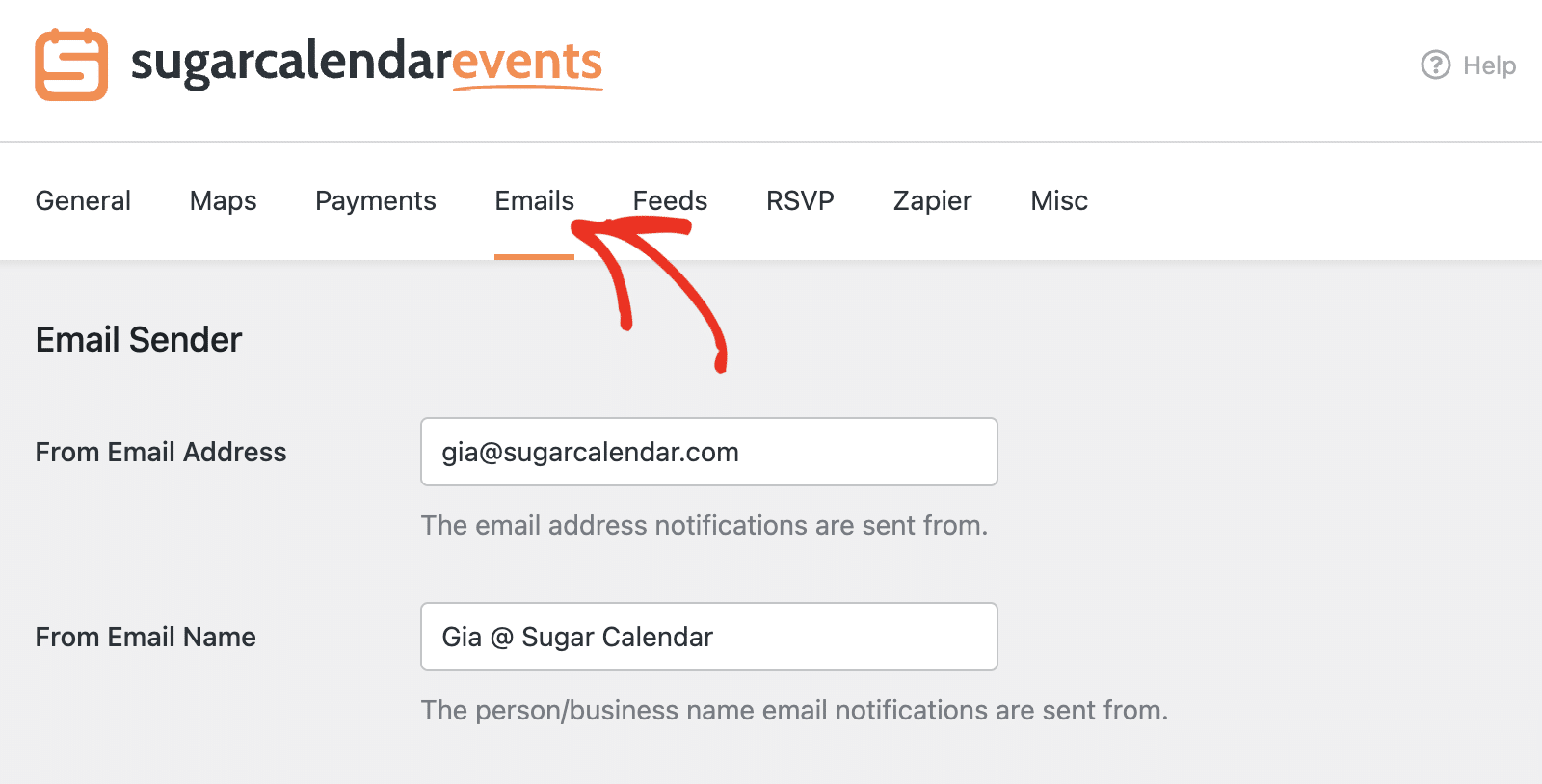
Settings under the Emails tab control notification emails for event ticketing and RSVP.
Email Sender
Under Email Sender, configure the email address and name that notifications are sent from:
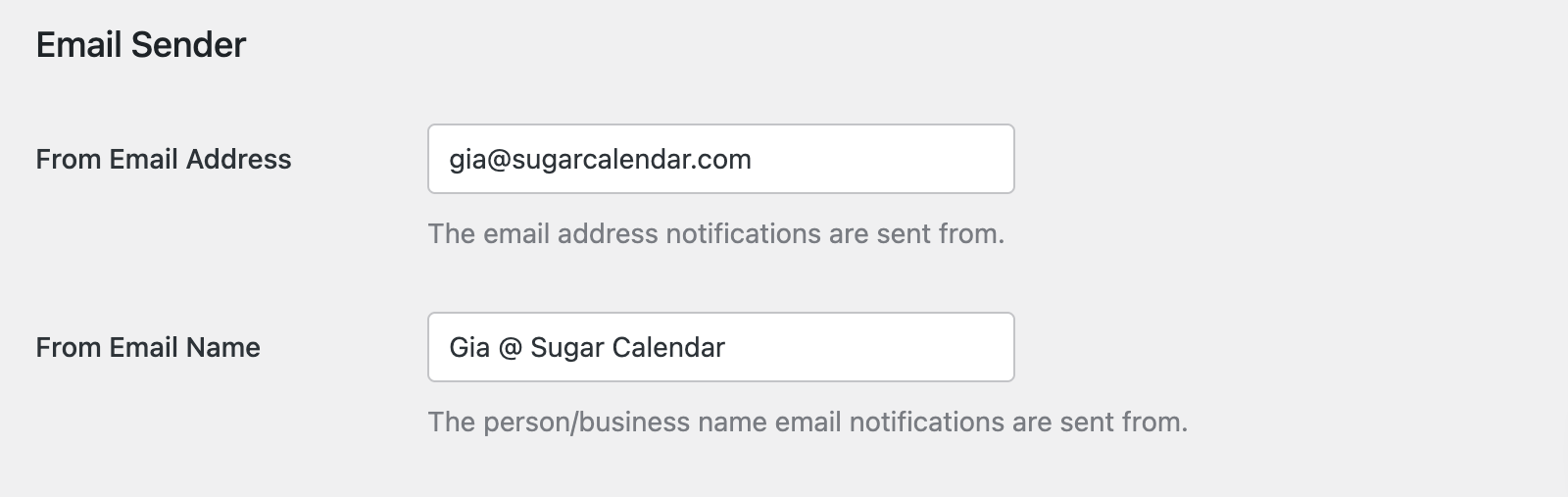
- From Email Address: The email address notifications are sent from.
- From Email Name: The person/business name email notifications are sent from.
Configure Emails
Under the Configure Emails section, you can customize the templates for various automated messages. Click the edit icon next to any email to customize its content:
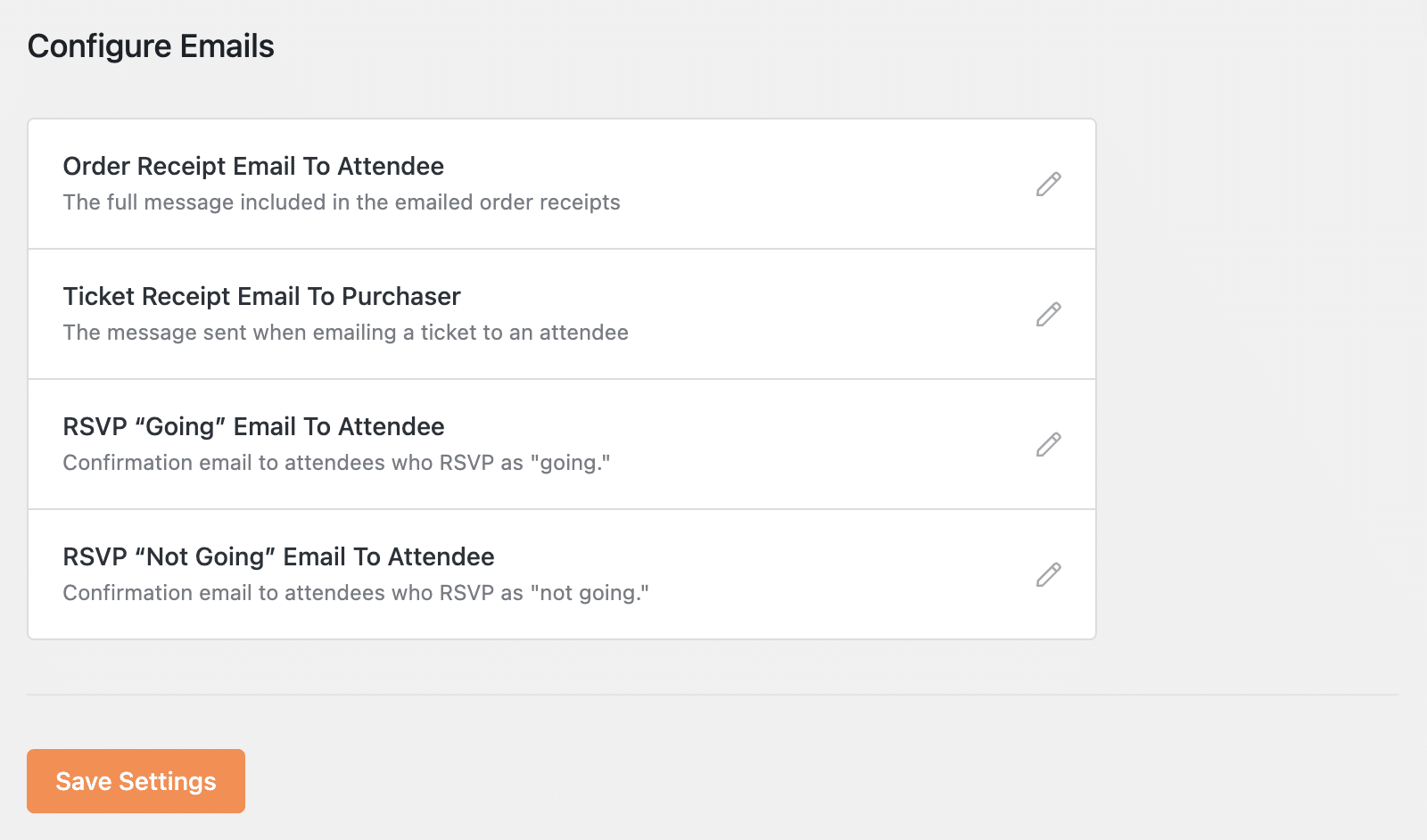
Here is an overview of the available email templates:
- Order Receipt Email To Attendee
- Ticket Receipt Email To Purchaser
- RSVP “Going” Email To Attendee
- RSVP “Not Going” Email To Attendee
Feeds Settings
The Feeds tab lets you control which calendar feeds are available for your events.
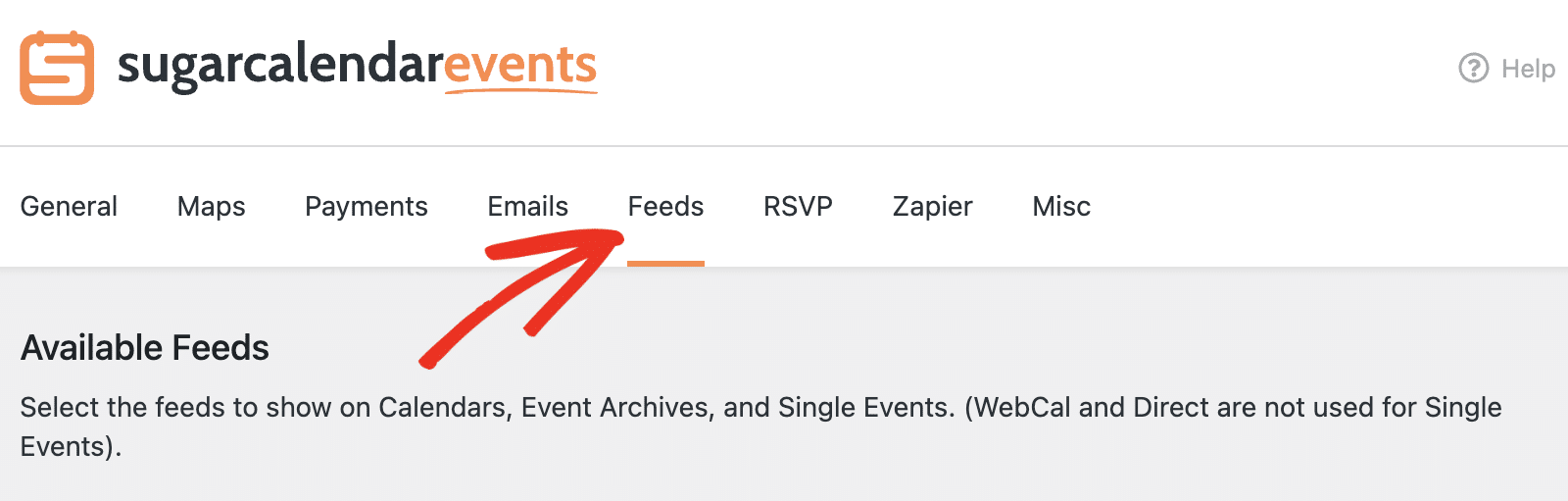
Under Available Feeds, select which feeds to show on calendars, event archives, and single events. Note that WebCal and Direct are not used for single events.
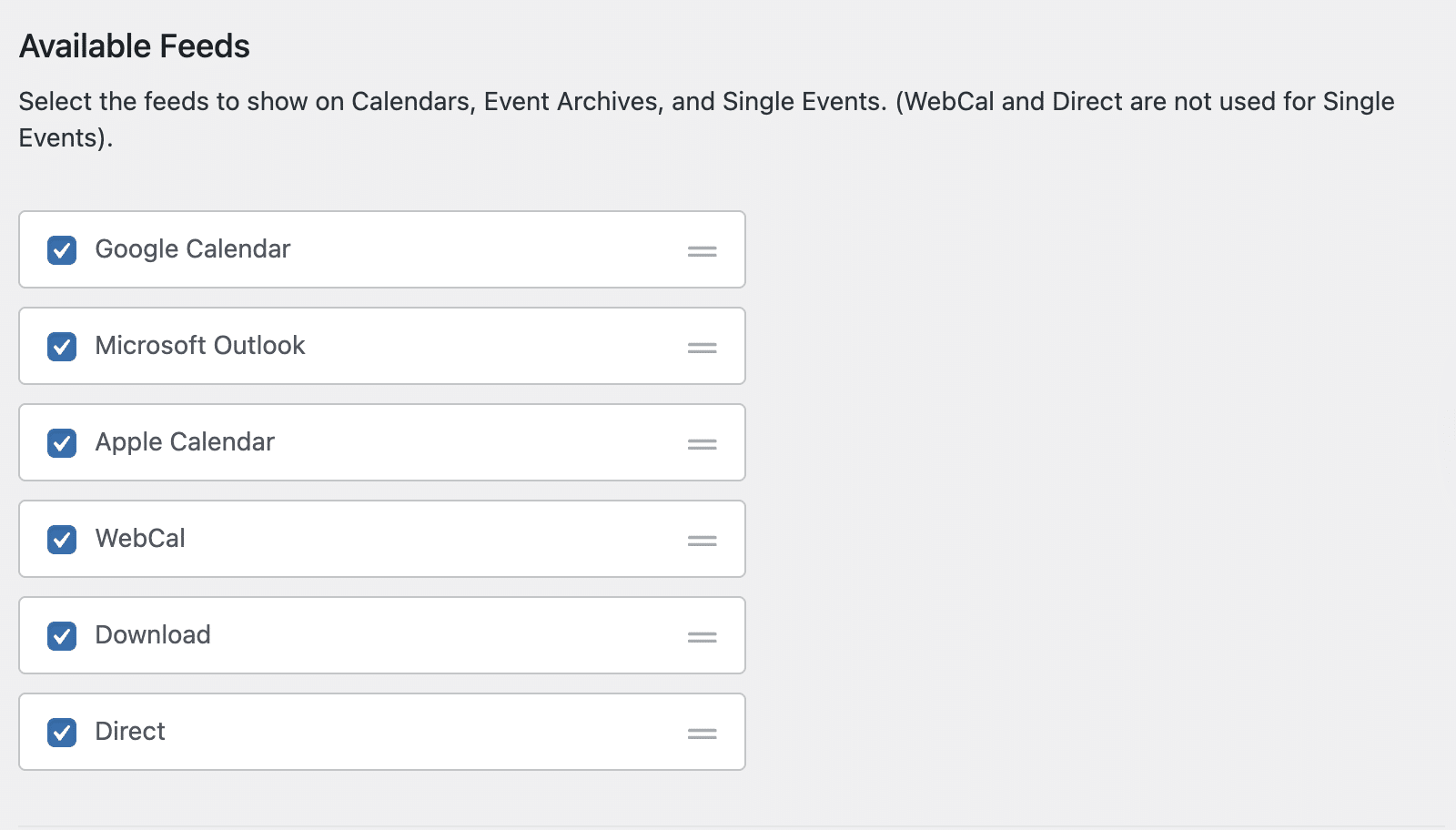
Available feed options include:
- Google Calendar
- Microsoft Outlook
- Apple Calendar
- WebCal
- Download
- Direct
Simply check the boxes next to the feeds you want to enable for your events. For more details, see our tutorial on using calendar feeds.
RSVP Settings
Note: You’ll need the RSVP addon installed and activated to access these settings.
The RSVP tab allows you to configure spam protection for your RSVP forms.
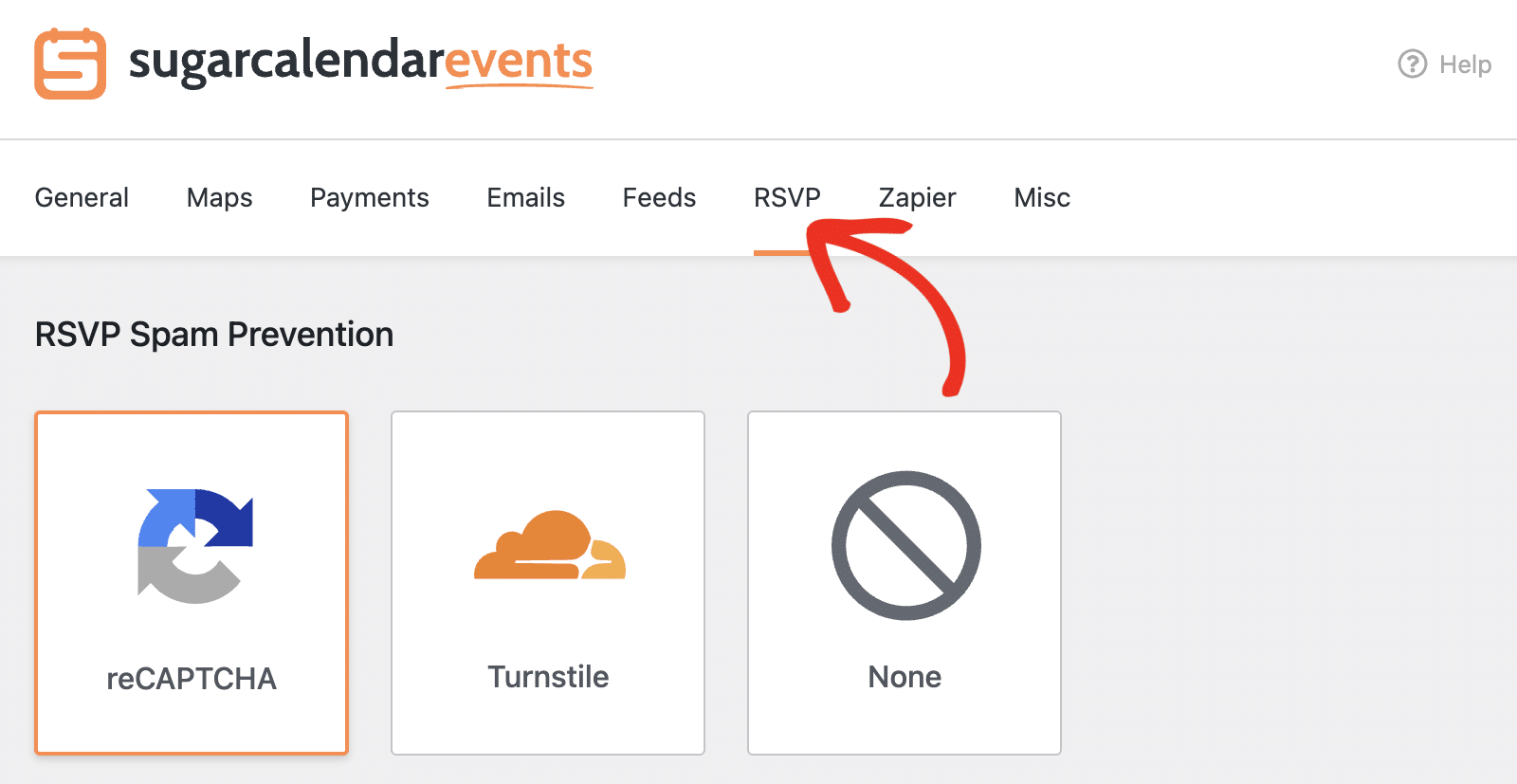
Under RSVP Spam Prevention, you can choose from three options:
- reCAPTCHA: A free anti-spam service from Google that helps protect your website from spam and abuse while letting real people pass through with ease.
- Turnstile: Cloudflare’s CAPTCHA-like alternative that offers a user-friendly experience.
- None: No spam prevention enabled.
If you select reCAPTCHA or Turnstile, you’ll need to enter your Site Key and Secret Key in the fields provided.
Zapier Settings
The Zapier tab provides authentication credentials for connecting Sugar Calendar with Zapier.
Note: You’ll need the Zapier addon installed and activated to access these settings.
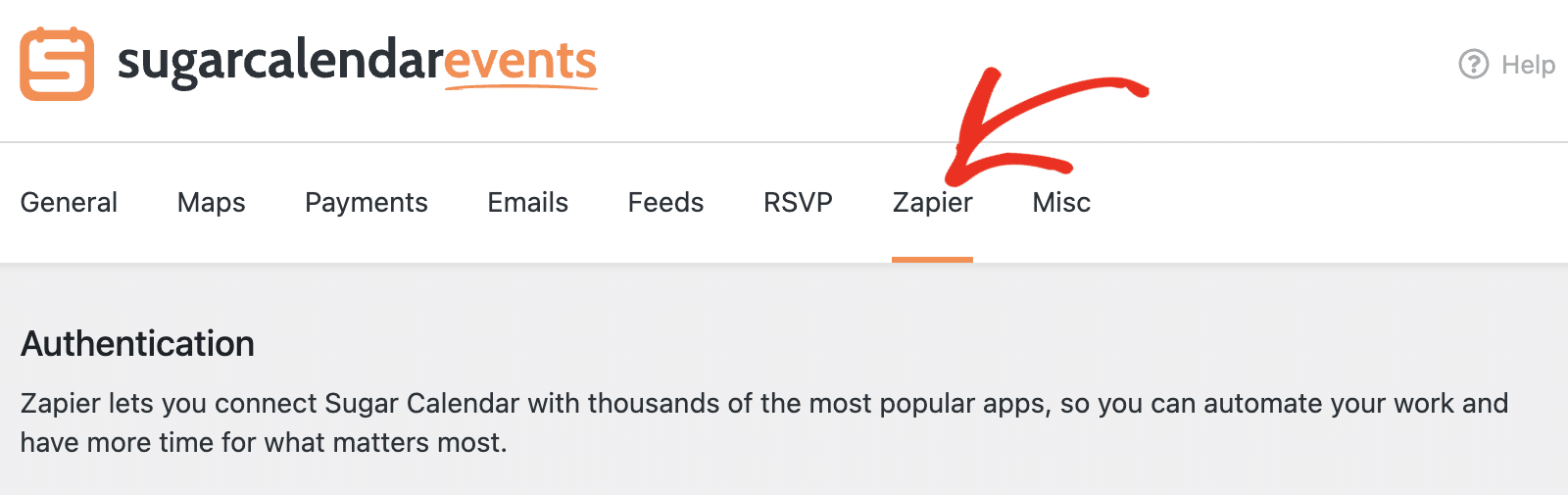
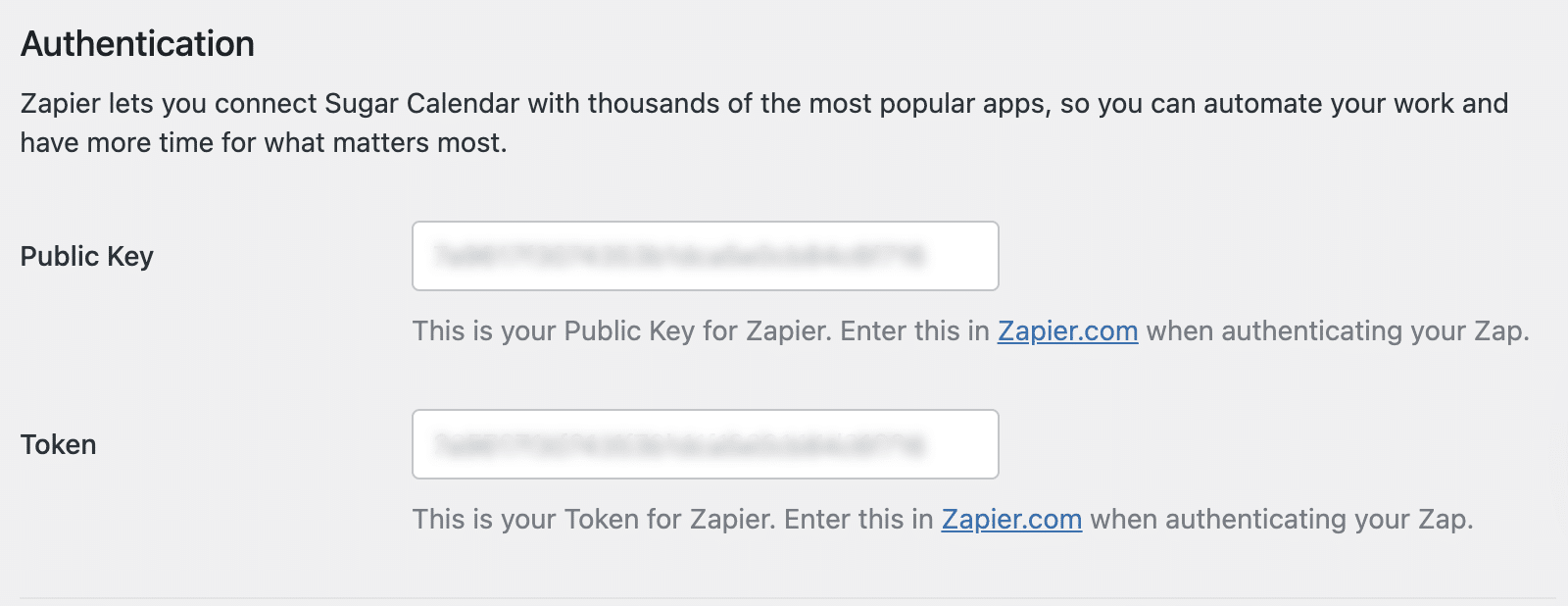
Zapier lets you connect Sugar Calendar with thousands of the most popular apps. Once connected, you can automate your work and have more time for what matters most.
Under Authentication, you’ll find your unique credentials: Public Key and Token.
Misc Settings
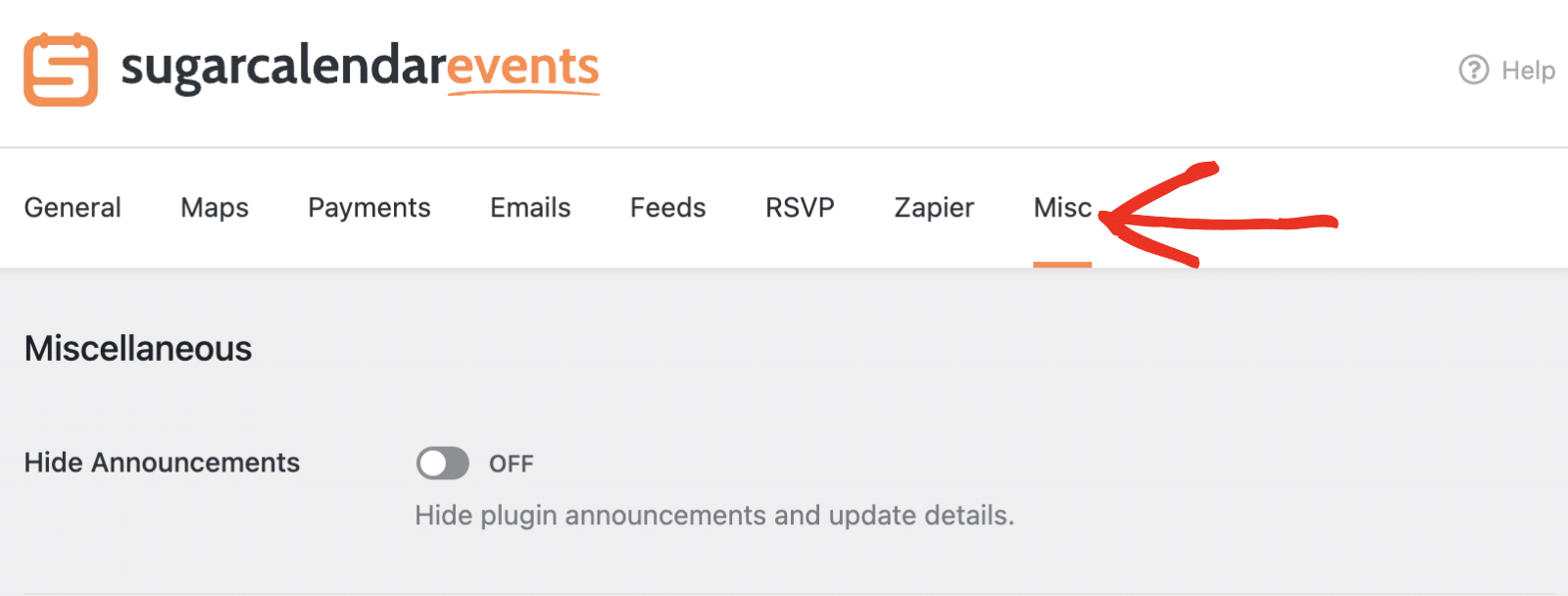
Settings shown under the Misc tab don’t fit into another category and are unlikely to be needed by most users.
Hide Announcements
You may occasionally see notices from the Sugar Calendar team in your WordPress dashboard, ranging from important announcements to helpful tips about new features.

If you’d prefer not to see any announcements from Sugar Calendar, simply toggle the Hide Announcements option to the ON position.
That’s it! You’ve now familiarized yourself with all of the plugin-wide settings available in Sugar Calendar Events.
Next, would you like to create your first event? Be sure to check out our tutorial on creating events in Sugar Calendar to get started.

