Would you like to change the address of your events page or add it to your site’s menu? Every event you create in Sugar Calendar Events appears on your site’s /events page automatically.
In this tutorial, we’ll show you how to update the event slug in Sugar Calendar Events and add your events page to your site’s menu.
In This Article
Before getting started, make sure Sugar Calendar Events is installed and activated on your site.
Finding Your Events Page
Sugar Calendar Events creates an events page for you. It lists every published event and lives at https://example.com/events/, where example.com is your site’s domain. Each event also gets its own page, such as https://example.com/events/event-name/.
The quickest way to open it is from the Setup Checklist. Go to Events » Setup Checklist and click View Events Page next to the Visit Your Events Page task.
To learn how to show only upcoming or past events on this page, see our guide to viewing the events archive.
Using the SC_EVENTS_SLUG Constant
By default, the slug of the sc_event post type is events. To change it, add the PHP constant below to your site’s functions.php file or a code snippets plugin.
define( 'SC_EVENTS_SLUG', 'my-events-slug' );
Replace my-events-slug with the slug you’d like to use. The new slug changes the address of your events page and of every single event page. For example, https://example.com/my-events-slug/.
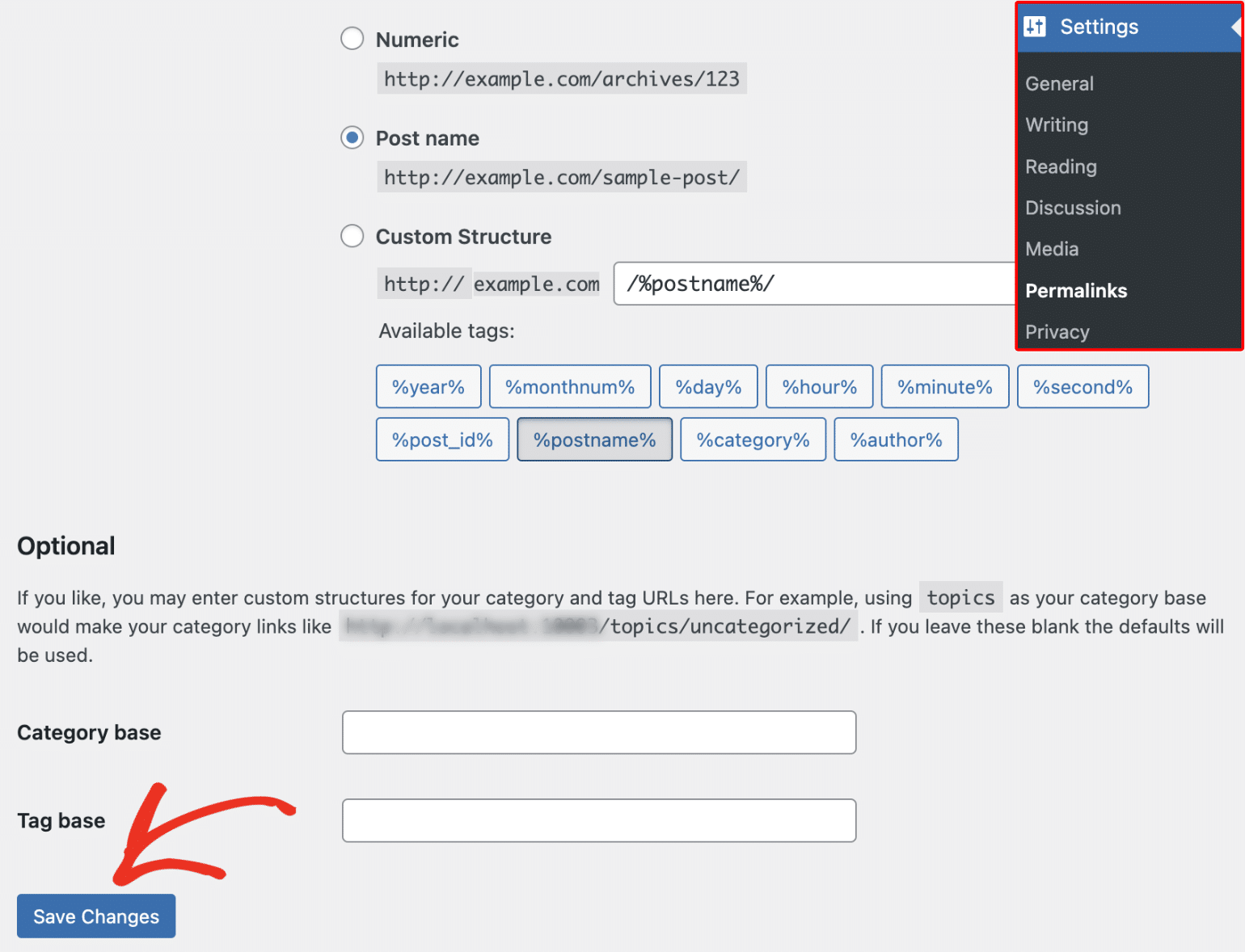
After adding the snippet, go to Settings » Permalinks in your WordPress admin area and click Save Changes. This refreshes your site’s links so the new slug works.
Adding Your Events Page to Your Site Menu
Your events page isn’t a regular WordPress page, so it doesn’t appear in the list of pages you can add to a menu. Instead, add it as a custom link. The steps depend on whether your theme is a classic theme or a block theme.
Classic Themes
If your theme uses the classic menu screen, go to Appearance » Menus and select the menu you want to edit.
Next, open the Custom Links panel. Enter your events page address, such as https://example.com/events/, in the URL field and type a label such as Events in the Link Text field. Then click Add to Menu.
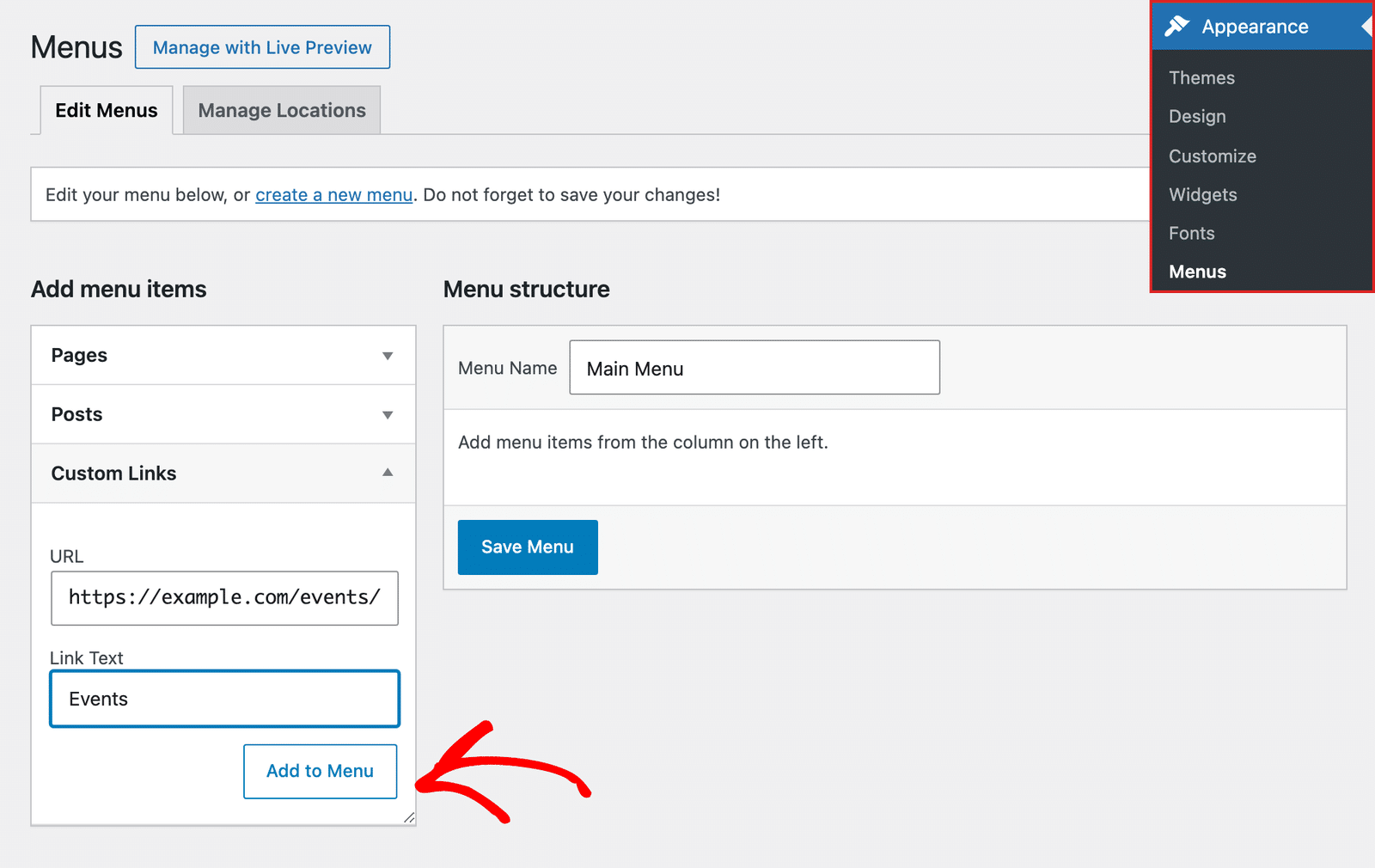
Drag the new item to where you’d like it to appear in the menu, then click Save Menu.
Block Themes
If your site uses a block theme, such as Twenty Twenty-Five, go to Appearance » Editor and click Navigation. Select the menu you want to edit to open it in the editor.
Click the + icon at the end of your menu items, type your events page address, such as https://example.com/events/, and press Enter. To change the label, select the new link and type Events. Then click Save.
That’s it! You now know how to update the event slug in Sugar Calendar Events and add your events page to your site’s menu.
Next, would you like to show your events on other pages of your site? Our tutorial on displaying the calendar covers all the steps in detail.