Would you like to import your events and calendars from The Events Calendar plugin? Sugar Calendar Events allows you to migrate event data previously stored in The Events Calendar plugin.
In this guide, we’ll cover the steps to import events into Sugar Calendar Events using the 1-click migration tool.
Before you get started, make sure Sugar Calendar Events is installed and activated on your WordPress site and that you’ve verified your license.
Accessing the Event Migration Tool
With the Sugar Calendar 1-click migration tool, you can import event data such as events, orders, tickets, and attendees from The Events Calendar plugin.
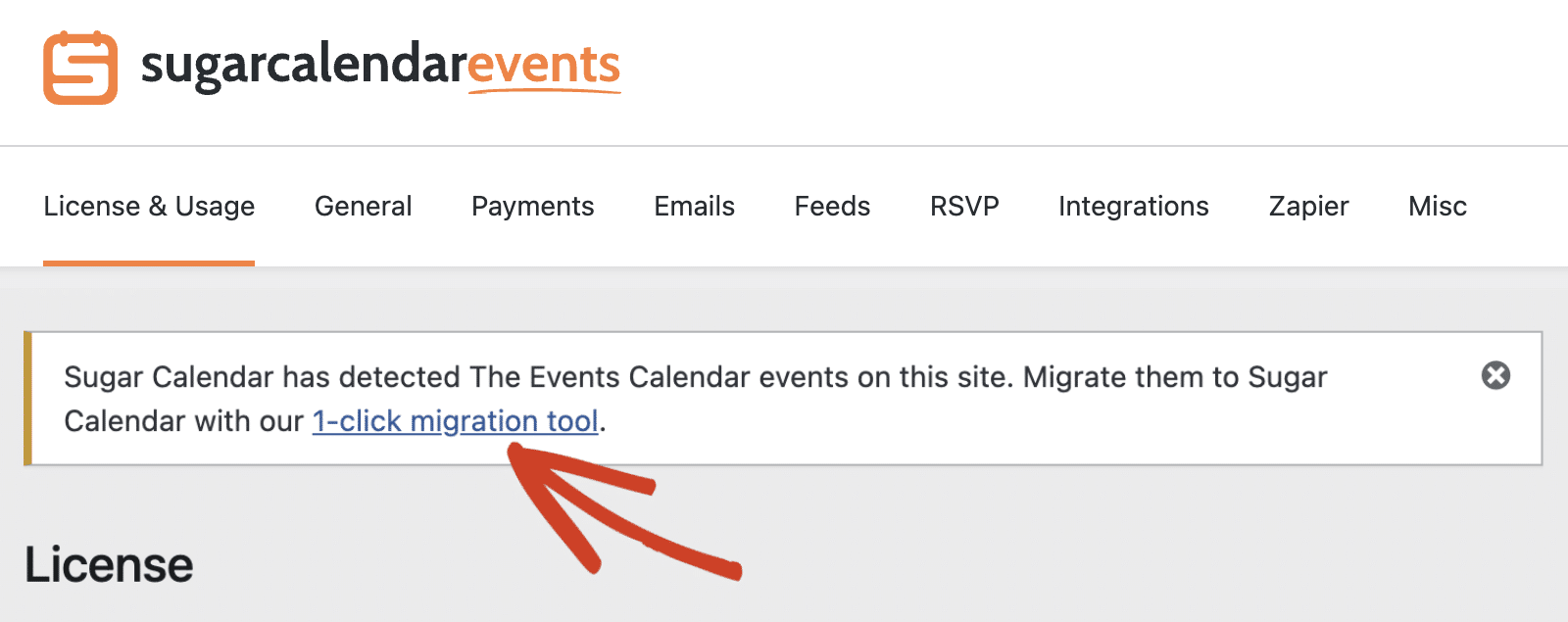
This option will appear if you’ve created an event with The Events Calendar plugin. You’ll see a notice to import your events to Sugar Calendar. Go ahead and click the 1-click migration tool link to proceed.
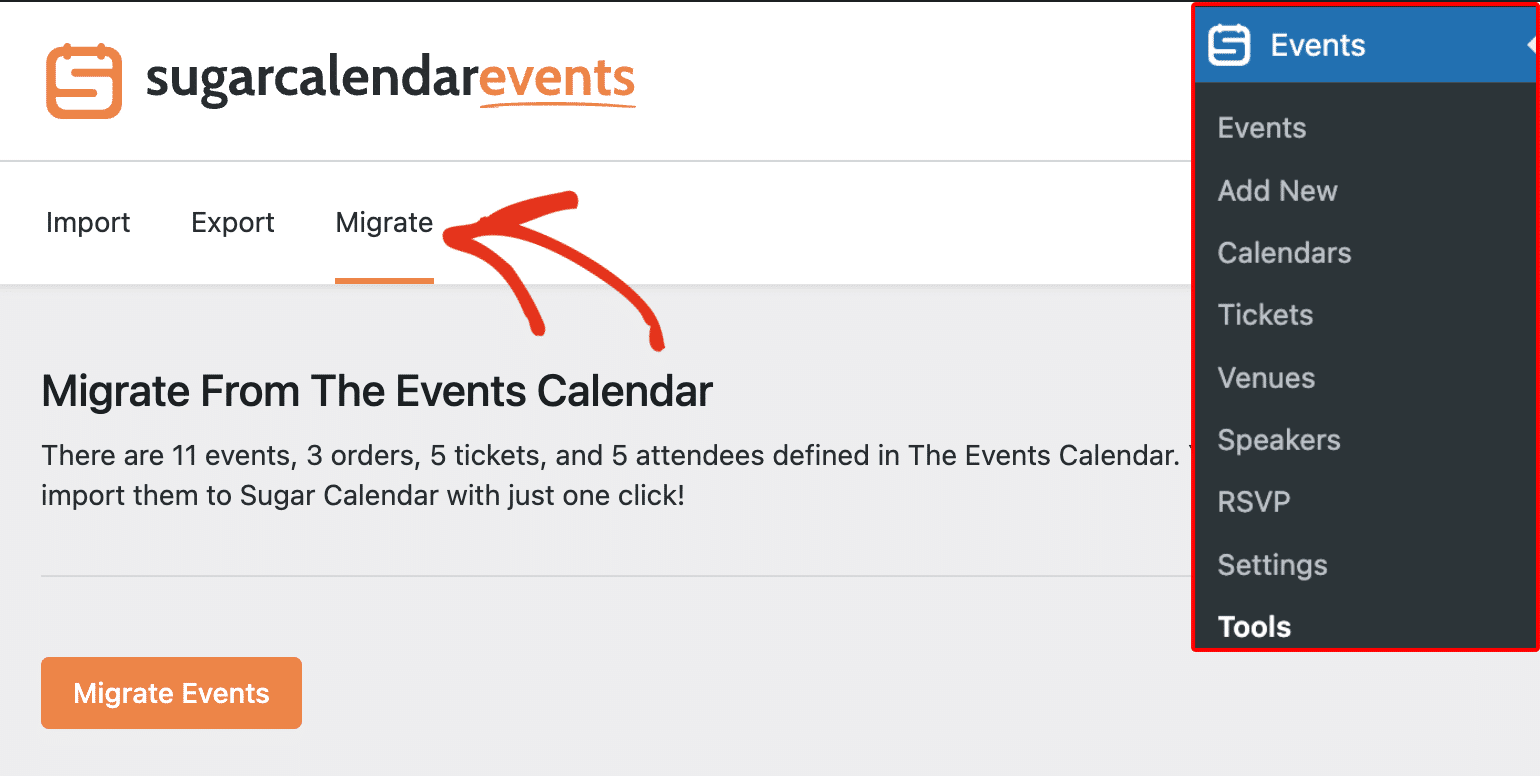
Alternatively, you can access the migration page by navigating to Sugar Calendar » Tools and selecting the Migrate tab.
Migrating Your Events
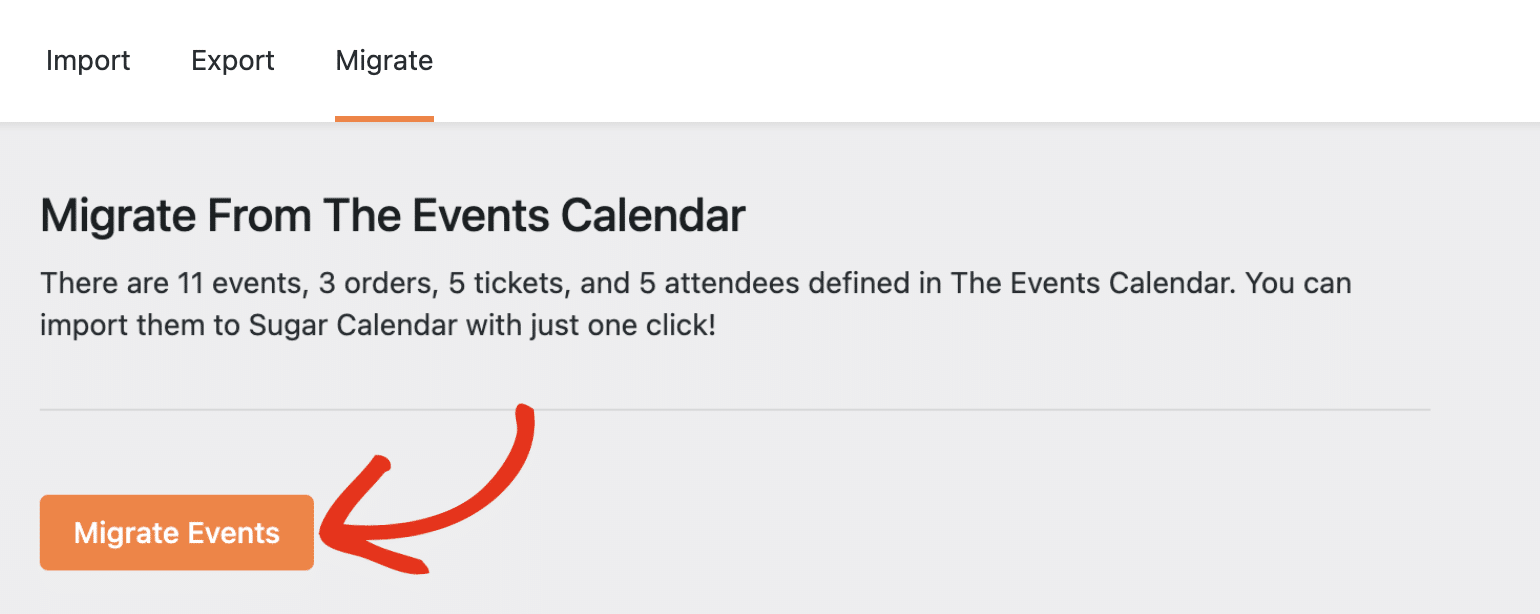
On the Migrate screen, you’ll see a summary of event data that are ready to be imported. To begin importing your events, click the Migrate Events button.
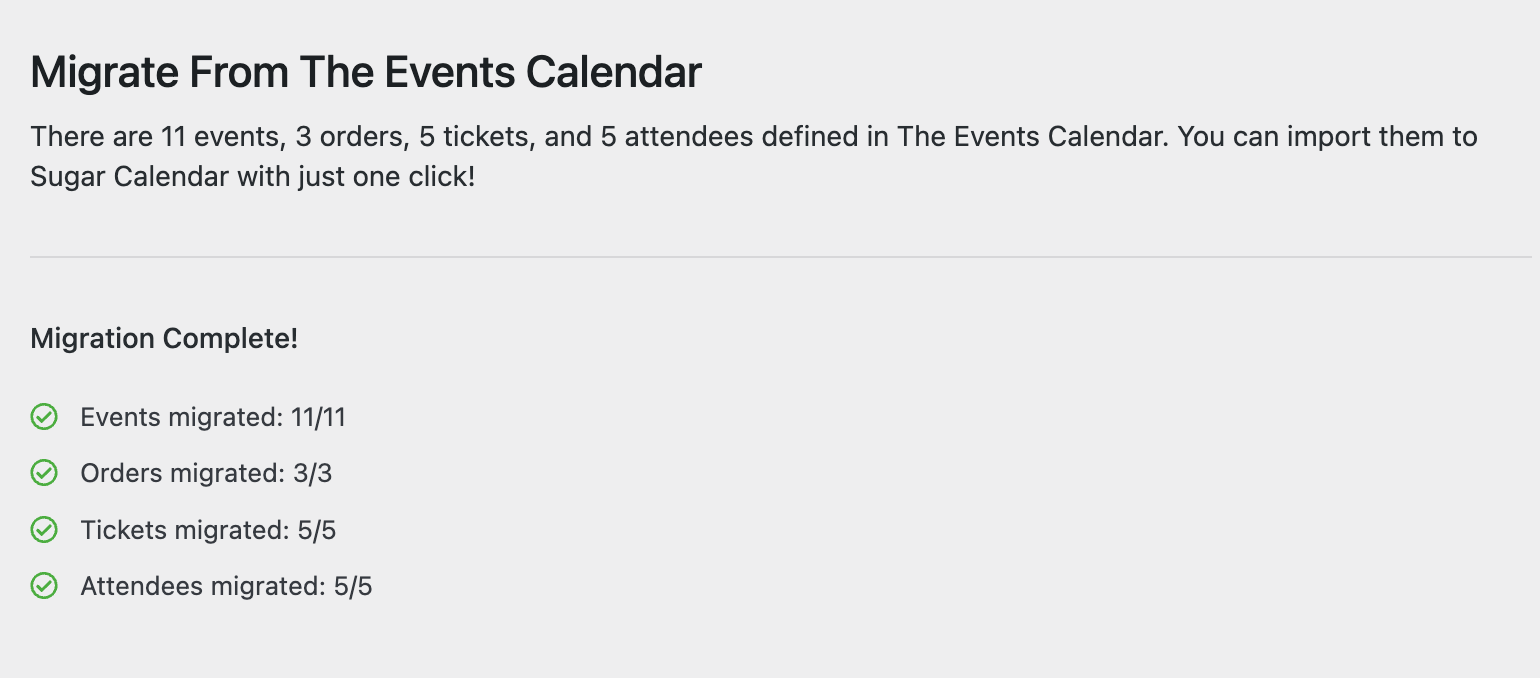
Once the process is complete, you’ll see a success notice that includes all the migrated event data. You can now proceed to view your events.
Viewing Your Events
To view the migrated events, go to the Events sidebar menu. You’ll see all your site’s events, including the one imported from The Events Calendar.
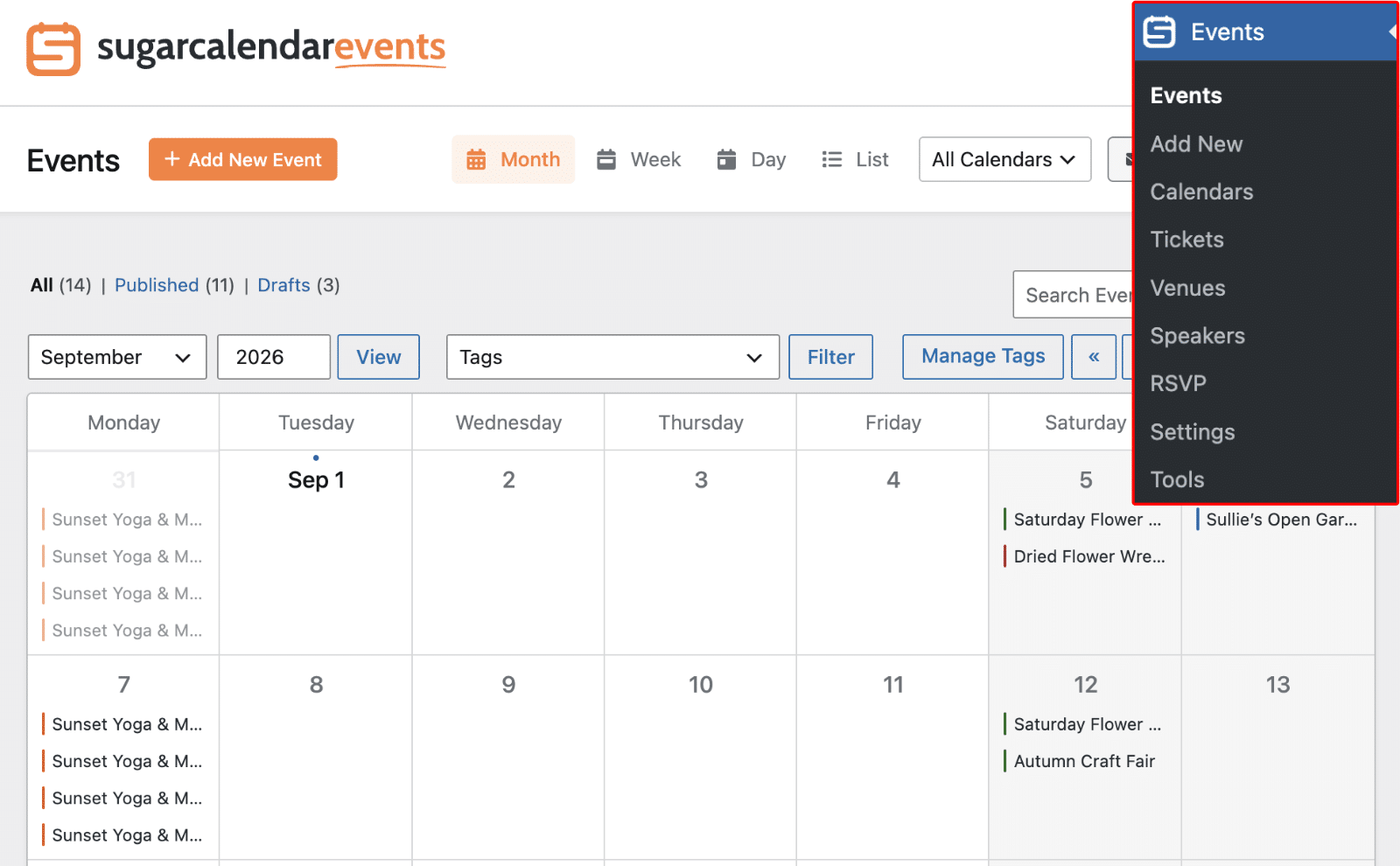
You can edit the events and manage ticket sales and attendees for the events you migrated.
That’s it! Now you know how to import your events from The Events Calendar plugin to Sugar Calendar Events.
Next, would you like to display the events you imported on your site’s frontend? Be sure to check our tutorial on displaying Sugar Calendar events.