Would you like to add custom URLs to your Sugar Calendar events? A custom URL lets you link an event to a page on another website, or send visitors to a different page on your own site instead of the default event page.
In this tutorial, we’ll show you how to add custom URLs to your events in Sugar Calendar Events.
Before you get started, make sure Sugar Calendar Events is installed and activated on your WordPress site.
Adding a Custom URL to an Event
To add a custom URL, go to Events » Add New to create a new event, or edit an existing one. Then, click the Link tab in the Sugar Calendar Event Settings box.
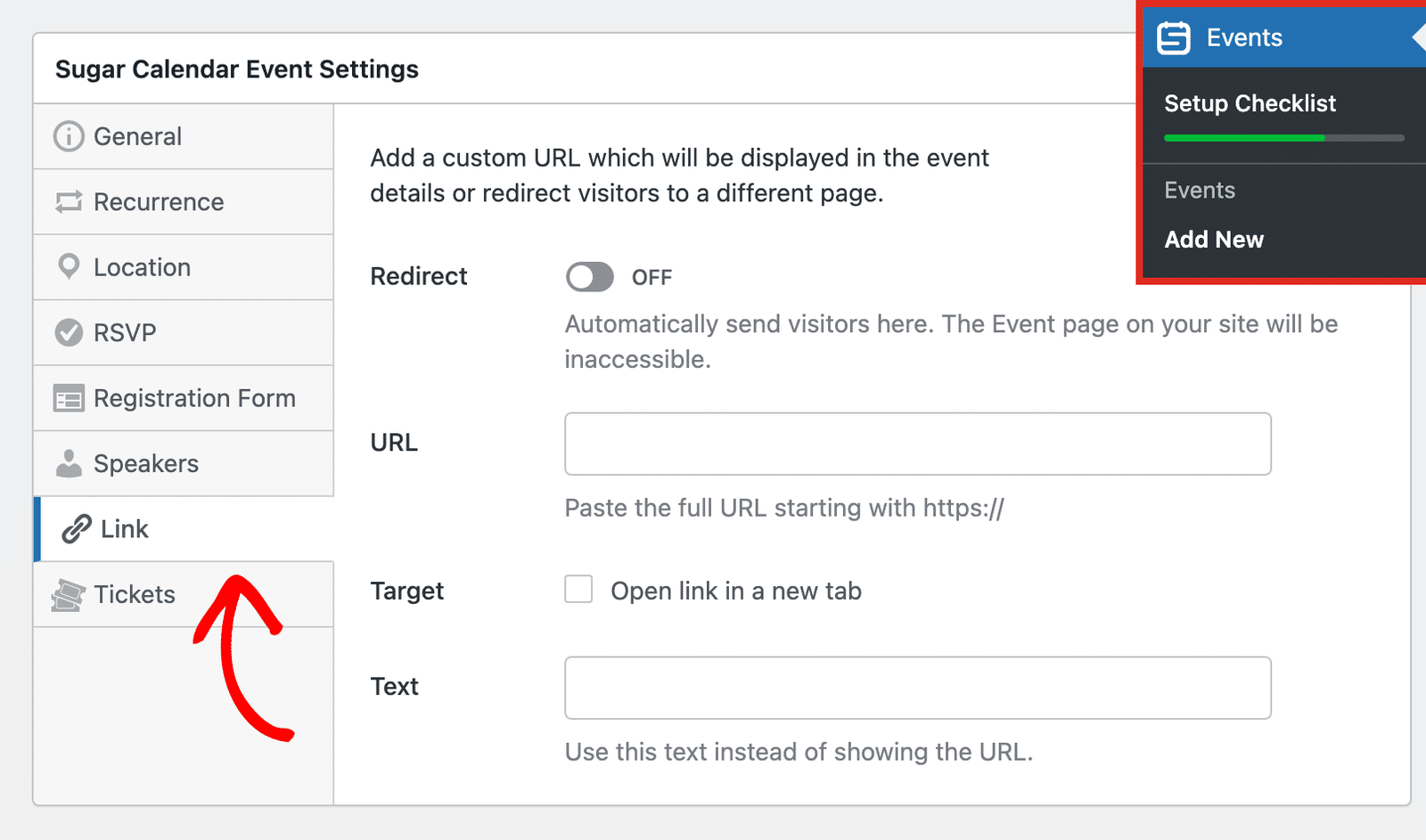
Here, you’ll see the following options:
- Redirect: Turn this on to send visitors straight to your custom URL when they open the event page. While Redirect is on, visitors can’t reach the event page on your site.
- URL: Enter the full web address you’d like to link to, starting with
https://. - Target: Check Open link in a new tab to open the custom URL in a new browser tab.
- Text: Enter the link text to show instead of the URL.
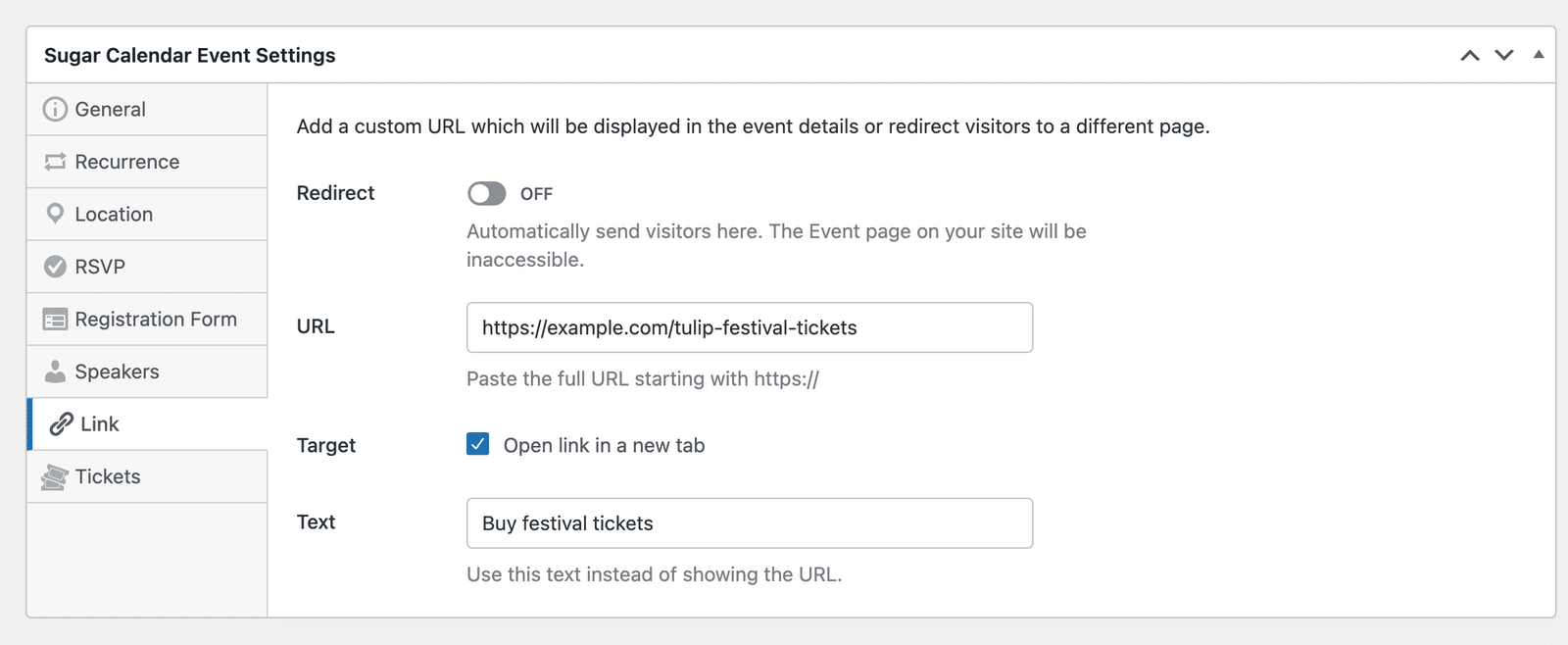
Once you’ve configured the link settings, publish or update your event.
How Custom URLs Appear on Your Site
What visitors see depends on the Redirect setting.
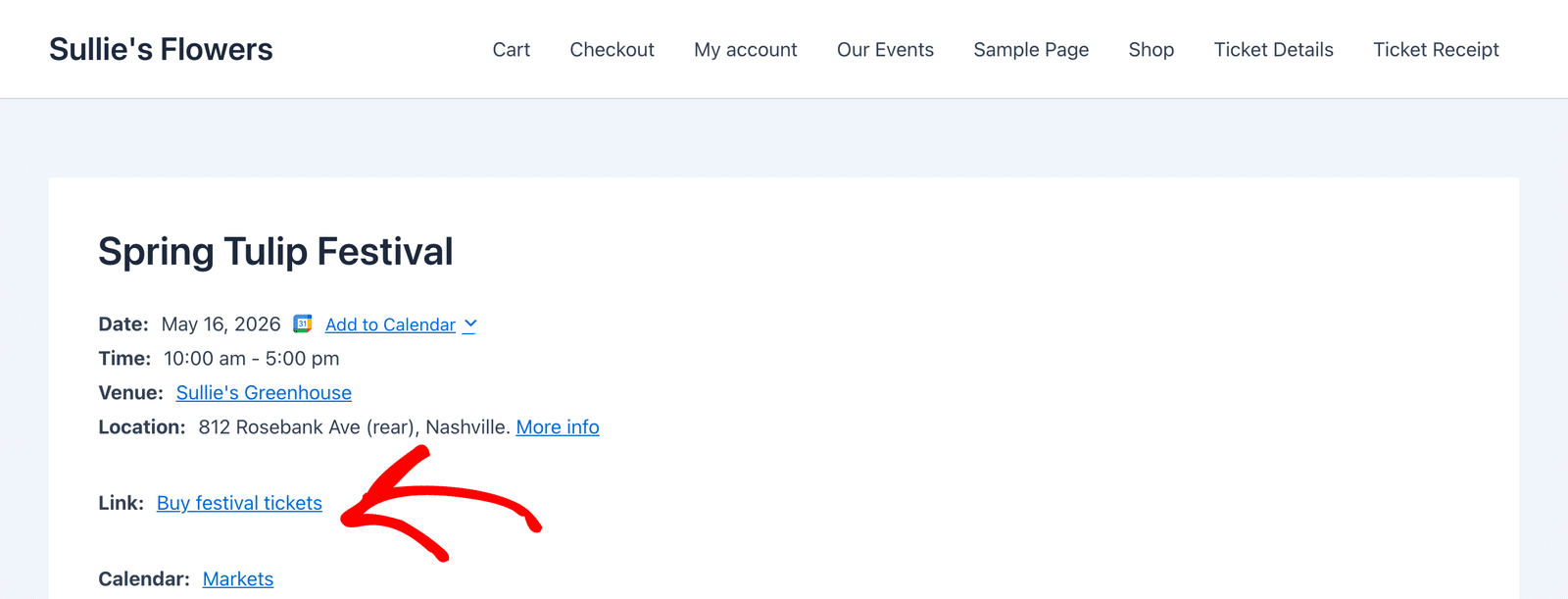
With Redirect off, the event page shows a Link row in the event details. The row displays your link text, or the URL if you left Text empty.
With Redirect on, visitors who open the event page go straight to your custom URL instead.
That’s it! You now know how to add custom URLs to your events in Sugar Calendar Events.
Next, would you like to learn how to display a list of events you’ve created on your site’s front end? Be sure to check out our event list tutorial to learn how.