Would you like to change how your event archive and single event pages look? Sugar Calendar Events includes a ready-made events page, and you can replace it with your own theme template files when you need full control over the layout.
In this tutorial, we’ll show you how to customize template files for your events in Sugar Calendar Events.
In This Article
Before getting started, make sure Sugar Calendar Events is installed and activated on your WordPress site.
Understanding the Default Event Templates
Before you create any template files, it helps to know how Sugar Calendar Events displays your events out of the box.
Your events archive lives at example.com/events. This address follows your event slug, so if you’ve changed the slug, replace events with your custom slug. To learn more, see our guide to updating the event slug.
By default, Sugar Calendar Events displays the archive as an Events page that uses the Events List layout, with 9 events per page. Sugar Calendar Events doesn’t use your theme’s archive.php file for this page.
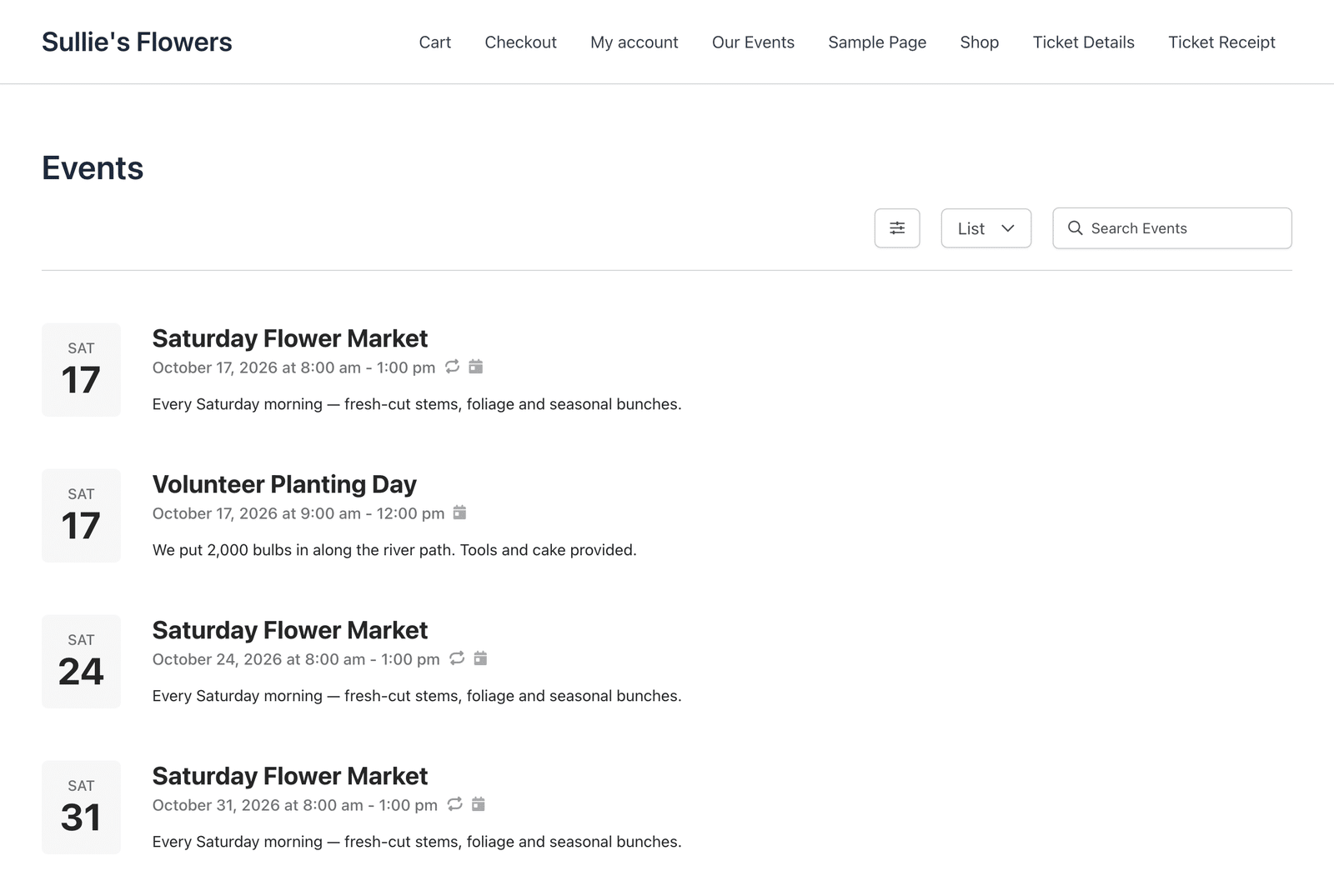
Calendar archives, such as example.com/events/calendar/workshops, use the same Events page, showing only the events in that calendar.
Single event pages use your theme’s single post template. Sugar Calendar Events adds the event details, such as the date, time, location, and calendars, to the event content automatically.
Customizing the Event Archive
To replace the default Events page with your own layout, create a file named archive-sc_event.php in your theme’s directory. Copy the contents of your theme’s archive.php file into archive-sc_event.php, and then modify the new file to suit your needs.
Once this file exists, Sugar Calendar Events stops showing the default Events page, and your template displays the archive instead.
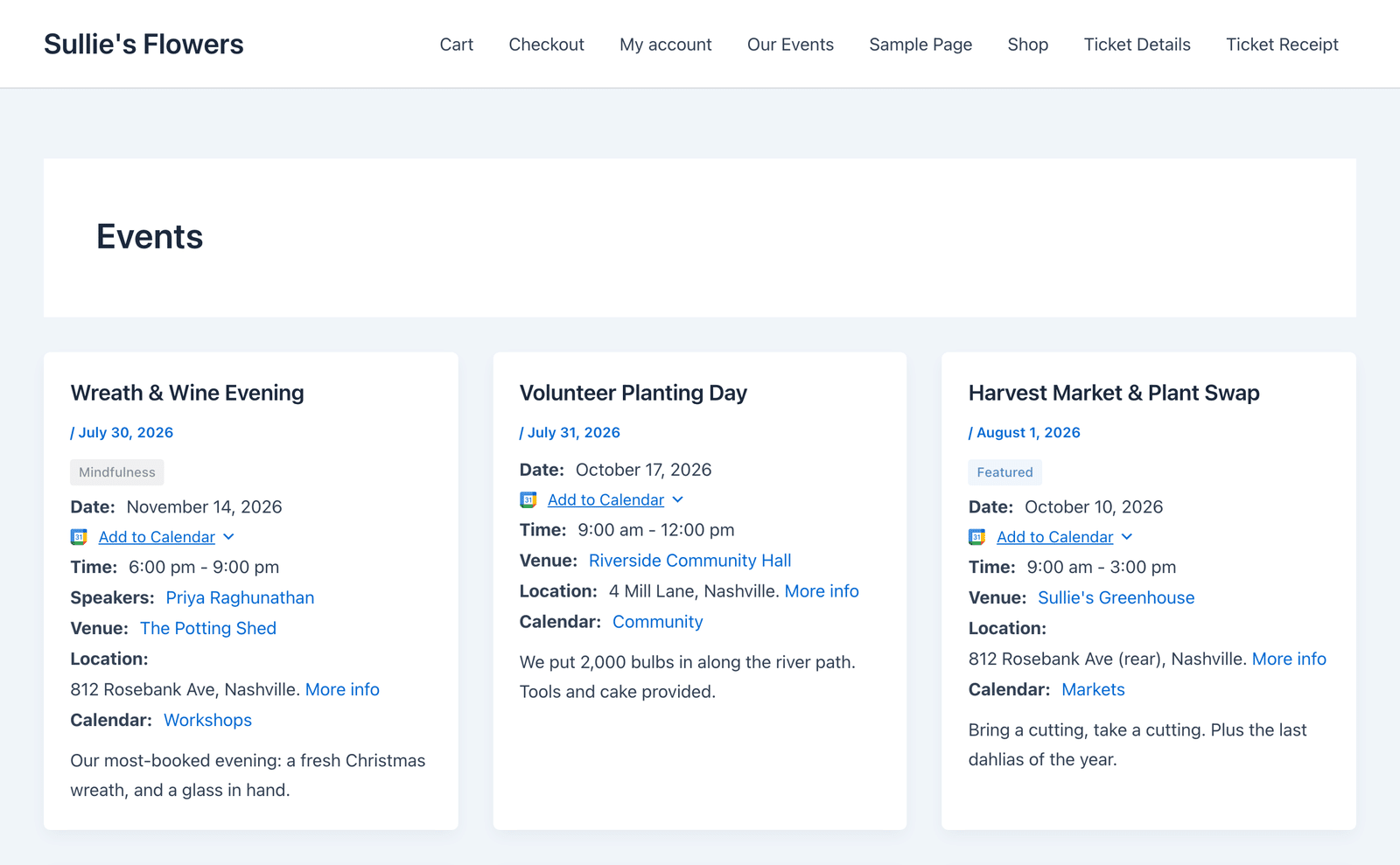
The archive filters still work with your custom template. For example, example.com/events/?event-display=past shows only past events. To see every filter, check out our guide to viewing the events archive.
Customizing the Calendar Archive
Once you’ve created archive-sc_event.php, your calendar archives use it automatically. You only need a separate template if you’d like your calendar archives to look different from the main events archive.
To do this, create a file named taxonomy-sc_event_category.php in your theme’s directory. Then, copy the contents of archive-sc_event.php into taxonomy-sc_event_category.php and modify this file as needed.
Customizing the Single Event Pages
How you customize single event pages depends on whether your site uses a classic theme or a block theme.
Classic Themes
By default, classic themes use their single.php file to display single event pages.
To customize this, create a file named single-sc_event.php in your theme’s directory. Copy the contents of your theme’s single.php file into single-sc_event.php, and then modify this new file to suit your needs.
As you edit the file, keep the_content() inside the loop. Sugar Calendar Events adds the event details through the event content, so removing it hides the date, time, location, and calendars from your event pages.
<?php
while ( have_posts() ) :
	the_post();
	the_title( '<h1>', '</h1>' );
	the_content();
endwhile;
Also keep the body_class() call in your theme’s header. The Event Page Appearance setting in Events » Settings » General relies on it to apply the dark style to event pages.
Block Themes
On block themes, create a single event template in the Site Editor.
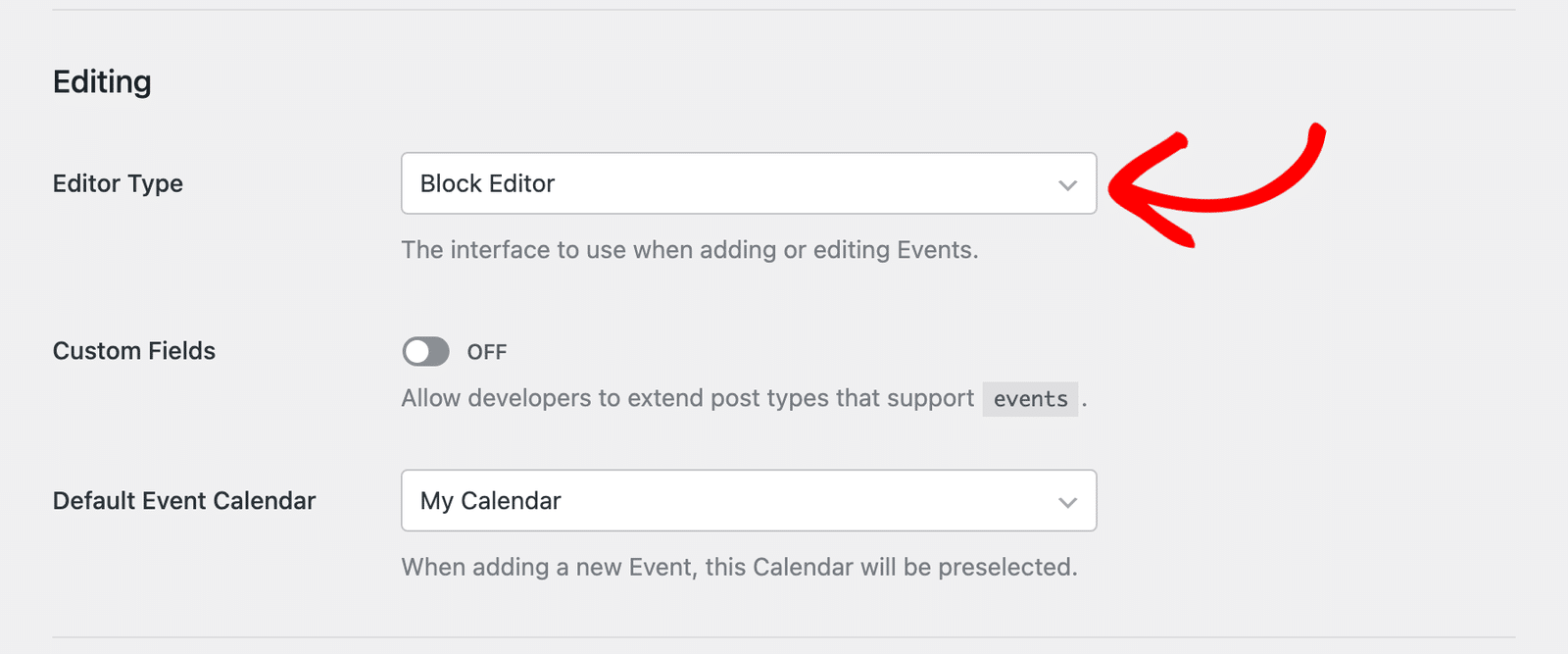
The Site Editor only lists event templates when Sugar Calendar Events uses the block editor for events. Go to Events » Settings » General and check that Editor Type is set to Block Editor. To learn more, see our guide to Sugar Calendar Events settings.
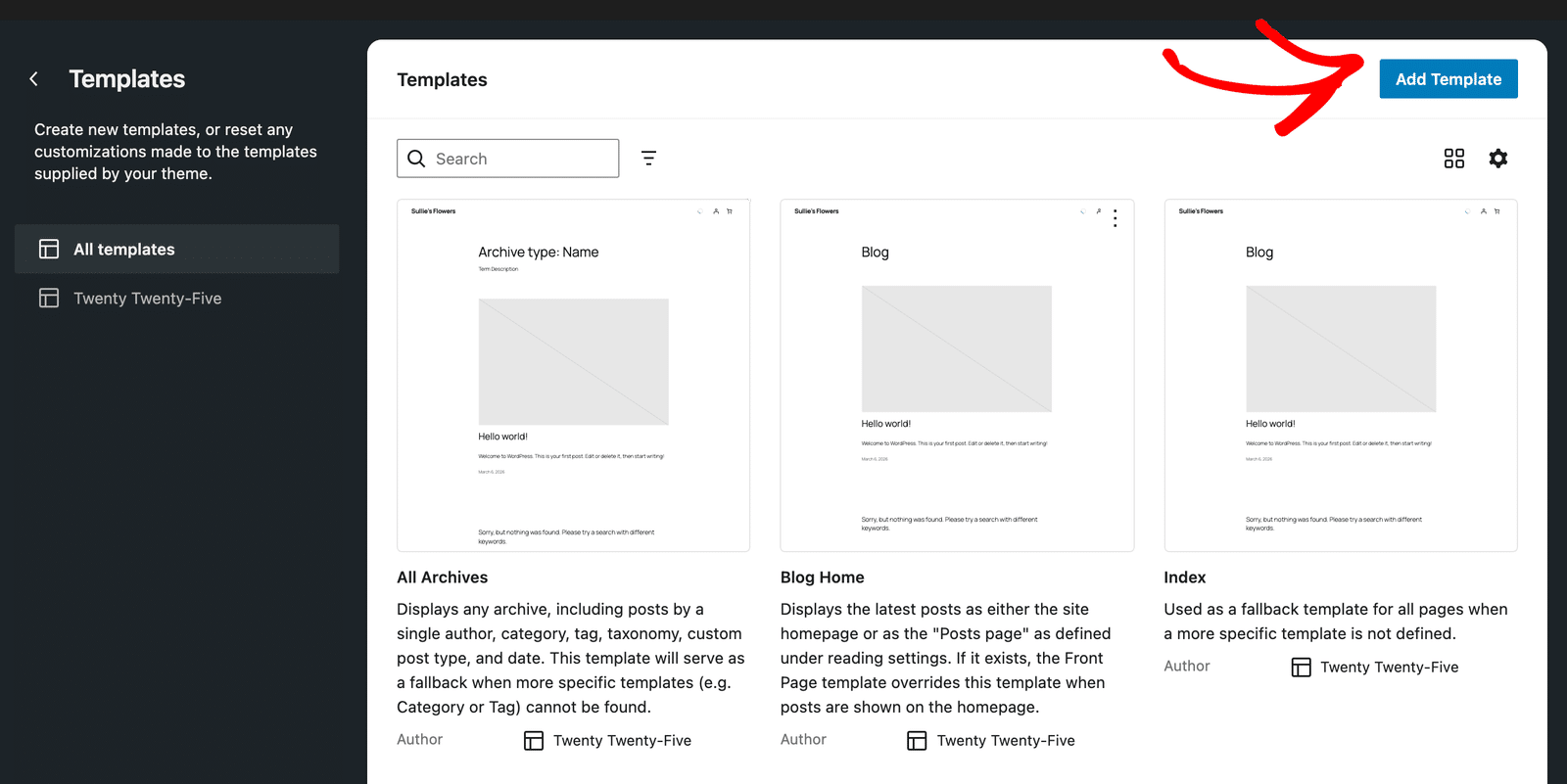
Next, go to Appearance » Editor » Templates and click Add Template.
Then, select Single item: Event.
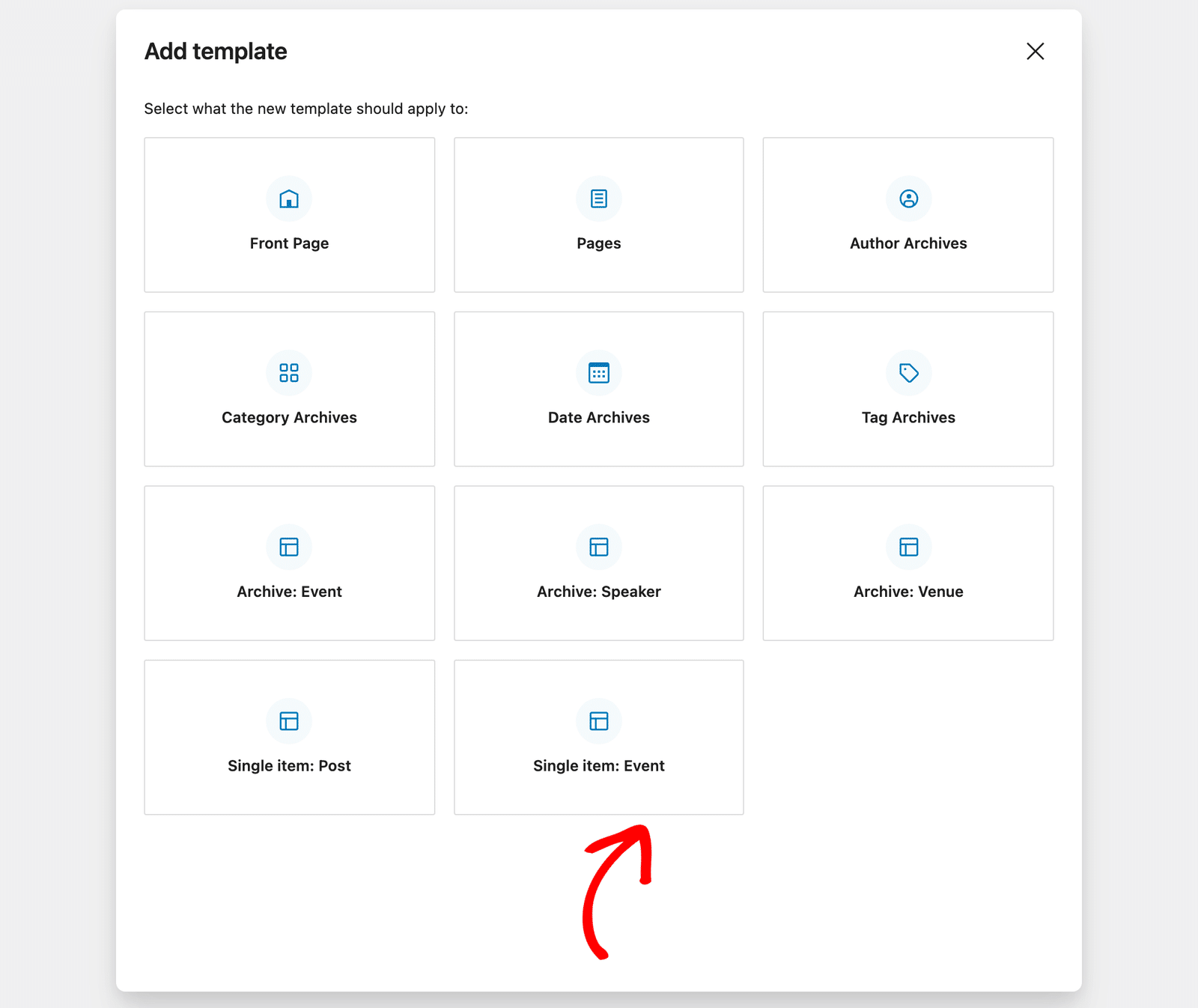
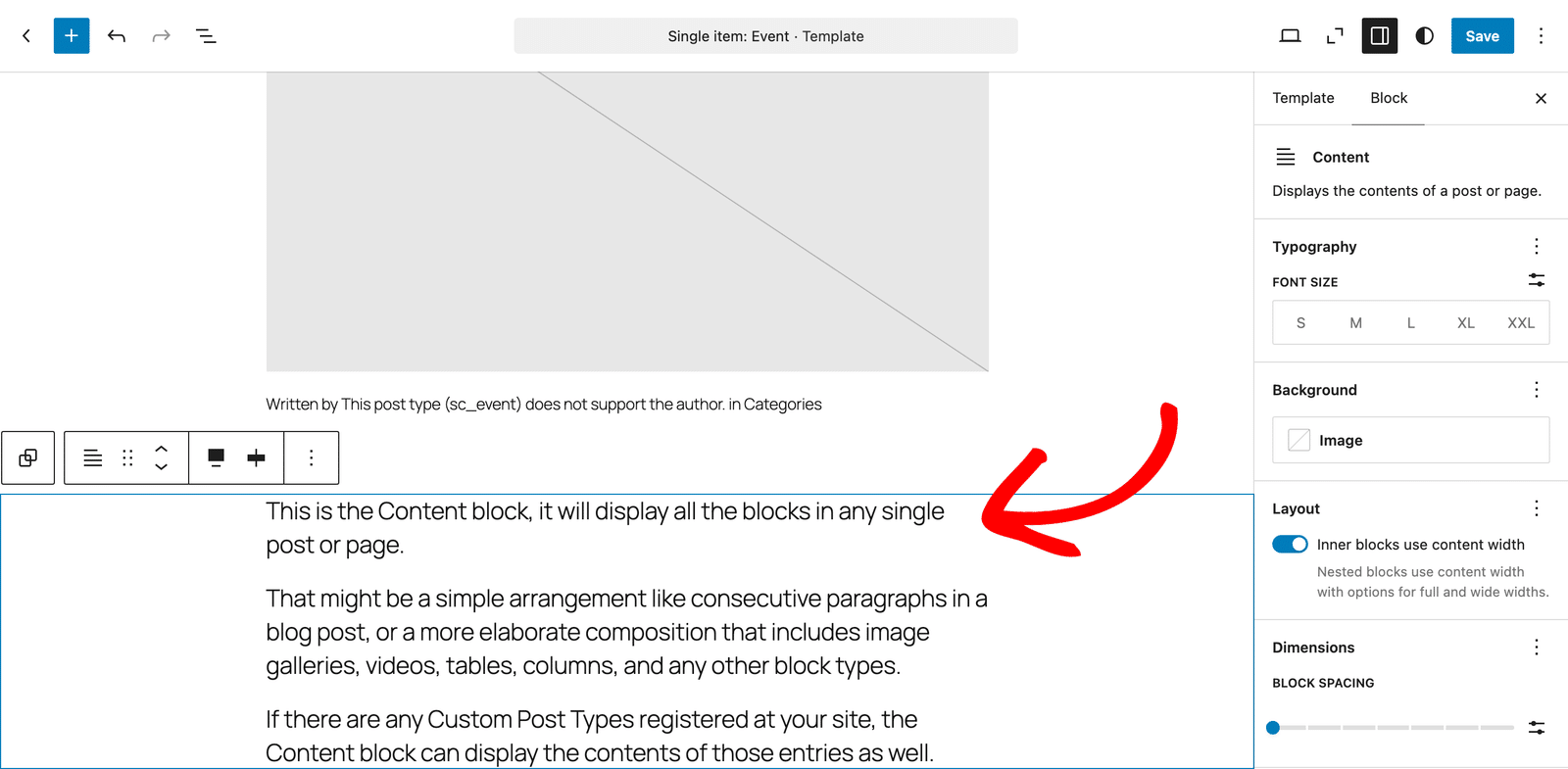
In the Choose a pattern window, select a starting layout or click Skip. Then, design the template as needed and click Save. Keep the Content block (also called Post Content) in the template. Sugar Calendar Events adds the event details through it, so removing it hides them from your event pages.
That’s it! You now know how to customize template files for the event archive, calendar archive, and single event pages in Sugar Calendar Events.
Next, would you like to learn how to add custom URLs to your events? Be sure to check out our tutorial on adding custom URLs to events to learn how.